
The Google Play Store is the primary gateway to millions of apps, games, books, music, and movies for Android users. While most Android smartphones come with the Play Store pre-installed, many devices—such as budget tablets, older models, or custom firmware setups—may lack access. This guide walks you through reliable methods to install and activate the Google Play Store on virtually any compatible Android-based device, even if it wasn’t originally certified by Google.
Understanding Device Compatibility
Before attempting installation, confirm that your device runs a version of Android that supports the Google Play Store. The app requires at least Android 5.0 (Lollipop), though newer versions are strongly recommended for security and compatibility. Devices running Fire OS (like Amazon tablets), custom ROMs such as LineageOS, or uncertified hardware often exclude Google Mobile Services (GMS), which includes the Play Store, Gmail, YouTube, and other core apps.
It’s important to note: Installing GMS on unsupported devices may violate terms of service in rare cases, but for personal use, this process is widely accepted within the Android community. Always back up your data before making system-level changes.
Step-by-Step Guide to Installing the Google Play Store
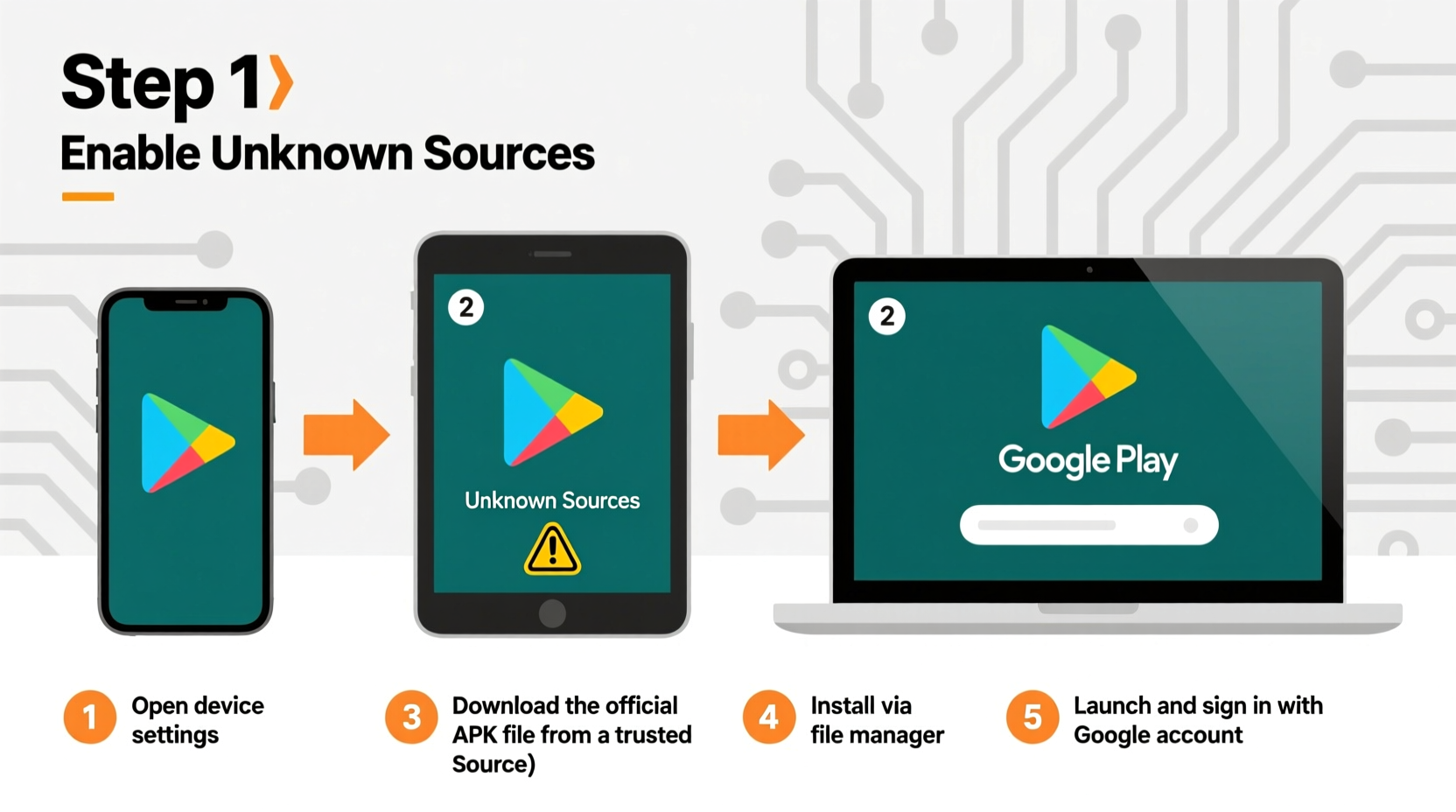
- Enable Unknown Sources: Go to Settings > Security (or Privacy) and toggle on “Install unknown apps” or “Unknown sources” for your browser or file manager.
- Download Required APKs: You’ll need three core components:
- Google Account Manager (AccountManager)
- Google Services Framework (GSF)
- Google Play Store
- Install in Order:
- Google Account Manager
- Google Services Framework
- Google Play Services (optional but highly recommended)
- Google Play Store
- Launch the Play Store: Open the app and sign in with your Google account. If prompted, agree to the terms and allow initial syncing.
- Update Components: Once logged in, let the Play Store auto-update itself and related services for optimal performance.
This method works on most Android-based systems, including many smart TVs, set-top boxes, and repurposed tablets.
Alternative Method: Using MicroG for Lightweight Access
For privacy-conscious users or those with low-end hardware, MicroG is an open-source alternative that mimics Google’s proprietary services without requiring full GMS installation. It allows selective functionality such as location services and push notifications while reducing background overhead.
To use MicroG:
- Install a custom ROM that supports MicroG, such as LineageOS for microG.
- Download the MicroG installer package and follow the prompts to integrate core services.
- Add the F-Droid repository and install the \"FakeStore\" app, which enables access to the Play Store interface.
Note: Some apps may detect MicroG and restrict functionality, particularly banking or streaming apps that rely heavily on Google SafetyNet checks.
“While not officially supported, sideloading GMS remains a viable option for extending the usability of legacy or niche Android devices.” — David Lin, Android Systems Engineer
Common Issues and Troubleshooting
Even when following correct procedures, users may encounter errors. Below is a summary of frequent problems and their solutions:
| Issue | Possible Cause | Solution |
|---|---|---|
| “Device not certified” error | Lack of Google certification or SafetyNet failure | Use Magisk + Play Integrity Fix module on rooted devices |
| App crashes on launch | Incompatible APK version or missing dependencies | Reinstall matching versions of GSF and Account Manager |
| Can't sign in to Google account | Outdated Google Play Services | Manually install latest Play Services APK from APKMirror |
| Apps won’t download or update | Insufficient storage or corrupted cache | Clear Play Store cache via Settings > Apps > Play Store > Storage |
Mini Case Study: Reviving an Old Tablet
Sarah had a three-year-old Android tablet she used for reading e-books. After a factory reset, she realized the manufacturer had removed Google services due to licensing expiration. Following the steps outlined above, she downloaded the correct APKs for her Android 8.1 device, installed them in sequence, and successfully restored full Play Store access. Within minutes, she reinstalled Kindle, Audible, and her favorite news apps—extending the tablet’s usefulness by years.
Checklist: Before You Begin Installation
- ✅ Confirm your device runs Android 5.0 or higher
- ✅ Verify internet connectivity (Wi-Fi or mobile data)
- ✅ Enable “Install unknown apps” permission
- ✅ Identify device architecture (ARM, ARM64, etc.)
- ✅ Download all required APKs from trusted sources
- ✅ Back up existing data to avoid loss during troubleshooting
- ✅ Charge device to at least 50% to prevent shutdowns mid-installation
Frequently Asked Questions
Can I install the Play Store on an Amazon Fire Tablet?
Yes. Amazon Fire tablets run a modified version of Android. With careful APK installation or third-party tools like “Downloader” app from the Amazon Appstore, you can manually add the Play Store. However, future software updates from Amazon may remove it again.
Is it safe to download APKs from third-party sites?
Only if you use reputable platforms like APKMirror or APKPure, which verify digital signatures and scan for malware. Avoid unknown websites offering “modded” versions of the Play Store, as they may contain spyware or trojans.
Why does the Play Store say “Authentication is required”?
This usually means no Google account is properly synced. Go to Settings > Accounts and manually add your Google account first. Then return to the Play Store and try signing in again.
Conclusion: Take Control of Your Android Experience
Gaining access to the Google Play Store unlocks the full potential of any Android-compatible device. Whether you're revitalizing old hardware, using a niche gadget, or exploring custom ROMs, the ability to install trusted apps transforms limited tools into powerful, personalized devices. By understanding the components involved and following best practices for installation and maintenance, you maintain control over your digital ecosystem without relying solely on manufacturer defaults.




 浙公网安备
33010002000092号
浙公网安备
33010002000092号 浙B2-20120091-4
Comments
No comments yet. Why don't you start the discussion?