
Time is one of the most valuable resources, especially in a digital workspace. Yet many users overlook a simple tool that can dramatically improve time awareness: a visible, customizable clock on their desktop. Unlike checking the taskbar or pulling out a phone, having a persistent clock display reduces distractions and supports better time tracking. Windows 10 doesn’t natively support placing a clock directly on the desktop, but with the right tools and techniques, you can achieve this seamlessly. This guide walks through practical methods to install, position, and personalize a desktop clock—turning your screen into a productivity powerhouse.
Why a Desktop Clock Improves Productivity
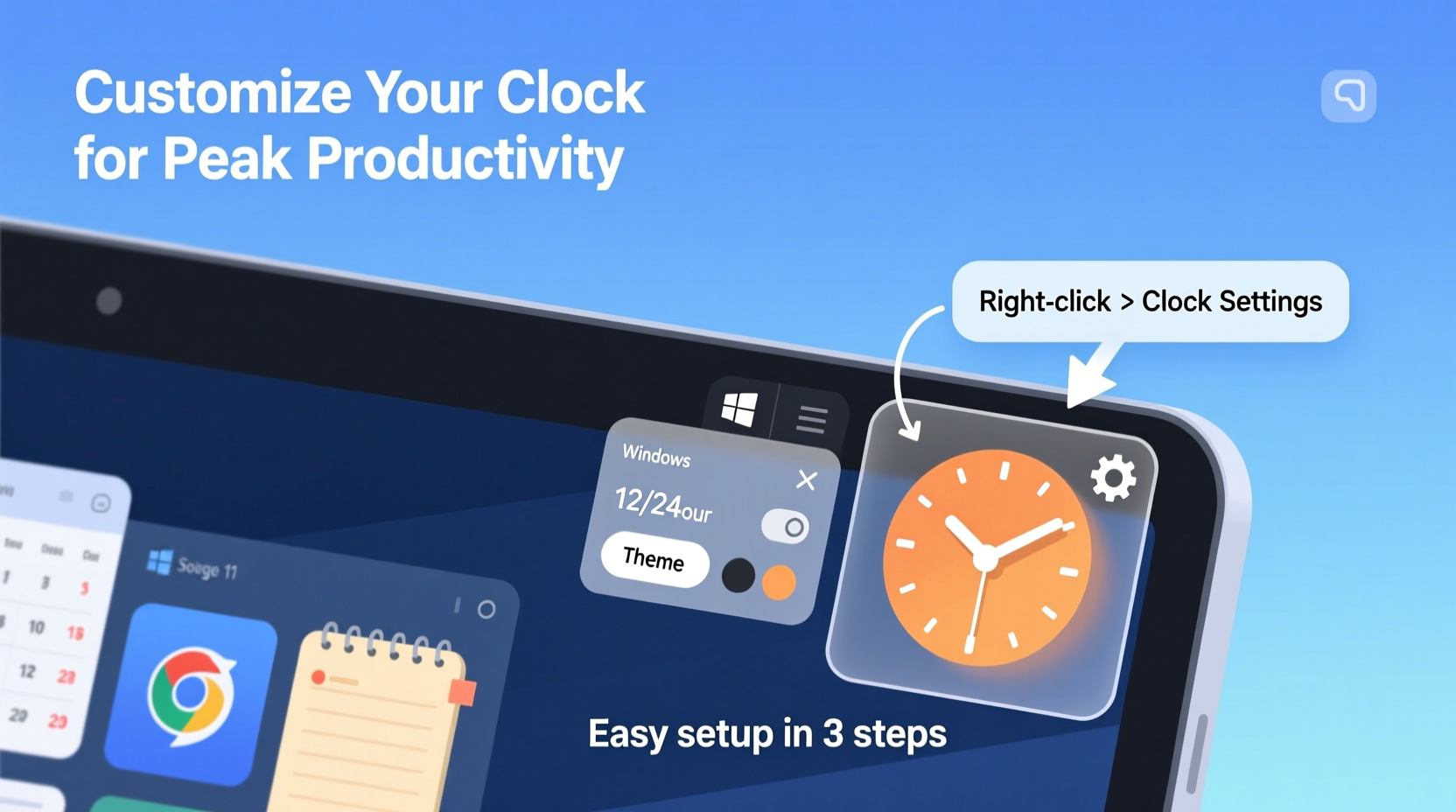
A constantly visible clock helps reinforce time consciousness without requiring active effort. When working remotely or managing tight deadlines, subtle cues about elapsed time can prevent overruns and encourage timely breaks. Studies show that visual time indicators reduce “time blindness”—a common issue where people lose track of hours during deep work or repetitive tasks.
For example, software developers using Pomodoro timers report higher focus when the countdown is always in view. Similarly, writers and designers benefit from knowing at a glance how long they’ve been on a task. A desktop clock eliminates the need to shift attention to another device or corner of the screen, minimizing cognitive load.
“Visual time feedback creates a passive accountability system. It’s not about pressure—it’s about awareness.” — Dr. Lena Torres, Cognitive Ergonomics Researcher
Step-by-Step Guide to Adding a Clock Using Rainmeter
Rainmeter is a lightweight, free application that allows extensive desktop customization, including clocks, system monitors, and widgets. It’s safe, open-source, and widely used across the Windows community.
- Download and Install Rainmeter
Visit rainmeter.net and download the latest version. Run the installer and accept default settings. - Launch Rainmeter
After installation, Rainmeter runs in the background. You’ll see its icon in the system tray (near the clock). - Browse or Download a Clock Skin
Navigate to websites like Digital Dreams, DeviantArt, or the official Rainmeter Forums to find clock skins. Look for minimalist designs if you want subtlety, or bold digital styles for high visibility. - Install the Skin
Most skins come as .rmskin files. Double-click the file, and Rainmeter will automatically import it. - Activate the Clock
Right-click the Rainmeter tray icon → “Manage” → go to the “Skins” tab. Expand the skin pack you installed, locate the clock component, and click “Load.” - Position the Clock
Click and drag the clock to your preferred desktop location. Right-click the clock itself to access move, resize, or edit options. - Customize Appearance
Select “Edit” from the context menu to open the skin’s configuration file in Notepad. Adjust colors, font size, transparency, or time format using simple syntax.
Alternative Methods: Third-Party Clock Apps
If Rainmeter feels too technical, several user-friendly alternatives offer plug-and-play desktop clocks.
- ClockLine: Minimalist floating clock that stays on top of other windows. Ideal for time-blocking workflows.
- Toggl Track Desktop App: Includes a built-in timer with optional desktop display. Best for users already tracking billable hours.
- FloatingClock: Lightweight utility with multiple themes and alarm functions. No installation required—just run the executable.
These apps typically allow resizing, color changes, and positioning freedom. Most are free for personal use, though premium versions may unlock additional fonts or synchronization features.
Customization Options for Maximum Utility
A well-designed clock does more than tell time—it adapts to your workflow. Consider these enhancements:
| Feature | Benefit | How to Enable |
|---|---|---|
| 24-Hour Format | Reduces ambiguity in professional scheduling | Edit skin config or app settings; change HH:mm to 24h |
| Second Hand Display | Useful for precise timing (e.g., meetings, exercises) | Toggle in Rainmeter skin settings or app preferences |
| Transparency Control | Keeps clock visible without obstructing content | Adjust alpha value (0–255) in configuration file |
| Multiple Time Zones | Essential for remote teams or global clients | Use skins like “WorldTime” or apps with TZ support |
| Always-on-Top Mode | Ensures visibility during full-screen applications | Enable via app settings or Rainmeter’s “Window” options |
Mini Case Study: Remote Team Coordinator
Sarah, a project manager based in Chicago, coordinates daily stand-ups with team members in Berlin and Bangalore. She used to miss calls due to miscalculating time differences. After installing a Rainmeter skin with three synchronized clocks (CST, CET, IST), she reduced scheduling errors by 90%. The clocks sit in her desktop’s upper-right corner, styled in soft blue with 30% opacity—visible but unobtrusive. “It’s like having a co-pilot for time,” she says. “I don’t even think about it anymore. I just look up and know.”
Checklist: Setting Up Your Productivity Clock
- ☐ Choose a reliable tool (Rainmeter recommended for flexibility)
- ☐ Download a clean, readable clock skin or app
- ☐ Install and test the clock on your desktop
- ☐ Position it in a non-intrusive yet visible area
- ☐ Customize format, color, and transparency to match your workspace
- ☐ Add secondary time zones if working across regions
- ☐ Set to launch at startup for consistent availability
Frequently Asked Questions
Will a desktop clock slow down my computer?
No. Tools like Rainmeter use minimal system resources—typically less than 10MB of RAM. Even with multiple skins, performance impact is negligible on modern machines.
Can I make the clock disappear when I’m not using it?
Yes. In Rainmeter, right-click the clock → “Mouse Actions” → enable “Fade on hover” or “Hide on focus loss.” Some apps also support auto-hide after inactivity.
Is it safe to download third-party skins?
Stick to trusted sources like rainmeter.net forums, DeviantArt verified creators, or GitHub repositories. Avoid .exe files bundled with skins—genuine Rainmeter skins use .rmskin or folder-based installations.
Optimizing for Long-Term Use
Once your clock is in place, integrate it into your daily rhythm. Pair it with time-based techniques like the Pomodoro method (25-minute focus blocks) or time blocking. For instance, configure a second smaller timer below your main clock to count elapsed work sessions. Over time, the constant visual cue conditions your brain to self-monitor duration naturally.
To ensure longevity, back up your preferred skin configurations. Save the entire skin folder (usually in C:\\Users\\[Name]\\Documents\\Rainmeter\\Skins) to cloud storage. That way, switching computers or reinstalling Windows won’t mean starting over.
“The best productivity tools don’t demand attention—they provide it gently, exactly when needed.” — Marcus Lin, UX Designer at FocusLabs
Conclusion
Adding a clock to your Windows 10 desktop isn’t just about convenience—it’s a strategic move toward mindful time usage. Whether you choose Rainmeter’s deep customization or a simple third-party app, the key is consistency and placement. A well-positioned, clearly styled clock acts as a silent productivity partner, helping you stay aligned with your schedule without disruption.




 浙公网安备
33010002000092号
浙公网安备
33010002000092号 浙B2-20120091-4
Comments
No comments yet. Why don't you start the discussion?