
Signing documents is a routine part of professional life—whether you're finalizing a contract, approving an internal memo, or agreeing to terms with a client. While Google Drive doesn't have a native e-signature feature built into Docs, Sheets, or Slides, there are several effective ways to incorporate signatures seamlessly. With the right tools and workflows, you can maintain professionalism, security, and efficiency when managing signed documents in the cloud.
This guide walks through practical methods to insert, manage, and track digital signatures in Google Drive files. You’ll learn about third-party integrations, best practices for document control, and how to ensure your signature process remains legally sound and easy to use across teams.
Understanding Digital Signatures vs. Electronic Signatures
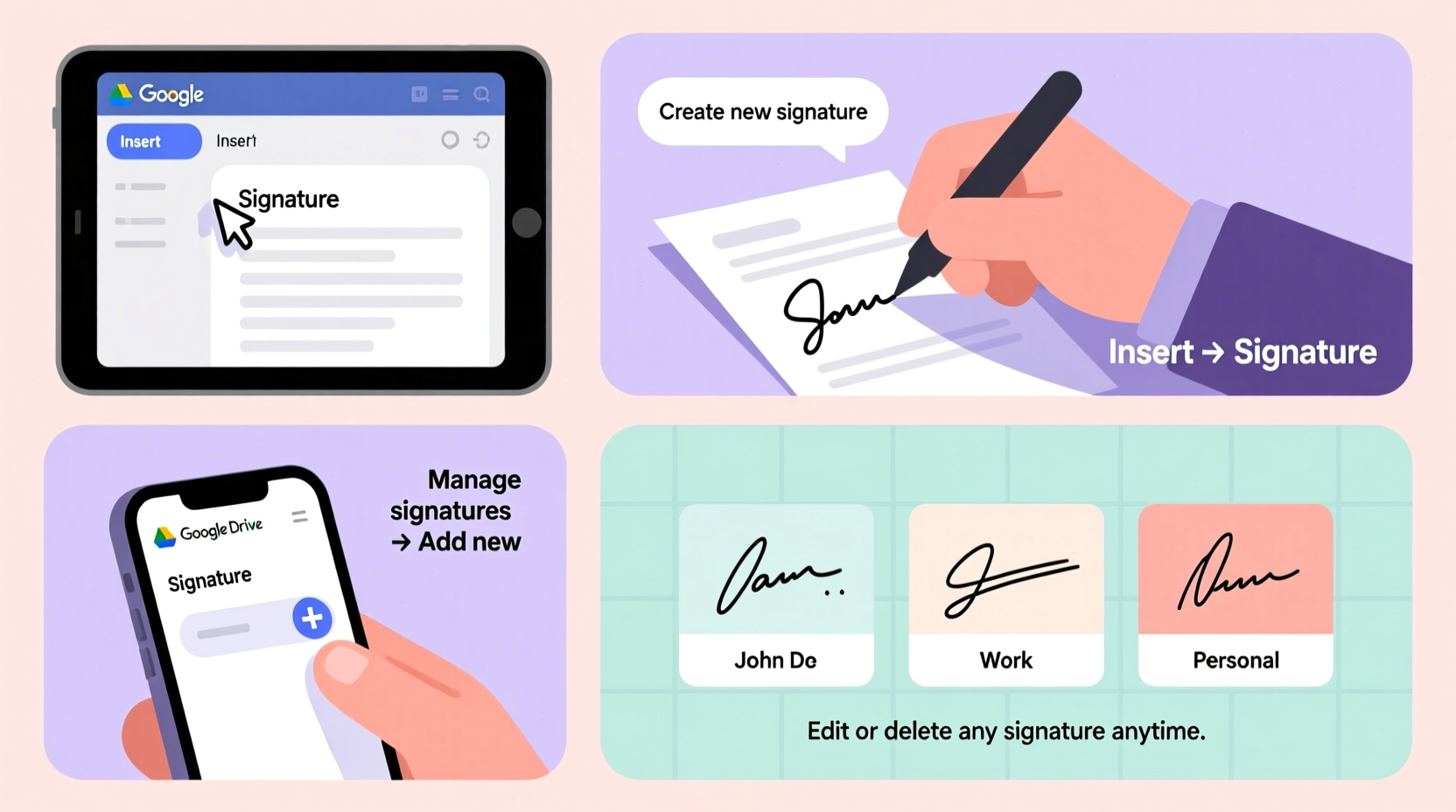
Before diving into implementation, it's important to distinguish between electronic signatures (e-signatures) and digital signatures. Though often used interchangeably, they serve different technical and legal purposes.
- Electronic Signature: A broad term referring to any electronic symbol, sound, or process attached to a record and executed by someone with the intent to sign. This includes typing your name, inserting an image of your handwritten signature, or clicking “I agree” on a form.
- Digital Signature: A type of e-signature that uses encryption standards (like PKI) to verify authenticity and integrity. It ensures the document hasn’t been altered after signing and confirms the signer’s identity through a certificate authority.
“Not all e-signatures are created equal. For legal enforceability, especially in contracts, opt for solutions that provide audit trails and identity verification.” — David Lin, Cybersecurity & Compliance Consultant
Google Drive supports electronic signatures via integrated platforms like DocuSign, Adobe Sign, and HelloSign, which offer digital signature capabilities compliant with regulations such as ESIGN (U.S.) and eIDAS (EU).
Step-by-Step: Adding a Signature Using Google Workspace Integrations
The most reliable way to add legally binding signatures to Google Drive documents is through trusted e-signature services integrated directly into Google Workspace. Here’s how to do it using DocuSign, one of the most widely adopted platforms:
- Install DocuSign for Google Workspace
Go to the Google Workspace Marketplace, search for \"DocuSign,\" and install the add-on. Grant necessary permissions so it can access your Google Drive files. - Open Your Document in Google Docs
Navigate to the file you want to send for signing. Click Extensions > DocuSign > Add-on Sidebar. - Prepare the Envelope
In the sidebar, click “New” to create a new signing request. Upload your document if not already loaded. - Add Recipients
Enter the email addresses of all parties who need to sign. Assign signing order if required (e.g., manager first, then client). - Place Signature Fields
Drag and drop signature, date, text, or initial fields onto the document where needed. You can also assign specific fields to each recipient. - Send for Signature
Review the details and click “Send.” Each recipient receives an email with a secure link to sign the document. - Track and Store
Once signed, the completed document is automatically saved back to your Google Drive folder and includes a full audit trail.
Alternative Methods: Manual Signature Insertion
If you don’t require legal-grade signing but simply need to show approval or acknowledgment, manual methods work well for informal use cases like team approvals or personal notes.
Option 1: Image-Based Signature
Create a scanned or drawn version of your signature and upload it to Google Drive.
- Scan your handwritten signature on paper or draw it using a touchscreen device.
- Save it as a PNG file with transparent background for clean integration.
- In Google Docs, go to Insert > Image > Upload from computer, then place it where needed.
- Resize appropriately and align with text lines.
Option 2: Typed Signature Line
Use a formatted line to simulate a signature space:
- Type “Signature: ________________________” followed by “Name: [Your Full Name]” and “Date: __________”.
- Highlight the blank line and adjust underline thickness via font settings if desired.
- To make it reusable, save this block as a paragraph style or snippet in your template gallery.
Option 3: Drawing Tool in Docs
For quick, one-time use:
- In Google Docs, select Insert > Drawing > + New.
- Use the scribble tool to draw your signature freehand with a mouse or stylus.
- Click “Save and Close” to embed it in the document.
Best Practices for Managing Signed Documents in Google Drive
Once signatures are added, proper management ensures clarity, compliance, and accessibility. Follow these guidelines to keep your workflow organized:
| Practice | Description |
|---|---|
| Naming Convention | Use consistent file names like “Contract_ClientName_Signed_2024-04-05.pdf” to enable fast searching. |
| Folder Structure | Create dedicated folders (e.g., “Signed Contracts,” “HR Agreements”) and apply color labels for visual sorting. |
| Version Control | Never edit a signed document. If changes are needed, create a new version labeled “Revised” or “Amended.” |
| Access Permissions | Restrict editing rights to authorized personnel only. Use “View” or “Comment” mode for others. |
| Retention Policy | Set up automated retention rules via Google Vault for regulated documents (e.g., employment forms, NDAs). |
Checklist: Preparing a Document for Signing
- Confirm all content is finalized and error-free
- Verify recipient email addresses and signing order
- Place all required fields (signature, date, initials) clearly
- Include a short message explaining next steps
- Choose the appropriate tool (integrated e-signature vs. manual)
- Test the flow by sending a draft to yourself first
Real Example: Streamlining HR Onboarding at TechFlow Inc.
TechFlow Inc., a mid-sized software company, previously relied on printing, signing, scanning, and emailing onboarding documents—a process that took up to three days. After integrating Adobe Sign with Google Workspace, HR streamlined the entire workflow.
New hires now receive a single link via email containing their offer letter, tax forms, and NDA—all hosted securely in Google Drive. They sign each document electronically from any device, and once complete, Adobe Sign automatically saves the finalized versions into a structured Drive folder labeled by employee name and hire date.
The result? Onboarding time dropped from 72 hours to under 4 hours, with zero lost paperwork and full audit compliance. Managers report higher satisfaction due to real-time status tracking and automatic reminders for pending signatures.
Frequently Asked Questions
Are e-signatures legally valid with Google Drive documents?
Yes, when using compliant third-party services like DocuSign or Adobe Sign, e-signatures carry the same legal weight as handwritten ones under U.S. federal law (ESIGN Act) and international frameworks like eIDAS. However, purely image-based signatures may not hold up in court without additional proof of intent and identity.
Can multiple people sign the same Google Doc?
Directly within Google Docs, no—but by exporting the document or using an e-signature add-on, you can collect multiple signatures in sequence or simultaneously. Services like HelloSign allow setting routing orders so each person signs in turn.
How do I revoke or cancel a sent signing request?
If the document hasn’t been signed yet, most platforms let you void the envelope from your dashboard. Once signed, you cannot revoke the agreement, but you can issue an updated version with corrections and note the change history.
Final Thoughts and Next Steps
Adding and managing signatures in Google Drive documents doesn’t have to be complicated. By leveraging trusted integrations and establishing clear internal procedures, you can turn what was once a bottleneck into a smooth, secure, and scalable process.
Whether you're handling client contracts, internal approvals, or vendor agreements, taking the time to set up a proper e-signature workflow pays off in reduced turnaround times, improved accuracy, and better compliance. Start small—try integrating one e-signature tool with your most frequently signed document—and build from there.




 浙公网安备
33010002000092号
浙公网安备
33010002000092号 浙B2-20120091-4
Comments
No comments yet. Why don't you start the discussion?