
Sharing documents online is a daily necessity—whether it's a resume, product brochure, or event agenda. One of the most effective ways to share a PDF is through a clickable link. It’s clean, professional, and user-friendly. Yet many people still attach files unnecessarily or use confusing workarounds. The truth is, creating a clickable link to a PDF doesn’t require coding expertise or expensive tools. With the right approach, anyone can do it quickly and securely for websites or emails.
This guide walks you through practical methods, common pitfalls, and expert-backed strategies to ensure your PDF links work flawlessly across devices and platforms.
Why Clickable PDF Links Matter
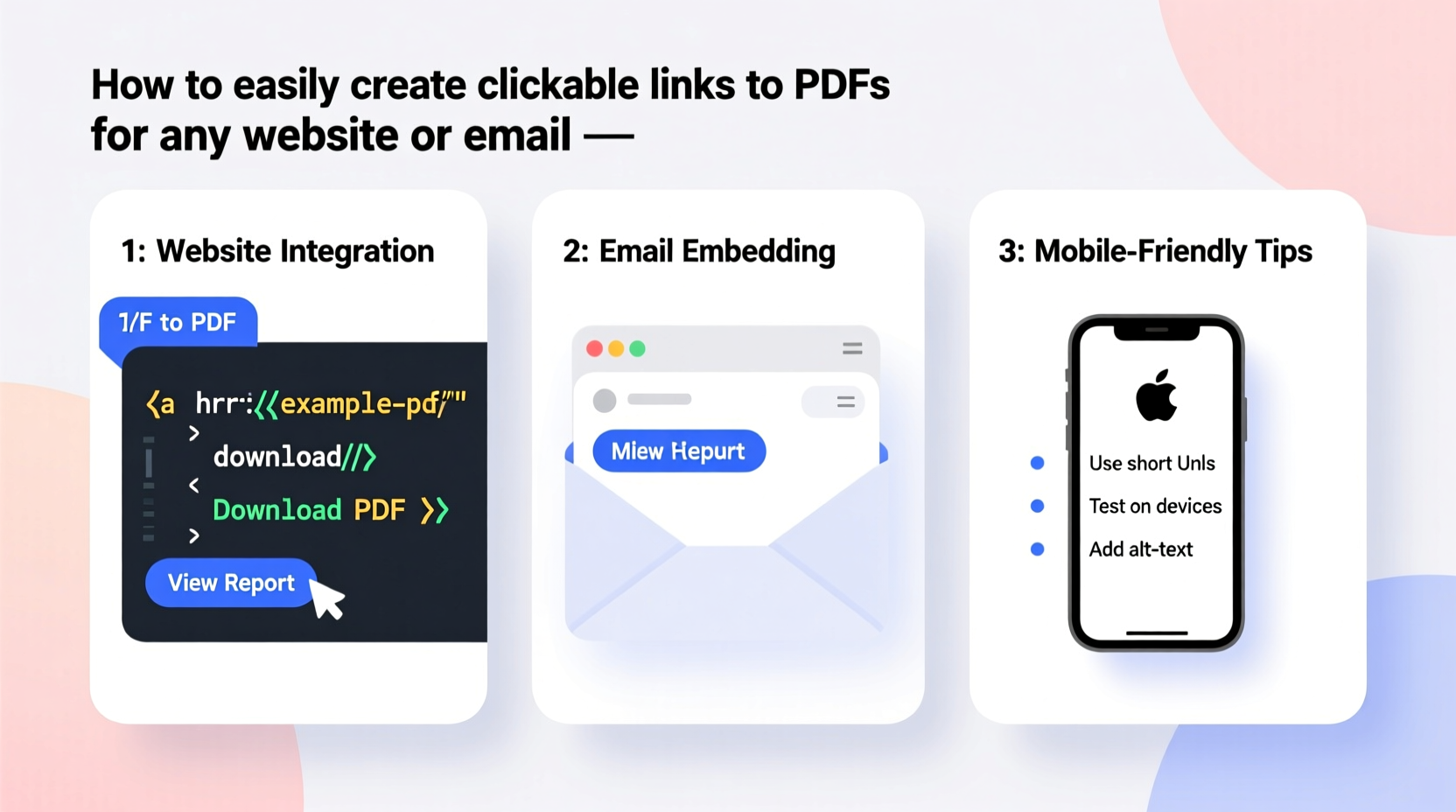
A clickable link transforms a static document into an accessible resource. Instead of downloading an attachment, users can preview, save, or print directly from their browser. For businesses, educators, and freelancers, this improves engagement, reduces email clutter, and enhances professionalism.
Consider this: when someone receives a job application via email with a neatly labeled “View My Resume” link, it creates a stronger impression than an attached file named “document_3_final_v2.pdf.” Clean, intentional linking reflects attention to detail.
“A well-placed link does more than deliver content—it builds trust by making information instantly accessible.” — Lisa Tran, Digital Communication Strategist
Step-by-Step: How to Create a Clickable PDF Link
Creating a clickable link involves two core steps: hosting the PDF file and embedding a hyperlink that points to it. Below is a clear, universal process that works whether you're building a website or sending an email.
- Upload your PDF to a reliable host – This could be Google Drive, Dropbox, your own website server, or a dedicated file-sharing service.
- Generate a shareable URL – Once uploaded, obtain a direct, public link to the file.
- Create the hyperlink – Use HTML (for websites) or rich text formatting (for emails) to turn text or a button into a clickable element.
- Test the link – Always verify functionality on multiple devices and browsers.
For Website Integration
If you’re adding a PDF link to a blog post, portfolio, or landing page, use standard HTML syntax:
<a href=\"https://yoursite.com/files/brochure.pdf\" target=\"_blank\">Download Our Product Brochure</a>
- The
hrefattribute contains the full URL of the hosted PDF. target=\"_blank\"opens the link in a new tab, preserving your site’s navigation.- Always use descriptive anchor text instead of “Click here.”
rel=\"noopener noreferrer\" when using
target=\"_blank\" for improved security and performance.
For Email Campaigns or Personal Messages
Email clients like Gmail, Outlook, and Apple Mail support hyperlinks in both plain text and HTML formats. In most cases, simply pasting a full URL (e.g., https://example.com/report.pdf) will auto-convert it into a clickable link.
To manually create one in rich-text editors:
- Highlight the text you want to link (e.g., “View Annual Report”).
- Click the link icon in the toolbar.
- Paste the direct PDF URL.
- Send a test message to confirm appearance and function.
Best Hosting Options for PDF Files
Where you host your PDF determines accessibility, speed, and long-term reliability. Not all cloud storage services generate true direct links by default. Here’s a comparison of popular options:
| Service | Direct Link Support? | Password Protection? | Custom Domain? | Best For |
|---|---|---|---|---|
| Google Drive | Yes (with sharing settings) | Yes | No | Free personal use, collaboration |
| Dropbox | Yes (via “Copy link”) | Limited (Pro features) | No | Quick sharing, team access |
| Your Own Website (Self-hosted) | Yes | Yes (via CMS or .htaccess) | Yes | Branding, SEO, control |
| OneDrive | Yes (public sharing enabled) | Yes | No | Microsoft ecosystem users |
| PDFHostingSite.com or Similar | Yes | Rarely | No | Anonymous uploads, temporary needs |
For professional purposes, self-hosting on your domain is ideal. It keeps branding consistent, avoids third-party ads, and supports SEO. If using cloud services, always adjust sharing permissions to “Anyone with the link” and disable edit access unless required.
Common Mistakes That Break PDF Links
Even experienced users make errors that render links useless. Avoid these frequent issues:
- Using preview URLs instead of direct links – Services like Google Drive often provide view-only URLs that require login. Always ensure the link ends in
.pdfor includesdl=1(Dropbox) orexport=downloadparameters. - Leaving files unorganized – A disorganized folder structure increases the risk of broken links if files are moved.
- Ignoring mobile compatibility – Some older PDF viewers struggle with large or poorly compressed files. Optimize file size before uploading.
- Not testing across platforms – A link working on desktop may fail on iOS due to app-specific restrictions.
Mini Case Study: Streamlining Client Onboarding
Jamie runs a small consulting firm and used to email contracts as attachments. Clients often missed updates, and version control was chaotic. After switching to clickable PDF links hosted on her company website, she embedded them directly into her welcome email sequence.
Each client now clicks “Review & Sign Your Agreement” to open the latest contract version in their browser. She tracks link visits using UTM parameters and noticed a 40% increase in timely responses. Plus, she eliminated attachment size limits and reduced email bounce rates.
The change took less than an hour to implement but significantly improved professionalism and efficiency.
Checklist: Launch-Ready PDF Link Setup
Before publishing or sending, run through this checklist to ensure success:
- ✅ PDF is finalized, compressed, and virus-scanned
- ✅ File is uploaded to a stable, public-facing host
- ✅ Direct download link is confirmed (ends in .pdf or uses proper parameters)
- ✅ Sharing permissions allow public access without login
- ✅ Anchor text is descriptive and action-oriented
- ✅ Link opens in new tab (websites) or renders clearly (emails)
- ✅ Tested on desktop, mobile, and major email clients
- ✅ Optional: Added tracking (e.g., Bitly, Google Analytics) for insights
Frequently Asked Questions
Can I password-protect a linked PDF?
Yes. You can encrypt the PDF itself with a password using tools like Adobe Acrobat or free online services. Note that the link will still work, but users must enter the password after opening. Avoid relying solely on link obscurity for sensitive data.
Why does my Google Drive link ask people to request access?
This happens when sharing settings are set to “Restricted.” To fix it, open the file in Drive, click “Share,” then change access to “Anyone with the link.” Ensure the link includes uc?export=download at the end for direct downloads.
Will embedding a PDF link hurt my website’s SEO?
No. In fact, properly linked downloadable resources can boost SEO by increasing time-on-site and providing value. Just make sure the surrounding content explains the document’s relevance and includes keywords naturally.
Final Thoughts and Next Steps
Creating a clickable link to a PDF is a simple skill with outsized impact. It streamlines communication, enhances credibility, and removes friction for your audience. Whether you're sharing a menu, proposal, or newsletter, a well-placed link speaks volumes about your attention to user experience.
The methods outlined here work immediately—no technical background required. Start by uploading one document today using a trusted host, generate the link, and test it yourself. Then replace your next email attachment with a clean, clickable alternative.




 浙公网安备
33010002000092号
浙公网安备
33010002000092号 浙B2-20120091-4
Comments
No comments yet. Why don't you start the discussion?