
Keeping track of time efficiently can significantly improve productivity, especially when working long hours at a computer. While the default system clock in the taskbar is functional, it's often too small or lacks features that help you stay focused. A customizable desktop clock offers a larger, more visually engaging way to monitor time, with options for alarms, timers, time zones, and aesthetic personalization. Whether you're a remote worker, student, or creative professional, adding a desktop clock widget can transform your workspace into a more organized and motivating environment.
Why Use a Desktop Clock Widget?
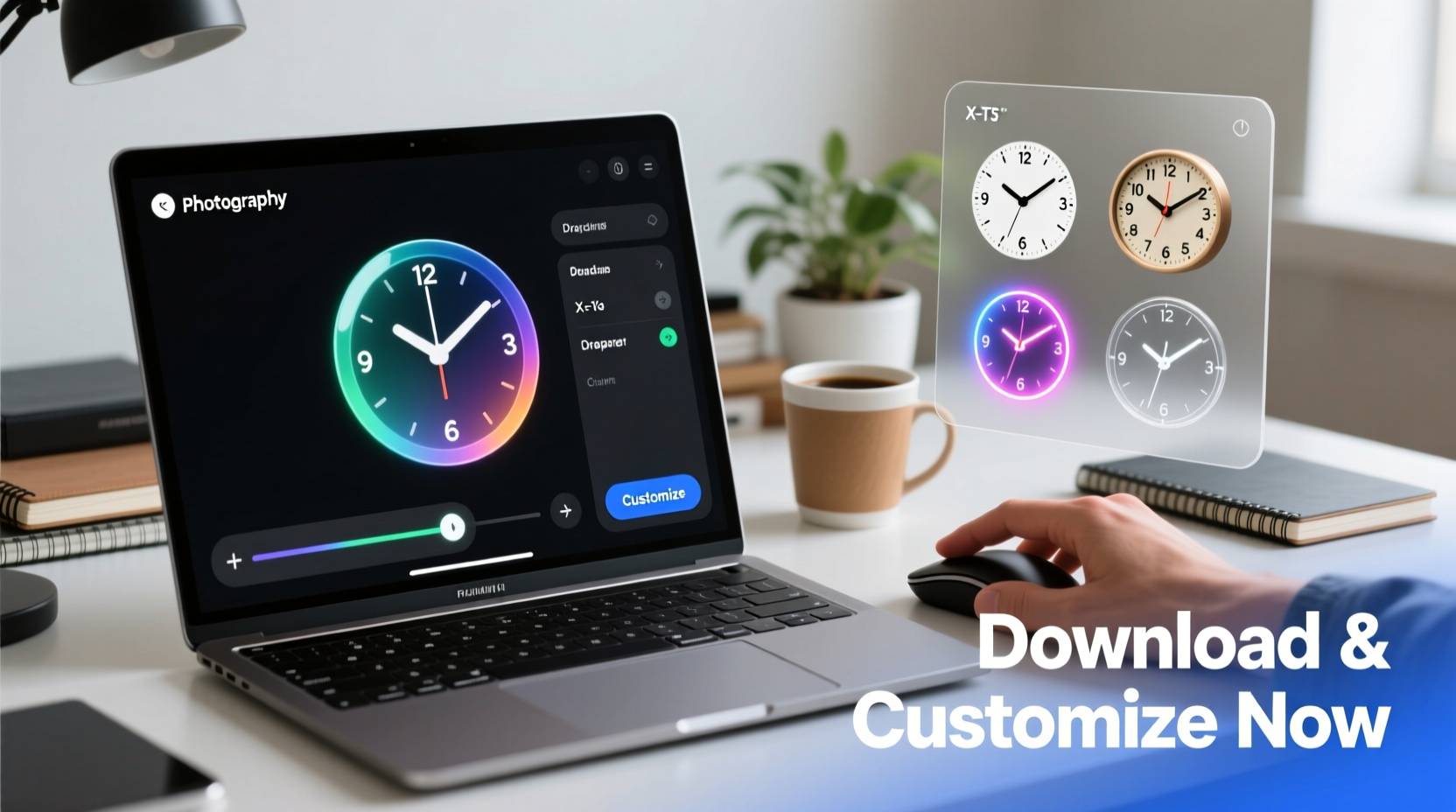
A desktop clock goes beyond simply displaying the time. It can include countdowns, world clocks, weather overlays, and even motivational quotes. These enhancements support time management, reduce distractions from checking phones, and make your desktop feel uniquely yours. Unlike mobile apps or browser extensions, desktop clocks run directly on your screen—often transparent or semi-transparent—so they’re always visible without interrupting your workflow.
Modern operating systems like Windows and macOS don’t natively support advanced desktop widgets without third-party tools, but numerous lightweight applications fill this gap. Many are free, safe, and easy to install, requiring no technical expertise.
Step-by-Step Guide to Downloading a Desktop Clock
- Determine Your Operating System: Most desktop clocks are designed specifically for Windows or macOS. Confirm whether you’re using Windows 10/11 or macOS Ventura/Sonoma before downloading.
- Search for Trusted Applications: Use reputable software platforms like Softpedia, MajorGeeks, or the Microsoft Store (for Windows) and Mac App Store (for macOS). Avoid unknown websites that may bundle malware.
- Select a Recommended Tool: Popular choices include:
- TClock – Lightweight and highly customizable for Windows.
- Fancy Widgets – Brings iOS-style widgets to Windows 11.
- Clocker – Open-source, modern design with transparency options.
- TimeLeft – Offers countdowns, sticky notes, and alarms alongside the clock.
- DesktopCal – Combines calendar and clock in one floating window.
- Download and Install: Click the official download link, run the installer, and follow the prompts. On macOS, drag the application into the Applications folder.
- Launch the Application: Open the program from your Start menu or Applications folder. The clock should appear on your desktop immediately.
- Allow Permissions if Prompted: Some apps require permission to run at startup or access system time. Grant these only if downloaded from a verified source.
Customizing Your Desktop Clock for Maximum Utility
Once installed, most desktop clocks offer extensive customization. These settings allow you to tailor appearance, functionality, and behavior to match your needs.
Appearance Options
- Font Style & Size: Increase readability with bold, large fonts. Try digital, analog, or minimalist typefaces.
- Colors: Match your desktop theme by adjusting text, background, and accent colors.
- Transparency: Set partial transparency so the clock blends into your wallpaper without obstructing icons.
- Positioning: Place the clock in a corner (e.g., top-right) where it’s visible but not intrusive.
Functional Features
- Multiple Time Zones: Useful for remote teams or international communication.
- Alarm & Timer: Set reminders for breaks, meetings, or focused work sessions.
- Date & Day Display: Show full dates, day of the week, or even lunar phases.
- Weather Integration: Some apps pull local weather data to display temperature alongside time.
Comparison of Top Desktop Clock Applications
| App Name | OS Compatibility | Key Features | Price | Resource Usage |
|---|---|---|---|---|
| TClock | Windows | Taskbar enhancement, custom fonts, date formatting | Free | Low |
| Clocker | Windows | Transparent overlay, minimalist design, open-source | Free | Low |
| TimeLeft | Windows | Countdowns, alarms, sticky notes, multi-clock display | Free (Pro version $19.95) | Medium |
| Fancy Widgets | Windows 11 | iOS-style widgets, weather, calendar, news | Free with premium upgrades | Medium |
| DesktopCal | Windows | Calendar + clock integration, event reminders | Free (Pro available) | Medium |
“Visual time cues reduce cognitive load and help users maintain rhythm throughout the day.” — Dr. Alan Reyes, Human-Computer Interaction Researcher
Real-World Example: Boosting Focus with a Custom Clock
Samantha, a freelance graphic designer based in Denver, struggled with time blindness while working remotely. She often lost track of hours spent on client projects, leading to burnout and missed deadlines. After installing Clocker on her Windows 11 laptop, she customized a large, semi-transparent digital clock in the top-right corner of her screen. She enabled a Pomodoro timer feature that alerted her every 25 minutes to take a short break. Within two weeks, her productivity improved by nearly 40%, and she reported feeling more in control of her schedule. The visual presence of time made abstract minutes tangible and actionable.
Checklist: Setting Up Your Desktop Clock Successfully
- ✅ Verify your operating system (Windows or macOS)
- ✅ Choose a trusted source to download the clock app
- ✅ Install the application and launch it
- ✅ Adjust clock size, color, and transparency
- ✅ Position the clock in a non-intrusive area
- ✅ Enable useful features (alarms, time zones, calendar)
- ✅ Set the app to start automatically with your computer
- ✅ Test alarm or timer functions to ensure reliability
Frequently Asked Questions
Can desktop clocks slow down my computer?
Most well-designed desktop clocks use minimal CPU and memory. Lightweight tools like TClock or Clocker have negligible impact. However, apps with animations, live weather, or multiple widgets may consume more resources. Check Task Manager (Windows) or Activity Monitor (macOS) after launching the app to verify performance.
Are desktop clock apps safe to install?
Yes, if downloaded from official sources like the Microsoft Store, Mac App Store, or verified developer websites. Avoid pirated versions or .exe files from untrusted forums, as they may contain malware. Always scan downloads with antivirus software.
Can I remove the desktop clock anytime?
Absolutely. Like any standard application, you can uninstall it via Settings > Apps (Windows) or by dragging it to the Trash (macOS). Any changes to your desktop are reversible, and no permanent system modifications are typically made.
Final Thoughts and Next Steps
A desktop clock is more than a decorative addition—it’s a functional tool that enhances awareness, discipline, and personalization. With just a few minutes of setup, you can create a time-tracking solution tailored to your lifestyle and work habits. The key is choosing a reliable app, configuring it thoughtfully, and integrating it into your daily routine.




 浙公网安备
33010002000092号
浙公网安备
33010002000092号 浙B2-20120091-4
Comments
No comments yet. Why don't you start the discussion?