
Finding and sharing your Instagram profile link is a simple task once you know where to look, but many users—especially new ones—struggle to locate it. Whether you're promoting your personal brand, connecting with friends, or adding your handle to a bio on another platform, having quick access to your public Instagram URL is essential. The process differs slightly between iOS and Android, but both are straightforward when broken down into clear steps. This guide walks you through everything you need to know about retrieving and distributing your Instagram link directly from your smartphone.
Understanding Your Instagram Profile Link
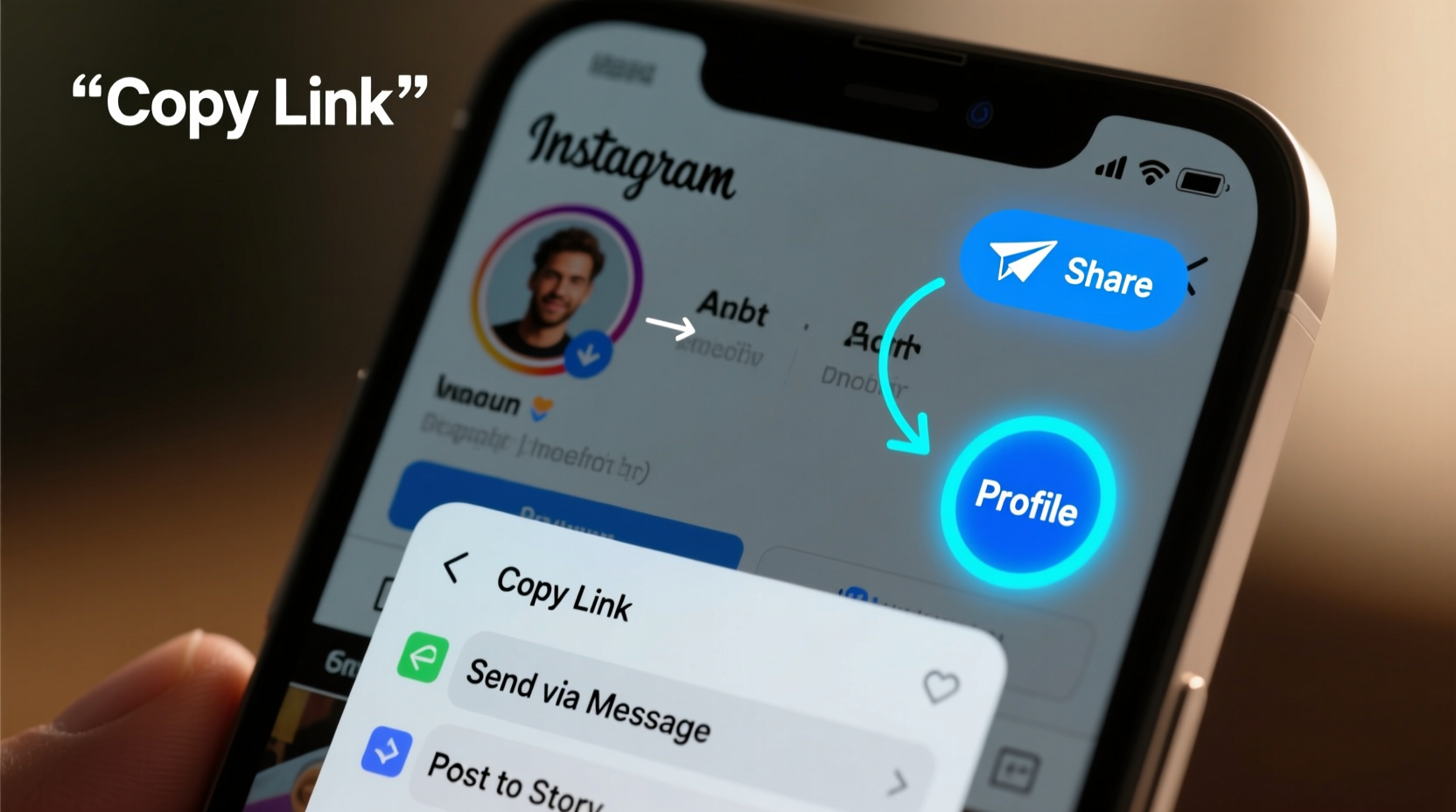
Your Instagram profile link is a unique web address that directs others to your public profile. It typically follows this format: https://www.instagram.com/yourusername. This link works across devices and platforms, allowing anyone with internet access to view your profile—provided your account is public. If your account is private, only approved followers can see your content after logging in, but the link still functions as an entry point.
Unlike usernames, which can be mentioned within Instagram using the @ symbol, your profile link is necessary when sharing outside the app—on websites, email signatures, business cards, or social bios. Knowing how to retrieve it quickly ensures you never miss an opportunity to connect.
“Your Instagram link is your digital handshake—it’s often the first impression people get of your online presence.” — Maya Tran, Social Media Strategist
Step-by-Step Guide to Finding Your Instagram Link (iOS and Android)
Whether you use an iPhone or an Android device, the method for accessing your profile link is nearly identical. Follow these steps to locate it in under a minute:
- Open the Instagram app on your phone.
- Tap the profile icon in the bottom-right corner to go to your profile.
- Look at the top of your profile page—you’ll see your username just below your bio.
- Tap the three horizontal dots (•••) or the “More” option (varies by device).
- Select “Copy Profile URL” or “Share Profile.”
If your app doesn’t have a direct “Copy Profile URL” option, tap “Share Profile” and choose “Copy Link” from the sharing menu. Once copied, the link is saved to your clipboard and can be pasted anywhere: messages, emails, notes, or social bios.
Alternative Methods to Share Your Instagram Profile
Sometimes, copying the raw URL isn’t the most convenient way to share. Instagram offers built-in sharing tools that make distribution easier, especially when sending to contacts or cross-posting on other apps.
- Direct Message (DM): From your profile, tap “Share Profile,” then select a contact or group in Messenger or SMS.
- Social Media: Use the share sheet to post your profile link to WhatsApp, Twitter, Facebook, or Snapchat.
- Email or Notes: Paste the copied link into an email draft or note-taking app for future use.
- QR Code (Instagram Code): Tap the badge icon in the top-right of your profile to open your unique QR code. Others can scan it to follow you instantly.
The QR code feature is particularly useful at networking events, meetups, or physical locations like cafes or studios where you want people to follow you without typing anything.
Common Issues and How to Fix Them
While the process is generally smooth, some users encounter minor hiccups. Here are common problems and their solutions:
| Issue | Possible Cause | Solution |
|---|---|---|
| No “Copy Profile URL” option visible | Outdated app version | Update Instagram via App Store or Google Play |
| Link doesn’t open in browser | Typos or extra spaces during paste | Delete and re-paste carefully; avoid line breaks |
| Profile appears private despite public setting | Account settings misconfigured | Go to Settings > Privacy > Account Privacy and ensure it’s set to Public |
| Can’t share via certain apps | Third-party app permissions | Check phone settings for app access to sharing features |
Mini Case Study: Promoting a Small Business Online
Jessica runs a handmade jewelry business and recently started using Instagram to showcase her pieces. She attended a local craft fair and wanted attendees to follow her for updates. Instead of writing her username on paper, she opened her Instagram app, pulled up her QR code, and displayed it on her phone throughout the event. Over 50 people scanned her code, and her follower count increased by 70% in one weekend. By knowing how to access and share her profile efficiently, Jessica turned a single interaction into lasting engagement.
Best Practices for Sharing Your Instagram Link
To maximize visibility and professionalism, consider these do’s and don’ts when sharing your profile link:
| Do’s | Don’ts |
|---|---|
| Use a consistent username across platforms | Change your username frequently |
| Include your link in email signatures and website bios | Share unverified shortened URLs that look suspicious |
| Test the link before publishing | Assume everyone knows how to search for your profile manually |
| Use Instagram’s native QR code for offline sharing | Rely solely on @mentions when external linking is needed |
“Brands that make their social links easily accessible see up to 3x more profile visits.” — Digital Growth Report, 2023
FAQ
Can someone follow me if I send them my Instagram link?
Yes, as long as your account is set to public. If your account is private, they will need to send a follow request, which you must approve before they can see your posts.
Does my Instagram link change if I change my username?
Yes. Your profile link is based on your current username. If you change it, the old link will redirect to the new one for a short period, but eventually, it may become available for others to claim. Always update your links elsewhere after a username change.
Is there a way to shorten my Instagram link?
You can use third-party link shorteners like Bitly or TinyURL, but it's best to use the full instagram.com/username format for trust and clarity. Shortened links can appear spammy or unprofessional.
Checklist: Sharing Your Instagram Profile Like a Pro
- ✅ Open the Instagram app and navigate to your profile
- ✅ Tap the three dots (•••) or “More” button
- ✅ Select “Copy Profile URL” or “Share Profile”
- ✅ Paste the link into your desired destination
- ✅ Test the link in a browser to confirm it works
- ✅ Update any outdated links if you’ve changed your username
- ✅ Use your QR code for in-person sharing
Conclusion
Sharing your Instagram profile link from your phone doesn’t require technical skills—just a few taps in the right order. Whether you’re building a personal brand, growing a business, or simply staying connected, having instant access to your profile URL streamlines communication and boosts discoverability. Now that you know exactly how to find and distribute your link across platforms, take a moment to copy it and save it in your notes. Then, start sharing it strategically wherever your audience spends time.




 浙公网安备
33010002000092号
浙公网安备
33010002000092号 浙B2-20120091-4
Comments
No comments yet. Why don't you start the discussion?