
Signing out of your Google account on an iPhone is more important than many users realize. Whether you're switching devices, sharing your phone temporarily, or simply prioritizing privacy, knowing how to properly log out ensures your personal data stays secure. Unlike desktop browsers where closing a tab might feel sufficient, mobile apps often maintain persistent login sessions. This guide walks you through every method available—whether you're using the Gmail app, Google Chrome, or managing account access across multiple services—all tailored specifically for iOS.
Why Logging Out Matters on iPhone
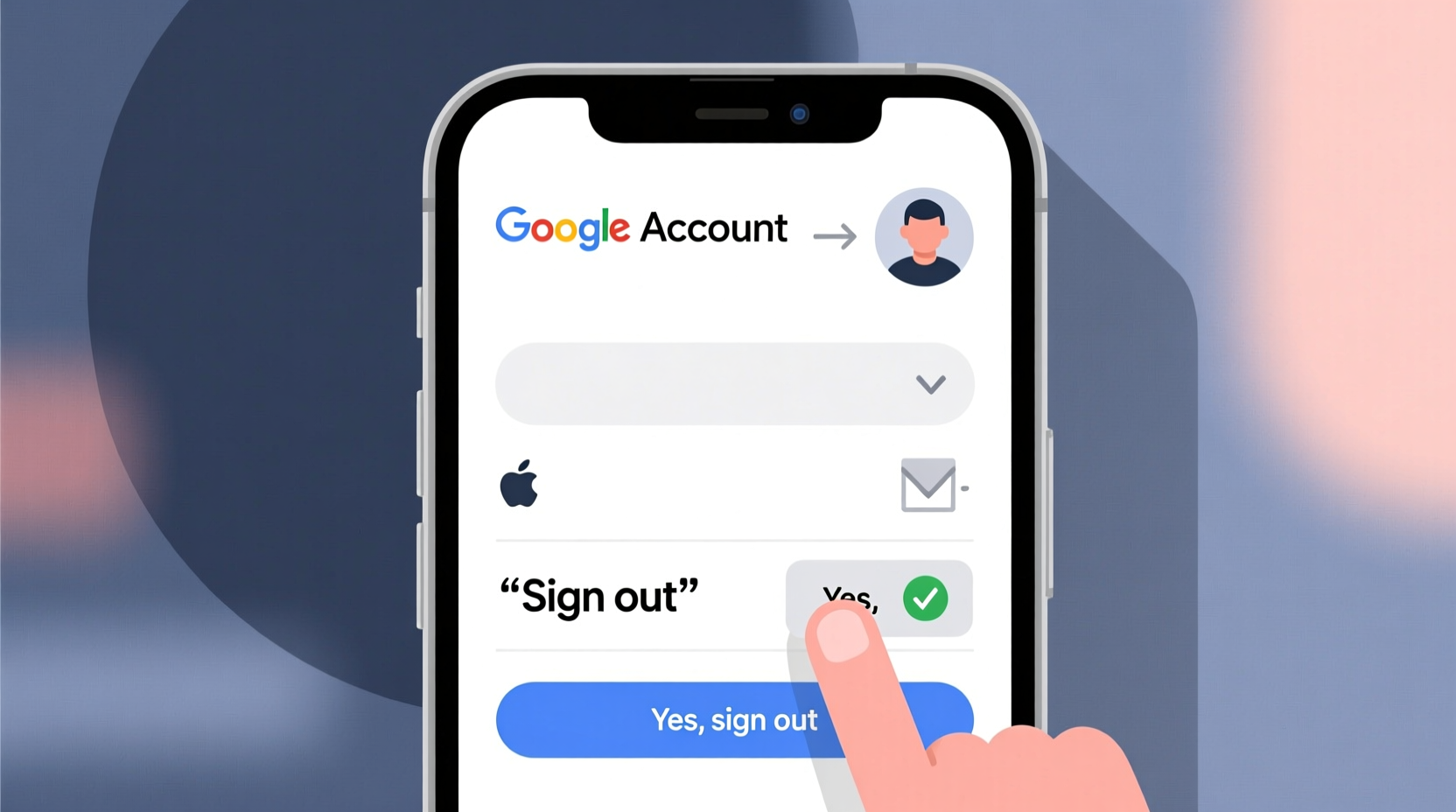
iPhones are deeply integrated with cloud-based services, and while convenience is a priority, it can come at the cost of security. Google apps like Gmail, YouTube, Drive, and Chrome store authentication tokens that keep you logged in even after closing the app. These tokens allow seamless access but also pose risks if your device falls into the wrong hands—or if you're using someone else’s phone.
Logging out removes those active sessions and revokes app-specific access. It's especially crucial when:
- You’re selling or repairing your iPhone
- You’ve used a public or shared device
- You suspect unauthorized access
- You want to switch between personal and work accounts
“Many users assume deleting an app logs them out, but authentication data can persist in system caches. A manual sign-out is the only guaranteed way to terminate a session.” — David Lin, Mobile Security Analyst at CyberShield Labs
Step-by-Step: How to Log Out via the Gmail App
The Gmail app is the most common entry point for Google account management on iPhone. Here’s how to sign out directly from within the app:
- Open the Gmail app on your iPhone.
- Tap your profile picture or email address in the top-right corner.
- In the pop-up menu, tap Manage accounts.
- Select the Google account you wish to log out from.
- Tap the three-dot menu (•••) in the top-right corner.
- Choose Remove account.
- Confirm by tapping Remove when prompted.
This action removes the account from the Gmail app entirely, effectively logging you out. Note that this does not delete your Google account—it only disconnects it from the app on your device.
Signing Out Through Google Chrome
If you primarily use Google services through the Chrome browser, signing out there is equally important. Chrome stores cookies and login states that could expose your search history, saved passwords, and synced data.
Steps to Log Out in Chrome:
- Launch the Google Chrome app.
- Tap your profile icon in the top-right corner (it will show your initial or profile picture).
- Tap Sign out at the bottom of the screen.
- Confirm by tapping Sign out again in the alert dialog.
After signing out, Chrome will no longer sync your bookmarks, passwords, or browsing history. Your local browsing data remains unless manually cleared.
Clear Browsing Data (Recommended After Logout):
- Navigate to Chrome Settings → Privacy and Security → Clear Browsing Data
- Select time range: “All Time”
- Check all boxes: Browsing history, Cookies, Cached images and files, etc.
- Tap “Clear Browsing Data”
Managing Google Account Access via Settings
Even after removing an account from individual apps, your iPhone may still have system-level access to your Google account through third-party app integrations. To fully sever connections, review and manage account access in the iPhone’s main Settings app.
How to Remove Google Account from iPhone System Settings:
- Open the Settings app on your iPhone.
- Scroll down and tap Mail (or Passwords & Accounts on older iOS versions).
- Tap Accounts.
- Select your Google account.
- Scroll down and tap Delete Account.
- Confirm deletion.
This removes the account from Mail, Contacts, and Calendar sync settings. While this doesn’t affect your Google account itself, it stops background syncing and reduces potential exposure.
| Action | What It Does | Reversible? |
|---|---|---|
| Remove account from Gmail app | Logs you out of Gmail; stops push notifications | Yes – re-add via sign-in |
| Sign out in Chrome | Ends browser session; stops sync | Yes – sign back in anytime |
| Delete from iPhone Settings | Removes system-level access and sync permissions | Yes – requires full re-setup |
Real-World Scenario: Securing Your Account Before Device Repair
Sophia needed her iPhone screen replaced and decided to visit an independent repair shop. Before handing over her phone, she remembered reading about technicians potentially accessing user data. She took the following steps:
- Opened Gmail and removed her Google account
- Exited Chrome and signed out completely
- Went to Settings > Mail > Accounts and deleted the Google account from system sync
- Cleared browsing data in Chrome as an extra precaution
After getting her phone back, she re-added her account without issue. By logging out properly, Sophia ensured her emails, documents, and browsing history weren’t exposed during the repair process—a small effort that provided significant peace of mind.
Tips for Managing Multiple Google Accounts
Many users juggle personal, work, and secondary accounts. While iOS allows multiple Google accounts to coexist, it’s wise to log out of any you’re not actively using.
- You can switch between accounts in Gmail without logging out—just tap your profile icon and select another.
- Consider using Chrome profiles to isolate browsing sessions by purpose (e.g., work vs. personal).
- Periodically audit which devices are signed into your Google account by visiting Google’s Device Activity page from any browser.
Frequently Asked Questions
Does removing a Google account from my iPhone delete it permanently?
No. Removing the account from your iPhone only disconnects it from the device. Your Google account, including Gmail, Drive, and photos, remains intact and can be accessed from any other device by signing in again.
Can someone still track me after I log out?
Once you’ve signed out and removed the account from apps and system settings, real-time tracking via Google services stops. However, location history or activity data collected before logout remains in your Google Timeline unless manually deleted.
I forgot to log out—what should I do now?
If you’ve left your account logged in on a device you no longer control, go to Google Security Checkup, scroll to “Your devices,” and click “Manage devices.” From there, select the device and choose “Sign out” to remotely end the session.
Final Checklist: Ensure Complete Logout
📋 Logout Completion Checklist- ✅ Removed Google account from Gmail app
- ✅ Signed out of Google Chrome
- ✅ Cleared browsing data in Chrome
- ✅ Deleted Google account from iPhone Settings > Mail > Accounts
- ✅ Verified logout by checking Google’s Device Activity page
Take Control of Your Digital Privacy Today
Logging out of your Google account on iPhone isn’t just a technical task—it’s a fundamental act of digital self-care. In a world where our phones hold access to our finances, communications, and memories, taking a few minutes to manage account access is a powerful form of protection. Whether you're switching accounts, securing your device, or simply practicing better online hygiene, these steps ensure your information stays under your control.




 浙公网安备
33010002000092号
浙公网安备
33010002000092号 浙B2-20120091-4
Comments
No comments yet. Why don't you start the discussion?