
The Logitech M720 Triathlon is a powerful wireless mouse engineered for professionals who juggle work across laptops, desktops, and tablets. With support for up to three devices simultaneously, it eliminates the need to carry multiple mice or constantly reconnect peripherals. But unlocking its full potential requires understanding how to pair and switch between devices efficiently. Whether you're working from home, in the office, or on the go, mastering multi-device pairing can significantly boost your workflow.
This guide walks through the entire process—from initial setup to advanced tips—ensuring you get the most out of your M720 without unnecessary frustration. No more fumbling with dongles or Bluetooth menus. Just smooth, reliable transitions between your favorite devices.
Understanding the M720’s Multi-Device Capabilities
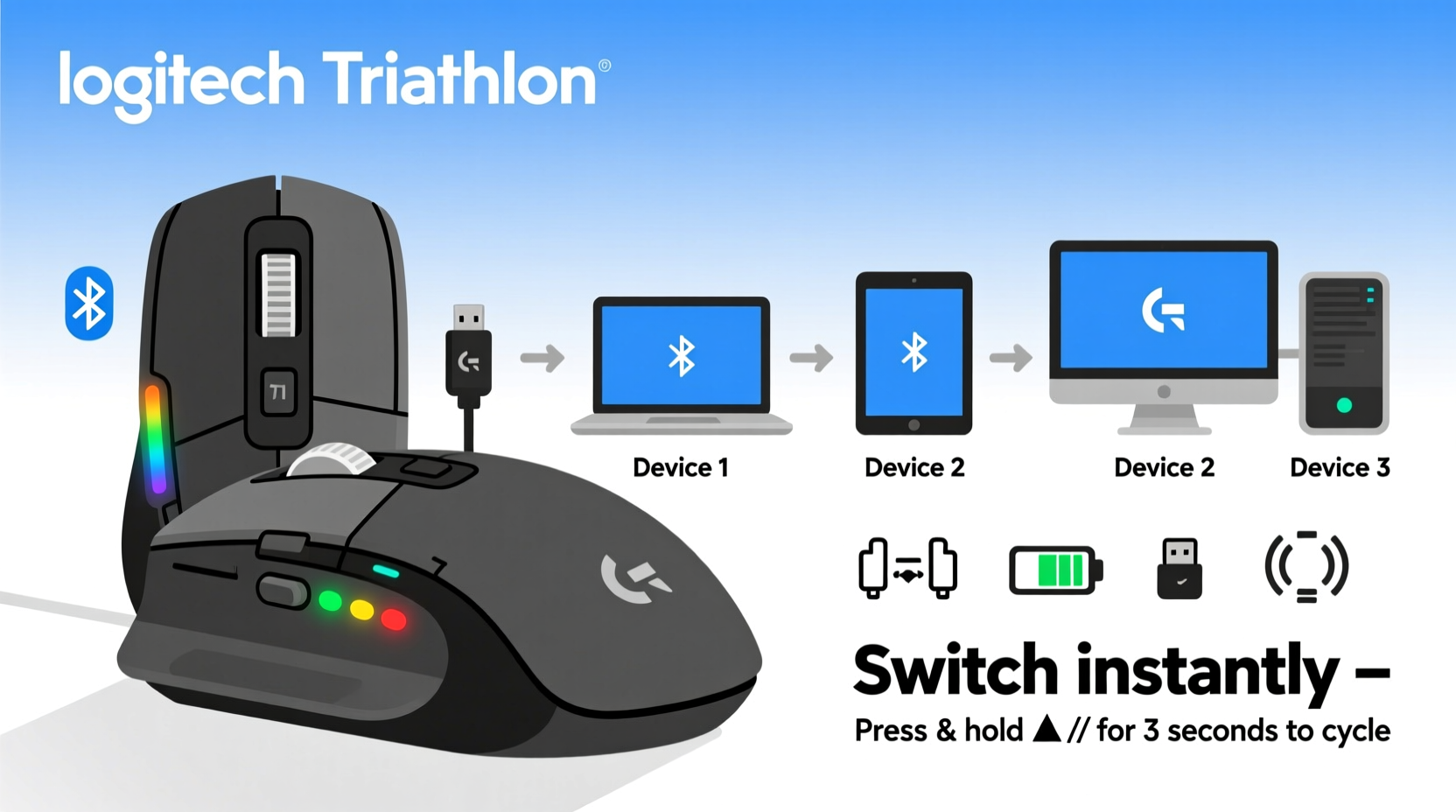
The Logitech M720 uses both Bluetooth and Logitech's proprietary 2.4 GHz Unifying receiver technology, giving you flexibility in how you connect. It supports three separate device profiles: one via Bluetooth and two via the Unifying receiver (or all three via Bluetooth, depending on your configuration). This means you can have your Windows laptop, Mac desktop, and iPad all connected at once, switching between them at the press of a button.
Each connection channel corresponds to one of the three numbered buttons on the side of the mouse. Pressing Button 1 activates Device 1, Button 2 switches to Device 2, and so on. The tactile feedback and clear labeling make transitions intuitive once properly configured.
“Multi-device mice like the M720 reduce context-switching fatigue by eliminating peripheral re-pairing—a small change that adds up over time.” — David Lin, Ergonomic Productivity Consultant
Step-by-Step Guide to Pairing Your M720 Across Devices
Follow this structured sequence to ensure each device connects reliably and remains stable during daily use.
Step 1: Prepare Your Devices
Before pairing, ensure all target devices meet these prerequisites:
- Bluetooth is enabled (if using Bluetooth mode)
- USB port available (for Unifying receiver)
- Operating system is updated (especially important for macOS and Linux compatibility)
- Batteries are fresh in the mouse (uses one AA battery)
Step 2: Connect via Unifying Receiver (Recommended for Primary Devices)
- Plug the Logitech Unifying receiver into a USB port on your first device (e.g., work laptop).
- Press and hold the top-left button (Channel 1) on the mouse until the LED begins blinking blue.
- Download and install Logi Options+, Logitech’s official software, which enhances functionality and allows renaming of devices.
- Launch Logi Options+ and follow the on-screen prompts to complete pairing.
The software will detect the mouse and assign it to Channel 1. You can now rename the profile (e.g., “Work Laptop”) for clarity later.
Step 3: Pair a Second Device Using the Same Receiver (Optional)
If your second device has a free USB port and supports the Unifying protocol:
- Plug the same receiver into the second device.
- On the mouse, press and hold the middle button (Channel 2) until the LED blinks.
- Install Logi Options+ on this device as well.
- Complete the pairing through the app.
Note: The Unifying receiver can manage multiple compatible Logitech devices, but only one mouse per channel. Avoid overcrowding the receiver with too many peripherals.
Step 4: Pair a Third Device via Bluetooth
- Turn on Bluetooth on your third device (e.g., iPad or secondary laptop).
- On the M720, press and hold the bottom button (Channel 3) until the LED flashes rapidly (about 5 seconds).
- On your device, go to Bluetooth settings and search for new devices.
- Select “Logitech M720” when it appears.
- Confirm pairing if prompted.
Once paired, pressing Button 3 on the mouse instantly switches control to that device. No additional software is required for basic operation, though advanced customization may be limited without Logi Options+.
Tips for Maintaining Stable Connections
Even after successful pairing, users sometimes experience lag or dropouts. These best practices help maintain consistent performance:
- Minimize interference: Keep the receiver away from large metal objects, Wi-Fi routers, and microwave ovens.
- Update firmware: Use Logi Options+ to check for firmware updates that improve stability and battery life.
- Re-pair when switching locations: If you move between offices or networks, re-initiate pairing to refresh the connection.
- Limit active Bluetooth devices: Too many simultaneous Bluetooth connections can congest the 2.4 GHz band.
Do’s and Don’ts of Multi-Device Mouse Management
| Do’s | Don’ts |
|---|---|
| Label each channel clearly in Logi Options+ | Assume Bluetooth works the same across all operating systems |
| Use the physical buttons to switch devices mid-task | Leave unused devices connected indefinitely without testing |
| Carry the Unifying receiver in a dedicated slot or case | Plug the receiver into a powered USB hub behind a monitor |
| Test all three connections before relying on them | Ignore low-battery warnings—they affect responsiveness |
Real-World Example: A Freelancer’s Setup
Sophie, a freelance graphic designer, uses her M720 daily across three machines: a Windows PC for rendering, a MacBook Pro for design work, and an Android tablet for client presentations. She pairs the PC and Mac using the Unifying receiver (Channels 1 and 2), reserving Bluetooth for the tablet (Channel 3).
During client calls, she seamlessly shifts from sketching on her tablet to pulling up project files on her Mac—all without lifting her hand from the mouse. When rendering large files, she keeps the PC running in the background and switches back to her Mac for email or scheduling. Her workflow feels fluid because she invested time upfront to test each connection and label them clearly in Logi Options+.
She also keeps a small USB extension cable to position the Unifying receiver closer to her desk surface, reducing interference from her metal monitor stand—an adjustment that eliminated earlier cursor stuttering.
Frequently Asked Questions
Can I use the M720 with more than three devices?
No, the hardware limits pairing to three active device profiles. However, you can swap one of the existing pairings with a fourth device when needed. For frequent switching among more than three systems, consider keeping a list of saved pairings and rotating as necessary.
Why won’t my M720 connect via Bluetooth on Linux?
Some Linux distributions require additional tools like bluetoothctl or specific kernel modules to recognize Logitech’s Bluetooth HID protocol. Ensure bluez is installed and run sudo hciconfig hci0 piscan to enable discoverability. Check community forums for distribution-specific fixes.
Does Logi Options+ need to run all the time?
For basic mouse functions—clicking, scrolling, and device switching—no. But to retain custom button assignments, renamed devices, and firmware alerts, keep the application running in the background. It starts automatically on login once configured.
Conclusion: Unlock Seamless Workflow Today
The Logitech M720 isn’t just a mouse—it’s a productivity multiplier when used to its full potential. By pairing it correctly across your key devices, you eliminate friction in multitasking environments and gain valuable seconds (and sanity) every day. The setup takes less than 15 minutes, but the benefits compound over weeks and months of smoother navigation.




 浙公网安备
33010002000092号
浙公网安备
33010002000092号 浙B2-20120091-4
Comments
No comments yet. Why don't you start the discussion?