
Modern televisions are more than just screens for streaming shows—they’re full-fledged entertainment hubs with built-in internet capabilities. While most users rely on apps like YouTube or Netflix, having access to a full web browser on your TV opens up new possibilities: checking email, reading news, searching for recipes while cooking, or even troubleshooting smart home devices from the couch. The challenge? Not all TV platforms make browsing straightforward. This guide walks you through setting up and using a web browser across various TV devices, whether it’s a smart TV, streaming stick, or game console.
Why Use a Browser on Your TV?
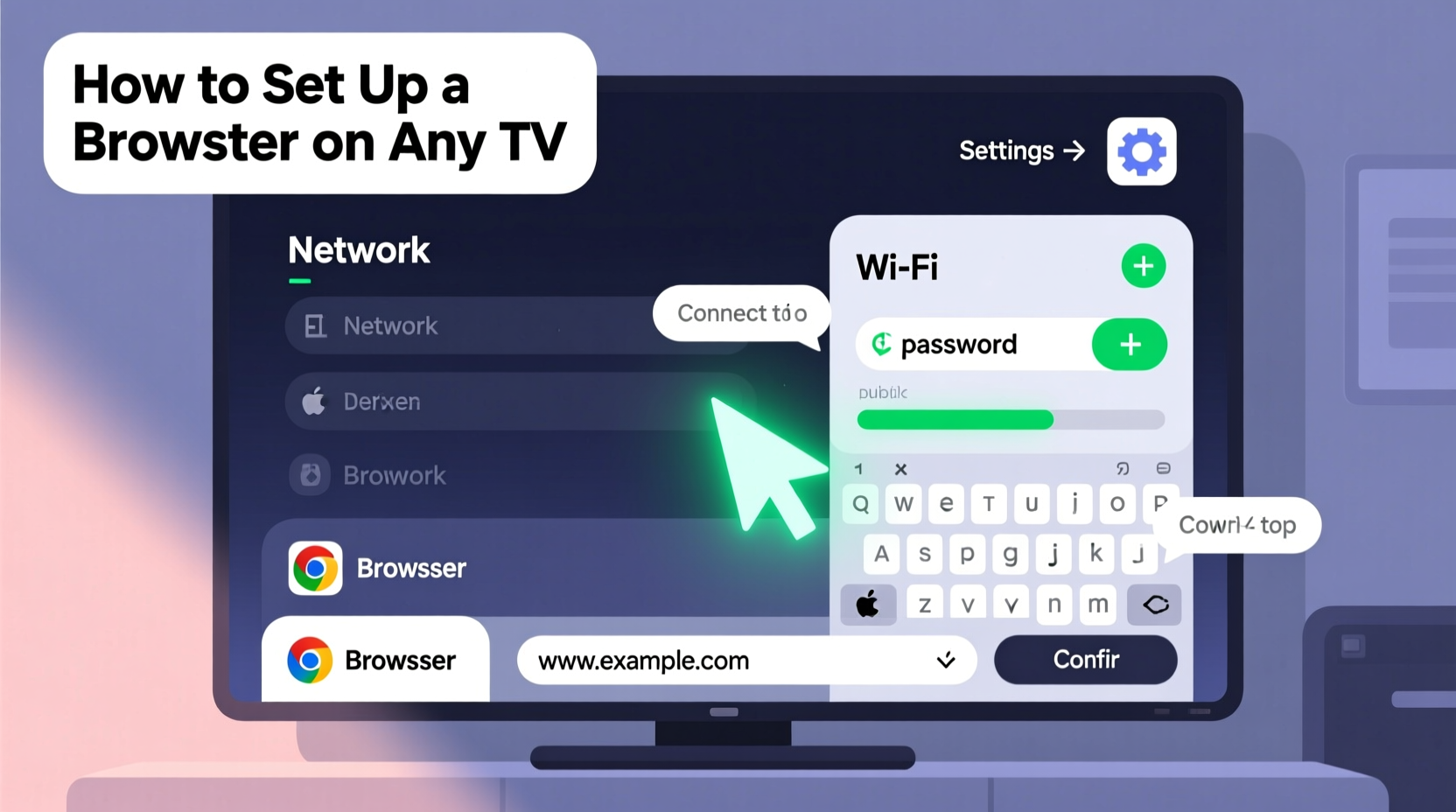
Despite the convenience of dedicated apps, there are real benefits to accessing the open web directly from your television. You can visit websites that don’t have companion apps, compare product prices across retailers, view live security camera feeds, or help children with homework using larger screen real estate. Additionally, older adults may find it easier to navigate familiar websites on a big screen rather than small mobile devices.
However, not every TV comes with a pre-installed browser. Some manufacturers assume users will only consume media via apps, leaving web access as an afterthought. But with the right approach, nearly any internet-connected TV device can support basic browsing.
Step-by-Step Guide to Installing and Using a Web Browser
The process varies depending on your device type. Below is a universal framework applicable across platforms:
- Ensure Internet Connection: Confirm your TV or connected device is linked to Wi-Fi. Go to Settings > Network to test connectivity.
- Navigate to App Store or Home Screen: Locate the app marketplace—this could be Google Play Store (Android TV), Apple TV App Store, Samsung Galaxy Store, or Amazon Fire Appstore.
- Search for “Web Browser” or “Internet Browser”: Use keywords like “browser,” “web,” or “surf.” Popular options include Firefox, Puffin TV Browser, or TV Bro (on Android).
- Install the Browser App: Select the desired browser and click Install. Wait for the download to complete.
- Launch and Configure: Open the browser. On first launch, you may need to accept permissions or adjust zoom settings for readability.
- Begin Browsing: Enter a URL using your remote or external keyboard. Navigation may feel slower than on desktops, but functionality remains intact.
Browser Compatibility by Device Type
Different TV platforms offer varying levels of browser support. Here's a breakdown of what works where:
| Device Type | Built-in Browser? | Recommended Third-Party Browser | Input Method Tips |
|---|---|---|---|
| Android TV / Google TV | Limited (often hidden) | TV Bro, Firefox for Android TV | Use voice search or connect a Bluetooth keyboard |
| Samsung Smart TV (Tizen) | Yes (Samsung Internet) | None needed – use built-in | Arrow keys work; consider mobile mirroring |
| LG WebOS TV | Yes (Web Browser app) | Not required | Magic Remote improves navigation |
| Apple TV | No native browser | Silica, Skyfire (jailbroken), or AirPlay from iOS | AirPlay + Safari on iPhone is most reliable |
| Amazon Fire Stick/Fire TV | No default browser | Puffin TV Browser, Mimo Web Browser | Download APK via USB debugging if needed |
| Game Consoles (PS5/Xbox Series X) | Yes (limited) | Use built-in Edge (Xbox) or WebKit (PS5) | Controller navigation takes practice |
Finding Hidden Browsers on Smart TVs
Some manufacturers bury the browser in obscure menus. On LG WebOS TVs, for example, go to the Home screen, scroll down to \"More Apps,\" and look for “Web Browser.” On Samsung models, the browser often appears under \"Applications\" or within the Utilities folder. If you can't locate it, try pressing the \"TOOLS\" button on the remote when browsing the home screen—some models reveal context-sensitive options this way.
Optimizing the Browsing Experience
Even with a working browser, usability can suffer due to poor interface design or input limitations. Consider these optimization strategies:
- Enable Desktop Mode: Many sites render poorly in mobile view on large screens. In your browser settings, toggle “Request Desktop Site” for better layout compatibility.
- Adjust Zoom Levels: Text that’s legible from a laptop may appear too small on a 65-inch TV viewed from 10 feet away. Increase zoom to 125–150% for comfortable reading.
- Use Voice Search Remotes: Devices like the Chromecast with Google TV or Android TV boxes allow voice entry of URLs, reducing tedious typing.
- Pair External Input Devices: A $20 Bluetooth keyboard transforms the experience. Most modern TVs support plug-and-play pairing via Settings > Controllers & Bluetooth Devices.
- Bookmark Frequently Visited Sites: Save time by adding shortcuts to news sites, weather pages, or recipe blogs.
“We’ve seen a 40% increase in non-app web usage on TVs among households with school-aged children who use browsers for research and homework.” — Dr. Lena Torres, Digital Behavior Researcher at Nielsen Connected Devices Lab
Mini Case Study: Turning a Living Room into a Learning Hub
The Patel family wanted their two children to have easy access to educational resources without relying solely on tablets. Their 55-inch Samsung QLED TV had limited app support for niche learning sites. After discovering the built-in Samsung Internet browser, they installed it, bookmarked Khan Academy Kids and BBC Bitesize, and paired a compact Bluetooth keyboard stored in the coffee table drawer. Now, during after-school hours, the kids gather around the TV for interactive lessons, improving engagement compared to solo tablet use. The parents appreciate being able to supervise content and reduce screen fragmentation across devices.
Common Pitfalls and How to Avoid Them
Setting up a browser isn’t always smooth. Here are frequent issues and solutions:
- Slow Performance: Older TVs or budget streaming sticks lack processing power. Close unused apps and reboot the device weekly.
- Flash or Plugin Support Missing: Modern browsers no longer support Flash, so legacy sites won’t load. Stick to HTML5-compatible websites.
- Difficult Navigation: Arrow-key browsing is cumbersome. Invest in a pointing-device remote or wireless mouse.
- Outdated Browser Versions: Some TV browsers aren’t updated frequently. Check for system software updates monthly.
FAQ
Can I stream videos through a TV browser?
Yes, but with caveats. Most major sites like YouTube, Vimeo, or news broadcasters work, though performance depends on device decoding capability. Avoid HD playback on low-end hardware. Note that some services block browser-based streaming to push app usage.
Is it safe to log into accounts on a TV browser?
Generally yes, provided the website uses HTTPS and your network is secure. However, avoid entering sensitive financial data unless absolutely necessary. Public Wi-Fi networks should be avoided for login activities.
Why doesn’t my Fire Stick have a browser in the app store?
Amazon restricts mainstream browser distribution on Fire TV to promote its ecosystem. To install one, enable \"Apps from Unknown Sources\" in Settings > My Fire TV > Developer Options, then sideload Puffin TV Browser via downloader apps like “Downloader.”
Checklist: Setting Up Your TV Browser Successfully
- Confirm stable Wi-Fi connection
- Locate the app store on your TV platform
- Search for and install a compatible browser
- Launch the browser and test a simple site (e.g., google.com)
- Adjust zoom and enable desktop mode
- Set up bookmarks for regular destinations
- Pair a Bluetooth keyboard or mouse (recommended)
- Clear cache monthly for optimal speed
Conclusion
Giving your TV the ability to browse the web unlocks its potential beyond passive entertainment. Whether you're researching, managing smart home systems, or helping kids with schoolwork, a functional browser turns your television into a dynamic information center. With minimal setup and a few smart accessories, even older or budget-friendly devices can deliver a surprisingly capable browsing experience. Don’t let limited app ecosystems limit your usage—take control, install a browser, and expand what your TV can do.




 浙公网安备
33010002000092号
浙公网安备
33010002000092号 浙B2-20120091-4
Comments
No comments yet. Why don't you start the discussion?