
In an age where digital content dominates our work and personal lives, managing large volumes of text can be overwhelming. Whether you're reviewing documents, studying online articles, or navigating complex reports, listening to text instead of reading it can significantly improve focus, reduce eye strain, and support users with visual impairments or learning differences. The good news? Modern operating systems and web tools make it easier than ever to turn any written content into spoken word—without expensive software or technical expertise.
With built-in screen readers and text-to-speech (TTS) features available on most devices, setting up your computer to read text aloud is a simple process that takes just minutes. This guide walks through practical steps for Windows, macOS, and common browsers, along with tips to optimize clarity, speed, and usability for real-world productivity gains.
Why Text-to-Speech Matters for Accessibility and Efficiency
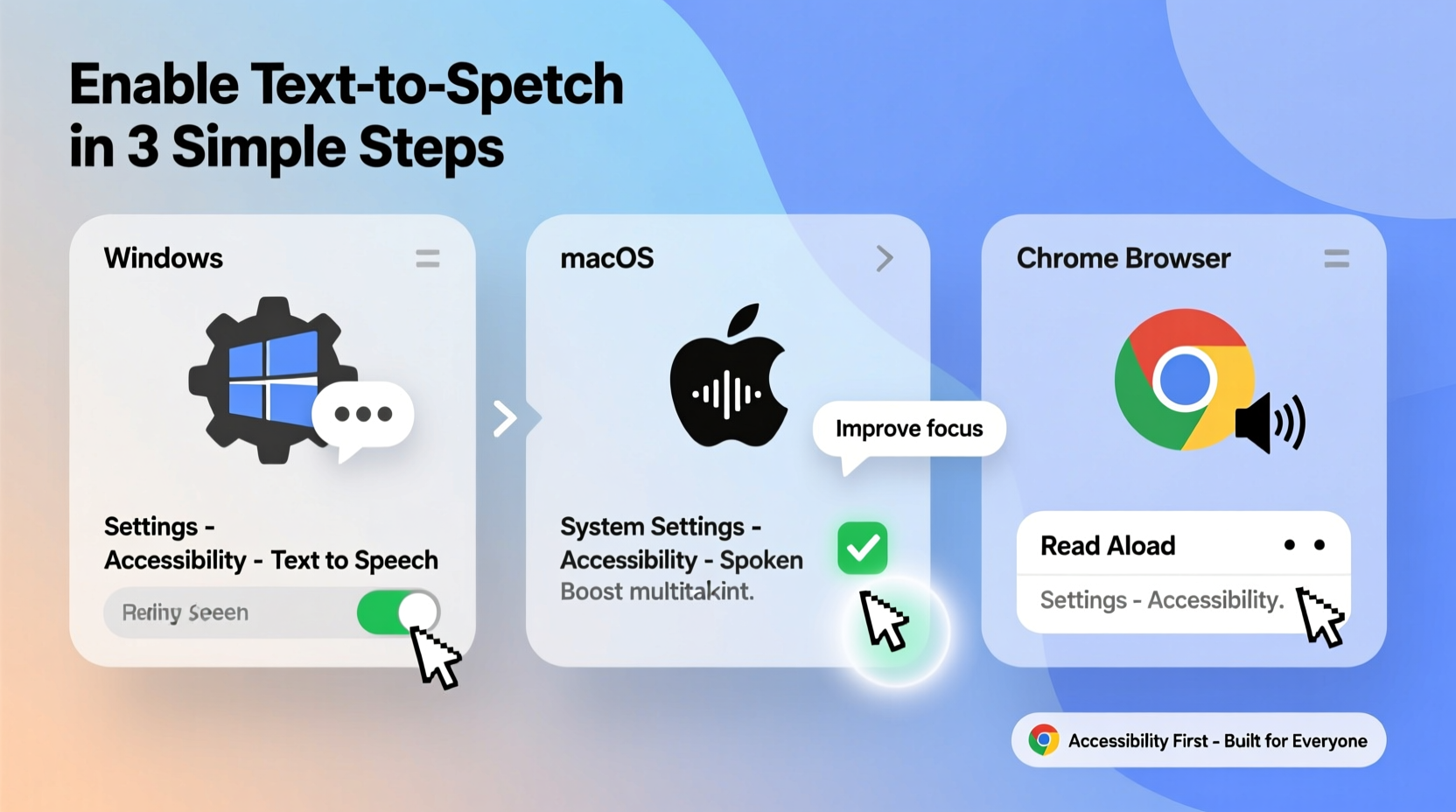
Text-to-speech technology converts digital text into natural-sounding audio using synthetic voices powered by advanced language models. Originally developed as an assistive tool for people with dyslexia, low vision, or cognitive challenges, TTS has evolved into a mainstream productivity feature used by professionals, students, and multitaskers alike.
Listening while reading reinforces comprehension, especially for complex material. It also enables hands-free engagement—ideal when cooking, commuting, or doing chores. For neurodivergent individuals or those recovering from eye fatigue, auditory processing can provide a more comfortable alternative to prolonged screen time.
“Integrating speech output into daily workflows isn’t just about accessibility—it’s about cognitive efficiency. When done right, it reduces mental load and improves retention.” — Dr. Lena Torres, Cognitive Scientist at the Institute for Human-Computer Interaction
Setting Up Text-to-Speech on Windows
Windows includes a powerful built-in narrator called Narrator, which works system-wide and supports multiple languages and voice options. It's designed not only for full-screen reading but also for navigating menus, buttons, and forms using keyboard commands.
Step-by-Step Setup
- Press Win + Ctrl + Enter to launch Narrator.
- Alternatively, go to Settings > Accessibility > Narrator.
- Toggle “Use Narrator” to On.
- Click “Voice” to adjust pitch, rate, and select preferred voice (e.g., David, Zira).
- Enable “Scan Mode” if you want to navigate with arrow keys and hear each line read aloud.
For selective text reading (e.g., in Word or a browser), highlight the passage and press Ctrl + Alt + Space. This triggers Microsoft Read Aloud, a lightweight TTS tool available in Microsoft Edge and Office apps.
Customizing Voice Settings
To enhance naturalness and clarity:
- Install additional high-quality voices via Settings > Time & Language > Language > Preferred Languages. Download language packs that include \"Speech\" components.
- In Edge, use the Immersive Reader (Ctrl + Shift + I) to access adjustable reading speeds, syllable highlighting, and dialect-specific voices.
Enabling Speech Features on macOS
Apple has long prioritized accessibility, and macOS offers one of the most seamless text-to-speech experiences. The system-level feature allows any selected text to be spoken immediately using natural-sounding voices.
Activation and Configuration
- Open System Settings (or System Preferences on older versions).
- Navigate to Accessibility > Spoken Content.
- Turn on “Speak selection” and “Speak typing.”
- Click “System Voice” to choose from voices like Alex, Samantha, or newer neural voices such as Jordan (U.S. English).
- Adjust speaking rate using the slider—slower for comprehension, faster for skimming.
Once enabled, simply select any text in Safari, Mail, PDFs, or third-party apps, then right-click and choose “Speech > Start Speaking.” Alternatively, assign a keyboard shortcut under Keyboard > Shortcuts > Services for instant access.
Browser-Based Tools for On-Demand Reading
Not every task requires system-level narration. Many users benefit from browser extensions or reader modes that convert web pages into clean, audio-friendly formats.
Top Browser Options
| Tool | Platform | Key Features | Cost |
|---|---|---|---|
| Immersive Reader (Edge/OneNote) | Web, Windows, iOS | Focus mode, grammar support, multi-language | Free |
| Read Aloud (Chrome/Firefox) | Extensions | Auto-scroll, pause on hover, 200+ voices | Free / Pro: $5/month |
| Voice Dream Reader | iOS, Web | OCR, document sync, offline playback | $15 one-time |
| Built-in Safari Reader | macOS, iOS | Distraction-free view + native TTS | Free |
To use these effectively:
- In Chrome, install “Read Aloud: A Text to Speech Voice Reader” and click its icon to begin playback on any article.
- In Safari, click the Reader View button (four-line icon) in the address bar, then select text and use the system’s “Start Speaking” option.
- Use OneNote or Outlook’s Immersive Reader for emails or notes—ideal for reducing cognitive clutter.
Real-World Application: A Day in the Life
Consider Maria, a project manager who spends six hours a day reviewing reports, client emails, and documentation. After experiencing frequent headaches from screen overload, she activated text-to-speech on her MacBook and installed Read Aloud on Chrome.
Now, each morning she listens to summarized dashboards while preparing coffee. During commutes, she uses Bluetooth headphones to hear updated briefs from her team. Proofreading proposals has become faster—she catches tone inconsistencies she previously missed. Over three months, Maria reported a 30% reduction in review time and improved sleep quality due to less blue-light exposure.
Her setup cost nothing and required less than 20 minutes to configure. The impact? Greater stamina, fewer errors, and renewed confidence in handling information-heavy tasks.
Best Practices Checklist
- ✅ Do:
- - Test different voices to find one with clear diction and natural rhythm.
- - Use noise-canceling headphones in noisy environments for better focus.
- - Combine TTS with note-taking apps to reinforce learning.
- - Adjust speaking rate gradually—start slow, then increase as comfort grows.
- ❌ Don't:
- - Rely solely on default robotic voices; upgrade to neural voices when possible.
- - Enable constant narration during interactive tasks—use it selectively.
- - Ignore punctuation settings; poor intonation harms comprehension.
Frequently Asked Questions
Can text-to-speech read scanned PDFs or images?
Yes—but only if optical character recognition (OCR) is applied first. Tools like Adobe Acrobat, Google Keep, or Microsoft OneNote can extract text from scanned documents before feeding them to TTS engines.
Are there privacy concerns with cloud-based readers?
Potentially. Some browser extensions send selected text to remote servers for processing. For sensitive data (e.g., legal contracts), stick to local, offline solutions like macOS’s built-in speech or Windows Narrator with “Online Speech” disabled.
How do I improve the naturalness of synthetic voices?
Download neural or AI-powered voices (available in Windows 11 22H2+, macOS Monterey+, and premium tools like Amazon Polly). These mimic human inflection, pauses, and emphasis far better than legacy voices.
Make Your Digital Experience Work for You
Turning your computer into a reading companion doesn’t require special hardware or deep technical knowledge. With thoughtful configuration, text-to-speech becomes a silent partner in your daily workflow—enhancing accessibility, preserving energy, and unlocking new ways to absorb information.
Whether you're supporting a learning difference, optimizing productivity, or simply giving your eyes a break, activating speech output is one of the fastest wins in digital wellness. The tools are already on your device. All that’s left is to press play.




 浙公网安备
33010002000092号
浙公网安备
33010002000092号 浙B2-20120091-4
Comments
No comments yet. Why don't you start the discussion?