
Streaming live TV has become a cornerstone of modern entertainment, and YouTube TV stands out as one of the most comprehensive options available. With access to over 100 channels—including sports, news, and entertainment—YouTube TV offers a flexible alternative to traditional cable. But getting it set up on your smart TV doesn’t have to be complicated. Whether you own a Samsung, LG, Roku, or Amazon Fire TV, this guide walks you through every step to start streaming in minutes.
Understanding YouTube TV Compatibility
Before diving into setup, confirm that your smart TV supports the YouTube TV app. Most major brands released after 2016 are compatible, but support varies by model and operating system. The key platforms include:
- Samsung Smart TVs (Tizen OS – 2017 and newer)
- LG TVs (webOS 3.0 and above)
- Roku TVs (all recent models)
- Amazon Fire TV Edition TVs
- Google TV and Android TV devices
- Apple TV (via AirPlay or app)
If your TV doesn’t support the app natively, don’t worry—you can still stream using external devices like Chromecast, Roku, or Fire Stick. The goal is simple: get the YouTube TV app running on your big screen.
Step-by-Step Guide to Install and Stream YouTube TV
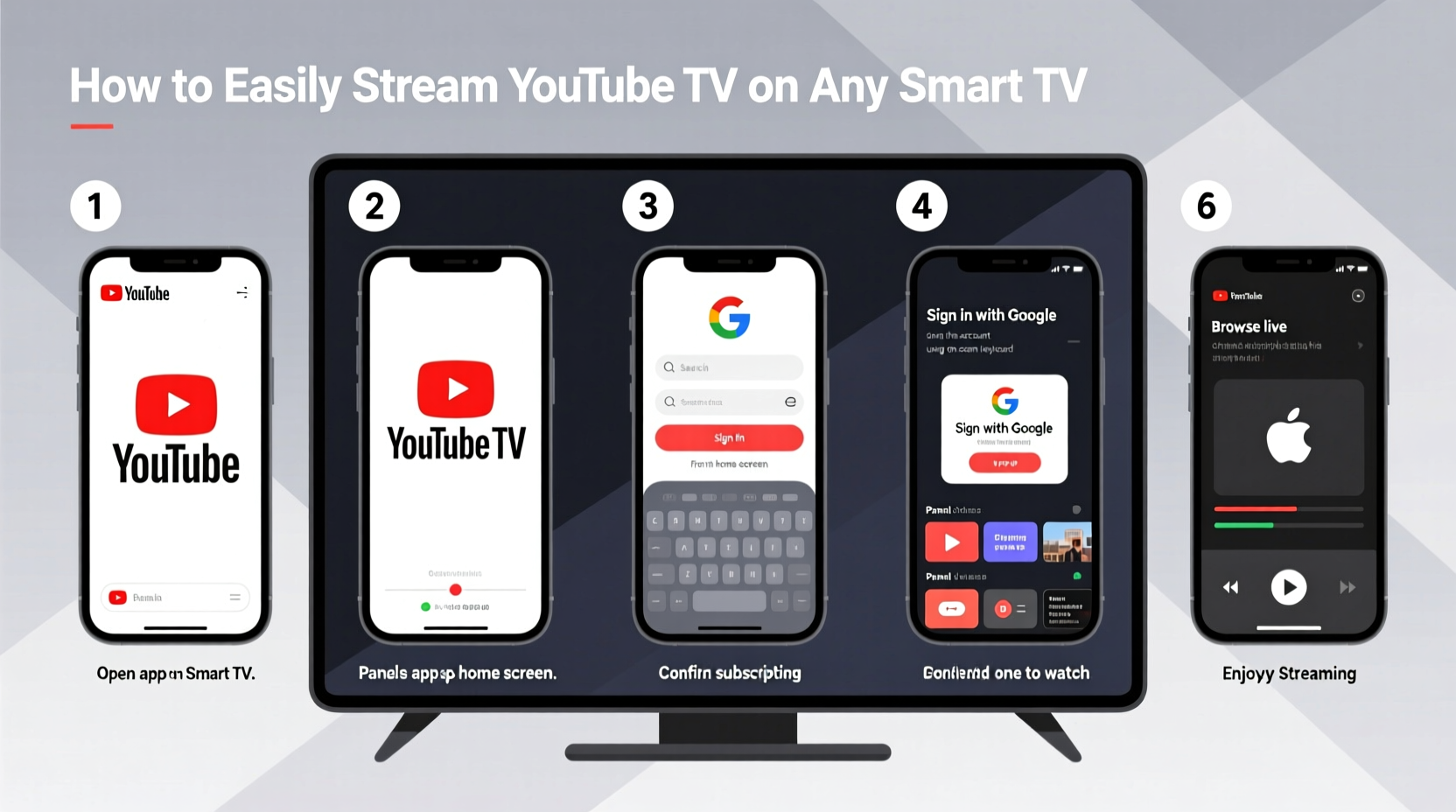
Follow these steps to install and launch YouTube TV on your smart TV. This process works across most supported platforms with minor interface differences.
- Turn on your smart TV and connect to Wi-Fi. Use your remote to navigate to Settings > Network and select your home network. Enter the password if prompted.
- Open the app store on your TV. This may be labeled “Apps,” “Applications,” or “Store,” depending on your brand.
- Search for “YouTube TV.” Use the on-screen keyboard to type the app name. If it doesn’t appear, try searching “YouTube” and look for the dedicated TV version.
- Download and install the app. Select the YouTube TV app from the results and click “Install” or “Add.” Wait for the download to complete.
- Launch the app and sign in. Open YouTube TV and log in with your Google account. If you don’t have a subscription, you’ll be prompted to start a free trial (currently 7 days).
- Authorize your device if required. Some accounts may need two-factor authentication. Follow the prompts on your phone or email to confirm.
- Begin watching. Once logged in, browse live channels, your DVR library, or On Demand content using the remote.
The entire process typically takes less than 10 minutes. After installation, the app will remain on your home screen for quick access.
Alternative Methods for Unsupported TVs
Not all smart TVs come with built-in YouTube TV support. Older models or lesser-known brands may lack direct access. Fortunately, there are several reliable workarounds.
Using a Streaming Device
Plug-and-play devices can transform any HDMI-equipped TV into a smart one. Popular options include:
| Device | YouTube TV Support | Setup Time | Price Range |
|---|---|---|---|
| Google Chromecast with Google TV | Yes (native app) | 10–15 mins | $50–$70 |
| Roku Streaming Stick+ | Yes | 10 mins | $40–$50 |
| Amazon Fire TV Stick 4K | 10–12 mins | $40–$60 | |
| Apple TV 4K | Yes (via app or AirPlay) | 15 mins | $129+ |
To use any of these, plug the device into your TV’s HDMI port, power it, and follow the on-screen setup. Connect to Wi-Fi, sign in to your Google account, and download the YouTube TV app from the store.
Screen Mirroring from Mobile Devices
If you already use YouTube TV on your phone or tablet, casting is a fast alternative. On Android, open the YouTube TV app, tap the Cast icon (rectangle with Wi-Fi symbol), and select your TV from the list. For iPhone users, ensure both devices are on the same Wi-Fi network and use AirPlay to mirror the screen to an Apple TV or AirPlay-compatible smart TV.
“Adding a $50 streaming stick is often more cost-effective than upgrading an entire TV just for app access.” — David Lin, Home Theater Technologist
Troubleshooting Common Setup Issues
Even with straightforward installation, technical hiccups can occur. Here’s how to resolve frequent problems:
- App not found in store: Your TV model may not support YouTube TV. Confirm compatibility or use a streaming device.
- Sign-in errors: Clear the app cache in your TV’s settings or re-install the app. Ensure your Google account has an active YouTube TV subscription.
- Buffering or low-quality playback: Check internet speed. YouTube TV recommends at least 3 Mbps for standard quality and 7 Mbps for HD. Restart your router if needed.
- No sound or video: Verify HDMI connections and audio settings. Try switching to a different HDMI input or reboot the TV.
Mini Case Study: Sarah Gets YouTube TV Working on Her 2015 LG TV
Sarah had an older LG smart TV that didn’t support the YouTube TV app. She tried searching the store but found only the regular YouTube app. Frustrated, she considered buying a new TV—until she learned about streaming sticks. She purchased a Roku Streaming Stick+, connected it to her TV’s HDMI port, and followed the setup wizard. Within 12 minutes, she installed YouTube TV, signed in with her existing Google account, and started watching live football. The total cost was under $50, saving her hundreds compared to a new television.
Essential Checklist Before You Start
Use this checklist to ensure a smooth setup experience:
- ✅ Confirm your smart TV model supports YouTube TV (or plan to use a streaming device)
- ✅ Connect to a stable Wi-Fi network (minimum 7 Mbps recommended)
- ✅ Have your Google account credentials ready
- ✅ Ensure your YouTube TV subscription is active or start a free trial
- ✅ Update your TV’s operating system to the latest version
- ✅ Keep your remote and any external devices charged or powered
Frequently Asked Questions
Can I watch YouTube TV on multiple TVs at once?
Yes. YouTube TV allows up to three simultaneous streams under one household. Additional viewers can join using the same login, making it ideal for families.
Do I need a YouTube Premium account to use YouTube TV?
No. YouTube TV is a separate subscription service. It includes live TV, cloud DVR, and on-demand content but does not bundle YouTube Premium benefits like ad-free videos or music.
What happens if my smart TV doesn’t support the app?
You’re not out of options. Affordable streaming devices like Chromecast, Roku, or Fire Stick can add full YouTube TV functionality to nearly any TV with an HDMI port.
Final Thoughts and Next Steps
Streaming YouTube TV on your smart TV is simpler than many assume. With native app support on most modern sets or easy workarounds for older models, you can enjoy live sports, news, and shows without long-term contracts or bulky equipment. The key is knowing your device’s capabilities and choosing the right method—whether direct installation or adding a compact streaming stick.
Now that you have the tools and knowledge, take action today. Test your TV’s app store, evaluate your internet connection, and get set up before the next big game or show premiere. Millions have already cut the cord—join them with a seamless YouTube TV experience in your living room.




 浙公网安备
33010002000092号
浙公网安备
33010002000092号 浙B2-20120091-4
Comments
No comments yet. Why don't you start the discussion?