
Streaming your favorite movies and TV shows on Prime Video should be smooth and hassle-free. But if you're using an outdated version of the app, you might encounter buffering, crashes, or missing features. Keeping the Prime Video app updated ensures access to the latest improvements, security patches, and new functionalities like enhanced audio, improved search, and better subtitle support. Whether you’re using a smart TV, smartphone, tablet, or streaming stick, knowing how to update the app quickly is essential for uninterrupted entertainment.
Why Updating the Prime Video App Matters
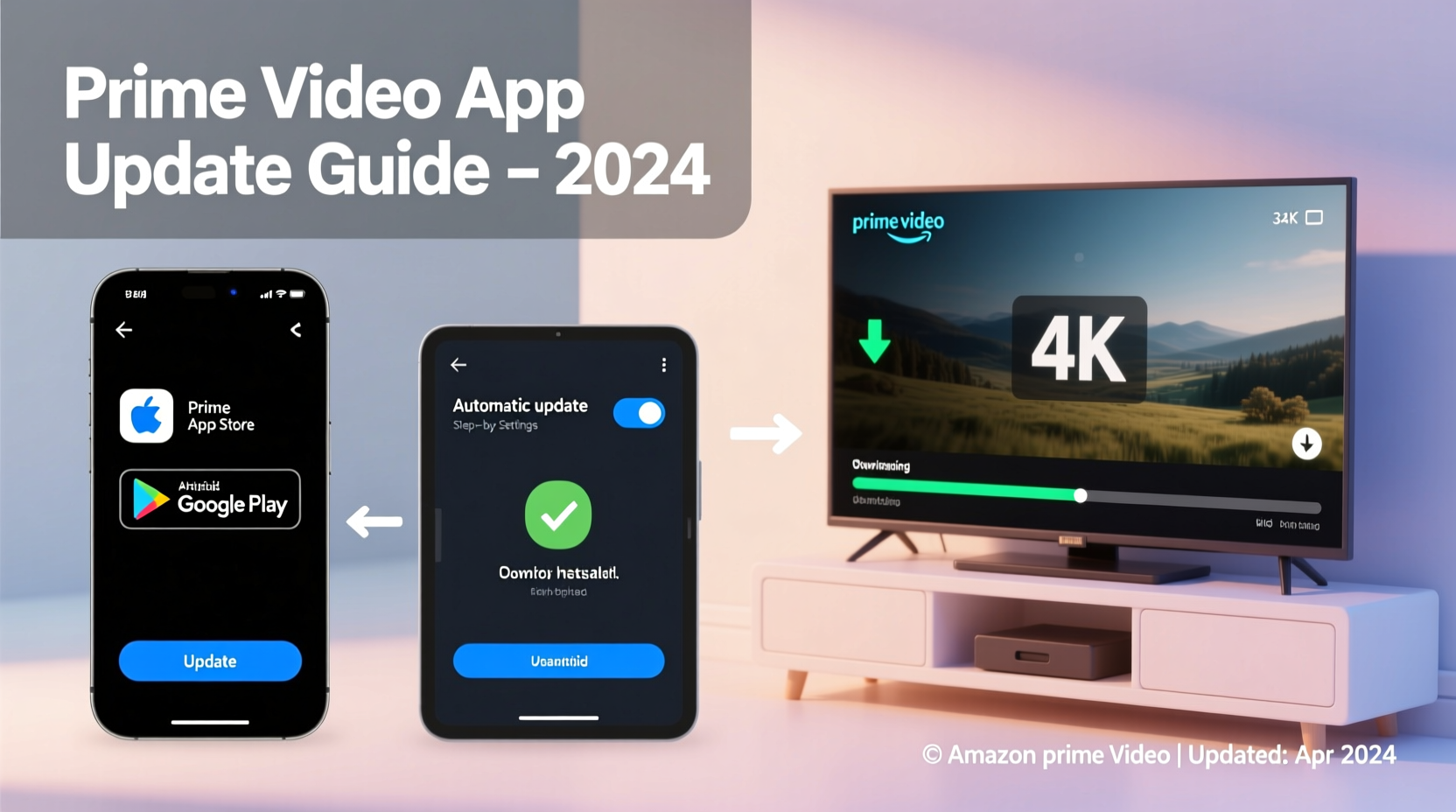
An outdated app can significantly impact your viewing experience. Developers regularly release updates to fix bugs, improve performance, and add compatibility with new devices or operating systems. Amazon frequently rolls out enhancements to Prime Video that include faster load times, optimized playback, and expanded language options. If you skip updates, you may miss out on these benefits—or worse, face login issues or playback errors.
Additionally, older versions may not support newer video codecs like HDR10+ or Dolby Vision, which means you won’t get the full visual quality even if your device supports it. Security is another concern: outdated apps can have unpatched vulnerabilities that expose your account or device to risk.
“Regular app updates are not just about new features—they’re critical for performance, security, and compatibility.” — Raj Mehta, Senior Streaming Technology Analyst at Broadband Insights
How to Update Prime Video on Different Devices
The process for updating Prime Video varies depending on your device’s operating system and app store. Below is a comprehensive guide broken down by platform.
Smartphones and Tablets (iOS and Android)
Mobile devices typically receive app updates through their respective app stores. The process is straightforward and usually automatic—but only if auto-updates are enabled.
- For Android (Google Play Store):
- Open the Google Play Store app.
- Tap your profile icon in the top-right corner.
- Select “Manage apps & device.”
- If an update is available for Prime Video, tap “Update” next to the app.
- To enable auto-updates, tap the app, then select “Auto-update,” and choose your preferred option.
- For iPhone/iPad (Apple App Store):
- Open the App Store.
- Tap your profile icon at the top right.
- Scroll down to see pending updates.
- Find Prime Video and tap “Update.”
- To enable automatic updates, go to Settings > App Store > toggle on “App Updates.”
Smart TVs (Samsung, LG, Vizio, etc.)
Smart TVs run different operating systems—Tizen (Samsung), webOS (LG), or proprietary platforms—and each handles app updates differently. Most modern TVs check for updates automatically, but sometimes manual intervention is needed.
| TV Brand | Operating System | Update Method |
|---|---|---|
| Samsung | Tizen | Go to Apps > Settings (gear icon) > Select Prime Video > Check for Updates |
| LG | webOS | Press Home > Click “Settings” > General > Software Updates > Check for Updates |
| Vizio | SmartCast | Press Menu > System > Check for Updates (updates apply system-wide) |
| TCL/Roku TV | Roku OS | Apps update automatically; reboot TV if Prime Video isn’t working properly |
Note: Some TVs do not allow individual app updates. Instead, they receive them as part of a system firmware update. Always keep your TV’s software up to date.
Streaming Devices (Fire Stick, Roku, Apple TV, Chromecast)
Popular streaming sticks and boxes also require attention when it comes to app maintenance.
- Amazon Fire Stick/Fire TV: Since Prime Video is a native Amazon app, updates are usually automatic. To manually check: Go to Settings > Applications > Manage Installed Applications > Prime Video > Check for Updates.
- Roku: Apps update automatically overnight. If Prime Video isn’t working, restart the device or remove and reinstall the app via the Roku Channel Store.
- Apple TV: Open the App Store, tap your profile, scroll to Prime Video, and tap “Update.”
- Chromecast with Google TV: Navigate to the Google Play Store > My Apps & Games > Updates. Install any pending updates for Prime Video.
Troubleshooting Common Update Issues
Sometimes, despite following the correct steps, updates fail. Here are common problems and solutions:
- “Update Failed” Message: This often occurs due to poor internet connection. Switch to a 5GHz Wi-Fi band or use Ethernet for stability.
- No Update Option Available: Your device may no longer be supported. Check Amazon’s official compatibility list for Prime Video.
- App Crashes After Update: Clear the app cache (on Android) or delete and reinstall the app to resolve corrupted files.
- Insufficient Storage: Free up space by deleting unused apps or media. On smart TVs, try uninstalling rarely used channels.
Mini Case Study: Resolving Buffering with a Simple Update
Jamie, a frequent Prime Video user in Austin, Texas, noticed her show kept buffering every few minutes. She checked her internet speed—well above the recommended 15 Mbps for HD streaming—and restarted her router multiple times with no improvement. Frustrated, she contacted Amazon support, who suggested checking for a Prime Video app update. Jamie discovered her Samsung Smart TV had a pending update for the app that she hadn’t noticed. After installing it, the buffering stopped immediately. The update included optimized video streaming algorithms that reduced data usage and improved playback stability.
Essential Checklist: Keep Prime Video Running Smoothly
Follow this checklist monthly to maintain optimal performance:
- ✅ Check for app updates on all devices where Prime Video is installed
- ✅ Enable auto-updates in app store settings whenever possible
- ✅ Reboot your streaming device or TV weekly to clear memory and refresh connections
- ✅ Verify your internet speed meets minimum requirements (5 Mbps for SD, 15 Mbps for HD/4K)
- ✅ Remove and reinstall the app if it becomes unresponsive after an update
- ✅ Log out and back into Prime Video periodically to refresh authentication tokens
Frequently Asked Questions
How often should I update the Prime Video app?
There’s no fixed schedule, but checking once a month is wise. Most updates happen quarterly, though critical patches may roll out more frequently. Enabling auto-updates removes the need for manual checks.
Can I watch Prime Video without updating the app?
You may be able to for a short time, but eventually, Amazon may block older app versions from accessing content for security or compatibility reasons. Outdated apps also lack support for new features and formats.
What if my device no longer supports Prime Video updates?
If your device is no longer supported (e.g., older Roku models or discontinued smart TVs), consider upgrading to a current streaming device. Amazon maintains a list of compatible devices on its website.
Final Thoughts: Stay Current, Stream Better
Updating the Prime Video app doesn’t take more than a few minutes, yet it makes a dramatic difference in reliability, quality, and feature access. Whether you're binge-watching the latest series or enjoying a movie night, a current app version ensures everything runs smoothly. Make app maintenance part of your digital routine—just like charging your remote or clearing your browser cache.




 浙公网安备
33010002000092号
浙公网安备
33010002000092号 浙B2-20120091-4
Comments
No comments yet. Why don't you start the discussion?