
In an era where smartphones, apps, and smart devices are constantly tracking our movements, location data has become one of the most sensitive pieces of personal information. From ride-sharing apps to social media check-ins, countless services request access to your whereabouts—often without clear justification. While some location sharing enhances convenience, unchecked access can expose you to privacy risks, unwanted advertising, or even physical safety threats. The good news is that you can take control. With a few deliberate steps, you can verify exactly who sees your location and limit access to only those you trust.
Why Location Privacy Matters
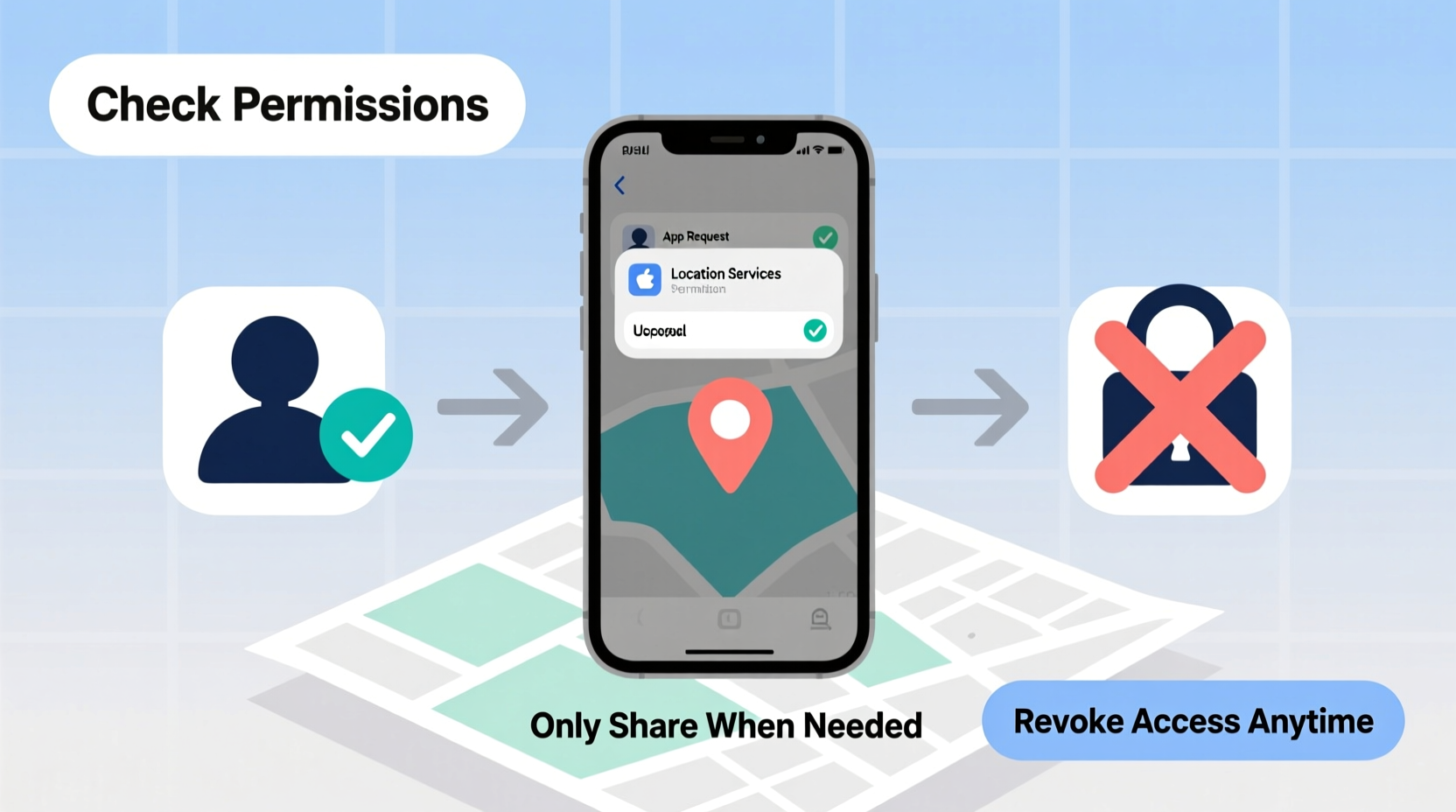
Your location history paints a detailed picture of your life: where you live, work, worship, shop, and socialize. When aggregated over time, this data reveals patterns that can be exploited by advertisers, insurers, or malicious actors. A 2023 report from the Electronic Frontier Foundation highlighted cases where real-time location data was sold by third-party brokers to entities with no legitimate need for it—including surveillance firms and law enforcement agencies without warrants.
Even within trusted apps, over-permissioning is common. Many apps request “always-on” location access when they only need it during active use. This continuous tracking drains battery life and increases exposure. Taking inventory of which apps and services have access—and adjusting permissions accordingly—is a critical step in digital self-defense.
“Location data is among the most revealing types of personal information. Once shared, it’s nearly impossible to retract.” — Dr. Rebecca Lin, Digital Privacy Researcher at Stanford University
Step-by-Step Guide to Managing Location Access on Mobile Devices
Both iOS and Android offer robust tools for managing location permissions. Follow these steps to audit and refine access on your smartphone.
For iPhone (iOS 17+)
- Open Settings and tap Privacy & Security.
- Select Location Services.
- Review the list of apps with location access. Tap any app to see its permission level: Never, Ask Next Time or When I Share, While Using the App, or Always.
- Change permissions to While Using the App or Never for non-essential services like games or shopping apps.
- Scroll down and tap System Services to manage background system-level tracking (e.g., emergency alerts, compass calibration). Disable unnecessary options like Popular Near Me or Location-Based Apple Ads.
- Enable Precise Location only when necessary. Some apps don’t need exact coordinates—approximate location suffices.
For Android (Android 14+)
- Go to Settings, then Location.
- Tap App Location Permissions.
- Select each app and adjust access: Allow all the time, Allow only while using the app, or Deny.
- Use the Recently used tab to identify apps that accessed your location in the past few days—even if not currently open.
- Navigate to Location > Advanced > Location History and disable Google’s Web & App Activity if enabled.
- Consider enabling One-Time Permissions under Advanced > Permission Manager for temporary access.
Managing Location Sharing Across Key Platforms
Beyond device settings, major platforms like Google, Apple, and social networks maintain separate location-sharing features that operate independently of app permissions.
Google Maps & Google Account
- Visit My Activity and filter by “Location History.”
- Pause or delete past activity. You can also turn off future tracking here.
- In Google Settings > Ads, disable personalized ads based on your location.
Apple’s Find My Network
- If you share your location with family or friends via Find My, go to the app and tap your profile photo.
- Select Shared Locations and remove anyone you no longer wish to share with.
- To stop sharing temporarily, tap your name and choose “Stop Sharing My Location.”
Social Media (Facebook, Instagram, Snapchat)
- Disable geotagging in posts and stories. On Instagram, go to Settings > Privacy > Story Controls > Turn off “Add Location Sticker.”
- On Facebook, review Location Settings under Settings & Privacy > Location.
- Check-in features should be used sparingly—or disabled entirely—to avoid broadcasting your presence.
Do’s and Don’ts: Location Access Best Practices
| Do | Don’t |
|---|---|
| Grant “While Using” access for navigation and weather apps | Allow “Always” access to social media or utility apps |
| Regularly clear location history on Google and Apple accounts | Assume location tracking stops when an app is closed |
| Use private browsing or guest mode when testing new apps | Share real-time location publicly on social platforms |
| Enable two-factor authentication on accounts with location sync | Leave location services on when traveling or in sensitive areas |
Real-World Example: Recovering Control After a Data Leak
In early 2023, Sarah, a marketing professional in Chicago, noticed strange behavior on her phone. Friends began commenting on her unposted whereabouts, and targeted ads started appearing for stores she had just visited. Concerned, she reviewed her location permissions and discovered a fitness tracker app had been granted “Always” access—and was linked to a third-party analytics service she never authorized.
After disabling the app’s background location access and deleting six months of stored data through the developer’s portal, Sarah also turned off Google’s Location History and removed outdated shared locations in Find My. Within a week, the intrusive ads disappeared, and her sense of digital autonomy returned. Her experience underscores how quickly location data can spiral out of control—and how effective manual audits can be.
Essential Checklist: Secure Your Location Privacy in One Sitting
Use this checklist to complete a full location audit in under 20 minutes:
- ✅ Review all app location permissions on your phone (iOS/Android)
- ✅ Change “Always” access to “While Using” or “Never” for non-critical apps
- ✅ Disable Location History in Google Account or iCloud settings
- ✅ Remove outdated or unnecessary contacts from location-sharing circles
- ✅ Turn off ad personalization based on location (Google Ads & Apple Ads)
- ✅ Clear recent location activity from Maps or Find My apps
- ✅ Enable approximate location where available
Frequently Asked Questions
Can someone track my phone without my knowledge?
Legally, no app or service can continuously track your precise location without explicit permission. However, malware, spyware, or unauthorized physical access to your device can bypass these controls. Always keep your operating system updated and avoid downloading apps from unofficial sources.
Does turning off location services stop all tracking?
Not entirely. While disabling Location Services halts GPS-based tracking, Wi-Fi networks, cell towers, and IP addresses can still estimate your general area. For maximum privacy, combine location toggles with browser privacy tools and disable ad identifiers.
Is it safe to share location with family members?
Sharing location with trusted individuals via encrypted services like Apple’s Find My or Google’s Location Sharing is generally safe. However, limit duration and regularly confirm recipients. Avoid indefinite sharing unless medically or safety-related.
Take Control Today
Your location is not just a set of coordinates—it’s a reflection of your daily life, routines, and personal boundaries. By taking a few deliberate actions, you reclaim authority over who sees where you go and when. Privacy isn’t about hiding; it’s about choosing. Start with one device, run through the checklist, and make location hygiene part of your digital routine. In doing so, you protect more than data—you protect peace of mind.




 浙公网安备
33010002000092号
浙公网安备
33010002000092号 浙B2-20120091-4
Comments
No comments yet. Why don't you start the discussion?