
Android Auto has been a convenient tool for drivers who want seamless smartphone integration while on the road. However, not everyone uses it regularly, and some users prefer to remove it entirely to free up system resources, improve privacy, or simply declutter their device. While uninstalling apps is usually straightforward, Android Auto presents a unique challenge—it's often pre-installed as a system app, meaning standard removal methods may not eliminate all traces. This guide provides a complete, step-by-step approach to fully removing Android Auto and wiping its data from your phone.
Why Remove Android Auto?
There are several valid reasons why you might want to remove Android Auto:
- Privacy concerns: The app collects driving habits, location data, and voice inputs.
- Storage usage: Even when unused, it occupies internal storage and runs background processes.
- Battery drain: Background syncing can impact battery life over time.
- Security preferences: Reducing the number of active apps minimizes potential attack surfaces.
- No compatible vehicle: If you don’t own a car that supports Android Auto, the app serves no purpose.
“Removing unused system apps like Android Auto can improve device performance and reduce unnecessary data collection.” — David Lin, Mobile Security Analyst at TechShield Labs
Understanding Android Auto’s Installation Type
Unlike regular apps downloaded from the Google Play Store, Android Auto is typically pre-installed by device manufacturers or loaded as part of the Google Automotive Services suite. This makes it a “system app,” which behaves differently than user-installed applications.
System apps cannot be uninstalled in the traditional way unless you have root access. However, they can be disabled and stripped of data—effectively rendering them inactive and invisible.
Types of App Installations on Android
| Type | Can Be Uninstalled? | Data Can Be Cleared? | Requires Root? |
|---|---|---|---|
| User-Installed Apps | Yes | Yes | No |
| Pre-Installed (System) Apps | No (unless disabled or debloated) | Yes | For full removal |
| Google Core Services | Rarely | Limited | Yes |
Since most users do not have rooted devices, this guide focuses on non-rooted methods that achieve near-total deactivation and data removal.
Step-by-Step Guide to Fully Remove Android Auto
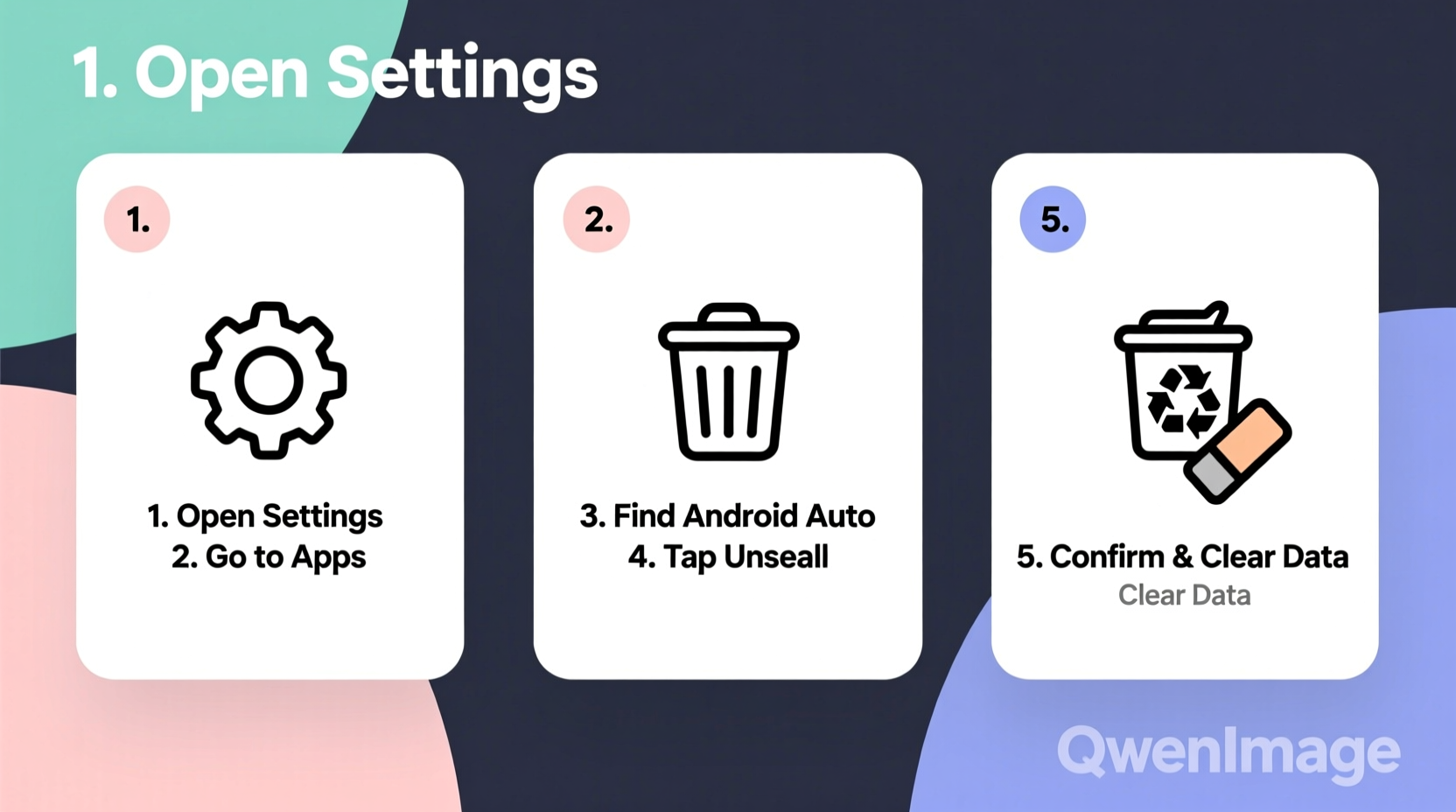
Follow these steps carefully to disable Android Auto and erase all stored information. These instructions apply to most Android versions (9 through 14) and major OEM skins including Samsung One UI, Pixel UI, Xiaomi MIUI, and others.
- Open Settings
Navigate to your phone’s main Settings menu. - Go to Apps or Application Manager
This section may be labeled differently depending on your device (e.g., \"Apps & notifications\", \"Manage apps\"). - Locate Android Auto
Tap the three-dot menu or \"See all apps\" if necessary. Scroll until you find “Android Auto” or search for it directly. - Clear Cache and Data
Enter the app info screen and tap:- Clear Cache – Removes temporary files.
- Clear Data – Wipes saved settings, login tokens, and usage history.
- Force Stop the App
Tap “Force Stop” to halt any running background services immediately. - Disable or Uninstall Updates
If an “Uninstall Updates” button appears, tap it first. Then look for a “Disable” option instead of “Uninstall.” Once disabled, the app will no longer appear in your app drawer or run in the background. - Revoke Permissions
Go back into the app settings and review permissions (Location, Microphone, Contacts, etc.). Deny or revoke each one to prevent future access. - Remove from Auto-Start (Optional)
On devices like Xiaomi or Huawei, go to Battery > Startup Management and disable Android Auto from launching at boot.
What Happens After Disabling?
Once disabled, Android Auto will no longer:
- Show up in your app list
- Receive updates
- Run background services
- Access sensors or personal data
Advanced Option: Complete Removal via ADB (No Root Required)
If you're comfortable using a computer and want to completely remove Android Auto without rooting, Android Debug Bridge (ADB) offers a safe method. This removes the app entirely from the system image.
Requirements:
- A Windows, Mac, or Linux computer
- USB cable
- Enable Developer Options and USB Debugging on your phone
- Install ADB tools (part of Android SDK Platform Tools)
Steps:
- Download and install ADB on your computer.
- Connect your phone via USB and allow USB debugging when prompted.
- Open a command prompt or terminal window.
- Type:
adb devicesto confirm connection. - Find the correct package name by typing:
adb shell pm list packages | grep auto - Look for
com.google.android.projection.gearhead—this is the Android Auto package. - Uninstall it using:
adb shell pm uninstall -k --user 0 com.google.android.projection.gearhead
The -k flag keeps data intact just in case; --user 0 targets the primary user profile. The app will now be removed for your account and won’t reappear after reboots.
adb shell cmd package install-existing com.google.android.projection.gearhead
Checklist: Full Android Auto Removal Verification
After completing the steps above, verify success using this checklist:
- ✅ Android Auto does not appear in the app drawer
- ✅ No background processes visible in Battery Usage
- ✅ All permissions revoked under App Settings
- ✅ Cache and data show zero usage
- ✅ App status shows “Disabled” or is missing entirely
- ✅ No notifications or pop-ups related to Android Auto
- ✅ Vehicle connections fail (expected behavior post-removal)
Real Example: Sarah’s Privacy Cleanup
Sarah, a freelance writer from Portland, decided to audit her smartphone’s data usage after noticing excessive battery drain. She discovered Android Auto was consuming location services despite never connecting it to a car. Concerned about privacy, she followed the disable-and-clear-data process outlined here. After disabling the app and clearing its cache, her battery life improved by nearly 12% over two days. Later, she used ADB to permanently remove the app. Six months later, she reported no issues and appreciated the extra storage and peace of mind.
Frequently Asked Questions
Can I reinstall Android Auto after removing it?
Yes. If you disabled it through Settings, re-enable it from the same menu. If removed via ADB, download it again from the Google Play Store. Note: Some carriers or manufacturers may restrict reinstallation depending on region.
Does removing Android Auto affect Google Maps or other navigation apps?
No. Google Maps, Waze, and other GPS apps function independently. Removing Android Auto only disables the car-focused interface and projection features.
Will disabling Android Auto void my warranty or harm my phone?
Disabling or using ADB to remove system apps does not void warranties on most modern phones. However, incorrect ADB commands can cause instability. Always double-check package names before executing uninstall commands.
Final Thoughts
Removing Android Auto isn’t just about freeing up space—it’s a step toward taking control of your digital environment. Whether driven by privacy, performance, or simplicity, eliminating unused system apps empowers you to tailor your device exactly how you want it. With the right combination of settings adjustments and optional ADB tools, you can fully deactivate or even erase Android Auto without needing root access.




 浙公网安备
33010002000092号
浙公网安备
33010002000092号 浙B2-20120091-4
Comments
No comments yet. Why don't you start the discussion?