
Text messaging remains one of the most direct and widely used forms of communication. Whether you're switching phones, using a tablet on the go, or working from a laptop, accessing your text messages beyond your primary smartphone can save time and keep you connected. For many, the idea of viewing SMS on multiple devices seems complicated or even impossible. But with the right tools and understanding, syncing your messages across devices is not only possible—it’s simple.
This guide breaks down practical, secure methods to access your text messages on smartphones, tablets, laptops, and even smartwatches. From built-in ecosystem features to third-party apps, we’ll walk through everything you need to know as a beginner.
Understanding Text Message Types and Compatibility
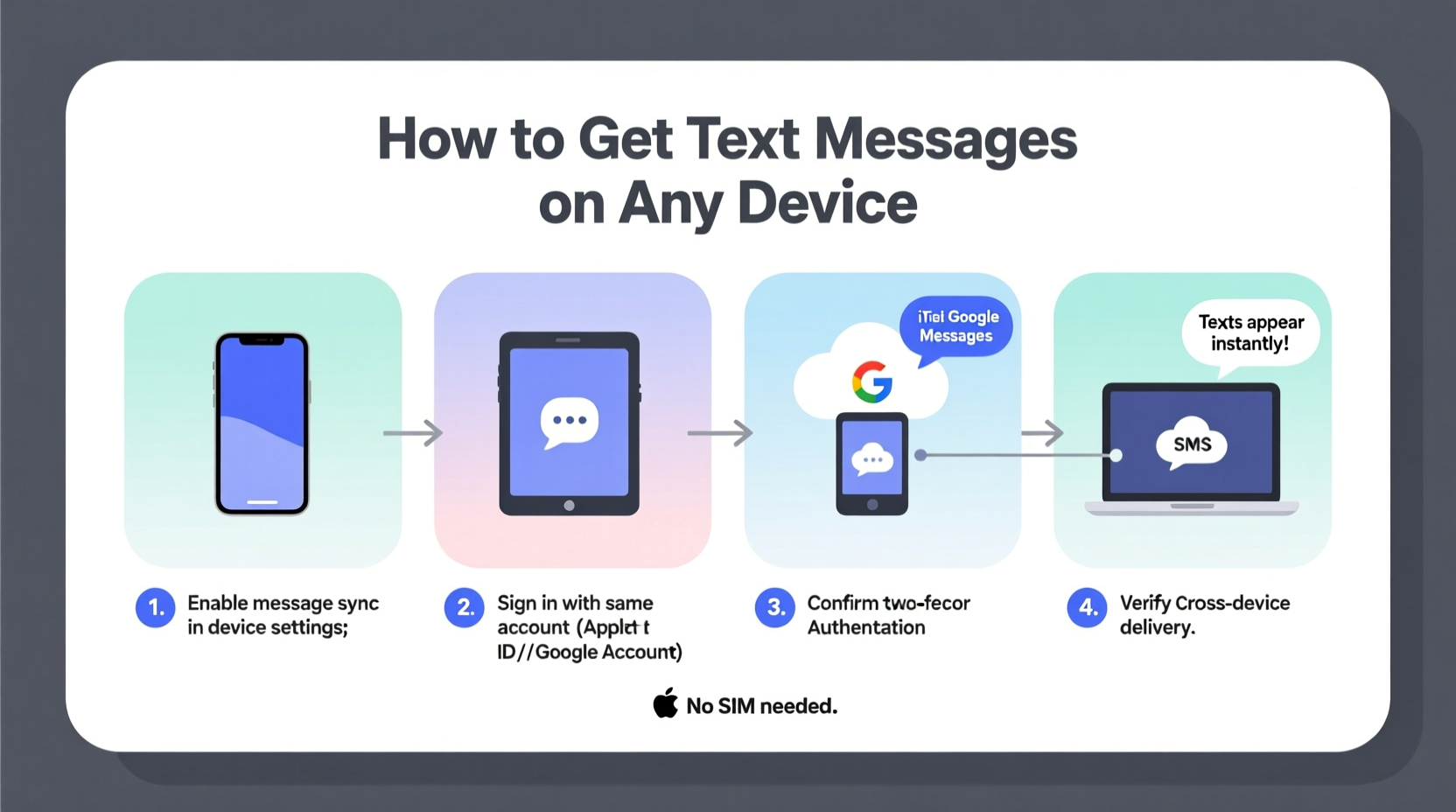
Before diving into syncing methods, it’s important to understand the two main types of text messages: SMS/MMS and internet-based messaging (like iMessage, RCS, or WhatsApp).
- SMS (Short Message Service): The traditional texting format supported by all cell phones. These messages use your carrier network and don’t require Wi-Fi.
- MMS (Multimedia Messaging Service): An extension of SMS that allows photos, videos, and longer texts.
- Internet-based messaging: Messages sent over data or Wi-Fi via apps like iMessage, Google Messages (with RCS), or third-party platforms.
Not all message types sync the same way. SMS/MMS are typically tied to your phone number and SIM card, making cross-device access more complex. Internet-based messages, however, are designed to sync seamlessly across devices linked to the same account.
Syncing Messages Across Apple Devices (iCloud)
If you’re in the Apple ecosystem, syncing messages between your iPhone, iPad, and Mac is straightforward—provided you set it up correctly.
- On your iPhone, go to Settings > [Your Name] > iCloud.
- Toggle on Messages.
- Wait for the prompt asking if you want to “Sync Now” or “Merge.” Choose based on whether you want to preserve existing messages on other devices.
- On your iPad or Mac, ensure you’re signed in with the same Apple ID and have Messages enabled in iCloud settings.
Once enabled, new messages will appear across all your Apple devices in real time. This includes both iMessages (blue bubbles) and SMS forwarded from your iPhone (if enabled).
To receive SMS on non-iPhone devices, turn on Text Message Forwarding:
- Go to Settings > Messages > Send & Receive on your iPhone.
- Select Text Message Forwarding.
- Choose which devices (e.g., iPad, Mac) should receive SMS.
- Verify each device with the six-digit code displayed on its screen.
“iCloud’s message sync is one of the most seamless integrations in consumer tech—once configured, users rarely think about it again.” — Lisa Tran, Mobile Ecosystem Analyst
Using Google Messages and RCS for Android and Web Access
Android users can mirror their messages to tablets, Chromebooks, and computers using Google Messages, especially when combined with RCS (Rich Communication Services).
RCS enhances traditional SMS with read receipts, typing indicators, high-quality media sharing, and—critically—cross-device syncing. Here’s how to enable it:
- Install or update Google Messages from the Play Store.
- Open the app and follow prompts to verify your number.
- Enable Chat Features (Google’s term for RCS) in Settings > Chat features.
- Turn on Sync messages across devices under Devices and SIMs.
Now, visit messages.google.com/web on any computer. Scan the QR code with your phone to link the web client. Your messages—including SMS and RCS—will appear instantly.
| Feature | Supported on Google Messages? | Notes |
|---|---|---|
| SMS Sync to Web | Yes | Requires active phone connection |
| RCS Support | Yes (in most countries) | End-to-end encryption available |
| iOS Web Access | Limited | No native app; web version works on Safari |
| Tablet App | Yes | Available on Android and Fire tablets |
Third-Party Apps for Cross-Platform Messaging
If you frequently switch between Android and iOS or want more control over message access, third-party apps offer powerful alternatives.
WhatsApp and Telegram lead the pack in multi-device functionality. Both allow full message synchronization across phones, tablets, desktops, and even standalone web browsers—without requiring your phone to be online.
Setting Up WhatsApp Multi-Device
- Update WhatsApp on your phone to the latest version.
- Open WhatsApp Web or Desktop and click “Link Device.”
- Scan the QR code with your phone.
- Ensure “Multi-device beta” is enabled in Settings > Linked Devices.
Unlike older versions, current WhatsApp supports up to four companion devices independently. Messages are end-to-end encrypted and synced via the cloud.
Real-Life Scenario: Staying Connected During Travel
Consider Maria, a freelance consultant who travels frequently. She uses an iPhone but often works from her Windows laptop at airports and cafes. Previously, she missed urgent client texts because she didn’t want to pull out her phone constantly.
She enabled iMessage on her Mac and turned on Text Message Forwarding. Now, when a text arrives, she sees it instantly on her laptop. For Android clients who don’t use iMessage, she also links her Google Voice number to Google Messages on the web. This dual setup ensures no message slips through the cracks—regardless of device or platform.
Her workflow improved dramatically: faster responses, fewer distractions, and better work-life balance.
Security and Privacy Considerations
While syncing messages offers convenience, it introduces potential risks. Any device with access to your messages becomes a point of vulnerability.
- Always enable two-factor authentication on your accounts (Apple ID, Google, WhatsApp).
- Use strong passwords and avoid saving login details on shared devices.
- Regularly review linked devices and remove any you no longer use.
- Avoid public Wi-Fi when accessing message web clients unless using a trusted VPN.
“Convenience should never come at the cost of security. Always audit your connected devices monthly.” — David Kim, Cybersecurity Consultant
FAQ
Can I get my iPhone texts on an Android device?
Direct SMS forwarding from iPhone to Android isn’t supported natively. However, you can use third-party apps like WhatsApp or Telegram (if both parties use them) or switch your number to Google Voice and route messages through Google Messages on Android.
Do I need my phone nearby to see messages on other devices?
For iMessage and SMS forwarding, yes—your iPhone must be powered on and connected to the internet. With RCS via Google Messages or WhatsApp multi-device mode, your phone doesn’t need to be online once devices are linked.
Are synced messages encrypted?
iMessage and WhatsApp offer end-to-end encryption across devices. Google Messages encrypts RCS chats end-to-end only when both sender and receiver support it. Standard SMS is not encrypted.
Checklist: How to Get Text Messages on Any Device
- ✅ Identify your primary device and ecosystem (Apple, Android, or mixed).
- ✅ Enable message syncing in your native app (iCloud or Google Messages).
- ✅ Set up message forwarding or web access via QR pairing.
- ✅ Install compatible apps on secondary devices (iPad, laptop, etc.).
- ✅ Review security settings and enable two-factor authentication.
- ✅ Test message delivery across devices before relying on them.
Conclusion
Gone are the days when your text messages were locked inside a single phone. Today, with built-in sync features and reliable messaging platforms, you can access your conversations wherever you are—on your tablet during a meeting, your laptop while traveling, or even your smartwatch during a workout.
The key is choosing the right method based on your devices and habits. Whether you rely on Apple’s ecosystem, Google’s RCS network, or versatile apps like WhatsApp, the tools exist to keep you connected without compromise.




 浙公网安备
33010002000092号
浙公网安备
33010002000092号 浙B2-20120091-4
Comments
No comments yet. Why don't you start the discussion?