
In today’s digital world, smartphones store a wealth of personal and professional data. While most apps serve a purpose, not all need to be visible on your home screen or app drawer. Whether it's for privacy, reducing visual clutter, or protecting sensitive information from prying eyes, hiding apps without uninstalling them is a practical solution. The good news: both Android and iOS offer ways—official and creative—to keep apps out of sight while preserving their data and functionality.
Hiding an app doesn’t mean deleting it. You retain all settings, login credentials, and stored data, making it easy to access later when needed. This guide explores proven methods across platforms, including native settings, third-party launchers, secure folders, and workarounds that balance usability with discretion.
Why Hide Apps Instead of Uninstalling?
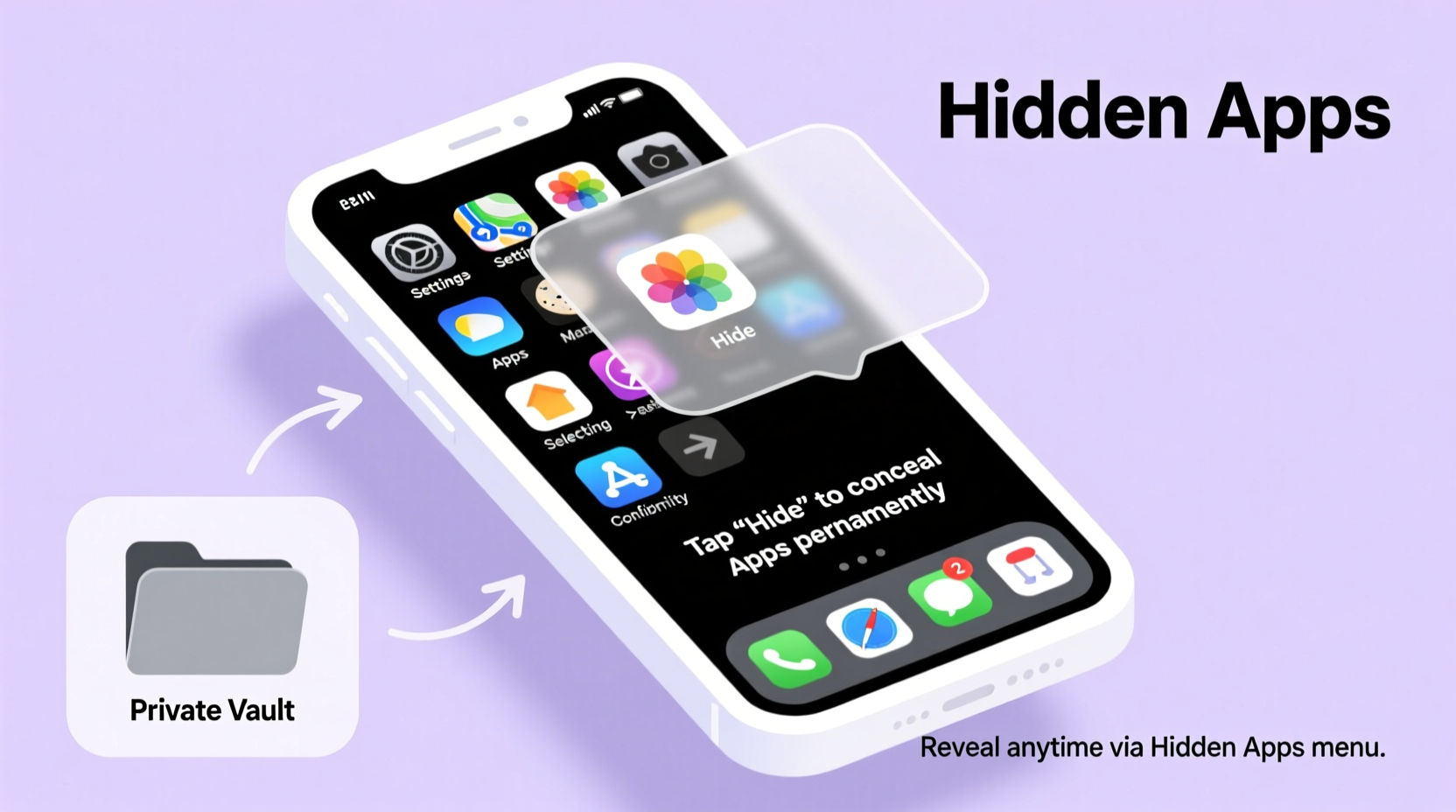
Uninstalling an app may seem like the simplest way to remove it from view, but it comes with trade-offs. You lose saved preferences, login sessions, cached files, and sometimes even progress in games or productivity tools. Reinstalling later means reconfiguring everything—a time-consuming process.
Hiding apps preserves all that effort while keeping your interface clean. Common reasons include:
- Privacy protection: Shield banking, health, or messaging apps from others who might use your device.
- Reduced distractions: Minimize temptation by hiding social media or gaming apps during work hours.
- Child safety: Prevent young users from accessing inappropriate or complex applications.
- Professional appearance: Maintain a minimalist, organized look during presentations or shared screen moments.
“Many users don’t realize they can maintain full app functionality while enhancing privacy through simple visibility controls.” — Lena Torres, Mobile Security Analyst at Digital Shield Labs
How to Hide Apps on Android Devices
Android offers multiple approaches depending on your device manufacturer and installed software. Unlike iOS, Android allows deeper customization, including third-party launchers and system-level features.
Method 1: Use Built-In App Hider (Samsung and Other OEMs)
Samsung Galaxy devices running One UI include a native “Hide apps” feature. This removes selected apps from the app drawer entirely.
- Open the Settings app.
- Tap Home screen or Apps (varies by model).
- Select Hide apps.
- Check the boxes next to the apps you want to hide.
- Tap Apply or Done.
To unhide: Repeat the steps and deselect the apps.
Method 2: Use Secure Folder (Samsung Only)
Samsung’s Secure Folder isolates apps in an encrypted space accessible only via PIN, pattern, fingerprint, or facial recognition. Anything inside is invisible elsewhere on the device.
- Go to Settings > Biometrics and security > Secure Folder.
- Set up authentication if prompted.
- Add apps by tapping Add apps and selecting from the list.
- Confirm. These apps will disappear from your main app drawer.
The Secure Folder acts like a separate user profile. You can log into different accounts, store private photos, and even hide games or finance tools safely.
Method 3: Third-Party Launchers
Launchers like Nova Launcher, Action Launcher, or Microsoft Launcher let you hide apps from the app drawer while keeping them installed.
Nova Launcher Example:
- Install Nova Launcher from the Google Play Store and set it as default.
- Long-press any blank area on the home screen and select Settings.
- Navigate to App & Widget Pockets > Hide Apps.
- Select the apps to hide.
These apps remain functional—you can still search for them within Nova or launch them via shortcuts—but they won’t appear in the app drawer.
Hiding Apps on iPhones (iOS)
iOS does not offer a direct “hide app” option like some Android devices. However, Apple provides indirect but effective methods through Home Screen organization and Screen Time restrictions.
Method 1: Remove from Home Screen to App Library
iOS automatically organizes apps into the App Library (swipe left past your last home screen page). You can remove apps from the home screen while leaving them accessible here.
- Long-press an app icon until the quick menu appears.
- Select Remove App.
- Choose Remove from Home Screen (do not tap “Delete App”).
The app remains installed and searchable. It also appears in the App Library under its category (e.g., Productivity, Utilities).
Method 2: Use Screen Time Restrictions
This method hides apps more securely by restricting access based on content limits.
- Go to Settings > Screen Time.
- Tap App Limits > Add Limit.
- Select the category or specific app(s) you want to hide (e.g., Instagram, TikTok).
- Set the time limit to 1 minute per day.
- Enable Block at End of Limit.
- Tap Add.
After one minute of usage, the app becomes inaccessible without entering your Screen Time passcode. While not true \"hiding,\" this effectively locks the app away from casual access.
“This workaround gives parents and professionals a way to self-regulate app usage without deletion.” — Dr. Marcus Lin, Behavioral Tech Researcher at Stanford University
Method 3: Create Empty Folders on Home Screen
A visual trick: place rarely used or sensitive apps inside folders buried deep within secondary home screen pages.
- Create a new folder by dragging one app onto another.
- Name it something generic like “Utilities” or “Old Tools.”
- Move unwanted icons into it.
- Swipe the entire folder to a far-right home screen page.
- Don’t place that page near frequently used ones.
This isn’t true invisibility, but it reduces visibility significantly—especially useful for guests handling your phone.
Comparison Table: Hiding Methods Across Platforms
| Method | Platform | Visibility Removed? | Accessible Via Search? | Requires Extra Setup? |
|---|---|---|---|---|
| Built-in Hide Apps (Samsung) | Android (Samsung) | Yes | No | Minimal |
| Secure Folder (Samsung) | Android (Samsung) | Yes | Only after authentication | Moderate (setup required) |
| Third-Party Launcher | Most Android | Yes (in drawer) | Yes (via search/shortcuts) | Moderate (install launcher) |
| Remove from Home Screen (iOS) | iOS | Partially | Yes (App Library/Search) | Low |
| Screen Time Limit (iOS) | iOS | No (but restricted) | Yes (but blocked after limit) | Moderate |
| Hidden Folder Trick | Both | Partially | Yes | Low |
Mini Case Study: Managing Privacy in Shared Households
James, a freelance graphic designer, shares his iPhone with his teenage daughter for schoolwork when his laptop is unavailable. He uses several client management and invoicing apps that contain confidential financial data. Rather than risk exposure, he removed these apps from the home screen and placed them in a folder labeled “Archive” on the third home screen page—far from her usual apps.
Additionally, he enabled Screen Time restrictions on his email and cloud storage apps, setting a daily limit of one minute. When she tries to open them, the app locks immediately. James retains full access using his Screen Time passcode. This setup ensures both convenience and confidentiality without uninstalling essential tools.
Actionable Checklist: How to Hide Apps Safely
Follow this checklist to hide apps effectively while maintaining device performance and accessibility:
- ✅ Identify which apps you want to hide (e.g., banking, health, messaging).
- ✅ Check if your device has a built-in hide feature (Samsung users: check Settings > Home screen).
- ✅ For Samsung: Consider using Secure Folder for maximum privacy.
- ✅ On other Android phones: Install a trusted launcher like Nova Launcher.
- ✅ On iPhone: Remove apps from the home screen (not delete) to move them to App Library.
- ✅ Use Screen Time to restrict access to sensitive apps.
- ✅ Test access: Ensure you can still launch hidden apps when needed (via search or authentication).
- ✅ Set strong passwords or biometric locks where applicable.
- ✅ Avoid downloading shady “app hider” apps from unknown developers—they may contain malware.
- ✅ Periodically review hidden apps to ensure nothing outdated remains active.
Frequently Asked Questions
Can someone still see my hidden apps if they have physical access to my phone?
It depends on the method. Apps hidden via Samsung’s Secure Folder are completely invisible without authentication. On iOS, apps moved to the App Library can be found via search unless restricted with Screen Time. True invisibility requires encryption or access control.
Do hidden apps continue to receive updates?
Yes. Hidden apps remain installed and will update normally through the Google Play Store or Apple App Store, provided auto-updates are enabled. Hiding affects visibility, not functionality or maintenance.
Are there risks in using third-party app hiders?
Yes. Many so-called “app hider” apps on the Play Store request excessive permissions and may collect data. Stick to reputable launchers like Nova or Action Launcher, or use built-in OS features instead of obscure utilities.
Final Thoughts: Balance Convenience and Privacy
Hiding apps without uninstalling them is a smart strategy for managing digital clutter and safeguarding personal information. With the right tools—whether Samsung’s Secure Folder, iOS App Library, or customizable Android launchers—you gain control over what’s visible without sacrificing functionality.
The key is choosing a method that aligns with your needs: basic organization, distraction reduction, or high-level privacy. Always prioritize official, well-reviewed solutions over unverified apps promising total invisibility. Remember, no method is foolproof against determined snooping, but combining hiding techniques with strong passcodes significantly raises the barrier.




 浙公网安备
33010002000092号
浙公网安备
33010002000092号 浙B2-20120091-4
Comments
No comments yet. Why don't you start the discussion?