
A standing desk offers ergonomic benefits, improved posture, and increased energy throughout the day. But with multiple monitors, laptops, chargers, and peripherals, cord clutter can quickly undermine its sleek appeal. Tangled wires not only look unprofessional but also make maintenance difficult and pose tripping hazards. The good news: with thoughtful planning and the right tools, you can completely hide cords on your standing desk while maintaining full functionality and ease of access.
Effective cable management isn’t about hiding mess—it’s about designing a system that supports productivity, safety, and aesthetics. Whether you’re setting up a home office or upgrading a corporate workstation, mastering cable control is essential. This guide walks through proven strategies, tools, and real-world practices to help you achieve a clean, wire-free appearance without sacrificing convenience.
Assess Your Cable Load Before You Begin
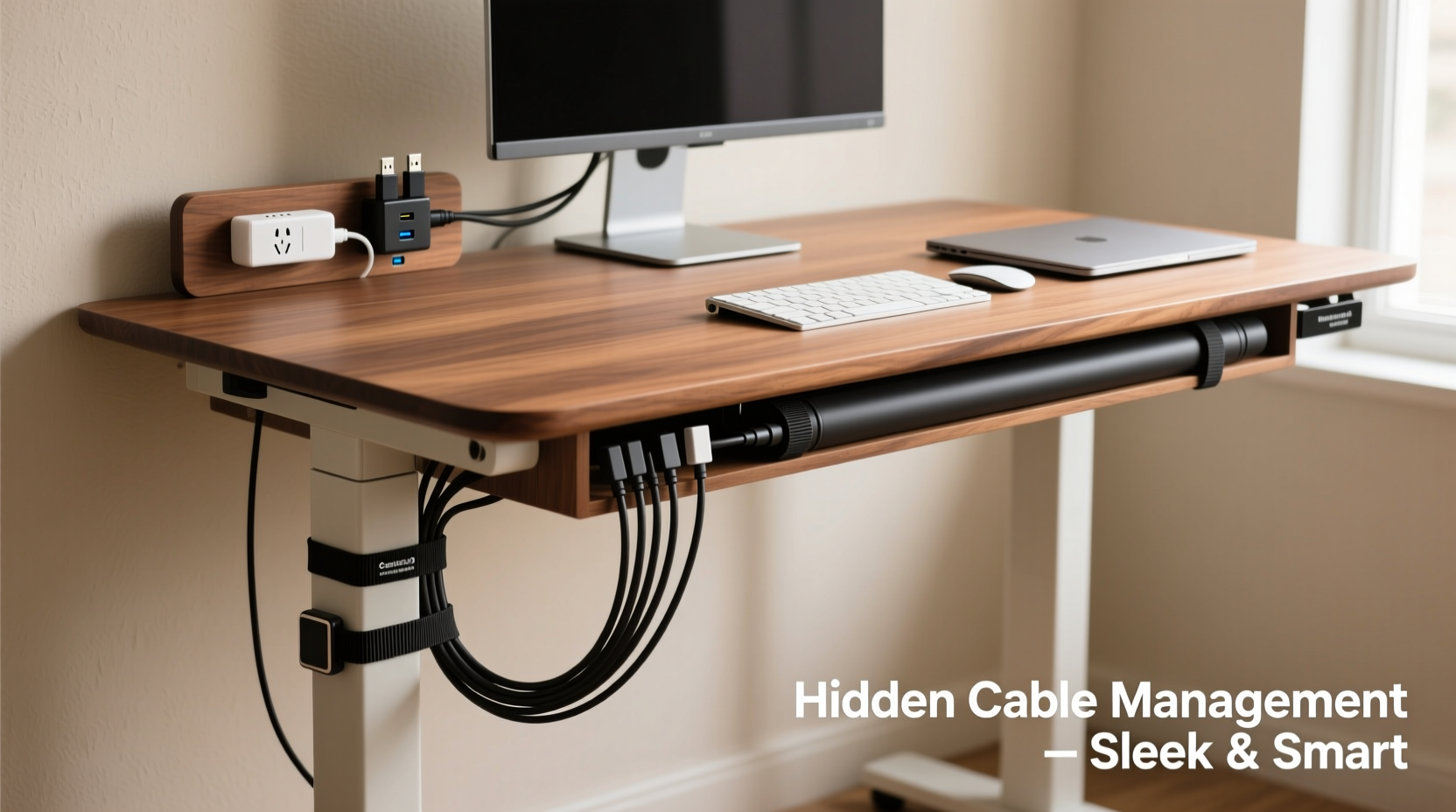
The first step in hiding cords is understanding what you're working with. Inventory every device connected to your desk: monitor(s), laptop, docking station, keyboard, mouse, speakers, webcam, USB hubs, power strips, phone charger, and any other accessories. Note which cables are power, data (USB, HDMI, Ethernet), or audio.
Once listed, categorize them by frequency of use. Daily-use items like keyboards and monitors should remain easily accessible. Occasional-use devices—like external hard drives or guest charging ports—can be tucked away deeper in the system. This assessment prevents over-engineering and ensures your solution remains practical.
Choose the Right Cable Management Tools
No single tool solves all cable problems. A layered approach using multiple accessories yields the best results. Below is a comparison of common solutions and their ideal applications:
| Tool | Best For | Limitations |
|---|---|---|
| Cable sleeves / braided wraps | Grouping multiple cords into one tidy bundle | Not suitable for thick power bundles; may restrict airflow if overfilled |
| Adhesive cable clips | Guiding cords along desk edges or legs | May damage surfaces when removed; limited weight capacity |
| Under-desk cable trays | Holding power strips and excess cable slack | Reduces legroom if too deep; requires mounting hardware |
| Desk grommet covers with pass-throughs | Routing cables through desktop holes neatly | Only works if desk has pre-drilled holes |
| Magnetic cable management arms | Attaching to metal desk frames for dynamic routing | Expensive; requires compatible frame material |
Select tools based on your desk material, mobility needs, and aesthetic goals. For example, wood desks benefit from discreet adhesive clips, while metal-framed standing desks work well with magnetic arms that adjust with height changes.
Step-by-Step Guide to Hide Cords on a Standing Desk
Follow this sequence to systematically eliminate visible wiring:
- Power down and unplug everything. Safety first. Remove all devices from outlets and disconnect from peripherals.
- Route cables behind the desk. Use adhesive clips or zip ties to guide cords vertically down the back edge of the desk, avoiding side exposure.
- Create a central drop point. Choose one location—preferably near floor outlets—to consolidate all cables. Use a grommet hole or install a low-profile cable raceway.
- Bundle related cables together. Group monitor HDMI/USB-C, power cords, and audio lines separately using braided sleeves or velcro straps. Label each bundle for easy identification.
- Mount an under-desk tray or basket. Secure a tray beneath the desk surface to house your power strip, dock, and excess cable loops. This keeps heavy components off the floor and hidden from view.
- Use a cord cover raceway along baseboards. Run a paintable plastic raceway from your desk leg to the wall outlet. Feed all final cables through it for a seamless finish.
- Test height adjustments. Raise and lower your standing desk several times to ensure no cables snag, stretch, or become exposed during motion.
- Add final touches. Install a fabric cable sleeve for aesthetic polish or attach a small hook underneath for frequently used items like headphones.
This process takes 30–60 minutes but pays long-term dividends in both function and appearance.
Real Example: Transforming a Cluttered Home Office
Jamie, a freelance graphic designer in Portland, struggled with a dual-monitor standing desk setup plagued by tangled cords. Every time she adjusted the desk height, her monitor HDMI would catch on the edge, occasionally disconnecting mid-call. Her solution began with measuring cable lengths and replacing two oversized power adapters with slimmer models.
She installed a 24-inch under-desk aluminum tray to hold her powered USB hub and AC strips. Using self-adhesive silicone clips, she routed all cables down the rear center of the desk, feeding them through a rubber grommet into a white flat raceway along the wall. She grouped video cables in a black mesh sleeve and labeled each end with printed tags.
The result? A minimalist workspace where only her keyboard, mouse, and monitors are visible. When she raises the desk, nothing snags. Clients compliment her “studio-quality” background on Zoom calls. Most importantly, daily tech adjustments take seconds instead of minutes spent untangling wires.
“Good cable management doesn’t just improve looks—it reduces cognitive load. A clean desk means a clearer mind.” — David Lin, Workplace Ergonomics Consultant
Do’s and Don’ts of Standing Desk Cable Management
To avoid common pitfalls, refer to this concise checklist:
| Do | Don’t |
|---|---|
| Use velcro straps instead of zip ties for easy adjustments | Use tight zip ties that crush insulation or prevent future changes |
| Plan for future additions (extra USB port, second monitor) | Fill every inch of space now—leave room for upgrades |
| Label both ends of long or identical cables | Assume you’ll remember which HDMI goes where in six months |
| Secure moving parts so they don’t dangle during height changes | Let power bricks hang freely from outlets—they strain connections |
| Test the full range of motion after installation | Assume everything will work fine once reassembled |
Frequently Asked Questions
Can I hide all cords without drilling holes in my desk?
Yes. If your desk lacks grommets or pre-drilled pass-throughs, use adhesive-backed raceways or flexible cable sleeves that run along the back edge. Mount an under-desk tray to contain power strips and hub devices. While less invisible than drilled solutions, these methods still deliver a clean look without permanent modifications.
How do I manage cables when raising and lowering the desk frequently?
The key is controlling slack. Never let cables hang freely. Instead, create a “service loop” — a U-shaped bend of extra cable secured with velcro underneath the desk. As the desk rises, the loop extends smoothly without tension. Pair this with vertical routing using clips or a magnetic arm designed for dynamic movement.
What’s the best way to hide a power strip?
Mount it inside an under-desk tray or use a power strip with built-in cable management. Some modern strips feature wrap-around arms or compartments for storing excess cords. Alternatively, place it inside a ventilated fabric enclosure attached to the desk leg. Ensure ventilation to prevent overheating, especially with high-wattage devices.
Final Checklist: Achieve a Wire-Free Standing Desk
- ✔️ Count and categorize all cables by type and usage frequency
- ✔️ Measure cable lengths and replace overly long ones if possible
- ✔️ Choose a central cable exit point (grommet, rear edge, or side cutout)
- ✔️ Install under-desk tray or mounting bracket for power strip/dock
- ✔️ Use adhesive clips or raceways to route cables cleanly downward
- ✔️ Bundle cables by function using velcro or mesh sleeves
- ✔️ Label both ends of each cable for quick troubleshooting
- ✔️ Test full height adjustment range to confirm no snagging
- ✔️ Conceal floor-to-wall segment with baseboard raceway or cord cover
- ✔️ Leave a small service loop for flexibility during desk movement
Conclusion: Elevate Your Workspace With Smart Cable Control
A clean standing desk isn’t just visually satisfying—it enhances focus, reduces stress, and reflects professionalism, whether you're working remotely or hosting clients. Hiding cords isn’t a one-time fix but a design mindset: plan for movement, prioritize accessibility, and choose tools that support long-term usability.
You don’t need expensive gear to succeed. Often, a $10 cable sleeve, a few adhesive clips, and ten minutes of organization make all the difference. Start today. Clear your desk, assess your cables, and implement one improvement at a time. The result will be more than a tidy surface—it will be a workspace engineered for peak performance.




 浙公网安备
33010002000092号
浙公网安备
33010002000092号 浙B2-20120091-4
Comments
No comments yet. Why don't you start the discussion?