
A cluttered desk is more than just an eyesore—it’s a distraction. In today’s remote and hybrid work environments, the visual quality of your workspace impacts both productivity and professional image, especially during video calls. Standing desks, while ergonomic and health-conscious, often come with a downside: tangled cords snaking across surfaces or dangling from edges. But achieving a sleek, minimalist aesthetic doesn’t require expensive upgrades or DIY carpentry. With thoughtful organization and the right tools, you can effectively conceal cords and create a workspace that feels intentional, calm, and modern.
The goal isn't just aesthetics—it's also functionality. Hidden cables reduce tripping hazards, prevent accidental unplugging, and make cleaning easier. This guide walks through proven strategies, product recommendations, and real-world applications to help you transform your standing desk into a streamlined hub of efficiency.
Why Cable Management Matters in Modern Workspaces
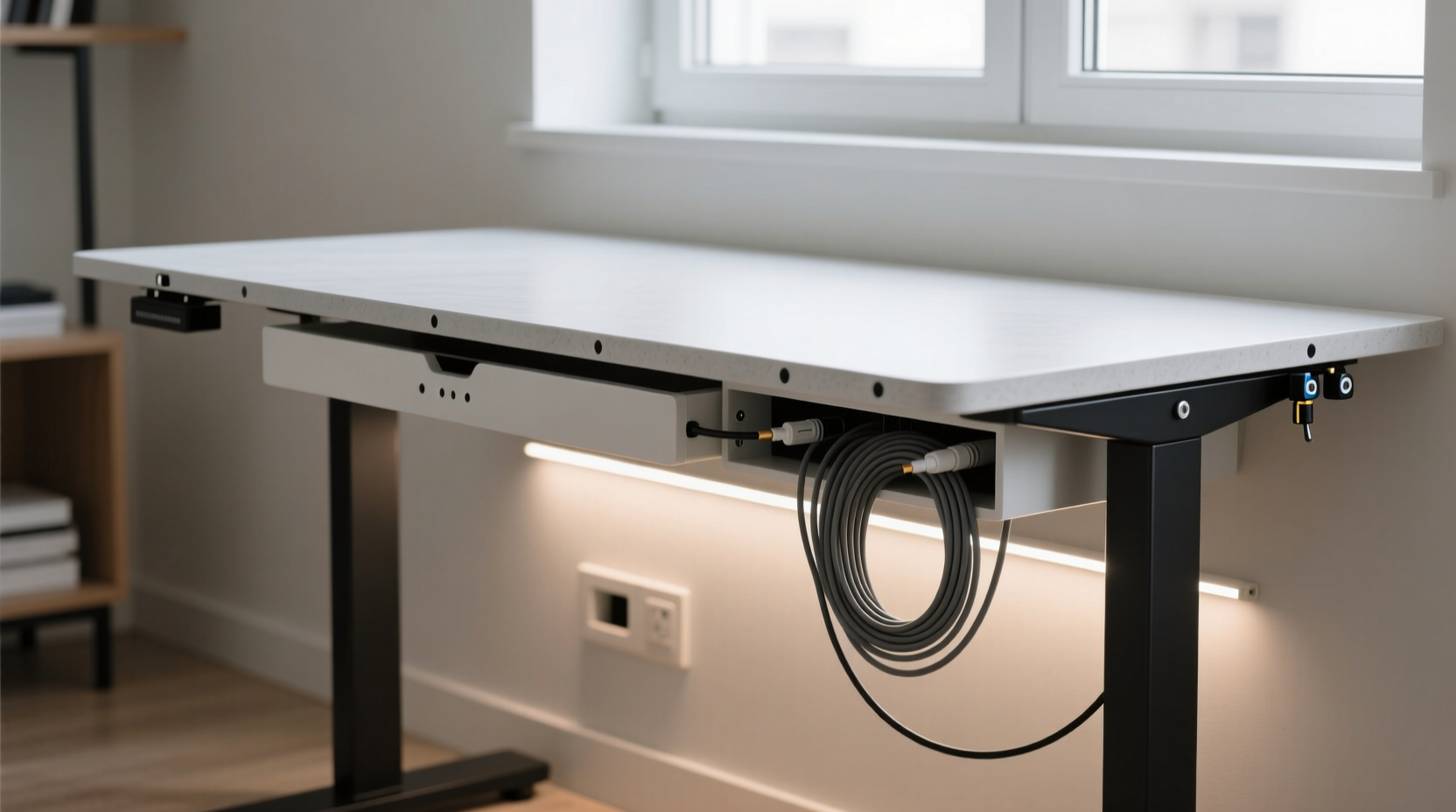
In open-concept homes and compact offices, furniture doubles as decor. A standing desk is no longer just a functional piece—it's part of your interior design. Visible cords disrupt visual flow, making even the most stylish desk look haphazard. More importantly, poor cable management can lead to:
- Reduced focus due to visual clutter
- Increased risk of device damage from tugs or spills
- Dust accumulation around exposed wires
- Difficulty adjusting desk height when cords get caught
According to interior designer and workspace consultant Lena Torres, “A well-managed desk signals professionalism and control. It tells others—and yourself—that you value order and efficiency.”
“A clean desk isn’t just about appearance. It reflects mental clarity. When your environment is organized, your mind follows.” — Lena Torres, Workspace Design Specialist
Effective cord hiding supports not only physical comfort but cognitive ease. The process begins with understanding your setup and identifying all connected devices.
Step-by-Step Guide to Hiding Cords on Your Standing Desk
Follow this logical sequence to systematically eliminate visible cords and achieve a polished look.
- Inventory Your Devices
List every item plugged into your desk: monitor(s), laptop charger, USB hub, lamp, phone dock, speakers, etc. Note power and data cable types (USB-C, HDMI, AC adapters). - Unplug and Lay Cables Out
Temporarily disconnect everything. Lay each cable flat on the floor to assess length and routing needs. This helps avoid overbuying accessories later. - Group Cables by Function
Bundle related cords—such as monitor power and video input—together. Use Velcro ties to keep them paired without restricting movement. - Choose a Routing Path
Decide whether you’ll route cables internally (through desk grommets) or externally (along legs or back panel). Internal routing offers the cleanest result if your desk supports it. - Install Cable Management Tools
Apply adhesive clips, raceways, or sleeves based on your chosen path. Test desk height adjustments to ensure cords aren’t pinched. - Reconnect and Test
Plug everything back in. Raise and lower the desk several times to confirm cables move freely and remain hidden. - Final Tidy
Trim excess zip ties, tuck stray ends, and label cords if needed for future maintenance.
Top Cord-Hiding Solutions Compared
Not all cable management products are created equal. The best choice depends on your desk model, budget, and aesthetic preferences. Below is a comparison of popular solutions.
| Solution | Best For | Pros | Cons |
|---|---|---|---|
| Adhesive Cable Clips | Budget-friendly setups | Inexpensive, easy to install, removable | Less durable; may leave residue |
| Cable Raceway Kit | Desks with visible rear legs | Encloses multiple cords neatly, paintable | Requires drilling or strong adhesion |
| Cable Sleeve / Braided Wrap | Mid-range bundling | Flexible, attractive finish, reusable | Doesn’t anchor cables to desk |
| Under-Desk Cable Tray | Heavy multi-device setups | Holds weight, keeps cords accessible | Visible from certain angles |
| Desk Grommet Covers with Ports | High-end minimalist builds | Integrates power/USB into desktop | Expensive; requires desk modification |
For standing desks, flexibility is key. Avoid rigid conduits that limit vertical movement. Instead, opt for stretchable sleeves or low-profile raceways that allow smooth transitions between sitting and standing positions.
Real Example: Transforming a Home Office Setup
Take Mark, a freelance graphic designer working from a small apartment. His L-shaped standing desk housed two monitors, a drawing tablet, a wireless keyboard, and a ring light—all powered independently. Initially, cords draped over the edge, coiled on the floor, and tangled behind his chair.
He started by labeling each cable with masking tape. After measuring lengths, he realized his monitor power cords were 3 feet longer than necessary. He used braided cable sleeves to bundle each side’s wiring, then mounted a 4-port USB charging station under the desk using Velcro strips. This reduced the number of wall plugs from five to two.
Next, he installed a 4-foot adhesive raceway along the back leg of the desk, feeding all main lines through it. A grommet cover with built-in outlets allowed him to plug in essential devices directly through the desktop, eliminating dangling adapters.
The result? A seamless surface where only a single thin cord exited the back leg and ran discreetly to the outlet. During client Zoom calls, the background looked studio-polished. “I didn’t realize how much the mess was stressing me out,” Mark said. “Now my desk feels like a creative space, not a tech dump.”
Essential Tips for Long-Term Success
Maintaining a cord-free look requires foresight and routine checks. Here are key habits to adopt:
- Check cable alignment monthly, especially after moving the desk.
- Dust inside raceways and trays every quarter to prevent buildup.
- Upgrade to USB-C hubs where possible—they reduce the number of required adapters.
- Consider a wireless charging pad to eliminate one more cord.
Cable Management Checklist
Use this checklist to ensure no step is missed in your cord-hiding project:
- ✅ Unplugged all devices
- ✅ Identified primary power and data sources
- ✅ Measured cable lengths and grouped by function
- ✅ Selected appropriate management system (clips, sleeve, raceway, etc.)
- ✅ Installed anchoring points or enclosures
- ✅ Tested full range of desk height motion
- ✅ Secured loose ends and labeled critical cables
- ✅ Cleaned workspace and disposed of packaging
Frequently Asked Questions
Can I hide cords on a standing desk without drilling?
Yes. Most cord management can be achieved using adhesive-backed clips, magnetic mounts, or under-desk trays with clamp attachments. These options are ideal for renters or those avoiding permanent modifications.
What if my desk doesn’t have grommets?
No problem. You can still use external solutions like corner raceways or cable sleeves routed down the leg. Alternatively, retrofit with a grommet-style power hub that sits on the desktop and funnels cords through a central opening.
How do I prevent cords from getting caught when raising the desk?
Ensure there’s enough slack in the cables and route them along the inner side of the desk frame. Avoid wrapping cords tightly around moving parts. Using a flexible conduit or spiral wrap allows natural flexing during height changes.
Final Thoughts: Elevate Your Workspace with Intentional Design
A minimalist standing desk isn’t achieved overnight—it’s the result of deliberate choices and consistent upkeep. Hiding cords is one of the most impactful upgrades you can make, transforming a chaotic workstation into a serene, focused environment. The effort pays off in sharper concentration, better virtual meeting appearances, and a sense of pride in your personal workspace.
You don’t need a full renovation or high-end gear. Start small: pick one cable to manage today, then build from there. Over time, these incremental improvements compound into a truly refined setup.




 浙公网安备
33010002000092号
浙公网安备
33010002000092号 浙B2-20120091-4
Comments
No comments yet. Why don't you start the discussion?