
As the holiday season approaches, many gamers look to infuse their setups with festive cheer. Christmas lights offer warmth, ambiance, and personality—but when placed incorrectly, they can create distracting screen glare, interfere with motion-sensitive controllers, or clutter an otherwise clean workspace. The key lies in thoughtful integration: balancing aesthetics with functionality. With the right strategy, you can enjoy seasonal lighting that enhances your gaming environment without compromising performance or comfort.
Understanding the Risks of Poor Lighting Placement
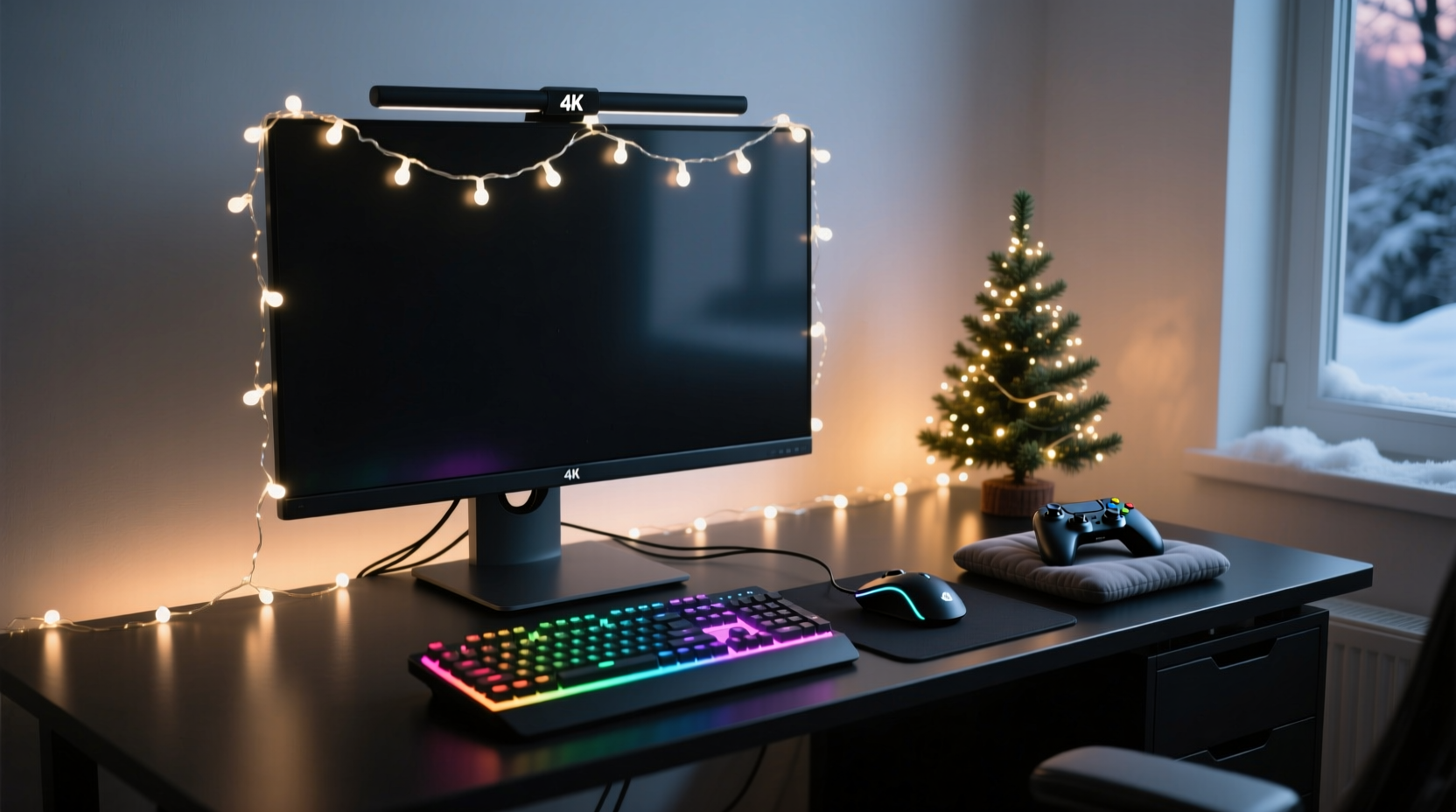
Before installing any lights, it’s essential to recognize how improper placement can negatively affect your gaming experience. Screen glare occurs when light reflects directly off your monitor, reducing visibility and increasing eye strain. This is especially problematic during long sessions or competitive play, where clarity is critical. Additionally, infrared-based motion controllers—like those used with PlayStation VR or Nintendo Switch—can misinterpret signals from certain LED wavelengths, leading to erratic behavior or input lag.
Another overlooked issue is cable congestion. Many budget Christmas light strings lack modular design, resulting in tangled cords that compete for USB ports or power outlets already occupied by peripherals. A poorly managed setup not only looks unprofessional but also increases the risk of accidental disconnections during intense gameplay.
“Lighting should support the user experience, not sabotage it. In gaming environments, every visual element must serve both form and function.” — Daniel Ruiz, Ergonomic Design Consultant at PlaySpace Labs
Strategic Light Placement to Minimize Glare
The foundation of glare-free lighting is indirect illumination. Instead of shining lights toward your monitor, position them behind or beneath surfaces so that ambient glow softly bounces off walls or furniture. This technique, known as \"indirect backlighting,\" mimics professional studio setups and reduces contrast stress on the eyes.
Begin by identifying reflection zones. Sit in your normal gaming position and observe where light from existing sources hits the screen. Use a flashlight or phone torch to simulate potential light paths. Avoid placing LEDs within these hotspots, particularly along the top and sides of your desk.
For wall-mounted monitors or corner desks, consider outlining the perimeter of the wall behind the display with warm-white LEDs. This draws attention outward, minimizing perceived screen brightness and reducing eye fatigue in dim rooms. Ensure the lights are at least 12 inches above or beside the monitor to prevent spill-over reflections.
If using traditional string lights, drape them behind shelves, bookcases, or acoustic panels rather than across open space. Fabric-wrapped wire strands are less reflective and safer near electronics. Avoid hanging lights directly above the monitor, as overhead glare is difficult to correct once established.
Selecting the Right Lights: Color Temperature and Brightness Control
Not all Christmas lights are created equal. The color temperature—measured in Kelvin (K)—plays a significant role in visual comfort. Cool white lights (5000K–6500K) emit a bluish tint that can feel harsh and clinical, disrupting melatonin production and potentially affecting sleep if gaming late. Warm white (2700K–3000K), on the other hand, mimics candlelight or incandescent bulbs, creating a cozy atmosphere ideal for extended use.
RGB lights offer maximum customization but require careful tuning. While red and green hues evoke holiday spirit, full-spectrum cycling modes can be visually overwhelming and may trigger discomfort in sensitive individuals. Opt for static or slow-pulse modes instead of strobing or rapid transitions.
| Light Type | Color Temp | Best For | Risks |
|---|---|---|---|
| Warm White LED Strip | 2700K–3000K | Background ambient lighting | Low; minimal glare when mounted correctly |
| Cool White String Lights | 5000K+ | Decorative accents (away from screens) | High glare risk; disrupts circadian rhythm |
| RGB LED Strip (Tunable) | Adjustable | Custom themes and mood lighting | Motion interference if near IR sensors; overstimulation |
| Fairy Lights with Diffusers | Varies | Soft, dispersed glow | Minimal, if diffused properly |
Brightness control is equally important. Many modern LED strips come with dimming features via remote or app. Start at 30% brightness and gradually increase until the desired ambiance is achieved. If your lights lack dimming options, consider using physical barriers like cardboard baffles or matte tape to block excess output.
Step-by-Step Guide: Installing Lights Without Interference
Follow this sequence to install Christmas lights safely and effectively in your gaming area:
- Assess Your Layout: Map out your desk, monitor, chair, and peripheral positions. Identify zones where lights won’t intersect with sightlines or devices.
- Choose Low-Interference Lights: Select warm white or tunable RGB strips with adhesive backing and low electromagnetic emission. Avoid flickering or buzzing units.
- Test Controller Sensitivity: Power down VR headsets or motion controllers. Install lights temporarily and test responsiveness. If latency or drift occurs, reposition lights further from sensor fields.
- Mount Behind Surfaces: Apply LED strips to the rear underside of your desk or along the back wall. Use clips or brackets to secure loose ends.
- Manage Cables Strategically: Route power adapters through desk grommets or cable trays. Use velcro ties—not zip ties—to allow future adjustments.
- Dim and Tune: Set brightness between 20–40%. Choose static or gentle fade effects. Disable audio-reactive modes unless fully tested.
- Final Glare Check: Sit in your usual position under typical room lighting. Adjust angles or add diffusion material if reflections appear.
Case Study: Transforming a Cluttered Setup into a Festive Yet Functional Space
Alex, a streamer based in Portland, wanted to decorate his battlestation for December content without sacrificing viewer experience. His initial attempt involved wrapping multicolor mini-lights around his monitor and speaker bases. Viewers immediately complained about flicker visible on camera and difficulty reading chat due to screen reflections.
After reassessment, Alex replaced the chaotic strings with a single 2-meter warm white LED strip mounted behind his desk, facing the wall. He added a second strip along the base of his backdrop panel, diffused with a thin fabric cover. Both were connected to a smart plug for scheduled on/off times. Motion tests with his PS5 camera showed no interference, and stream quality improved noticeably.
The result? A professionally lit background that enhanced his branding, reduced eye strain during 6-hour streams, and received positive feedback from his audience. Most importantly, gameplay remained unaffected—no input lag, no glare, no distractions.
Essential Checklist for Glare-Free Gaming Lighting
- ✅ Confirm light placement avoids direct line-of-sight to monitor
- ✅ Use warm white (2700K–3000K) or carefully tuned RGB settings
- ✅ Test all motion-sensitive peripherals after installation
- ✅ Install lights indirectly—bounce glow off walls or furniture
- ✅ Implement cable management to prevent tripping or port blockage
- ✅ Use dimmers or diffusers to control brightness levels
- ✅ Avoid flashing, strobing, or rapid-color-change modes during gameplay
- ✅ Schedule automatic shutoff to conserve energy and prevent overnight exposure
FAQ: Common Concerns About Christmas Lights in Gaming Setups
Can Christmas lights damage my monitor or PC components?
No, standard LED Christmas lights do not emit harmful radiation or heat levels capable of damaging electronics. However, cheaply made strings with poor insulation could pose fire risks if left unattended. Always choose UL-listed or CE-certified products and avoid covering lights with flammable materials.
Why do my motion controllers act strangely when lights are on?
This typically happens when infrared (IR)-based sensors detect interference from blinking or RGB LEDs. Devices like the PlayStation Camera or Nintendo IR stickers interpret rapid light changes as movement. Solution: switch to steady-state lighting, disable dynamic effects, or relocate lights outside the sensor’s field of view.
Are smart lights safe for gaming setups?
Yes, smart LED strips (e.g., Philips Hue, Govee, Nanoleaf) are generally safe and offer superior control. Their apps allow scheduling, scene presets, and per-zone dimming—ideal for switching between “gaming mode” and “holiday mode.” Just ensure firmware is updated and Wi-Fi connectivity doesn’t congest your network.
Conclusion: Celebrate Smartly, Game Comfortably
Integrating Christmas lights into your gaming setup isn’t about choosing between festivity and function—it’s about harmonizing both. With strategic placement, proper color selection, and disciplined cable management, you can create a welcoming, immersive environment that respects your hardware and enhances your experience. The best setups don’t shout for attention; they subtly elevate the mood while staying out of the way when it matters most.
This holiday season, take a few extra minutes to plan your lighting layout. Your eyes, your controller, and your stream viewers will thank you. Whether you're grinding leaderboards or hosting a cozy multiplayer night, let your setup reflect joy—without reflecting light.




 浙公网安备
33010002000092号
浙公网安备
33010002000092号 浙B2-20120091-4
Comments
No comments yet. Why don't you start the discussion?