
Gaming rooms are no longer just spaces for play—they’re personal sanctuaries where lighting sets the mood, enhances immersion, and reflects individual style. As the holiday season approaches, many gamers want to add festive cheer with Christmas lights. However, introducing external LED sources can interfere with synchronized RGB ecosystems powered by software such as Corsair iCUE, Razer Chroma, ASUS Aura Sync, or MSI Mystic Light. The challenge lies in blending seasonal warmth with high-tech precision—without causing color clashes, signal conflicts, or software crashes.
The good news: it’s entirely possible to enjoy twinkling holiday lights while maintaining full control over your gaming rig’s synchronized glow. With careful planning, smart product selection, and a few technical workarounds, you can create a harmonious blend of festive ambiance and responsive RGB performance.
Understanding the Conflict Between Christmas Lights and RGB Sync Software
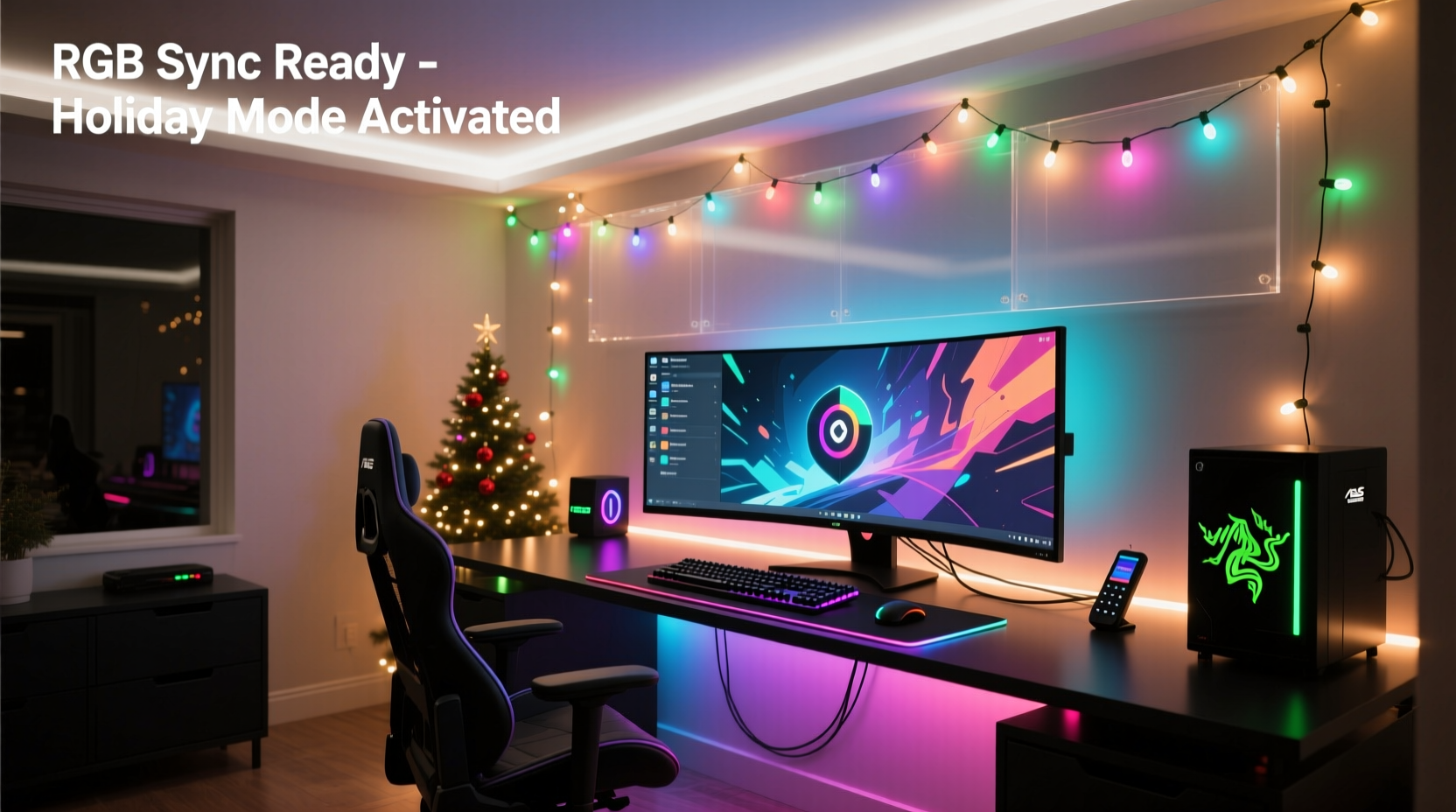
RGB synchronization platforms rely on precise communication between hardware components (keyboards, mice, fans, strips) and centralized software. These systems use proprietary protocols to coordinate lighting effects across devices, often relying on USB connections, motherboard headers (like 3-pin ARGB), or wireless dongles.
Most traditional Christmas lights operate independently. They run on their own controllers, use non-addressable LEDs, or connect via AC power supplies that don’t interface with PC software. When placed near RGB-equipped gear, they can cause visual dissonance—especially if their colors or blinking patterns clash with active game-triggered lighting modes.
Worse, some plug-in light strings emit electromagnetic interference (EMI), which may disrupt USB signals or confuse motherboard-based lighting controllers. This can lead to dropped connections, erratic behavior in addressable strips, or even temporary freezes in lighting software.
“Introducing unmanaged LEDs into a controlled lighting environment is like adding an unsynchronized instrument to an orchestra—it doesn’t matter how bright it is; if it’s out of tune, it distracts.” — Derek Lin, Lighting Systems Engineer at Lumos Dynamics
Strategies for Seamless Integration
To maintain both holiday spirit and system integrity, adopt a layered approach. Focus not only on physical placement but also on signal management, power isolation, and aesthetic cohesion.
1. Use Smart, App-Controlled Christmas Lights
Replace basic plug-in strands with Wi-Fi or Bluetooth-enabled smart lights. Brands like Philips Hue, Govee, LIFX, and Nanoleaf offer programmable options that can be managed through mobile apps or voice assistants.
These systems do not connect directly to your PC’s RGB software, but they allow you to set static or dynamic scenes that complement—rather than compete with—your existing setup. For example:
- Set warm white or soft gold tones during gameplay to avoid clashing with cooler blues and purples from your rig.
- Schedule lights to dim after midnight or turn off when your PC shuts down.
- Create “gaming mode” presets that deactivate flashy holiday animations during intense sessions.
2. Physically Separate Power and Data Lines
One of the most overlooked issues is shared electrical circuits. Plugging multiple high-draw devices—including light strings and gaming PCs—into the same outlet strip can introduce noise into low-voltage data lines.
To reduce interference:
- Use a dedicated surge protector for your PC and peripherals.
- Power Christmas lights from a separate wall outlet on a different circuit.
- Avoid running AC power cords parallel to USB or SATA cables; cross them at 90-degree angles if necessary.
This simple step reduces ground loops and EMI, helping RGB software maintain stable communication with connected devices.
3. Choose Non-Flashing, Static Effects During Gameplay
While strobing or chasing Christmas lights might feel festive, these effects can visually overwhelm RGB zones on your monitor bezel, desk mat, or keyboard. Fast flickering may also trigger motion tracking sensors in webcams or VR headsets.
Instead, opt for steady illumination. If your smart lights support it, program them to:
- Stay solid white or amber behind the monitor for bias lighting.
- Fade slowly between two complementary hues (e.g., deep red to dark green).
- Turn off completely during competitive multiplayer matches.
Step-by-Step Guide: Integrating Holiday Lights Without Disruption
- Assess Your Current Setup
Inventory all RGB-enabled devices and note which software controls them (iCUE, Chroma Connect, etc.). Identify areas where additional lighting would enhance atmosphere—such as behind the desk, along shelves, or above the monitor. - Select Compatible Smart Lights
Purchase app-controlled LED strips or string lights that support scheduling and scene modes. Avoid cheap, non-dimmable strands with built-in flashers. - Install Lights Away From Sensitive Components
Keep light power adapters and transformers at least 12 inches away from your PC case, router, or USB hubs. Mount strips using adhesive clips rather than magnetic mounts near metal surfaces. - Test for Interference
Turn on your Christmas lights while running a lighting profile in your RGB software. Watch for lag, stuttering, or disconnects. If issues arise, unplug the lights and test again to confirm the source. - Sync Aesthetically, Not Electronically
Manually choose holiday light colors that align with your usual RGB theme. For instance, if your default is purple and black, use violet-tinted warm white lights instead of multicolored ones. - Automate Based on Usage
Use IFTTT, Home Assistant, or manufacturer-specific automations to link actions. Example: “When PC shuts down → Turn off Christmas lights.” Or: “On Fridays after 6 PM → Activate holiday ambiance mode.”
Do’s and Don’ts: Managing Coexistence
| Do | Don’t |
|---|---|
| Use smart lights with app-based control | Plug cheap, unshielded light strings into USB-powered hubs |
| Match color temperatures to your display or RGB base palette | Run flashing or rainbow-cycle modes during gameplay |
| Place lights outside the primary field of view | Drape lights directly over the PC case or monitor vents |
| Schedule lights to dim late at night | Ignore heat buildup from enclosed light clusters |
| Use timers or automation to disable lights when not needed | Assume all “LED” lights are safe around electronics |
Real-World Example: Alex’s Holiday Gaming Room Upgrade
Alex, a streamer based in Portland, wanted to add holiday flair to his popular Twitch setup without compromising his meticulously tuned iCUE configuration. His rig included a Corsair 4000D case with six LL120 fans, a K70 keyboard, and custom loop lighting—all synced to react to in-game events.
Initially, he tried plugging in a $15 string of mini lights around his desk frame. Within minutes, two fan LEDs stopped responding, and iCUE began crashing intermittently. After troubleshooting, he discovered that the light strand’s transformer was inducing noise into the USB connection for his audio interface, which shared a hub with his Commander Pro.
His solution? He replaced the strand with a Govee Wi-Fi LED tape light mounted along the top edge of his wall shelf—away from any data cables. Using the Govee app, he programmed a “Winter Mode” scene: soft 3000K white with a subtle red undertone, activated only from 4 PM to 11 PM. He disabled all animation effects and ensured the power adapter plugged into a separate outlet.
The result: a cozy, festive backdrop visible in stream backgrounds, zero software conflicts, and consistent RGB performance throughout December.
Expert Tips for Long-Term Harmony
FAQ: Common Questions Answered
Can I connect Christmas lights to my motherboard’s RGB header?
No, unless the lights are specifically designed for 3-pin (5V ARGB) or 4-pin (12V RGB) headers and are supported by your motherboard’s software. Most holiday strings use DC transformers or AC power and are incompatible. Attempting to connect them improperly can damage your motherboard.
Will smart lights affect my internet speed or network stability?
Typically, no. Modern smart lights use minimal bandwidth. However, avoid flooding your 2.4GHz Wi-Fi band with too many IoT devices. If possible, place lights on a guest network or use Bluetooth models to reduce congestion.
Is there a way to make Christmas lights react to music or games like my RGB gear?
Yes—some smart systems support audio-reactive modes via mobile apps or third-party integrations. Govee, for example, offers microphone-based rhythm detection. While it won’t sync precisely with iCUE or Chroma, you can approximate coordination by setting similar effect speeds and color palettes.
Checklist: Pre-Installation Review
- ☐ Audit current RGB software and connected devices
- ☐ Choose smart, app-controlled Christmas lights
- ☐ Verify power sources are on separate circuits
- ☐ Plan physical placement to avoid blocking airflow or sensors
- ☐ Test for interference before final mounting
- ☐ Set up automation rules for daily operation
- ☐ Create backup lighting scenes for post-holiday use
Conclusion: Celebrate Smart, Play Smooth
Integrating Christmas lights into a gaming room isn’t about choosing between festivity and function—it’s about designing with intention. By treating holiday lighting as an extension of your ambient ecosystem rather than an afterthought, you preserve the integrity of your RGB sync software while enhancing the emotional impact of your space.
The best setups aren’t the brightest—they’re the most thoughtful. Whether you're streaming to thousands or unwinding after a long day, a well-integrated lighting scheme can elevate the experience without a single glitch.




 浙公网安备
33010002000092号
浙公网安备
33010002000092号 浙B2-20120091-4
Comments
No comments yet. Why don't you start the discussion?