
Streaming music while multitasking is a daily habit for millions. Whether you're commuting, working, or cooking, having your favorite tunes play in the background enhances the experience. But YouTube Music, unlike some native music apps, doesn’t always allow audio to continue when you switch apps or lock your phone. This limitation frustrates users across Android, iOS, and desktop platforms. The good news? There are reliable, legal, and user-friendly ways to bypass this restriction—no rooting or jailbreaking required.
This guide breaks down practical methods to keep YouTube Music playing seamlessly in the background, tailored to each major device type. From built-in features to browser tricks and subscription advantages, you’ll learn how to enjoy uninterrupted playback no matter your setup.
Why YouTube Music Stops When Screen Is Off
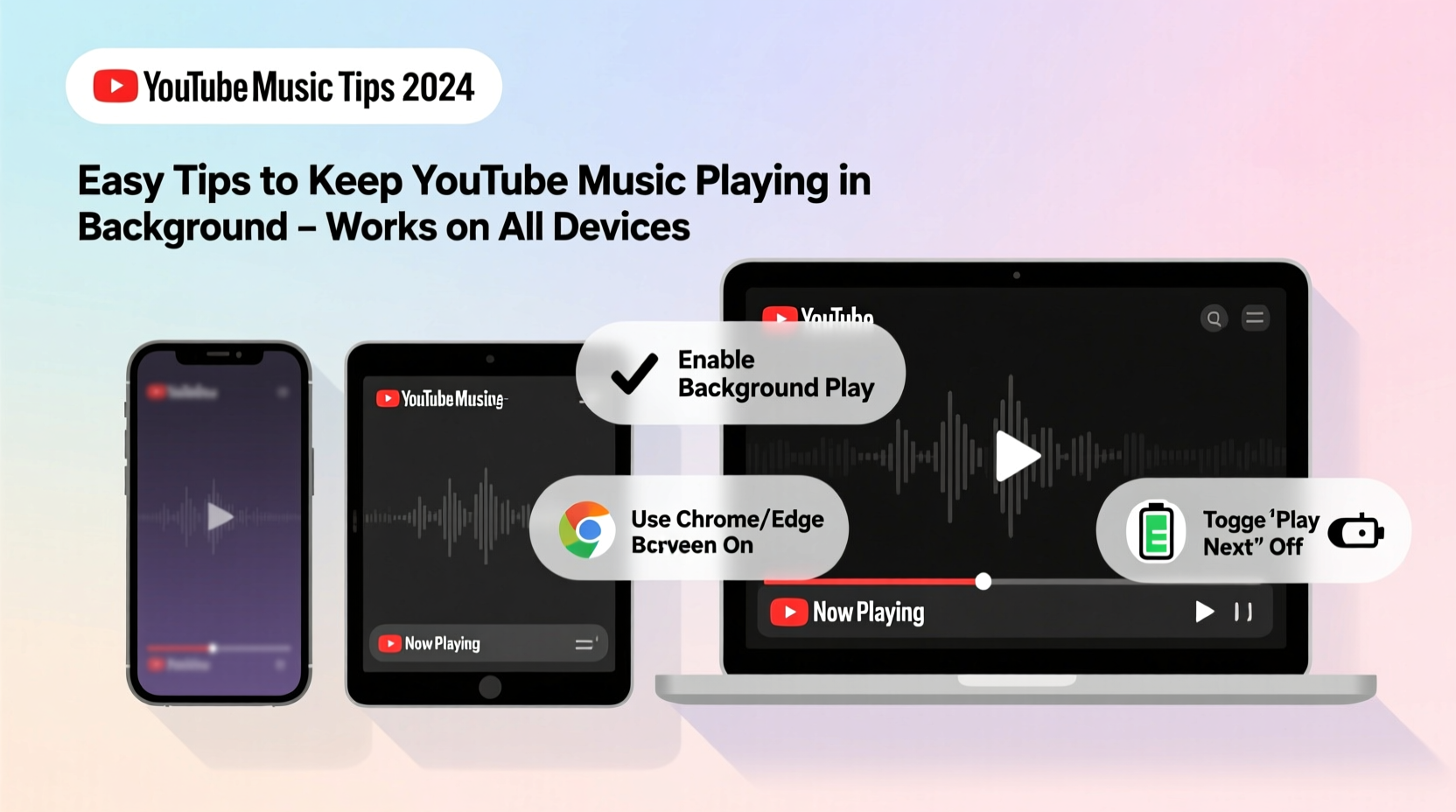
By default, most mobile operating systems pause audio from web browsers and non-native apps when the screen locks or another app takes focus. This is primarily due to power-saving protocols and app lifecycle management. On mobile devices, YouTube’s free tier restricts background playback to encourage Premium subscriptions. Even with the YouTube Music app, background use is limited unless specific conditions are met.
Google's ecosystem design intentionally limits background functionality for non-paying users. However, workarounds exist that respect platform rules while maximizing usability.
How to Enable Background Play on Android Devices
Android offers multiple pathways to maintain YouTube Music playback, depending on whether you use the app or browser version.
Method 1: Use YouTube Music Premium
The most straightforward solution is upgrading to YouTube Music Premium. Subscribers gain full background playback, offline downloads, and ad-free listening. Once subscribed:
- Open the YouTube Music app.
- Start playing a song.
- Minimize the app or lock your phone—the music continues.
Method 2: Use Chrome Browser with Desktop Mode
If you’re not ready to subscribe, try this browser-based workaround:
- Open Chrome and go to
music.youtube.com. - Tap the three-dot menu and select “Desktop site.”
- Play a song.
- Minimize Chrome or switch apps—audio often continues under certain conditions.
Note: This method may stop after a few minutes unless you use additional tools like task automation apps (e.g., Tasker) or keep the tab active via accessibility settings.
Method 3: Third-Party Launchers (Advanced)
Some lightweight launchers or floating window managers can pin the YouTube Music player as an overlay. While effective, these require extra permissions and may impact performance.
Background Playback on iPhone and iPad (iOS)
iOS imposes stricter limitations on background processes, making uninterrupted YouTube Music playback more challenging without a subscription.
Use Picture-in-Picture Mode (iOS 14+)
Apple introduced system-wide Picture-in-Picture (PiP) support, which YouTube Music can leverage:
- Play a video or visualizer in the YouTube app (not YouTube Music).
- Press the Home button or swipe up to exit the app.
- The video shrinks into a floating window; tap it to minimize further.
- Audio continues even when using other apps.
Limitation: This works best with video tracks, not audio-only streams. Also, PiP must be enabled in Settings > General > Picture in Picture.
Alternative: Safari Workaround
- Open Safari and navigate to
music.youtube.com. - Play a track.
- Press the Home button—audio may continue briefly.
- Quickly open Control Center and start playing music from another app (like Apple Music), then switch back to YouTube Music audio.
This exploit leverages iOS audio session persistence but is inconsistent and not guaranteed across updates.
“While iOS prioritizes user experience, its tight app sandboxing makes third-party background audio tricky. Users benefit most from official subscriptions.” — Jordan Lee, Mobile OS Analyst
Keep Music Playing on Windows and Mac Computers
On desktops, background playback is easier because browsers don’t suspend tabs as aggressively.
Chrome Tab Pinning + Audio Focus
- Open
music.youtube.comin Google Chrome. - Right-click the tab and select “Pin tab.”
- Play your music.
- Switch to other applications—audio typically continues.
Pinned tabs are less likely to be throttled by Chrome’s memory management.
Use Dedicated Players or Extensions
Extensions like “Streamus” (discontinued but archived versions exist) or modern alternatives such as “Float for YouTube” enable mini-player modes. These create floating windows that stay on top of other apps.
Create a Dedicated Site Shortcut
Treat YouTube Music like a standalone app:
- In Chrome, go to
music.youtube.com. - Click the three-dot menu > More Tools > Create Shortcut.
- Name it “YouTube Music” and check “Open as window.”
- Launch the shortcut and play music—it behaves more like an app, reducing interruptions.
| Device | Best Method | Requires Subscription? |
|---|---|---|
| Android Phone | YouTube Music Premium or Chrome Desktop Mode | No (for workarounds) |
| iOS Device | PiP via YouTube App or Safari trick | Yes, for reliability |
| Windows/Mac | Pinned Chrome tab or site shortcut | No |
| Tablet (Android/iOS) | App mode with minimized player | Sometimes |
Step-by-Step Guide to Reliable Background Playback
Follow this universal checklist to maximize success regardless of device:
- Ensure stable internet connection – Buffering issues disrupt background audio.
- Close unnecessary apps – Free up RAM to prevent system from killing background processes.
- Disable battery optimization for YouTube Music (Android): Go to Settings > Apps > YouTube Music > Battery > Unrestricted.
- Enable Desktop Site mode in mobile browser if using web version.
- Start playback before switching apps – Let the audio buffer fully first.
- Use headphones or Bluetooth devices – Some systems pause audio when earbuds are unplugged.
- Test with screen off – Verify playback continues after locking the device.
Real Example: Sarah’s Commute Solution
Sarah, a graphic designer in Toronto, used to lose her playlist every time she checked messages during her morning bus ride. Frustrated, she tried various hacks until discovering Chrome’s desktop site mode on her Samsung phone. By loading YouTube Music in desktop view and minimizing the browser, she now enjoys seamless background playback without upgrading to Premium. She pairs this with a site shortcut on her home screen for quick access—transforming her commute into a stress-free listening session.
Frequently Asked Questions
Can I get background play without paying for YouTube Music Premium?
Yes, but with limitations. Browser-based methods (like Chrome desktop mode or pinned tabs) often work, especially on Android and desktop. iOS is more restrictive, so results vary. For consistent, hassle-free background playback, Premium remains the best option.
Why does my music stop after a few minutes?
This usually happens due to aggressive battery optimization or browser throttling. Disable battery saver for the YouTube Music app, avoid putting the device to sleep too quickly, and ensure the tab or app isn’t being suspended by the OS.
Does using workarounds violate YouTube’s terms?
Most browser-based methods fall within acceptable use, as you’re accessing publicly available content. However, automating playback with bots or modified APKs may breach Terms of Service. Stick to official apps and standard browser features to stay compliant.
Final Thoughts and Next Steps
Keeping YouTube Music playing in the background doesn’t have to be complicated. With the right combination of settings, browsers, and—if needed—a Premium subscription, you can enjoy continuous audio across all your devices. The key is understanding your platform’s behavior and choosing the method that aligns with your usage habits.
Whether you’re an Android power user leveraging Chrome’s desktop mode or an iPhone owner mastering Picture-in-Picture, small adjustments make a big difference. Start with one method today, test it in real-world conditions, and refine your approach over time.




 浙公网安备
33010002000092号
浙公网安备
33010002000092号 浙B2-20120091-4
Comments
No comments yet. Why don't you start the discussion?