
Sharing a YouTube video is one of the most common ways people exchange ideas, tutorials, entertainment, and information online. Whether you're promoting your own content or directing others to a helpful resource, knowing how to properly link or embed a YouTube video ensures clarity, professionalism, and maximum reach. This guide walks through every method—direct links, custom start times, shortened URLs, and full HTML embeds—with practical tips and real-world applications.
1. Understanding YouTube Linking vs. Embedding
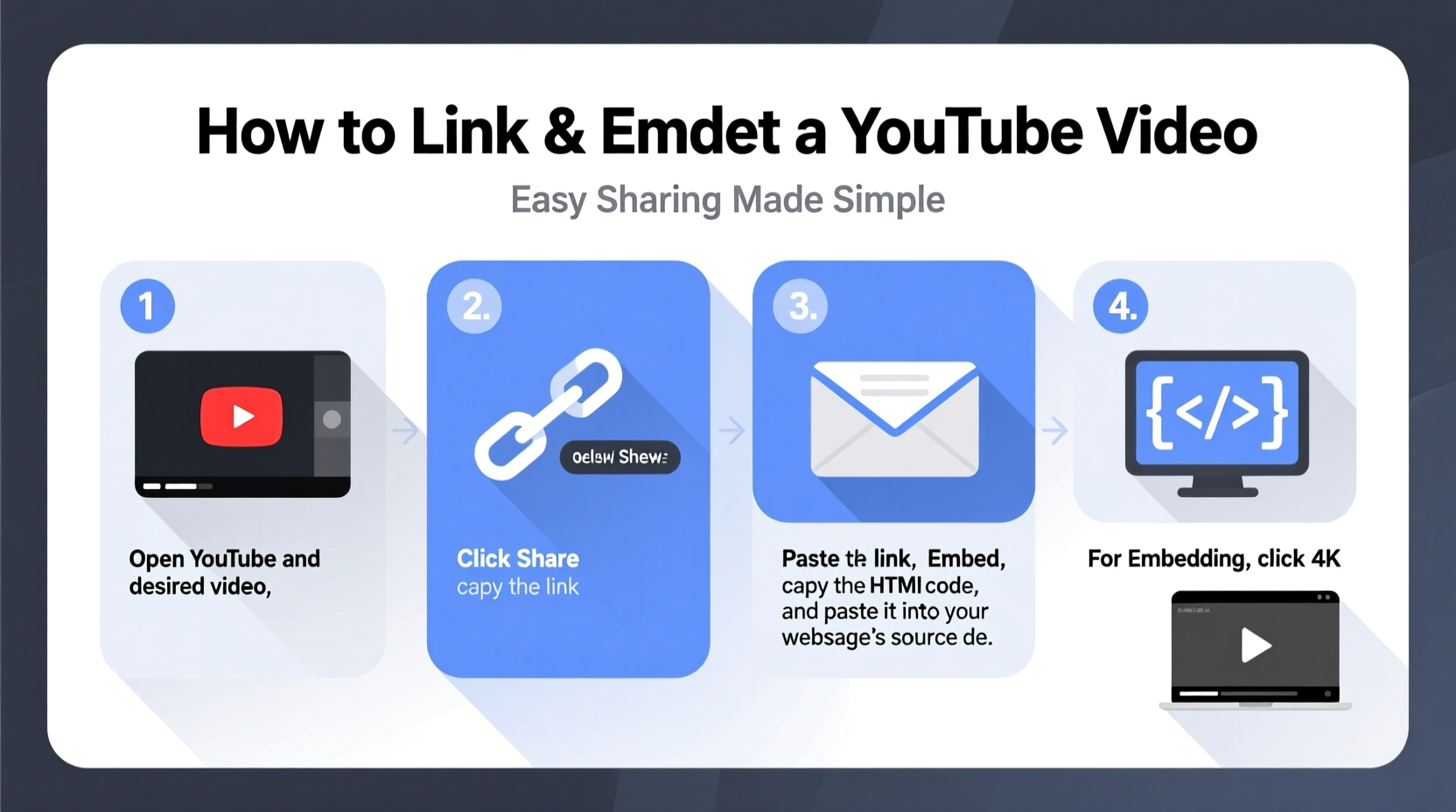
Before diving into steps, it’s important to distinguish between linking and embedding. A link directs users to the YouTube page where the video plays in full context—comments, suggested videos, and all. An embed, on the other hand, allows the video to play directly within another website or platform using an iframe, preserving the user experience without redirecting them off-site.
Each has its place:
- Use a link when sharing via email, messaging apps, or social media posts.
- Use an embed when integrating video into blogs, landing pages, or educational sites.
2. How to Create a Direct Shareable Link
The simplest way to share a YouTube video is by copying its URL. Here's how:
- Navigate to the YouTube video you want to share.
- Look at the address bar in your browser—the full URL will resemble:
https://www.youtube.com/watch?v=XXXXXXXXXXX. - Click once in the address bar to highlight the entire URL, then press Ctrl+C (or Cmd+C on Mac) to copy it.
- Paste the link (Ctrl+V) wherever needed—email, chat, document, etc.
This standard format works universally, but you can enhance it with optional parameters for better control.
Enhancing Links with Start Times
If you want viewers to begin watching from a specific moment, add a time parameter. For example, to start playback at 2 minutes and 30 seconds:
Append &t=150 or &start=150 to the URL (since 2m30s = 150 seconds):
https://www.youtube.com/watch?v=XXXXXXXXXXX&t=150
Alternatively, use timestamp formatting like &t=2m30s:
https://www.youtube.com/watch?v=XXXXXXXXXXX&t=2m30s
YouTube also generates these automatically. While watching a video, right-click the progress bar and select “Copy video URL at current time.”
3. Using YouTube’s Built-In Share Feature
YouTube provides a convenient built-in tool for generating clean, trackable links.
- Below the video player, click the Share button.
- A pop-up appears with a pre-filled URL.
- Toggle “Start at” to set a custom time. The system auto-updates the link with the correct timestamp.
- Click Copy to save the link to your clipboard.
This method ensures accuracy and supports short YouTube URLs (e.g., https://youtu.be/XXXXXXXXXXX), which are cleaner and easier to remember.
Benefits of youtu.be Short Links
- Shorter and more visually appealing
- Automatically redirect to the full YouTube watch page
- Ideal for printed materials, QR codes, or character-limited platforms
4. Embedding a YouTube Video on Your Website
To display a YouTube video directly on a webpage, blog, or internal portal, use the embed feature. This keeps visitors engaged without sending them away.
- Click the Share button under the video.
- Select Embed.
- A code snippet appears in a box—usually starting with
<iframe src=\"...\">. - Copy this entire HTML block.
- Paste it into your website’s HTML editor or CMS (like WordPress, Wix, or Squarespace) in “Code” or “HTML” mode.
The default embed code looks like this:
<iframe width=\"560\" height=\"315\" src=\"https://www.youtube.com/embed/XXXXXXXXXXX\" frameborder=\"0\" allow=\"accelerometer; autoplay; clipboard-write; encrypted-media; gyroscope; picture-in-picture\" allowfullscreen></iframe>
Customizing Embedded Videos
You can modify the embed code for improved functionality:
- Add
?rel=0to thesrcURL to hide related videos at the end. - Use
?autoplay=1to start playback automatically (use sparingly). - Include
?modestbranding=1to reduce YouTube branding. - Set
?controls=0to hide player controls (for kiosk-style displays).
Example with multiple parameters:
src=\"https://www.youtube.com/embed/XXXXXXXXXXX?rel=0&modestbranding=1&start=150\"
“Properly embedded videos increase engagement by up to 40% compared to external links.” — Sarah Lin, Digital Experience Strategist
5. Best Practices and Common Pitfalls
While linking and embedding seem straightforward, small oversights can affect performance and user experience.
| Do’s | Don’ts |
|---|---|
| Test links on mobile and desktop | Assume all platforms support autoplay |
| Use descriptive anchor text when hyperlinking (e.g., “Watch the tutorial here”) | Post raw URLs without context |
| Attribute creators when sharing others’ content | Ignore privacy settings (unlisted/private videos won’t embed publicly) |
| Update broken links regularly | Embed excessively large videos on slow-loading pages |
Mini Case Study: Marketing Team Boosts Engagement
A small digital marketing agency wanted to showcase client testimonials on their homepage. Initially, they posted plain YouTube links. After switching to embedded videos with start times highlighting key quotes, their average page visit duration increased by 65%. They also added captions and used modestbranding=1 to keep focus on their brand, not YouTube’s interface.
FAQ
Can I link to a playlist instead of a single video?
Yes. Playlists have their own URLs, typically formatted as https://www.youtube.com/playlist?list=YYYYYYYYYYY. You can share or embed playlists just like individual videos.
Why isn’t my embedded video showing up?
Common causes include:
- The video is set to \"Private\" or \"Unlisted\" (but not shared with the site audience)
- Your website strips iframe tags for security
- Ad blockers or strict browser settings preventing load
Always verify visibility in incognito mode and across browsers.
Is it legal to embed YouTube videos on my site?
Yes, as long as the content doesn’t violate copyright or YouTube’s Terms of Service. Embedding is permitted under YouTube’s policy for public and unlisted videos. However, avoid monetizing embedded content unless you own the rights.
Checklist: Perfect YouTube Sharing in 7 Steps
- ✅ Confirm the video is public or appropriately shared
- ✅ Copy the correct URL using the Share button
- ✅ Add a timestamp if referencing a specific segment
- ✅ Test the link on multiple devices
- ✅ Use the embed code for website integration
- ✅ Customize embed settings for user experience
- ✅ Monitor performance and update links as needed
Conclusion
Linking and embedding YouTube videos effectively enhances communication, drives engagement, and strengthens content delivery. From simple message shares to sophisticated website integrations, mastering these techniques empowers you to share video content with precision and professionalism. Whether you’re a teacher, marketer, developer, or casual user, applying these methods ensures your audience sees exactly what you intend—when and where you want them to see it.




 浙公网安备
33010002000092号
浙公网安备
33010002000092号 浙B2-20120091-4
Comments
No comments yet. Why don't you start the discussion?