
Losing a smartphone is more than just inconvenient—it can mean losing personal data, photos, messages, and access to essential services. If you're a T-Mobile customer, you have several reliable options to locate your device quickly. Whether your phone was misplaced at home or stolen in public, knowing the right tools and techniques can make all the difference. This guide walks you through practical, proven methods to track your T-Mobile phone using both built-in features and carrier-specific resources.
Why Locating Your T-Mobile Phone Matters
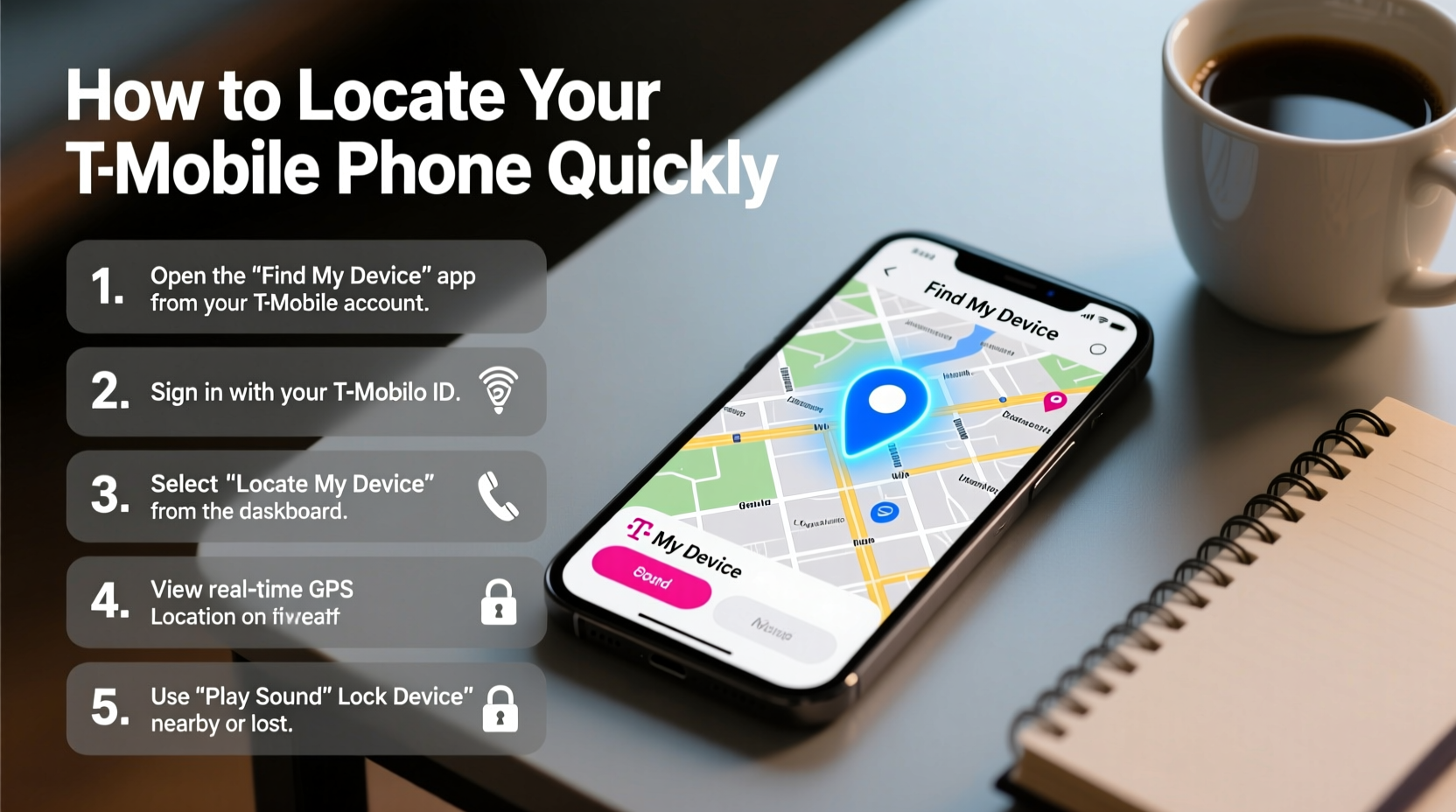
Your smartphone holds sensitive information—banking apps, email accounts, social media profiles, and private conversations. A lost or stolen device not only disrupts your daily routine but also exposes you to identity theft and financial fraud. The faster you act, the better your chances of recovery. T-Mobile provides multiple layers of protection, from network-level tracking to integration with manufacturer tools like Find My iPhone and Find My Device. Understanding how these systems work together empowers you to respond swiftly and confidently.
Step-by-Step Guide to Locating Your T-Mobile Phone
Follow this clear, actionable sequence to maximize your chances of finding your device. These steps apply whether you're using an Android or iPhone on the T-Mobile network.
- Stay Calm and Recall the Last Location
Take a moment to think where you last used the phone. Was it in your car? At a café? Retracing your steps mentally can save time. - Call or Text Your Phone
Use another device to call your number. Even if it’s on silent, you might hear it nearby. If someone answers, remain calm and offer a reward for return. - Use Built-In Tracking Tools
Access either Apple’s “Find My” (for iPhones) or Google’s “Find My Device” (for Android). Both allow remote location, locking, and wiping. - Log Into Your Account
Go to iCloud.com/find or google.com/android/find from any computer or borrowed phone. - Locate the Device
The service will show your phone’s current or last known location on a map. If it's moving, monitor its path. - Lock or Erase Remotely (If Necessary)
If recovery seems unlikely, lock the phone with a message or erase all data to protect your privacy. - Contact T-Mobile Support
Report the loss to T-Mobile so they can suspend service, prevent unauthorized use, and assist with IMEI tracking if needed.
T-Mobile-Specific Features That Help Track Devices
As one of the largest carriers in the U.S., T-Mobile offers tools beyond standard OS-level tracking. While they don’t provide real-time GPS tracking directly through their app, they support critical functions that enhance security.
- T-Mobile SyncUP™ Tracker: Available as a separate purchase, this small GPS tracker can be linked to your account and monitored via the T-Mobile app. It’s ideal for attaching to bags, keys, or even vehicles.
- Device Protection with Insurance: Customers enrolled in Protection 360 or similar plans can file claims for lost or stolen devices and receive replacements after reporting the incident.
- Network-Level Assistance: T-Mobile can flag your device’s IMEI (International Mobile Equipment Identity), making it unusable on most networks. This discourages thieves from reselling the phone.
“While carriers can't pinpoint GPS locations for customers due to privacy laws, they play a vital role in disabling stolen devices and supporting law enforcement efforts.” — James Reed, Wireless Security Analyst
Do’s and Don’ts When Trying to Locate Your Phone
| Do’s | Don’ts |
|---|---|
| ✅ Enable 'Find My iPhone' or 'Find My Device' in advance | ❌ Wait until your phone is lost to set up tracking |
| ✅ Keep location services turned on | ❌ Disable GPS or Wi-Fi when not needed (limits tracking ability) |
| ✅ Report theft to T-Mobile immediately | ❌ Share live location updates publicly on social media |
| ✅ Use strong passwords and two-factor authentication | ❌ Attempt to retrieve a stolen phone yourself |
| ✅ Note down your phone’s IMEI number ahead of time | ❌ Ignore suspicious login alerts from cloud accounts |
Real-Life Example: Recovering a Lost Phone at the Airport
Sarah, a frequent traveler from Seattle, left her Samsung Galaxy S23 in a TSA bin during a layover at Chicago O’Hare. She realized the mistake 30 minutes later while boarding her flight. Instead of panicking, she opened the Find My Device app on her tablet. The phone was still active and showed a precise location near Terminal 3 security. She called the airport lost-and-found and provided the exact coordinates. A TSA officer found the phone under a conveyor belt and confirmed ownership using the lock screen message Sarah had remotely set: “Please call 555-1234. Reward offered.” Within two hours, the phone was returned unharmed.
This case highlights the importance of preparation—Sarah had location services enabled, used a Google account synced to her device, and acted fast.
Essential Checklist: Before and After Losing Your Phone
Use this checklist to prepare proactively—or take immediate action if your phone is already missing.
- ☑ Ensure “Find My Device” (Android) or “Find My” (iPhone) is activated
- ☑ Turn on Location Services and GPS
- ☑ Set a strong passcode or biometric lock
- ☑ Back up your data regularly to iCloud or Google Drive
- ☑ Record your IMEI number and keep it in a safe place
- ☑ Install the T-Mobile app and verify your account access
- ☑ If lost: Immediately attempt to ring, locate, lock, or erase the device
- ☑ Contact T-Mobile to report the loss and suspend service
- ☑ File a police report if the phone was stolen
- ☑ Initiate an insurance claim if covered under a protection plan
Frequently Asked Questions
Can T-Mobile track my phone in real time?
No, T-Mobile cannot provide real-time GPS tracking of your device for privacy and legal reasons. However, they can assist by suspending service, blocking the IMEI, and working with authorities when necessary. Real-time tracking must be done through Apple or Google’s ecosystem.
What should I do if my phone shows “Offline” in Find My Device?
An offline status means the phone is powered off, out of network range, or disconnected from Wi-Fi and cellular data. You can still mark it as lost, set a lock message, and wait for it to reconnect. Once online, you’ll receive updated location data.
Will wiping my phone erase everything permanently?
Yes. A remote factory reset deletes all personal data, apps, and settings. Afterward, the device will require the original Apple ID or Google account credentials to reactivate—a feature designed to deter theft. Only use this option if recovery appears impossible.
Final Thoughts: Be Prepared, Stay Protected
You don’t need to be a tech expert to protect your mobile device—you just need to be prepared. Setting up tracking features takes less than five minutes but can save you hours of stress later. T-Mobile users benefit from a robust network and support infrastructure, but the real power lies in combining carrier tools with manufacturer-backed location services. By enabling the right settings today, you ensure that tomorrow’s accident doesn’t become a permanent loss.




 浙公网安备
33010002000092号
浙公网安备
33010002000092号 浙B2-20120091-4
Comments
No comments yet. Why don't you start the discussion?