
Building a custom PC is more than just an assembly task—it’s an opportunity to create a machine perfectly tailored to your needs, whether for gaming, content creation, or everyday productivity. While the process may seem daunting at first, understanding the components, compatibility, and proper techniques simplifies the journey significantly. With careful planning and attention to detail, anyone can assemble a reliable, high-performance computer from the ground up.
Selecting Compatible Components
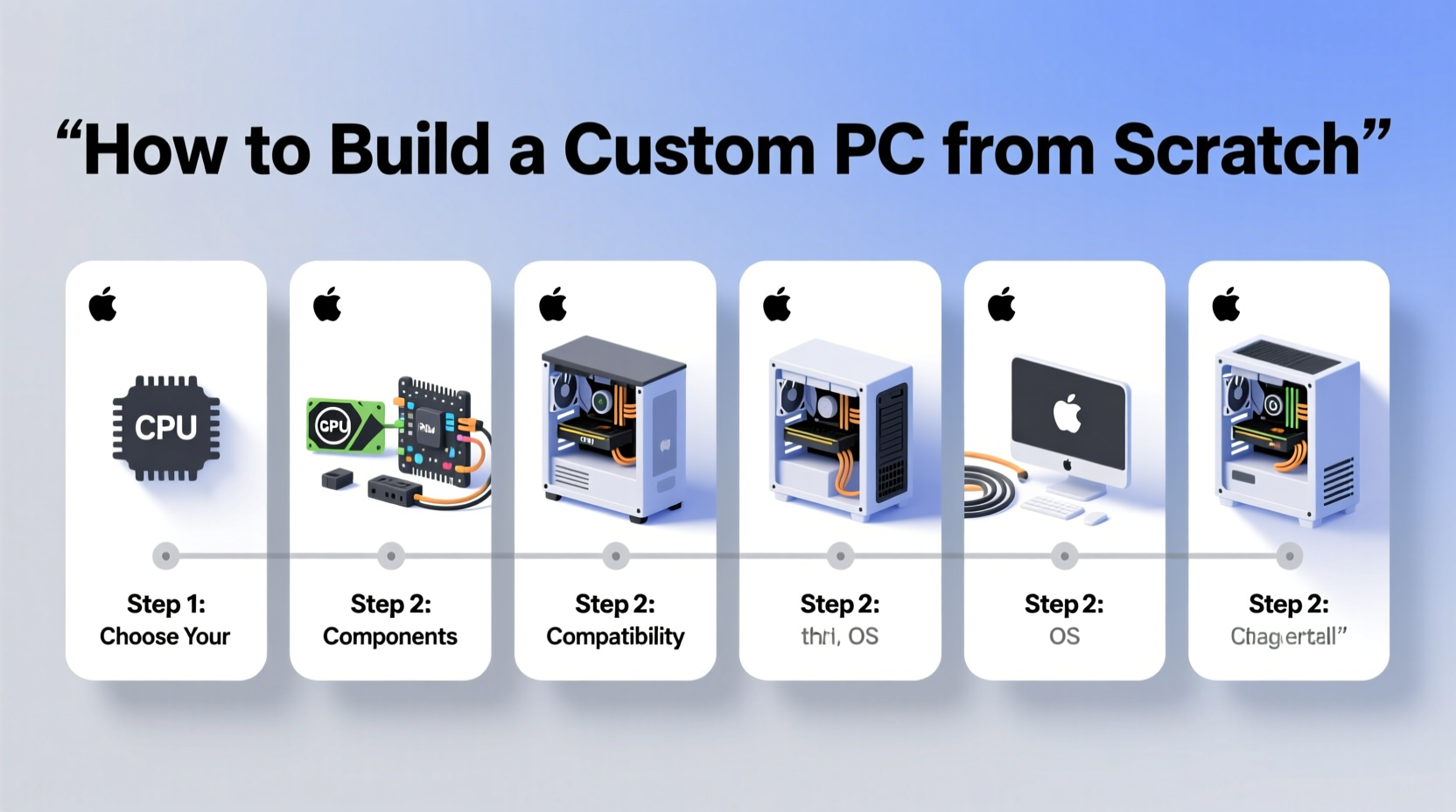
The foundation of any successful build lies in choosing hardware that works seamlessly together. Start by defining your purpose: will this be a budget office PC, a 4K gaming rig, or a workstation for video editing? This decision guides your component choices and budget allocation.
The motherboard acts as the backbone of your system. It determines which CPU you can use (via socket type), how much RAM fits, and what expansion options are available. For example, an Intel LGA1700 socket won’t support AMD Ryzen processors, and DDR5 RAM isn’t compatible with DDR4 slots. Always cross-check specifications before purchasing.
Other key considerations include power supply wattage (factoring in GPU demands), case size relative to motherboard form factor (ATX, micro-ATX, mini-ITX), and cooling requirements based on thermal design power (TDP) of your CPU and GPU.
Essential Hardware Checklist
Before beginning assembly, ensure all core components are present and accounted for. Missing even one small part—like standoffs or SATA cables—can delay completion.
- Motherboard
- CPU (with thermal paste if not pre-applied)
- CPU cooler (stock or aftermarket)
- RAM (matching speed and type supported by motherboard)
- Graphics card (unless relying on integrated graphics)
- Storage (SSD recommended as primary drive)
- Power supply unit (PSU) with sufficient wattage and modular cabling preferred
- Case with adequate airflow and cable management features
- Screwdrivers, zip ties, anti-static wrist strap (optional but advised)
“Over 60% of failed builds stem from overlooked compatibility issues or improper grounding during assembly.” — David Lin, Senior Technician at BuildPro Labs
Step-by-Step Assembly Guide
Follow this logical sequence to minimize errors and ensure a clean installation:
- Prepare the workspace: Use a non-carpeted surface, avoid static-prone clothing, and consider using an anti-static mat or wrist strap.
- Install the CPU: Open the socket lever on the motherboard, align the CPU (match triangle markers), gently place it in, then secure the lever.
- Apply thermal paste and mount the cooler: If not pre-applied, use a pea-sized drop of thermal paste on the CPU center. Attach the cooler firmly and connect its fan cable to the CPU_FAN header.
- Insert RAM: Align notches on the stick with the slot, press down firmly until clips snap into place. Use dual-channel slots (usually A2 and B2) for optimal performance.
- Mount the motherboard in the case: Install standoffs where needed, lower the board carefully, and screw it in without over-tightening.
- Install storage drives: Mount SSDs/HDDs in designated bays and connect SATA data and power cables (or M.2 directly into the motherboard slot).
- Install the GPU: Remove case and motherboard slot covers, insert the card into the top PCIe x16 slot, secure it with screws, and connect required PCIe power cables from the PSU.
- Connect all power and front-panel cables: Refer to the motherboard manual for correct connections (e.g., POWER_SW, RESET, HDD_LED).
- Manage cables: Route cables behind the motherboard tray, use zip ties, and avoid blocking airflow.
- Power on: Connect monitor, keyboard, and power cord. Press the power button. If fans spin and BIOS appears, success!
Do’s and Don’ts During Assembly
| Do’s | Don’ts |
|---|---|
| Handle components by edges; avoid touching gold contacts or CPU pins | Force components into slots—everything should fit smoothly |
| Double-check all power connections before turning on | Plug in the power supply while making internal changes |
| Update BIOS after initial boot (if necessary for CPU support) | Use excessive thermal paste—it can cause overheating due to insulation |
| Test the system before closing the case | Ignore case airflow—intake and exhaust fans should be strategically placed |
Real-World Example: A First-Time Builder’s Journey
Jamie, a university student majoring in graphic design, decided to build her own PC instead of buying a prebuilt model. Her goal was a machine capable of running Adobe Creative Suite and moderate gaming. She allocated $900 and spent two weeks researching parts.
She selected an AMD Ryzen 5 7600X, B650 motherboard, 32GB DDR5 RAM, NVIDIA RTX 4060, 1TB NVMe SSD, 650W 80+ Gold PSU, and a mid-tower case with mesh front for ventilation. After encountering confusion about front-panel headers, she watched a 5-minute YouTube tutorial specific to her motherboard brand and resolved the issue quickly.
Her system booted on the first try. Post-installation, she updated drivers and BIOS, achieving stable performance. By building herself, Jamie saved nearly $250 compared to a comparable prebuilt and gained confidence in troubleshooting future upgrades.
Frequently Asked Questions
Can I build a PC without prior experience?
Absolutely. Thousands of beginners successfully build their first PC every year. With clear instructions, patience, and online resources, the process is very approachable. Just take your time and double-check each step.
Is liquid cooling necessary?
No. Most modern CPUs perform well with quality air coolers. Liquid cooling is beneficial for high-end overclocked systems or compact builds with limited airflow, but it adds complexity and cost.
What if my PC doesn’t turn on?
Check that the PSU switch is on, the 24-pin and 8-pin EPS power connectors are fully seated, and front-panel headers are correctly connected. Test outside the case if possible. Listen for beep codes or check motherboard debug LEDs if available.
Final Tips for Long-Term Success
After successful assembly, install your operating system and essential drivers. Enable XMP/DOCP in BIOS to run RAM at advertised speeds. Regularly clean dust from filters and fans to maintain thermal efficiency. Keep firmware updated, especially for motherboards and SSDs.
One often-overlooked advantage of building your own PC is future upgradeability. Unlike proprietary prebuilt systems, custom rigs allow you to swap out GPUs, add storage, or upgrade RAM with minimal hassle. Plan for growth—choose a slightly larger case and higher-wattage PSU than currently needed.
“The ability to customize and upgrade is what separates a DIY PC from off-the-shelf models. You’re not just buying a computer—you’re crafting a tool.” — Marcus Tran, Hardware Engineer at TechForge Solutions
Take Control of Your Computing Future
Building a computer from scratch empowers you with knowledge, savings, and a personalized machine built exactly to your standards. Whether you're diving into gaming, professional work, or learning the ins and outs of hardware, the skills you gain are invaluable. Now that you know the essentials—from component selection to final boot—gather your tools, choose your parts wisely, and start assembling. The perfect PC isn’t bought; it’s built.




 浙公网安备
33010002000092号
浙公网安备
33010002000092号 浙B2-20120091-4
Comments
No comments yet. Why don't you start the discussion?