
Google Voice is a powerful communication tool that lets you make and receive calls over the internet using a virtual phone number. Whether you're looking to separate your personal and work life, reduce phone bills, or gain access to smart call management features, Google Voice offers a flexible, cost-effective solution. For beginners, the setup and calling process might seem unfamiliar at first—but once configured, it becomes second nature. This guide walks you through everything you need to know to start making calls using Google Voice, from account creation to advanced calling options.
Understanding Google Voice: What It Is and Why It Matters
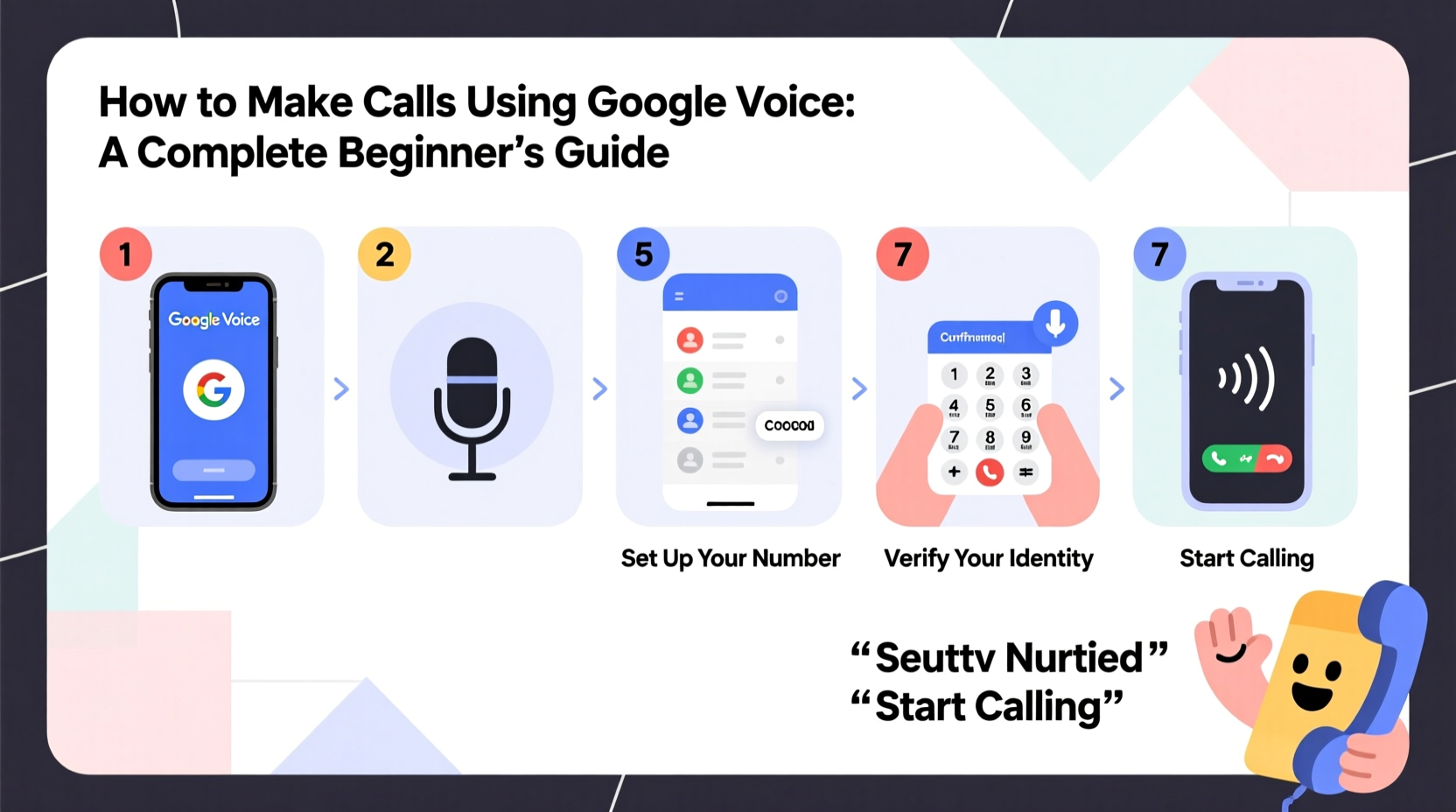
Launched in 2009 and now fully integrated with Google’s ecosystem, Google Voice provides users with a single phone number that can forward calls to multiple devices—your mobile, home phone, or computer. All calls are routed through your Google account, allowing you to manage voicemail, texts, and calls from one central dashboard.
One of the most appealing aspects of Google Voice for new users is its simplicity and affordability. Domestic calls within the U.S. and Canada are free, while international rates are significantly lower than traditional carriers. Additionally, Google Voice transcribes voicemails, filters spam, and allows you to send SMS messages from any web browser.
“Google Voice bridges the gap between legacy telephony and modern digital communication, offering flexibility without sacrificing reliability.” — David Lin, Telecom Technology Analyst
Step-by-Step Setup: Creating Your Google Voice Account
Before you can make calls, you’ll need to set up a Google Voice account. The process is straightforward but requires a few key elements:
- A Google account (Gmail address)
- A working phone number for verification
- Access to a U.S.-based IP address (required for registration)
Follow these steps to get started:
- Visit the Google Voice website: Go to voice.google.com and sign in with your Google account.
- Choose your Google Voice number: Enter your ZIP code to see available local numbers. You can search for specific digits or vanity-style numbers if available.
- Verify an existing phone: Google will ask you to confirm a current phone number (mobile or landline). A verification code will be sent via call or text.
- Complete setup: Once verified, your Google Voice number will be activated and linked to your account.
Making Calls from Different Devices
Once your account is active, you can begin making calls. Google Voice supports calling from three main platforms: web browser, Android app, and iOS app. Each method functions slightly differently but delivers consistent call quality.
Calling from a Web Browser
The easiest way to initiate a call is through the Google Voice website:
- Navigate to voice.google.com
- Click the phone icon in the top-right corner
- Enter the recipient’s number
- Select “Call” — Google will first ring your linked device, then connect the outbound call
Using the Mobile App (Android/iOS)
Download the “Google Voice” app from the App Store or Google Play. After logging in:
- Tap the dial pad icon
- Enter the number you wish to call
- Press call — the app uses your internet connection (Wi-Fi or data) to place the call
Note: Unlike traditional calling, Google Voice does not use your carrier minutes when calling over data. However, if Wi-Fi is unavailable and you’re using cellular data, standard data charges may apply.
Integration with Other Google Services
Google Voice integrates seamlessly with Gmail and Google Contacts. When viewing an email or contact card, you may see a call button that lets you dial directly using your Google Voice number—ideal for professionals managing client communications.
Key Features That Enhance Calling Experience
Beyond basic calling, Google Voice offers tools that improve efficiency and privacy:
| Feature | Description | Use Case |
|---|---|---|
| Voicemail Transcription | Automatically converts voice messages into text | Quickly scan messages without listening |
| Call Screening | Prompts callers to state their name before connecting | Filter unwanted or unknown calls |
| Do Not Disturb | Silence calls and texts during selected hours | Maintain work-life balance |
| Custom Greetings | Create personalized voicemail messages | Professional tone for business contacts |
Mini Case Study: Remote Worker Streamlines Communication
Sarah, a freelance graphic designer based in Denver, used to juggle client calls on her personal cell number. She worried about sharing her private number and often missed calls while traveling. After switching to Google Voice, she created a professional business line tied to her Gmail.
She configured her Google Voice number to forward calls to her smartphone and laptop. Using the web app, she makes client calls during work hours without revealing her personal number. Voicemail transcriptions help her respond quickly, and call screening blocks telemarketers. Over six months, Sarah reported a 40% reduction in missed calls and greater confidence in her client interactions.
Common Questions About Google Voice Calling
Can I make emergency calls with Google Voice?
Yes, but with limitations. Google Voice supports 911 calling; however, your location may not be automatically shared with emergency services. Always provide your current address during an emergency call.
Are my Google Voice calls private?
Google encrypts voice data in transit, but calls are not end-to-end encrypted like some messaging apps. Avoid discussing highly sensitive information unless necessary.
Why did my call fail or drop?
Most issues stem from poor internet connectivity. Ensure you have a stable Wi-Fi or strong cellular signal. If problems persist, check Google Voice system status or restart the app.
Checklist: Getting Started with Google Voice Calling
- ✅ Create or log in to your Google account
- ✅ Visit voice.google.com and sign up for Google Voice
- ✅ Choose and verify your Google Voice number
- ✅ Install the Google Voice app on your smartphone (optional)
- ✅ Test a call to ensure audio and connection work properly
- ✅ Customize voicemail greeting and enable spam filtering
- ✅ Explore integrations with Gmail and Google Contacts
Final Tips for Long-Term Success
While setting up Google Voice takes less than 15 minutes, getting the most out of it requires a few smart habits. Regularly update your app, review spam call logs, and consider upgrading to Google Voice for Workspace if you need business-grade features like team voicemail or shared lines.
Remember, your Google Voice number is portable. If you ever decide to switch back to a carrier, you can usually transfer the number for a small fee—so treat it as a long-term asset.




 浙公网安备
33010002000092号
浙公网安备
33010002000092号 浙B2-20120091-4
Comments
No comments yet. Why don't you start the discussion?