
Making phone calls used to require a landline or mobile plan with expensive minutes. Today, anyone with an internet connection can make high-quality voice calls at no cost using Voice over Internet Protocol (VoIP) technology. Whether you're staying in touch with family overseas, collaborating remotely with colleagues, or simply trying to save on phone bills, internet calling is a practical solution. The challenge for many beginners isn’t finding the tools—it’s knowing how to use them effectively for clear, reliable conversations. This guide walks you through everything you need to get started, from choosing the right app to troubleshooting audio issues.
Understanding Internet Calling: How It Works
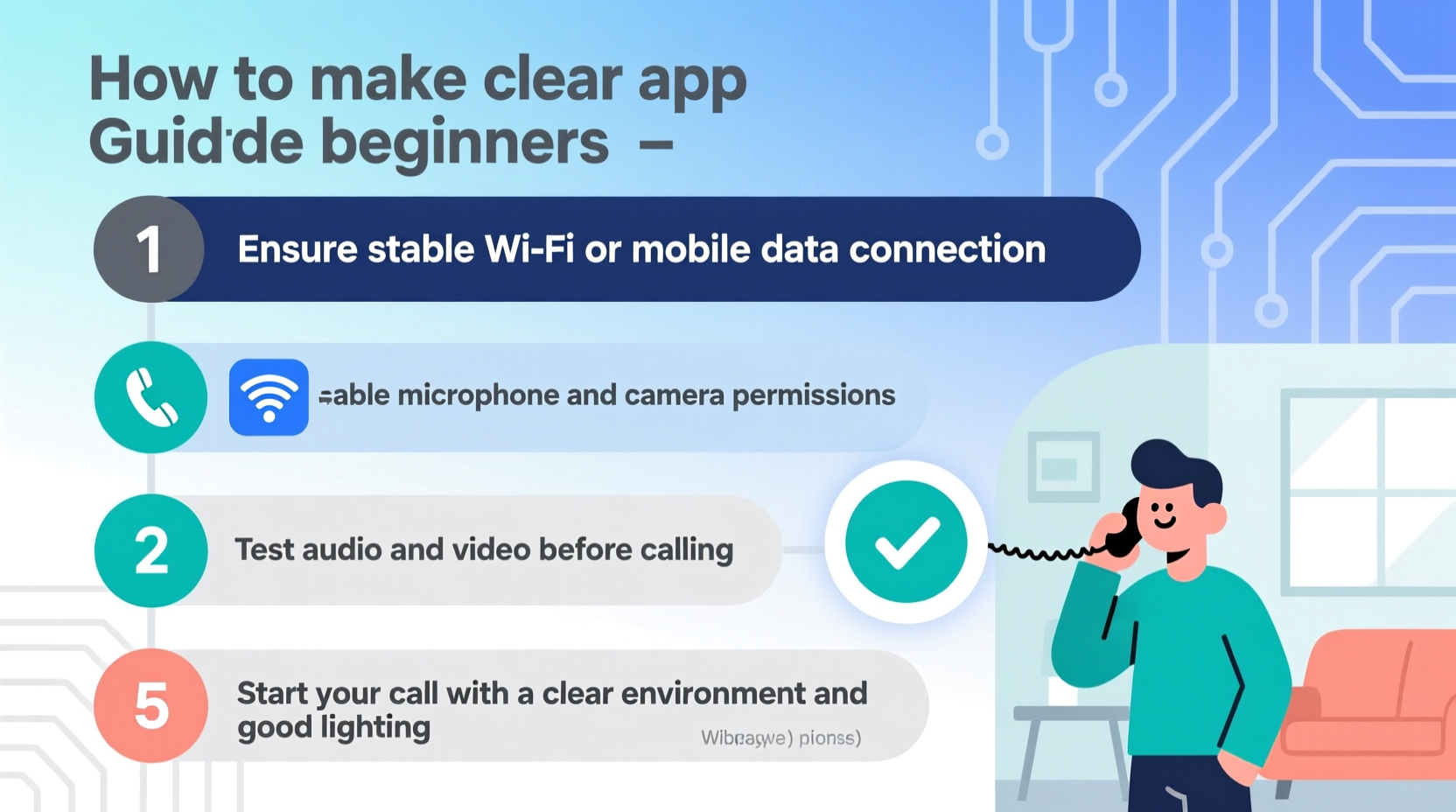
Internet calls—also known as VoIP calls—convert your voice into digital data packets that travel over the internet instead of traditional phone lines. This allows you to call other users on the same app for free, and even reach landlines or mobile numbers at low rates. Unlike cellular networks, which rely on towers and signal strength, internet calling depends on your broadband or Wi-Fi connection quality.
The key advantages include:
- Cost savings: Most peer-to-peer calls are completely free.
- Global access: Call someone in another country without international fees.
- Multi-device support: Use smartphones, tablets, laptops, or desktops.
- Additional features: Many apps offer video calling, messaging, screen sharing, and group calls.
However, poor internet speed, outdated hardware, or incorrect settings can lead to echo, lag, or dropped calls. Success starts with understanding the foundation: your connection and device setup.
Step-by-Step Guide to Making Your First Free Internet Call
- Check your internet connection. A stable upload and download speed of at least 1 Mbps is recommended for clear voice quality. Use a free tool like Speedtest.net to verify your bandwidth.
- Choose a reliable VoIP app. Popular free options include WhatsApp, Skype, Google Meet, FaceTime (Apple only), and Telegram. Install the one most commonly used by the people you want to call.
- Create an account. Most apps require registration with your email or phone number. Follow the prompts to set up your profile.
- Test your microphone and speaker. Before making a call, use the app’s built-in audio test feature or record a short message to ensure input and output work properly.
- Add your contact. Make sure they’re also using the same app. You may need their username, email, or phone number registered with the service.
- Initiate the call. Tap the voice call button within the chat or contact list. Wait for the recipient to answer.
- Speak clearly and minimize background noise. Even with good tech, loud environments can distort sound. Use headphones if needed.
Once connected, you’ll notice differences from traditional calls—such as instant connection, minimal delay, and visual indicators showing when the other person is speaking. These are signs your setup is working correctly.
Choosing the Right App: Comparison Table
| App | Free Calls To | Device Support | Best For |
|---|---|---|---|
| Other WhatsApp users | Smartphones, tablets, desktop | Personal calls, global contacts | |
| Skype | Skype users, limited free credits for landlines | All devices, including web | International calls, business use |
| Google Meet | Anyone with a link (audio-only option) | Web, Android, iOS | Group calls, remote meetings |
| FaceTime | Apple device users only | iOS, macOS | Seamless Apple ecosystem communication |
| Telegram | Other Telegram users | All platforms | Privacy-focused users |
Selecting the right platform depends on who you’re calling and what devices you both use. If your friend uses an iPhone and you have an Android, FaceTime won’t work—but WhatsApp will.
Optimizing Audio Quality for Clearer Conversations
Even with a strong internet connection, subpar audio can ruin a call. Background noise, weak microphones, or improper settings often cause misunderstandings or repeated requests to “Can you repeat that?”
Consider these optimization tips:
- Use wired or Bluetooth headphones with a built-in mic. They reduce echo and isolate your voice better than device speakers.
- Close unused apps and browser tabs. Background processes consume bandwidth and CPU, affecting call stability.
- Position yourself near the router. Distance from your Wi-Fi source can degrade signal strength, especially through walls.
- Disable automatic updates during calls. Large downloads can spike bandwidth usage and interrupt real-time communication.
- Enable “Do Not Disturb” mode. Prevent notifications from causing audio interference or distractions.
“Audio clarity is more important than video in most calls. A crisp voice builds trust and reduces cognitive load.” — Dr. Lena Patel, Communication Technology Researcher at MIT Media Lab
Common Issues and How to Fix Them
Despite preparation, problems can still occur. Here’s how to address frequent complaints:
- One-way audio (you hear them, but they don’t hear you): Check microphone permissions in your device settings. Restart the app if necessary.
- Robotic or choppy sound: Indicates network congestion. Move closer to your router or switch to a less crowded Wi-Fi band (e.g., 5 GHz instead of 2.4 GHz).
- Delay or echo: Often caused by using speakers instead of headphones. Echo cancellation fails when sound loops between devices.
- Call drops after a few seconds: Could be due to power-saving modes killing background apps. Disable battery optimization for your calling app.
Mini Case Study: Maria’s Cross-Country Family Calls
Maria, a retiree in Florida, wanted to stay in touch with her daughter in Oregon without paying $30/month for long-distance service. She had never used video calling before but was motivated to learn. With help from her grandson, she installed WhatsApp on her tablet, connected to her home Wi-Fi, and made her first test call to his phone. Initially, the audio was muffled because the tablet’s microphone was covered by a case. After removing it and moving closer to the router, the call became crystal clear. Now, Maria speaks with her daughter weekly, shares photos, and even joins virtual birthday celebrations—all for free.
Her story shows that with minimal setup and a little guidance, internet calling is accessible to users of all ages.
Essential Checklist Before Making a Call
Run through this quick checklist to ensure smooth communication every time:
- ✅ Internet connection is stable (tested via speed test)
- ✅ Microphone and speaker/headphones are functioning
- ✅ Calling app is updated and logged in
- ✅ Contact is also online and available
- ✅ Environment is quiet and free from distractions
- ✅ Device has sufficient battery or is plugged in
- ✅ Privacy settings allow app access to microphone
Frequently Asked Questions
Are internet calls really free?
Yes, calls between users of the same app (like WhatsApp to WhatsApp or Skype to Skype) are free worldwide. However, calling actual phone numbers may require credits or a subscription, though rates are typically much lower than traditional carriers.
Do I need a special phone for internet calls?
No. Any smartphone, tablet, laptop, or desktop with internet access and a microphone can make internet calls. Even older devices work as long as they support the app and have a stable connection.
Is my conversation private?
Most major apps use end-to-end encryption (like WhatsApp and FaceTime), meaning only you and the recipient can hear the call. Avoid using public Wi-Fi without a secure connection, as unencrypted networks can pose risks.
Start Connecting Today—Without Spending a Dime
Clear, free internet calls aren’t just for tech-savvy users—they’re for anyone willing to take the first step. From choosing the right app to optimizing your environment, the tools are already in your hands. Millions of people around the world stay connected every day using nothing more than a Wi-Fi signal and a simple app. You don’t need special equipment or technical knowledge. Just follow the steps outlined here, apply the tips, and soon you’ll be making reliable, high-quality calls with confidence.




 浙公网安备
33010002000092号
浙公网安备
33010002000092号 浙B2-20120091-4
Comments
No comments yet. Why don't you start the discussion?