
In a world where digital conversations dominate, personal expression matters more than ever. Emojis have become the universal language of tone, emotion, and humor in text messaging. But what if you could go beyond the standard smileys, hearts, and thumbs-up? What if your keyboard featured inside jokes, personalized avatars, or even caricatures of your friends? Creating a custom emoji keyboard isn’t just possible—it’s surprisingly accessible. With the right tools and a bit of creativity, you can design a keyboard that reflects your personality and makes every message uniquely yours.
Why Create a Custom Emoji Keyboard?
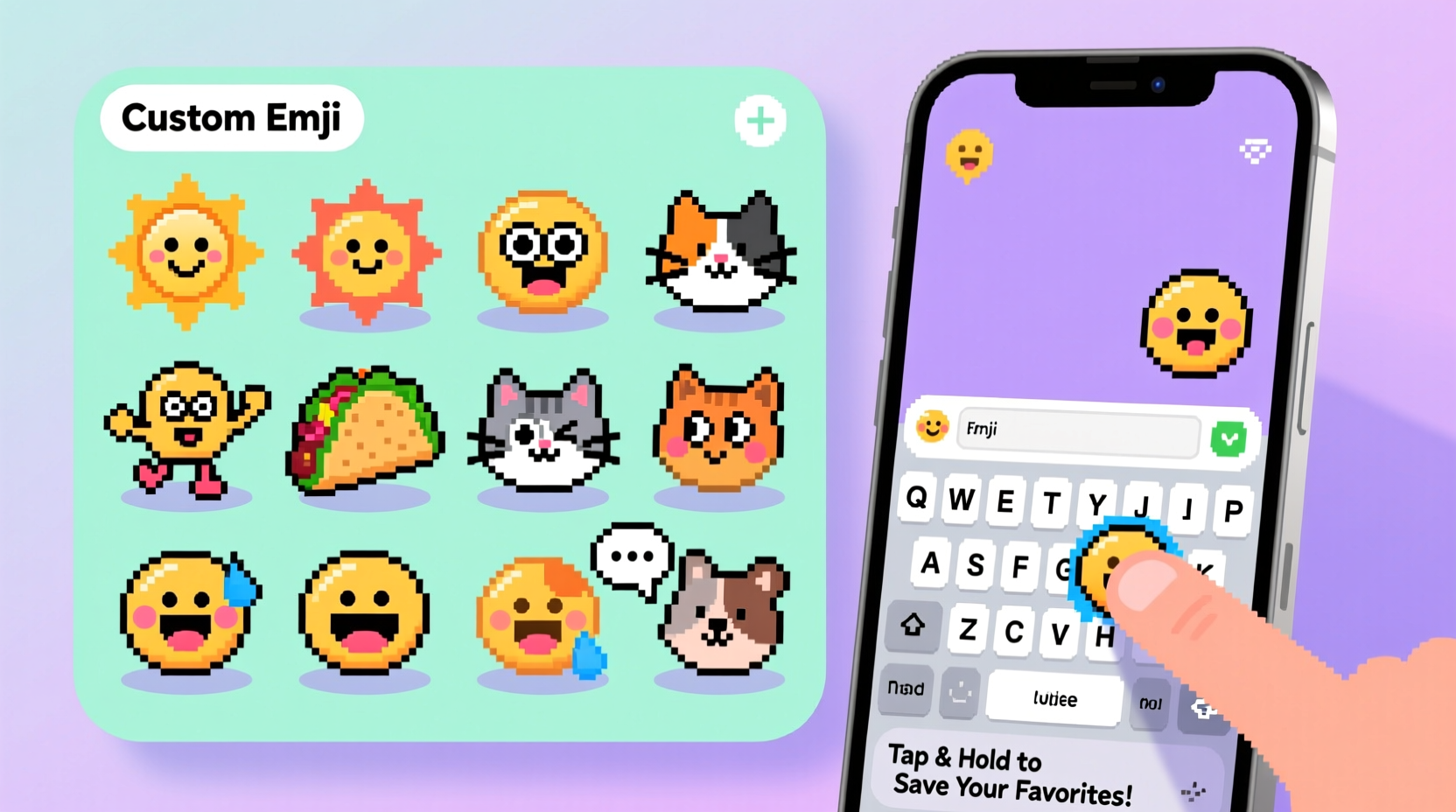
Standard emoji sets are functional but limited. They don’t capture the nuances of personal relationships, shared memories, or niche humor. A custom emoji keyboard allows you to:
- Send personalized reactions instantly
- Use visual shorthand for recurring jokes or phrases
- Strengthen emotional connection through tailored visuals
- Stand out in group chats with unique expressions
Whether you're designing emojis for family, friends, or a small community, a custom keyboard turns texting into an interactive experience. It's not just about convenience—it's about identity and intimacy in communication.
Choosing the Right Tools and Platforms
The method you use depends on your device—iOS and Android handle third-party keyboards differently. Below is a comparison of popular tools and platforms available for creating custom emoji keyboards.
| Tool/Platform | Best For | Device Support | Learning Curve |
|---|---|---|---|
| Gboard (Android) | Quick stickers via Google Photos | Android only | Low |
| iOS Sticker Apps (via Xcode) | Full iOS integration | iOS only | High |
| Bitmoji by Snapchat | Personal avatars + social sharing | iOS & Android | Low |
| Sticker.ly | Community-driven sticker packs | iOS & Android | Medium |
| Emoji Kitchen (by Gboard) | Mixing existing emojis creatively | Android only | Very Low |
For full customization, especially on iOS, development tools like Xcode are required. On Android, Gboard offers built-in support for user-generated stickers. Third-party apps like Sticker.ly simplify the process across platforms but may limit design freedom.
“Custom emoji keyboards represent the next evolution of digital body language—they allow users to express themselves in ways standardized icons simply can't.” — Dr. Lena Torres, Digital Communication Researcher, MIT Media Lab
Step-by-Step Guide to Building Your Own Emoji Keyboard
Follow this detailed process to build a fully functional custom emoji keyboard. The steps vary slightly between platforms, but the core workflow remains consistent.
- Define Your Theme
Create a concept for your emoji set. Is it based on pets, travel memories, fandoms, or daily routines? A clear theme ensures cohesion. - Design Your Emojis
Use graphic design software such as Adobe Illustrator, Procreate, Figma, or free tools like Canva or Inkscape. Design each emoji at 300x300 pixels minimum, using transparent backgrounds (PNG format). Keep lines clean and expressions exaggerated for visibility at small sizes. - Export Assets Properly
Save each emoji as a PNG file with transparency. Name them clearly (e.g., “laughing-cat.png”, “coffee-lover.png”). Avoid spaces; use hyphens or underscores. - Select a Development Path
- For Android: Use Gboard’s integrated sticker creation feature. Upload images directly from your phone to generate a sticker pack.
- For iOS: Open Xcode, create a new iMessage App project, and add your images to the Stickers folder. Assign each a unique identifier.
- Cross-Platform: Publish your stickers on Sticker.ly or another third-party marketplace that supports both systems.
- Test on Device
Install the app locally. Send test messages to yourself or a friend. Check image quality, loading speed, and ease of access. - Distribute (Optional)
If you want others to use your keyboard, submit your app to the App Store (iOS) or publish on Google Play (if building a standalone keyboard). Alternatively, share via direct download links or QR codes within private groups.
Real Example: The Office Inside Joke Keyboard
At a mid-sized tech startup, team members frequently referenced a chaotic all-hands meeting where the CEO accidentally muted himself while yelling, “I CAN’T HEAR YOU!” To commemorate the moment, one employee designed a series of six custom emojis depicting key scenes: a red-faced avatar behind a mute button, a chat bubble with “???” inside, and a crown labeled “King of Audio Fail.” Using Gboard’s sticker import tool, they created a private sticker pack named “Meeting Legends.” Within days, the emojis spread across internal chats, reducing miscommunication and boosting morale. The best part? No coding was required—just creativity and a shared sense of humor.
Design Principles for Effective Custom Emojis
A well-designed emoji communicates instantly. Follow these principles to maximize impact:
- Simplicity: Avoid clutter. Focus on one emotion or idea per emoji.
- Consistency: Maintain the same art style, color palette, and proportions across all emojis.
- Recognizability: Exaggerate facial features or gestures so they’re readable at 20x20 pixels.
- Cultural Sensitivity: Avoid symbols that could be misinterpreted or offensive, even in jest.
- Contextual Relevance: Tailor designs to your audience. A pet emoji might delight family chats but confuse coworkers unless relevant.
Consider accessibility: ensure sufficient contrast for users with visual impairments. Also, avoid relying solely on color to convey meaning—pair icons with subtle shapes or patterns when possible.
Checklist: Launch-Ready Custom Emoji Keyboard
Before releasing your keyboard, verify the following:
- ✅ All emojis are high-resolution (at least 300x300 px)
- ✅ Files are saved in PNG with transparent background
- ✅ Each image has a descriptive filename
- ✅ Art style is consistent across the set
- ✅ Tested on actual devices (phone and tablet)
- ✅ Keyboard responds quickly without lag
- ✅ No copyrighted characters or logos used without permission
- ✅ Instructions included for recipients (if sharing externally)
Legal and Ethical Considerations
While creating custom emojis is fun, it comes with responsibilities. Using trademarked characters (like Mickey Mouse or Pikachu) without permission violates copyright law. Even parody or modification doesn’t guarantee legal protection. Similarly, creating emojis that mock or caricature individuals without consent can damage relationships and lead to privacy complaints.
To stay safe:
- Use original artwork or properly licensed assets
- Get permission before turning someone’s likeness into an emoji
- Avoid offensive stereotypes or slurs, even as jokes
- If distributing publicly, include a simple license agreement (e.g., “For personal use only”)
“We once had a client removed from the App Store for using unlicensed anime characters in their sticker pack. Originality isn’t just safer—it’s more rewarding.” — Marcus Lin, Mobile App Legal Consultant
Frequently Asked Questions
Can I make a custom emoji keyboard without coding?
Yes. On Android, Gboard lets you add sticker packs directly from your photo gallery. Apps like Bitmoji and Sticker.ly also allow drag-and-drop creation with no technical skills needed. iOS requires Xcode for full control, but third-party platforms offer simplified publishing options.
Will my custom emojis work in all messaging apps?
Not always. iMessage stickers appear only in Apple Messages. Gboard stickers work in most Android apps that support clipboard insertion (WhatsApp, Telegram, SMS). Standalone keyboard apps increase compatibility but require installation by the recipient.
How do I share my custom keyboard with friends?
For private sharing: Generate a download link via cloud storage (Google Drive, Dropbox) or use QR code generators. For broader distribution, publish on Sticker.ly or submit to official app stores. Include clear setup instructions—many users won’t know how to enable third-party keyboards.
Conclusion: Turn Texting Into a Personal Canvas
Creating your own custom emoji keyboard transforms everyday texting into a vibrant, expressive experience. It bridges the gap between typed words and human emotion, letting you communicate joy, sarcasm, nostalgia, and love with a single tap. Whether you're commemorating a milestone, celebrating a friendship, or just adding flair to mundane chats, a personalized keyboard gives your voice visual form.
You don’t need to be a designer or developer to start. Begin with a single emoji—a smiling version of your dog, a re-creation of your favorite hat, or a dramatic rendition of your “I’m late again” face. Build from there. Test it. Share it. Watch how a tiny image can spark laughter, recognition, and connection.




 浙公网安备
33010002000092号
浙公网安备
33010002000092号 浙B2-20120091-4
Comments
No comments yet. Why don't you start the discussion?