
In today’s connected world, a secure home Wi-Fi network is as essential as locking your front door. Yet many people unknowingly leave their networks vulnerable—especially to curious or tech-savvy neighbors. Whether it's slow internet due to unauthorized users, privacy risks from shared access, or even legal liability if someone uses your connection for illicit activity, an exposed Wi-Fi password can cause real problems. The good news? Protecting your network doesn’t require advanced technical skills. With a few smart, straightforward steps, you can ensure your Wi-Fi remains private, fast, and under your control.
Why Wi-Fi Privacy Matters More Than You Think
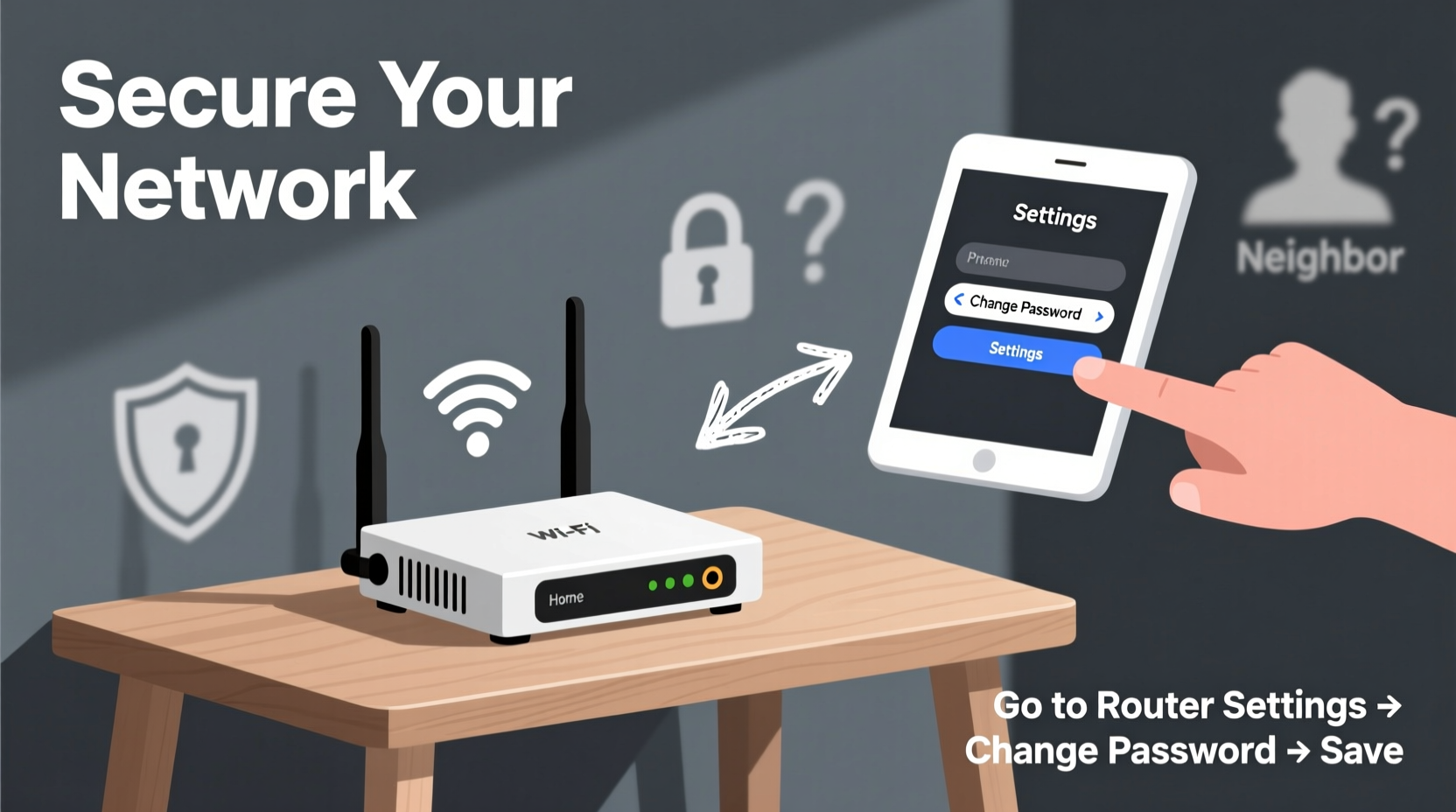
It might seem harmless if a neighbor occasionally borrows your Wi-Fi, but the implications go beyond bandwidth theft. An open or weakly protected network allows anyone within range to potentially access devices on your network—like smart cameras, computers, or phones. Cybersecurity experts warn that unsecured networks are common entry points for data theft, malware distribution, and identity fraud.
The Federal Trade Commission (FTC) emphasizes that consumers should treat their Wi-Fi networks like personal property: “If you wouldn’t hand over your house keys to a stranger, don’t give them access to your internet connection.” This mindset shift—from convenience to security—is crucial in maintaining digital privacy at home.
“Your Wi-Fi is the gateway to your digital life. One weak password can expose everything from financial accounts to private conversations.” — Dr. Lena Patel, Network Security Analyst at CyberShield Labs
Step-by-Step Guide to Securing Your Wi-Fi from Neighbors
Follow this clear, actionable sequence to lock down your network and keep your password truly private.
- Access Your Router’s Admin Panel
Open a web browser and type your router’s IP address—usually192.168.0.1or192.168.1.1. Check the label on the back of your router for the exact address and login credentials. - Log In with Admin Credentials
Enter the username and password. If you haven’t changed these, they’re likely still set to defaults like “admin/admin” or “admin/password.” If so, change them immediately after logging in. - Navigate to Wireless Settings
Look for sections labeled “Wireless,” “Wi-Fi Settings,” or “Network Name (SSID).” Here, you’ll manage your network name and password. - Change Your Wi-Fi Network Name (SSID)
Avoid using personal identifiers like your name, address, or phone number. A generic name like “Home_Network_5G” makes it harder for others to guess whose network it is. - Set a Strong, Unique Password
Use at least 12 characters with a mix of uppercase letters, lowercase letters, numbers, and symbols. Example:BlueTiger$7x!kL9. Avoid dictionary words or common phrases. - Select WPA3 Encryption (or WPA2 if WPA3 isn’t available)
Under “Security Mode” or “Encryption Type,” choose WPA3-Personal if supported. It’s currently the strongest consumer-grade encryption. If your router doesn’t support WPA3, use WPA2-PSK (AES). - Save and Reboot
After making changes, save the settings and restart your router. All connected devices will disconnect and need to reconnect using the new password.
Advanced Tactics to Keep Your Network Hidden and Secure
Beyond basic password protection, additional measures can significantly reduce the risk of neighbor access.
Disable WPS (Wi-Fi Protected Setup)
WPS was designed for easy device pairing but has known vulnerabilities. A hacker within range can exploit WPS to recover your password in hours. Disable it in your router settings under “WPS” or “Wi-Fi Setup.”
Enable MAC Address Filtering
Each device has a unique MAC address. You can configure your router to allow only specific devices to connect. While not foolproof (MAC addresses can be spoofed), it adds a layer of deterrence.
Hide Your SSID (Network Name)
You can disable SSID broadcasting so your network doesn’t appear in public Wi-Fi lists. Note: This won’t stop determined attackers with packet-sniffing tools, but it prevents casual discovery by neighbors browsing for networks.
Use a Guest Network
If you ever need to provide internet access—say, to a visitor—enable a guest network instead of sharing your main password. Most modern routers support this feature, isolating guest traffic from your primary devices.
Regular Firmware Updates
Manufacturers release firmware updates to patch security flaws. Log into your router every few months to check for updates, or enable automatic updates if available.
Do’s and Don’ts of Wi-Fi Password Management
| Do’s | Don’ts |
|---|---|
| Use a complex, non-guessable password | Use your phone number, birth year, or pet’s name |
| Change your password every 6–12 months | Share your password verbally or via text message |
| Enable WPA3 or WPA2 encryption | Use outdated WEP or no encryption at all |
| Limit connected devices through monitoring | Leave default admin login credentials unchanged |
| Update router firmware regularly | Ignore router notifications or security alerts |
Real-World Example: How One Family Regained Control of Their Internet
The Thompson family in suburban Chicago had been experiencing frequent internet slowdowns, especially during evenings. Video calls would freeze, and streaming lagged despite having a high-speed plan. After checking their router logs, they discovered up to seven unknown devices were connecting daily—likely from neighboring apartments.
They followed the steps outlined above: changing the SSID to something neutral, setting a strong 14-character password with special characters, enabling WPA2 encryption, disabling WPS, and activating the guest network for occasional visitors. Within 24 hours, their speeds returned to normal, and no unauthorized devices reappeared.
“We didn’t realize how much bandwidth was being siphoned off,” said Mark Thompson. “Now we feel safer knowing only our devices are on the network.”
Checklist: Is Your Wi-Fi Truly Private?
- ✅ Changed default router login credentials
- ✅ Set a strong, unique Wi-Fi password
- ✅ Enabled WPA3 or WPA2 encryption
- ✅ Disabled WPS functionality
- ✅ Updated router firmware to latest version
- ✅ Hidden SSID or changed default network name
- ✅ Configured a separate guest network
- ✅ Reviewed connected devices list monthly
- ✅ Stored password securely (e.g., password manager)
- ✅ Educated household members about not sharing the password
Frequently Asked Questions
Can my neighbor really see my internet activity if they’re on my Wi-Fi?
Yes, if someone has access to your network, they—or someone with technical knowledge—can potentially monitor unencrypted traffic. This includes websites visited, file transfers, and even login attempts on HTTP sites. Using HTTPS and a firewall helps, but the best defense is preventing unauthorized access altogether.
Is it illegal for my neighbor to use my Wi-Fi without permission?
In most jurisdictions, yes. Unauthorized access to a computer network is considered a crime under laws like the U.S. Computer Fraud and Abuse Act. Even if enforcement is rare, it’s still a violation of your digital property rights. If abuse persists, contact your ISP or local authorities.
Will a stronger password slow down my internet?
No. Password complexity has no impact on speed. What affects performance is the number of active devices and bandwidth usage. A strong password actually improves speed by preventing unknown users from consuming your data.
Final Thoughts: Take Back Control of Your Digital Space
Your home Wi-Fi network is more than just a way to stream videos or browse social media—it’s the foundation of your digital ecosystem. Leaving it unprotected is like leaving your front door unlocked while you sleep. The steps to secure your network are simple, quick, and free. From choosing a robust password to disabling outdated features, each action builds a stronger barrier against unwanted access.
Privacy isn’t about distrust; it’s about responsibility. By securing your Wi-Fi, you protect not only your internet speed but also your personal data, connected devices, and peace of mind. Don’t wait until you notice strange activity or sluggish performance. Implement these measures today and enjoy a faster, safer, and truly private connection.




 浙公网安备
33010002000092号
浙公网安备
33010002000092号 浙B2-20120091-4
Comments
No comments yet. Why don't you start the discussion?