
Weak Wi-Fi signals in certain corners of your home can be frustrating—especially when streaming, gaming, or working remotely. While upgrading your router is often the go-to solution, it’s not always necessary. With strategic adjustments and smart optimizations, you can significantly extend your existing Wi-Fi coverage without spending a dime on new hardware. From repositioning your router to tweaking settings and leveraging reflectors, this guide walks through proven methods that deliver real results.
Optimize Your Router’s Physical Location
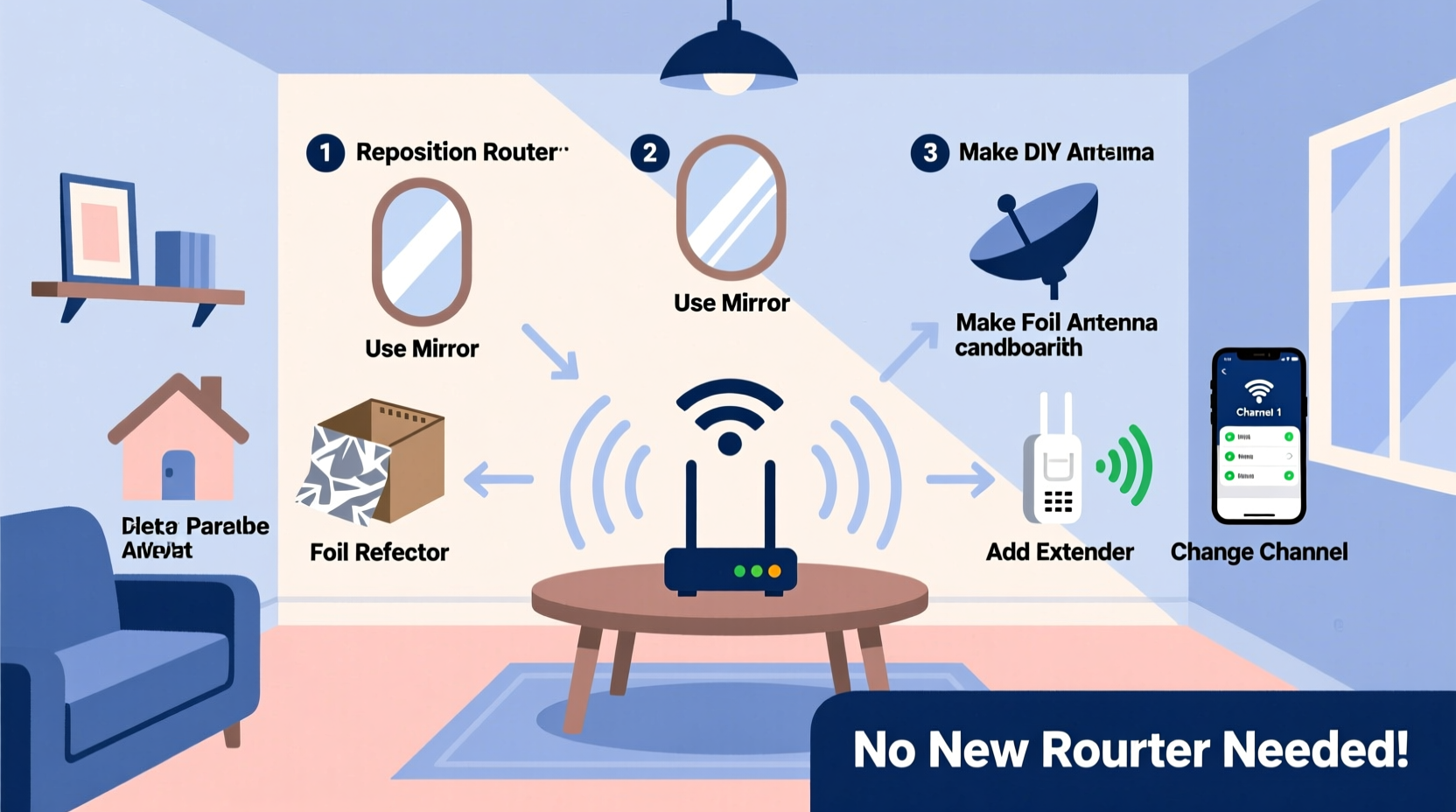
The placement of your router is one of the most impactful factors affecting signal strength and range. Many people tuck their routers away in closets, basements, or behind furniture, unknowingly blocking signals and reducing performance.
For optimal coverage, place your router in a central, elevated location. Avoid placing it near thick walls, metal objects, large appliances, or microwave ovens—all of which interfere with 2.4 GHz and 5 GHz frequencies. Keep it off the floor and away from bookshelves filled with books (which absorb radio waves).
Walls made of concrete, brick, or plaster with metal lath are especially problematic. If your router must stay near such materials, try angling external antennas upward or sideways to redirect signals around obstacles.
Adjust Router Settings for Maximum Coverage
Most users never touch their router’s default settings, missing out on easy gains in speed and reach. Accessing your router’s admin panel (usually via an IP like 192.168.1.1) allows you to fine-tune performance.
Choose the Right Frequency Band
If your router supports dual-band (2.4 GHz and 5 GHz), understand the trade-offs:
| Frequency | Speed | Range | Interference Resistance |
|---|---|---|---|
| 2.4 GHz | Slower | Longer range | More prone to interference |
| 5 GHz | Faster | Shorter range | Better resistance to congestion |
Use 2.4 GHz for devices far from the router where stability matters more than speed. Reserve 5 GHz for high-bandwidth tasks close to the router. You can manually connect devices to the appropriate band by naming them differently in settings (e.g., “HomeNet-2G” and “HomeNet-5G”).
Select the Best Channel
Wi-Fi channels can become congested, especially in dense neighborhoods. On the 2.4 GHz band, channels 1, 6, and 11 are non-overlapping. Use a free tool like WiFi Analyzer (Android) or NetSpot (Windows/Mac) to see which channels nearby networks use.
Switch your router to the least crowded channel. For 5 GHz, there are more non-overlapping channels, so automatic selection usually works well—but manual tuning can still help if performance drops during peak hours.
“Over 60% of home Wi-Fi issues stem from poor placement or suboptimal channel selection—not hardware limitations.” — David Lin, Senior Network Engineer at NetSecure Labs
Use DIY Signal Reflectors to Redirect Coverage
A simple yet surprisingly effective trick involves shaping aluminum foil or soda cans into parabolic reflectors to focus your router’s signal toward desired areas.
This method works best with routers that have external antennas. By placing a curved reflective surface behind an antenna, you can direct energy forward instead of letting it disperse uselessly backward.
Step-by-Step Guide: Build a Foil Reflector
- Cut a piece of cardboard into a semi-circular shape about 12 inches wide.
- Cover one side completely with aluminum foil, shiny side out.
- Shape it into a shallow bowl or U-form to act as a parabolic reflector.
- Position it behind your router’s antenna, curving forward slightly.
- Test connectivity in previously weak zones and adjust angle as needed.
While this won’t turn your router into a long-range powerhouse, it can improve signal strength by up to 30% in targeted directions—perfect for reaching a backyard office or second-floor bedroom.
Leverage Powerline Adapters and Ethernet Bridges
If part of your house consistently has no usable Wi-Fi, consider using powerline adapters. These devices transmit internet data through your home’s electrical wiring, turning any power outlet into a potential network access point.
Here’s how they work: One adapter plugs into an outlet near your router and connects via Ethernet. A second adapter goes into an outlet in a dead zone and broadcasts Wi-Fi or provides an Ethernet port for wired devices.
Modern powerline kits support speeds up to 1 Gbps and include built-in Wi-Fi extenders. Brands like TP-Link, Netgear, and D-Link offer reliable models under $100. Even better: some allow you to create a seamless extended network without changing your main SSID.
Alternatively, if you have an old router lying around, repurpose it as a wireless bridge or access point. Flash it with open-source firmware like DD-WRT or OpenWRT, then configure it to receive signal from your primary router and rebroadcast it locally.
Mini Case Study: Extending Coverage in a Two-Story Home
Sarah lives in a 1,800-square-foot colonial house with thick interior walls. Her router was originally placed in the basement, leading to spotty coverage upstairs and zero signal in the garage workshop.
Instead of replacing her aging router, she moved it to the main floor hallway and added a TP-Link powerline kit ($70) with a built-in Wi-Fi extender in the attic. She also configured her old router as a secondary access point in the garage using Ethernet over coaxial cable.
Result: Full 2.4 GHz coverage throughout the property and stable connections for remote work, video calls, and smart home devices—all without purchasing a new primary router.
Reduce Interference and Optimize Device Usage
Wi-Fi doesn’t operate in isolation. Other electronics emit electromagnetic noise that degrades performance. Common culprits include cordless phones, baby monitors, Bluetooth speakers, and even fluorescent lights.
Microwave ovens are particularly disruptive—they operate at 2.45 GHz, nearly identical to Wi-Fi’s 2.4 GHz band. Running a microwave can temporarily knock devices offline or reduce throughput by up to 70%.
- Keep your router at least 5–6 feet away from kitchen appliances.
- Turn off unused Bluetooth devices when streaming or gaming.
- Limit the number of active connected devices during critical tasks.
- Set bandwidth-heavy devices (like security cameras) to lower resolution modes if feasible.
Also, ensure your router firmware is up to date. Manufacturers regularly release updates that improve stability, security, and signal efficiency. Check your admin interface monthly for available upgrades.
Wi-Fi Range Optimization Checklist
Follow this actionable checklist to maximize your current router’s reach:
- ✅ Move the router to a central, elevated location
- ✅ Keep it away from thick walls, mirrors, and metal objects
- ✅ Use the 2.4 GHz band for distant devices
- ✅ Switch to the least congested Wi-Fi channel
- ✅ Update router firmware regularly
- ✅ Install a foil or can-based reflector for directional boost
- ✅ Minimize interference from microwaves and cordless phones
- ✅ Use a powerline adapter with Wi-Fi extender in dead zones
- ✅ Repurpose an old router as a secondary access point
- ✅ Limit simultaneous high-bandwidth activities
Frequently Asked Questions
Can I really extend Wi-Fi without buying anything?
Yes. Simply relocating your router, adjusting its antennas, selecting the right channel, and minimizing interference can dramatically improve coverage—often eliminating dead zones entirely without spending money.
Do aluminum foil reflectors actually work?
They do—within limits. Tests show modest gains (10–30%) in signal strength in specific directions. They’re most useful when you need to push signal down a hallway or into an adjacent room but aren’t a substitute for proper infrastructure in large homes.
Is it safe to leave a router running 24/7?
Yes. Routers are designed for continuous operation. However, rebooting every few weeks can clear memory leaks and restore optimal performance. Consider setting a monthly reminder to restart yours.
Final Thoughts: Small Changes, Big Results
You don’t need the latest mesh system or a top-tier tri-band router to enjoy strong Wi-Fi throughout your home. Often, the bottleneck isn’t the hardware—it’s how it’s being used. Strategic placement, thoughtful configuration, and clever use of existing tools can unlock hidden potential in your current setup.
Start with the simplest fixes: move your router, switch bands, and eliminate interference. Then experiment with reflectors or powerline adapters if needed. The improvements may surprise you.




 浙公网安备
33010002000092号
浙公网安备
33010002000092号 浙B2-20120091-4
Comments
No comments yet. Why don't you start the discussion?