
Email is a cornerstone of modern communication—used for work, school, personal connections, and online accounts. For beginners, accessing an inbox can feel overwhelming, especially with unfamiliar interfaces and security concerns. This guide breaks down the process into simple, actionable steps so you can confidently open and manage your email, no matter which provider you use.
Understanding Email Services
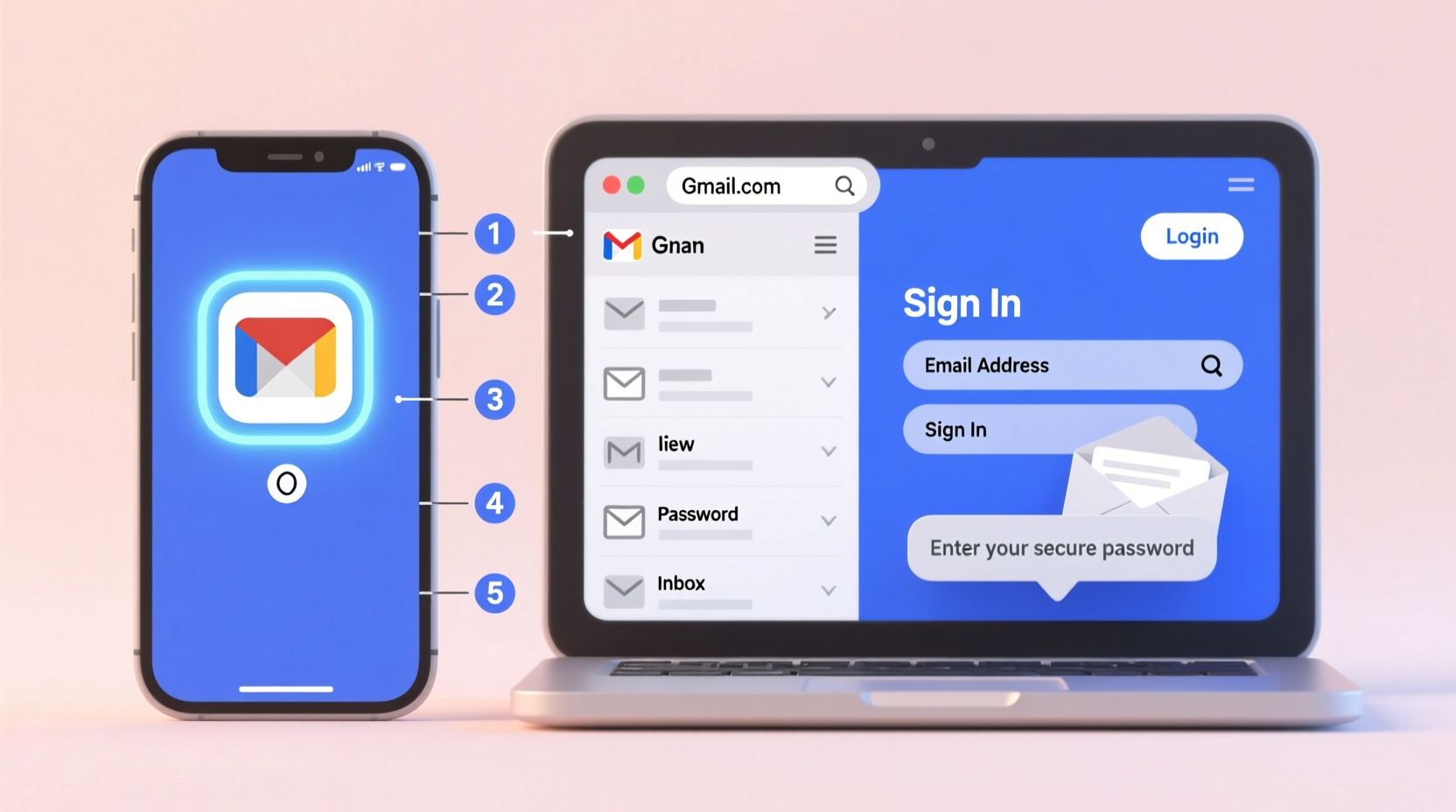
Email services are platforms that allow you to send, receive, and organize digital messages. The most common providers include Gmail (Google), Outlook/Hotmail (Microsoft), Yahoo Mail, and Apple Mail (for iPhone users). Each offers a web-based interface and mobile apps, making access flexible across devices.
Before you can access your inbox, you need an email account. If you don’t have one, creating it takes only a few minutes. Most services require:
- A unique email address (e.g., john.doe@gmail.com)
- A secure password
- Basic personal information like name and phone number
Once created, your email address becomes your digital identity for logging in.
Step-by-Step Guide to Accessing Your Inbox
Whether you're using a computer or smartphone, the process of opening your email follows a consistent pattern. Here’s a timeline of actions to get you into your inbox quickly and securely.
- Open a web browser or app: On a computer, launch Chrome, Safari, Firefox, or Edge. On a phone, tap the email app or browser icon.
- Navigate to your provider’s website: Type the correct URL:
- Gmail:
mail.google.com - Outlook:
outlook.com - Yahoo:
mail.yahoo.com
- Gmail:
- Enter your email address: Type the full address exactly as created (including @ and domain).
- Input your password: Be mindful of capitalization and special characters.
- Click “Sign In”: Wait for the system to authenticate your credentials.
- Complete security verification (if prompted): This may include entering a code sent to your phone or answering a security question.
- Arrive at your inbox: Once logged in, you’ll see your list of messages, folders, and tools.
If you’re already signed in on a trusted device, you may bypass some steps. However, always log out on shared computers.
Accessing Email on Mobile Devices
Smartphones offer faster, push-notification-driven email access. To set up your inbox:
- Open the default mail app (e.g., Gmail for Android, Mail for iPhone).
- Select “Add Account” or “Set up email.”
- Choose your provider (Gmail, Outlook, etc.) or select “Other” for custom addresses.
- Enter your email and password.
- Allow permissions for notifications and contacts (optional but useful).
- Sync settings will apply automatically; your inbox appears within seconds.
After setup, your email stays accessible from the home screen, updated in real time.
Common Login Issues and How to Fix Them
Even with careful input, problems arise. Here’s how to troubleshoot frequent issues:
| Issue | Possible Cause | Solution |
|---|---|---|
| “Wrong password” error | Typo, caps lock, or forgotten password | Click “Forgot password?” and follow reset instructions via recovery email or phone. |
| Account not found | Incorrect email address or unregistered account | Double-check spelling. If unsure, search your records or create a new account. |
| Stuck on loading screen | Poor internet, browser cache, or server outage | Refresh the page, switch networks, or try again later. |
| Two-factor prompt not working | Lost phone or outdated authenticator app | Use backup codes or contact support for recovery options. |
Security Best Practices for Email Access
Your inbox contains sensitive data—protecting it is non-negotiable. Cybersecurity expert Linda Ruiz emphasizes:
“Over 90% of data breaches start with compromised email accounts. A strong password and two-factor authentication are your first line of defense.” — Linda Ruiz, Cybersecurity Analyst at NetShield Security Group
To keep your inbox safe:
- Use a strong password: Combine uppercase, lowercase, numbers, and symbols (e.g.,
Bk7#mP!qW2). - Enable two-factor authentication (2FA): Requires a second verification step, usually a code from your phone.
- Avoid public Wi-Fi for login: Unsecured networks can expose your credentials.
- Log out after use: Especially on shared or public devices.
- Update recovery info regularly: Ensure your backup email and phone number are current.
Checklist: Secure Your Email Access
- ✅ Created a strong, unique password
- ✅ Enabled two-factor authentication
- ✅ Verified recovery email and phone number
- ✅ Installed updates on your device and browser
- ✅ Avoided saving passwords on public computers
Real Example: Maria Learns to Use Email for Job Applications
Maria, a recent high school graduate, needed email to apply for jobs but had never used one before. She followed these steps:
She visited gmail.com on her library’s computer and clicked “Create account.” Using her name, she chose maria.rodriguez.job2024@gmail.com. She set a password she could remember but included numbers and a symbol. After verifying her phone number, she was in.
At first, she struggled to find incoming replies from employers. A librarian showed her how to check the “Promotions” and “Spam” tabs. She also learned to mark important emails as “Starred” and archive completed ones.
Within a week, Maria responded to three interview invitations—all because she mastered basic inbox navigation. Her confidence grew, and she now uses email daily for applications and networking.
Frequently Asked Questions
Can I access my email without the internet?
No. You need an active internet connection to log in and sync messages. However, some email apps allow offline viewing of recently loaded emails, but sending or receiving requires connectivity.
What should I do if I forget my email address?
Try recalling websites where you might have used it, like social media or shopping accounts. Some providers let you recover your address by entering your recovery phone number or answering security questions.
Is it safe to stay logged in on my personal phone?
Yes, if your phone has a passcode, fingerprint, or facial recognition lock. Avoid staying signed in on tablets or computers others use. Always enable remote wipe features in case your device is lost.
Conclusion: Take Control of Your Digital Communication
Opening and accessing your email doesn’t require technical expertise—just a few clear steps and smart habits. From choosing the right provider to navigating your inbox and securing your account, each action builds your confidence and independence in the digital world.
Start today: open your browser, sign in, and explore your inbox. Read one message, send a test email, or organize your folders. Small actions lead to big progress. As you grow more comfortable, email becomes not just a tool, but a gateway to opportunities.




 浙公网安备
33010002000092号
浙公网安备
33010002000092号 浙B2-20120091-4
Comments
No comments yet. Why don't you start the discussion?