
As iPhones age, their performance often declines—not just due to outdated hardware, but because of deteriorating battery health. A worn battery can’t deliver peak power efficiently, leading iOS to throttle performance to prevent unexpected shutdowns. This results in sluggish apps, longer load times, and reduced usability. But before you consider upgrading, there are practical steps you can take to extend your old iPhone’s battery life and restore some of its lost responsiveness. With the right optimizations, even a five-year-old device can remain functional and efficient.
Understand Battery Health and Performance Throttling
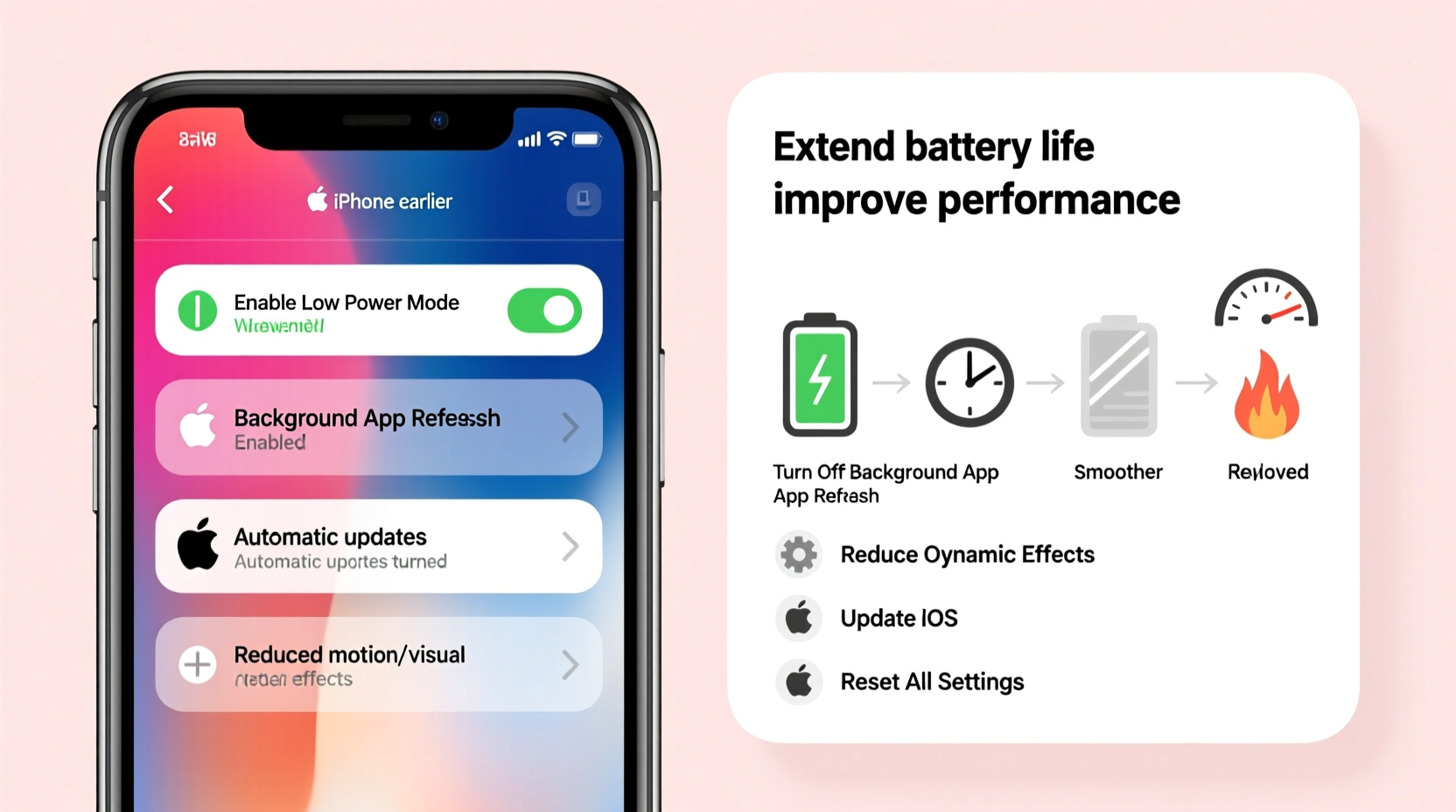
Apple introduced performance management features starting with iOS 10.2.1 to address sudden shutdowns on older devices with degraded batteries. When the battery can no longer supply peak current demands—common in cold environments or under heavy app usage—the system automatically reduces CPU and GPU performance to maintain stability.
This throttling is not arbitrary; it’s tied directly to battery health. You can check your iPhone’s battery condition by navigating to Settings > Battery > Battery Health & Charging. Look for two key metrics:
- Maximum Capacity: Shows the battery’s current capacity relative to when it was new. Below 80% indicates significant degradation.
- Peak Performance Capability: Alerts if performance management is active due to battery limitations.
“Battery aging is inevitable, but managing its impact through software settings and usage habits can dramatically improve daily usability.” — Dr. Lena Tran, Mobile Device Engineer at TechLife Labs
If your maximum capacity is below 75%, replacing the battery may be the most effective long-term solution. However, even without replacement, strategic optimization can yield noticeable improvements.
Step-by-Step Guide to Optimize Battery Usage
Improving battery efficiency isn’t just about preserving charge—it’s about reducing unnecessary strain on the system. Follow this timeline-based approach to recalibrate your iPhone’s energy consumption.
- Day 1: Reset Settings and Review Battery Usage
Go to Settings > General > Transfer or Reset iPhone > Reset All Settings. This clears network, display, and privacy configurations that may have accumulated inefficiencies. Then, spend a day monitoring Settings > Battery to identify top battery-consuming apps. - Day 2: Disable Background App Refresh for Non-Essential Apps
Open Settings > General > Background App Refresh. Turn off refresh for social media, games, and news apps. These frequently wake the CPU, draining power even when unused. - Day 3: Reduce Motion and Visual Effects
Navigate to Settings > Accessibility > Motion and enable “Reduce Motion.” Also go to Settings > Accessibility > Display & Text Size and turn on “Reduce Transparency.” These animations consume GPU resources and reduce battery strain. - Day 4: Optimize Location Services
In Settings > Privacy & Security > Location Services, set non-critical apps (like weather or shopping) to “While Using” instead of “Always.” Some apps track location constantly, which is a major drain. - Day 5: Enable Low Power Mode Automatically
Go to Settings > Battery and toggle on “Low Power Mode Automatically.” This activates Low Power Mode when your battery drops to 80%, preserving charge during critical hours.
Do’s and Don’ts: Battery Optimization Table
| Action | Do | Don't |
|---|---|---|
| Charging Habits | Charge between 20%–80% daily; use overnight charging only with Optimized Battery Charging enabled. | Avoid frequent full 0% to 100% cycles; don’t leave plugged in for days. |
| Screen Settings | Use Auto-Brightness and lower max brightness; set short auto-lock (30 seconds). | Don’t keep brightness at 100% or use live wallpapers. |
| App Management | Delete unused apps; update apps monthly to patch inefficiencies. | Don’t let background apps run indefinitely; avoid keeping 50+ apps installed. |
| Connectivity | Turn off Bluetooth/Wi-Fi when not needed; use Wi-Fi over cellular when possible. | Don’t leave Personal Hotspot on; disable LTE for streaming apps. |
| Software Updates | Install iOS updates for battery optimizations; stay within supported versions. | Don’t skip updates for years—security and efficiency degrade. |
Real Example: Reviving a 6-Year-Old iPhone 8
Mark, a freelance photographer in Portland, relied on his iPhone 8 for client communication and quick photo edits. By 2023, the phone felt unusable—apps crashed, battery died by noon, and camera lagged. He considered upgrading but decided to troubleshoot first.
After checking battery health (Settings > Battery > Battery Health), he found his maximum capacity was 71%. Instead of immediate replacement, he followed a week-long optimization plan:
- Disabled background refresh for Instagram, TikTok, and Spotify.
- Switched to grayscale mode via Accessibility > Display & Text Size > Color Filters.
- Turned off Raise to Wake and reduced motion effects.
- Installed iOS 16.7 (the latest supported version) for stability patches.
- Replaced the battery at an Apple-certified shop for $69.
The result? His battery lasted nearly twice as long, and app switching became noticeably smoother. While not as fast as a new model, the iPhone 8 regained enough functionality to serve him for another 14 months—delaying upgrade costs and reducing e-waste.
Expert Checklist: 10 Actions to Maximize Old iPhone Efficiency
Follow this actionable checklist to systematically improve both battery longevity and overall performance:
- ✅ Check battery health in Settings; replace if below 80%.
- ✅ Enable Low Power Mode and set it to activate automatically.
- ✅ Turn off Background App Refresh for non-essential apps.
- ✅ Reduce motion and transparency effects under Accessibility settings.
- ✅ Lower screen brightness and shorten auto-lock time to 30 seconds.
- ✅ Disable push email; set fetch to hourly or manually.
- ✅ Turn off unnecessary location services and system services like Frequent Locations.
- ✅ Delete unused apps—especially those with constant background activity.
- ✅ Keep iOS updated to benefit from battery efficiency patches.
- ✅ Use iCloud Photos instead of local storage-heavy third-party galleries.
This checklist doesn’t require technical expertise—just consistency. Implement these changes over a weekend, and monitor improvements in battery duration and responsiveness.
Frequently Asked Questions
Can I improve performance without replacing the battery?
Yes, but with limits. Software tweaks like disabling animations, reducing background activity, and updating iOS can help. However, if your battery health is below 75%, performance gains will plateau. Apple’s own data shows that battery replacement restores up to 90% of original speed in throttled devices.
Does turning off iCloud sync save battery?
Not significantly. iCloud syncing occurs during idle periods and uses minimal power. However, disabling constant photo uploads or Find My iPhone location pings can reduce background strain slightly. The bigger win is ensuring your device isn’t stuck in a sync loop due to full storage or poor connectivity.
Is it safe to use third-party chargers?
Only if they’re MFi-certified (Made for iPhone). Cheap, uncertified chargers can deliver unstable voltage, accelerating battery degradation. Over time, inconsistent charging damages lithium-ion cells, reducing lifespan and increasing heat. Stick to Apple-branded or MFi-labeled accessories for safety and longevity.
Final Thoughts: Extend Life, Delay Upgrade
Optimizing an old iPhone isn’t about chasing peak performance—it’s about smart trade-offs that align with real-world usage. An iPhone from 2017 or 2018 can still handle messaging, photography, navigation, and even light productivity if managed well. The key lies in understanding that battery health drives performance, and small behavioral changes compound into meaningful gains.
You don’t need the latest model to stay connected. By auditing your settings, minimizing background strain, and considering a battery replacement, you reclaim responsiveness and extend your device’s useful life. This not only saves money but also supports sustainability in a world drowning in electronic waste.




 浙公网安备
33010002000092号
浙公网安备
33010002000092号 浙B2-20120091-4
Comments
No comments yet. Why don't you start the discussion?