
Every year, thousands of households and small-scale holiday decorators wrestle with the same problem: tangled strings, mismatched controllers, faded bulbs, and the dreaded “Where did I put the 50-foot warm white C9s?” moment. Physical sorting—labeling boxes, using ziplock bags, or scribbling notes on masking tape—works temporarily but fails under scale, seasonal fatigue, or team handoffs. Digital organization isn’t about replacing hands-on care; it’s about building a living, searchable, updatable system that grows with your collection. This approach saves hours during setup, prevents costly duplicate purchases, simplifies troubleshooting, and transforms holiday prep from chaotic to confident—even for collections spanning hundreds of strands.
Why Digital Inventory Beats Paper Lists and Memory Alone
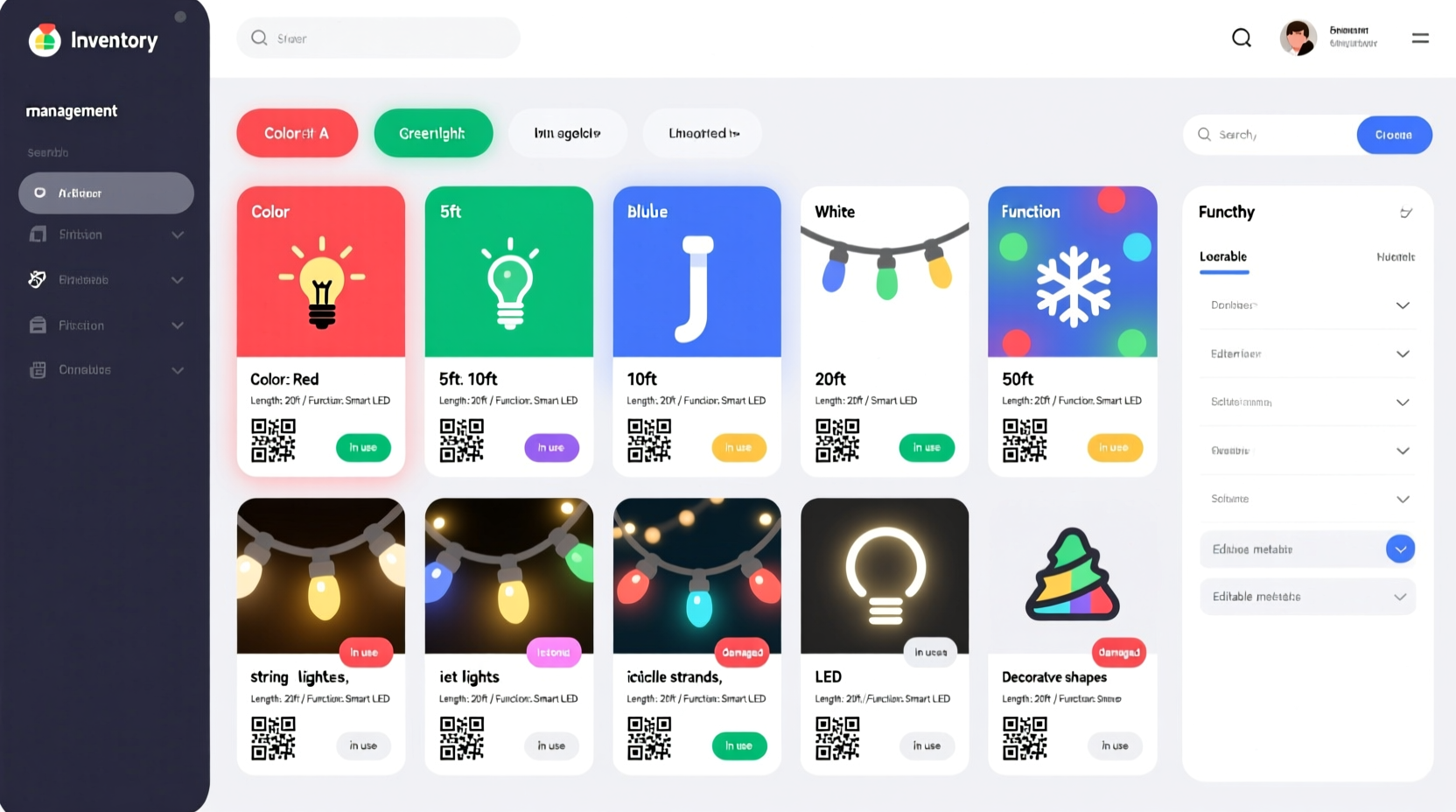
Traditional methods collapse under three common pressures: time decay (faded labels), cognitive load (remembering which box holds “cool white net lights with 3-channel controller”), and operational friction (no way to filter “all 12V DC rope lights longer than 15 feet”). A digital system addresses each. It preserves context across years, enables instant filtering by multiple attributes, and integrates with real-world workflows—from scanning barcodes during unpacking to exporting reports before ordering replacements. Crucially, it supports collaboration: a property manager can share access with maintenance staff; a church volunteer coordinator can delegate strand assignment without miscommunication.
“Digital inventory isn’t overhead—it’s insurance against seasonal burnout. Teams that adopt structured light tracking cut pre-season setup time by 40–60%.” — Derek Lin, Founder of HolidayLightOps, a nonprofit supporting municipal and faith-based lighting programs
Core Attributes to Track—and Why Each Matters
Effective digital organization starts with defining what to record—not everything, but what drives decisions. Four attributes form the foundation: color, length, function, and physical condition. Each serves a distinct operational purpose:
- Color: Not just “white” or “red”—specify temperature (e.g., 2700K warm white, 6500K daylight) and type (solid, RGB, RGBW, tunable white). This avoids mismatches when mixing strands on one circuit.
- Length: Record both total strand length (e.g., 33 ft) and bulb spacing (e.g., 6 in between bulbs). Spacing determines visual density and suitability for railings vs. rooflines.
- Function: Go beyond “indoor/outdoor.” Capture voltage (12V DC, 120V AC), controller compatibility (e.g., “works with Light-O-Rama S3”), dimmability, waterproof rating (IP44, IP65, IP68), and special features (music sync, built-in timer).
- Physical Condition: Note bulb count (vs. original), visible damage (cracked sockets, frayed wire ends), and controller status (working, intermittent, missing remote). This informs repair priorities and retirement timelines.
A Step-by-Step Digital Setup Process
Building a functional system takes under two hours—and pays back that time within the first season. Follow this sequence precisely to avoid rework:
- Inventory Audit & Strand Tagging: Unpack every strand. Assign a unique ID (e.g., “CL-2024-WW-001”) using a permanent marker on the plug housing or a laminated tag. Photograph the plug, controller, and a section of lit bulbs.
- Attribute Capture: For each strand, record: color (with Kelvin value if known), total length, bulb count, spacing, voltage, IP rating, controller model, and condition notes. Use a spreadsheet or dedicated app—no handwritten logs.
- Standardize Naming Conventions: Adopt a fixed order: [Type]-[Color]-[Voltage]-[Length]-[BulbCount]. Example: “net-warm-white-12v-10ft-100ct” or “c9-cool-white-120v-50ft-100ct”.
- Create a Master Database: Import data into a tool that supports filtering and search. Google Sheets works for under 200 strands; Airtable or Notion scales better for larger collections with relational views (e.g., linking strands to storage locations or past installation photos).
- Build Searchable Views: Set up filtered views: “All IP65+ 12V strands > 20ft”, “RGBW strands compatible with Falcon F16v3”, or “Strands needing bulb replacement”. Save these as named tabs or pages.
Tool Comparison: Choosing the Right Platform
Selecting software depends on your technical comfort, team size, and growth plans. Below is a realistic comparison of widely accessible options—tested by holiday professionals and serious hobbyists:
| Tool | Best For | Key Strengths | Limitations |
|---|---|---|---|
| Google Sheets | Solo users or small teams (≤ 150 strands); beginners | Free, collaborative in real time, easy import/export, works offline via mobile app | No native barcode scanning; limited relational logic; manual filtering required |
| Airtable | Medium collections (150–500 strands); multi-person teams | Drag-and-drop views (grid, calendar, kanban), barcode scanning via mobile app, customizable fields, automations (e.g., flag strands overdue for inspection) | Free plan caps at 1,000 records; advanced filters require paid tier ($10/mo) |
| Notion | Users who want integration with project plans, installation notes, and photo libraries | Unmatched flexibility (databases + docs + calendars), embeds images directly, templates for seasonal checklists, excellent for linking strands to specific house sections (e.g., “front-porch-2024”) | Steeper learning curve; mobile app less intuitive for rapid data entry |
| LightShow Pro (LSP) Inventory Module | Professional installers using LSP for sequencing | Native integration with show files; auto-populates fixture counts and channel mapping; exports to CSV for vendor quotes | Paid license required ($299/year); overkill for residential users |
Real-World Application: The Maple Street Community Lights Project
The Maple Street Neighborhood Association manages synchronized displays across 22 homes. In 2022, they relied on shared Excel sheets and paper maps—resulting in three instances where homeowners received incompatible controllers, two strands installed with incorrect voltage (causing early failures), and 17 hours lost coordinating replacements mid-season. In 2023, they migrated to Airtable using the standardized schema outlined here. Volunteers scanned QR codes on tagged strands during unpacking, logging condition and location in under 90 seconds per item. The “Controller Compatibility” view flagged five older strands incompatible with their new Falcon F16v3 controllers—prompting targeted repairs instead of wholesale replacement. By November 1st, they’d generated a precise shopping list: “12x 33ft warm white C9s, IP65, 120V, 100ct” — no guesswork, no duplicates. Setup time dropped from 68 to 29 hours. As coordinator Lena Ruiz noted: “We didn’t just track lights—we tracked *intent*. Every strand had a documented role.”
Do’s and Don’ts of Digital Light Management
| Do | Don’t |
|---|---|
| Use consistent units: always “ft”, never mix “ft” and “m”; always “K” for Kelvin, never “kelvin” or “degrees” | Store raw data only in email attachments or unversioned Word docs—these become unsearchable and unfilterable |
| Back up weekly to cloud storage AND a local encrypted drive—light databases are mission-critical seasonal assets | Rely solely on manufacturer packaging for specs—test voltage with a multimeter and note actual readings (many “120V” strands output 125V+ under load) |
| Add a “Last Used” date field and sort by it annually—retire strands unused for 3+ seasons unless verified functional | Ignore physical labeling because you have a digital record—digital systems fail; physical tags survive power outages and password resets |
FAQ: Addressing Common Hurdles
What if I don’t know the exact Kelvin temperature of my white lights?
Use a $25 color temperature meter (like the Gossen Mavo-Monitor) or a smartphone app with calibration (e.g., Luxi + Light Meter Pro). For legacy strands, take a photo in daylight with a gray card, then analyze in free software like RawTherapee to estimate CCT. When uncertain, label conservatively: “warm-white-est-2700k” or “cool-white-est-5000k” — and update after verification.
How do I handle strands with replaceable bulbs or modular sections?
Create separate entries for each module type, not the whole assembly. For example: “c9-base-120v-10ft-25ct”, “c9-bulb-e12-2700k-5w”, “c9-controller-12ch-120v”. Link them in your database using a “Parent Strand ID” field. This allows precise restocking—ordering only the failed bulbs, not the entire 100-ft string.
Can I scan barcodes on existing light packaging to auto-fill data?
Yes—but with caveats. Most consumer light barcodes (UPC/EAN) link only to product SKUs, not technical specs. Use apps like ShopSavvy or Barcode Scanner Pro to pull retailer listings, then manually verify voltage, IP rating, and spacing against the physical strand. Better: generate your own QR codes (free tools like QRCode Monkey) containing the full attribute string, and affix them to plugs during tagging.
Maintaining Momentum: Your Annual Refresh Routine
Digital inventory isn’t a one-time project—it’s an annual rhythm. Build these four actions into your post-holiday workflow:
- De-Installation Log: As you take down strands, note immediate issues (“bulb #14 flickering”, “controller button sticky”) directly into your database—don’t wait until spring.
- Condition Audit Window: Schedule one weekend in January for testing: plug in every strand, verify full functionality, replace dead bulbs, and update the “Condition” field.
- Spec Verification: Cross-check 10% of strands against manufacturer datasheets or multimeter readings. Update discrepancies—this catches drift from aging components.
- Archive & Reset: At year-end, export a “2024 Final Inventory” PDF and save it to long-term storage. Duplicate your active database for 2025, clearing “Last Used” dates but preserving all historical specs.
Conclusion: Turn Chaos Into Confidence
Organizing Christmas lights digitally isn’t about embracing complexity—it’s about removing friction from something deeply meaningful. When your inventory reflects reality—not hope—you stop dreading December and start designing with intention. You choose the perfect warm white for the oak tree because you know its exact CCT and lumen output. You assign the right 12V RGBW strand to the gazebo because your database confirms its IP68 rating and controller handshake. You say “yes” to helping a neighbor install lights because you can instantly locate two spare 25-ft cool white net lights and email them the spec sheet. This level of control doesn’t emerge from more tools or more time—it emerges from disciplined, repeatable structure applied once, then maintained with minimal effort. Your lights deserve that respect. Your sanity demands it. And your future self—unpacking in October—will thank you.




 浙公网安备
33010002000092号
浙公网安备
33010002000092号 浙B2-20120091-4
Comments
No comments yet. Why don't you start the discussion?