
A multi-monitor setup enhances productivity, supports creative workflows, and improves multitasking efficiency. However, the benefits come at a cost: tangled cords, cable clutter, and a chaotic desk environment that can undermine both function and aesthetics. Without proper management, power cables, HDMI or DisplayPort lines, USB hubs, and peripheral connectors create a visual and physical mess that’s difficult to troubleshoot and unprofessional in client-facing spaces. The solution isn’t to reduce your setup—it’s to master cord organization. With thoughtful planning and the right tools, you can achieve a sleek, functional, and easily maintainable workspace.
Assess Your Cable Load and Layout
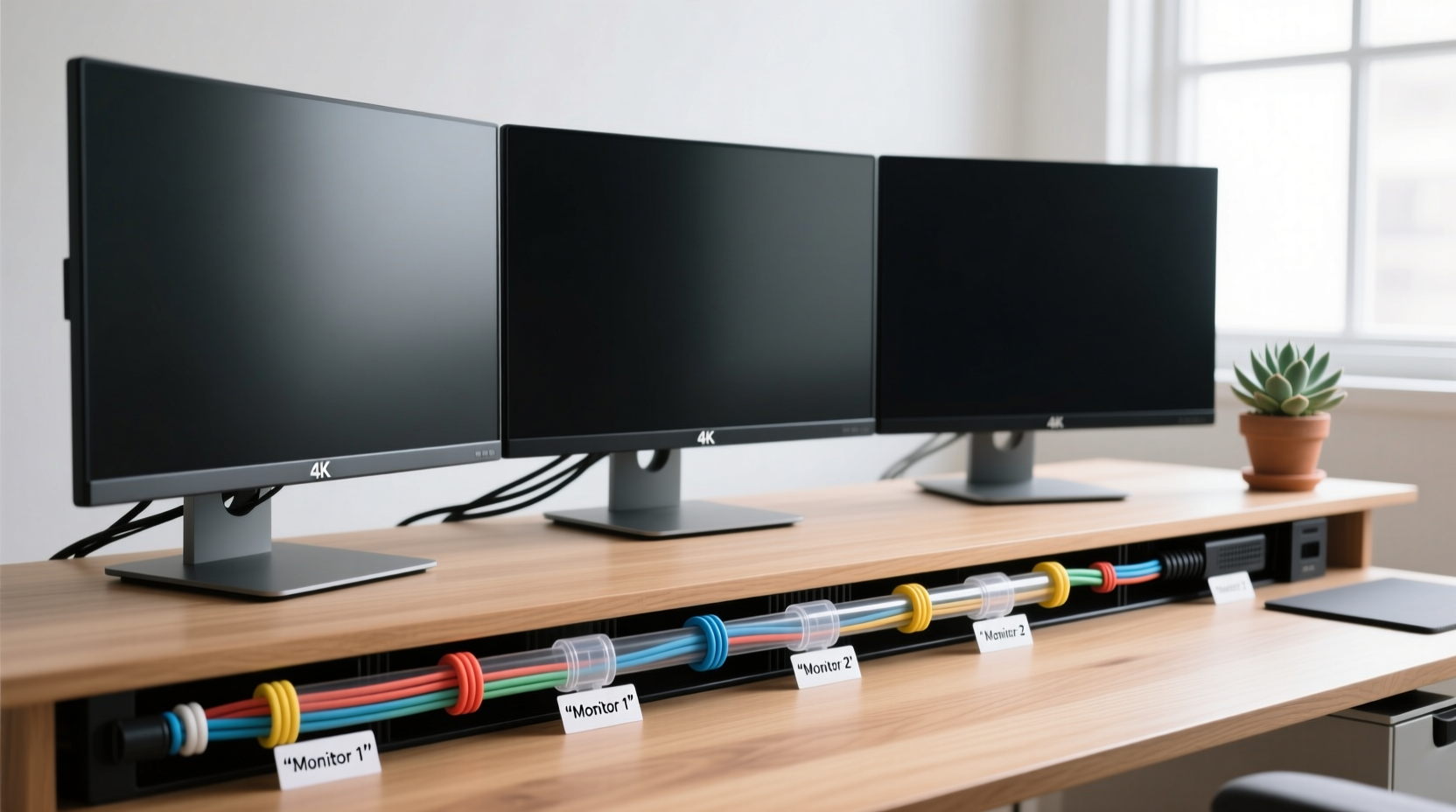
Before organizing anything, take inventory of what you're working with. A typical dual- or triple-monitor setup may include:
- Power cables for each monitor
- Video cables (HDMI, DisplayPort, DVI, or USB-C)
- USB upstream/downstream cables for keyboard, mouse, webcam, or audio devices
- Laptop or desktop power supply
- Dock or hub connections
- Audio output cables (if not using Bluetooth)
Map out how each device connects to your computer and power source. Identify redundancies—do you have multiple adapters doing the same job? Are some cables longer than necessary? This assessment phase is critical because overbuying organizational tools without understanding your actual needs leads to more clutter.
Choose the Right Cable Management Tools
Not all cable organizers are created equal. The best solution depends on your desk type, monitor mounting method, and personal preference. Below is a comparison of common tools used to manage cords in multi-monitor environments.
| Tool | Best For | Pros | Cons |
|---|---|---|---|
| Cable sleeves | Bundling multiple cords into one neat line | Low-cost, flexible, easy to install | Can bunch up if cables vary greatly in length |
| Cable raceways | Wall or desk-back routing | Conceals large bundles; looks professional | Permanent installation may be required |
| Velcro straps | Temporary bundling and adjustments | Reusable, non-damaging, adjustable | Less durable than zip ties |
| Under-desk trays | Mounting power strips and hubs underneath | Keeps active connections accessible but hidden | Requires drilling or strong adhesive |
| Cable clips | Guiding cords along edges or legs | Inexpensive, easy to reposition | May leave residue on painted surfaces |
Select tools based on permanence, accessibility, and visibility. For example, Velcro straps allow flexibility if you frequently change setups, while raceways offer a permanent, polished look ideal for home offices or studios.
Step-by-Step Guide to Cord Organization
Follow this sequence to transform a messy multi-monitor station into an organized workspace.
- Power down and unplug everything. Safety first. Turn off your computer, monitors, and peripherals. Unplug all cords from outlets and devices.
- Label every cable. Use small labels or colored tape to mark each end with its purpose (e.g., “Left Monitor HDMI,” “Keyboard USB”).
- Measure and trim (if possible). Replace excessively long cables with shorter ones where feasible. Avoid cutting live wires—purchase appropriately sized replacements instead.
- Group by function. Bundle video cables together, power cords separately, and data/USB lines in their own group. Use Velcro straps to keep each bundle intact.
- Route cables behind the desk. Attach adhesive-backed clips or a raceway along the back edge of your desk. Feed each bundle through it, guiding them downward toward the floor.
- Use an under-desk power solution. Mount a power strip or surge protector underneath the desk using a mounting tray. Plug all monitor and accessory power cords here.
- Connect hubs strategically. If using a docking station or USB hub, place it near the center rear of the desk so short cables can reach all monitors and peripherals.
- Secure vertical runs. Use a cable management mast or a fabric sleeve to bundle all cords running from the desk to the floor. Anchor it to the desk leg with ties or clips.
- Final check. Power everything back on. Test each monitor and peripheral. Ensure no strain is placed on any connector and that airflow around power bricks isn’t blocked.
Real-World Example: Remote Worker’s Triple Monitor Setup
Sarah, a financial analyst working remotely, uses three 27-inch monitors connected to a laptop via a Thunderbolt dock. Her initial setup had six cables snaking across her desk: two HDMI lines, a USB-C video cable, a laptop charger, a separate dock power supply, and a USB extension for her external hard drive. Cords tangled around chair legs and were stepped on daily.
She applied the following changes:
- Mounted a brushed aluminum raceway along the back of her L-shaped desk.
- Replaced HDMI cables with low-profile flat versions that fit better in the raceway.
- Installed an under-desk tray to hold her power strip and Thunderbolt dock.
- Bundled all cables using black braided sleeves, grouped by signal type.
- Used magnetic cable clips to guide cords down the metal desk leg to the outlet.
The result was immediate: a clean surface free of tripping hazards, faster troubleshooting during connectivity issues, and a more professional appearance during video calls. Sarah reported feeling less stressed and more focused after the overhaul.
“Cable management isn’t just about looks—it directly impacts workflow reliability. A single loose connection in a multi-monitor setup can crash an entire workstation.” — Jordan Lee, IT Infrastructure Consultant
Advanced Tips for Long-Term Neatness
Once the initial organization is complete, maintaining order requires consistent habits and smart upgrades.
- Invest in a modular cable system. Brands like CableMod offer color-coordinated, sleeved replacement cables for PSUs and standard connectors, turning functionality into design.
- Use magnetic cable ties for quick access. These allow you to open and close bundles without unstrapping, ideal for adding or removing devices.
- Go wireless where possible. Switch to Bluetooth keyboards, mice, and headsets to eliminate unnecessary cords. Consider Wi-Fi 6 or Ethernet-over-power adapters to reduce network cabling.
- Adopt a ‘one-in, one-out’ rule. When adding a new device, remove an old or redundant cable to prevent gradual buildup.
If your monitors are mounted on arms, ensure the arms have built-in cable channels. These internal pathways keep cords aligned with the arm’s movement and prevent dangling lines. Route cables through the arm, then into a central junction box mounted on the wall or desk grommet.
Checklist: Quick Actions for Immediate Improvement
- Unplug and label all monitor cables
- Remove any broken or unused cords
- Group cables by type using Velcro straps
- Attach adhesive clips along the desk edge
- Mount a power strip under the desk or near the base
- Use a single sleeve or raceway for vertical cable runs
- Test all connections after reassembly
Frequently Asked Questions
Can I use zip ties for cable management?
Yes, but with caution. Plastic zip ties are strong and inexpensive, but they’re permanent and can damage cables if pulled too tight. Over-tightening creates pressure points that lead to wire breakage over time. For a safer alternative, use reusable hook-and-loop (Velcro) ties or ratcheting cable wraps that secure firmly without crushing insulation.
How do I hide cords without drilling holes?
You don’t need to drill to achieve a clean look. Use adhesive-backed raceways that stick to the back of your desk or wall. Flat ribbon cables or thin HDMI variants tuck easily behind baseboards. Fabric cable sleeves in neutral colors blend into furniture edges. Cord covers with adhesive backing can also run along floor-to-desk paths without permanent modification.
What if my monitors are on stands with limited cable access?
Monitor stands often lack built-in cable management. In this case, wrap individual cords with spiral wrap tubing or use small Velcro strips around the stand’s column. Alternatively, switch to VESA-compatible arms that include internal routing. Even a simple DIY solution—like wrapping cords with twist ties around the stand’s base—can significantly improve appearance.
Conclusion: A Clean Setup Is a Productive Setup
Organizing cords for multiple monitors isn’t a one-time chore—it’s an ongoing practice that pays dividends in efficiency, safety, and peace of mind. A well-managed cable system reduces downtime during technical issues, prevents accidental disconnections, and elevates the professionalism of your workspace. Whether you’re setting up a dual-screen home office or a high-performance triple-display rig, the principles remain the same: assess, group, route, secure, and maintain.
Start small. Apply one strategy from this guide today—label your cables, install a few clips, or replace a bulky power brick with a slimmer model. Each step brings you closer to a seamless, distraction-free environment where your technology serves you quietly and reliably. Don’t let cord chaos undermine your productivity. Take control of your setup now, and enjoy a workspace that works as hard as you do.




 浙公网安备
33010002000092号
浙公网安备
33010002000092号 浙B2-20120091-4
Comments
No comments yet. Why don't you start the discussion?