
In a world where we switch between laptops, phones, tablets, and desktops daily, managing digital files can quickly become chaotic. Files scattered across devices lead to wasted time, duplicated effort, and the constant fear of losing important data. Yet, with a deliberate system in place, it’s entirely possible to maintain seamless access, consistency, and control—no matter which device you're using. The key lies not in accumulating more storage, but in designing a coherent, cross-platform file organization strategy that works automatically and intuitively.
This guide outlines practical, scalable methods to unify your digital workspace. From folder structures to cloud sync settings, naming conventions to automation, these techniques are used by remote workers, creatives, and productivity experts to stay focused and efficient.
Establish a Unified Folder Structure
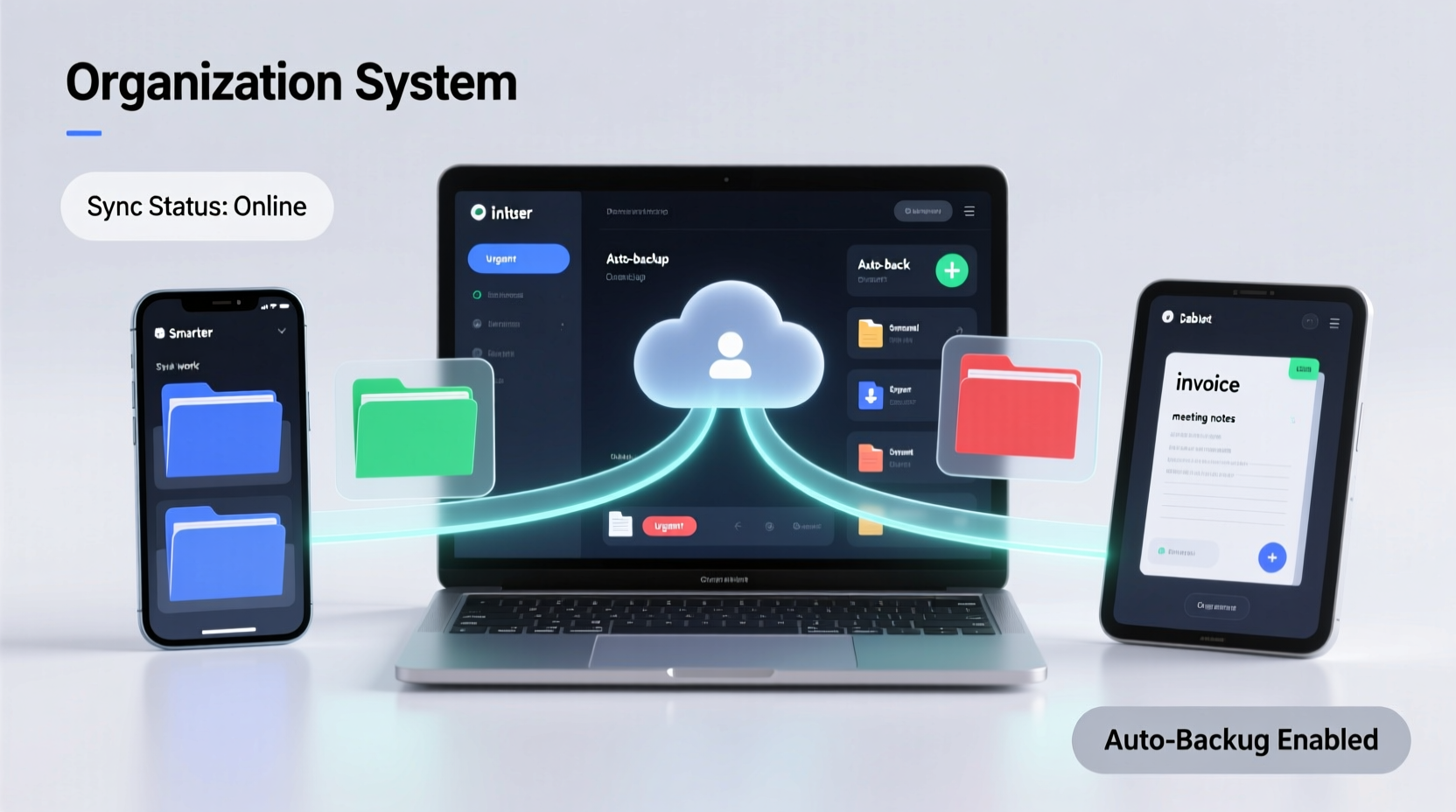
The foundation of any effective file system is structure. Without consistency, even the best tools will fail. Begin by designing a hierarchical folder layout that mirrors how you work—not how your operating system organizes files by default.
Aim for broad categories first, then drill down into subfolders based on projects, clients, or timeframes. For example:
- Work
- Clients
- Projects
- Finance
- Meetings
- Personal
- Health
- Taxes
- Travel
- Archive
- Old Projects (by year)
- Completed Courses
Apply this same structure across all devices. Whether you're on Windows, macOS, iOS, or Android, replicate the top-level folders exactly. This consistency reduces cognitive load—you always know where to look.
Select and Configure Cloud Sync Services
Cloud storage isn’t just about backup—it's the backbone of cross-device file access. But not all services work the same way. Choosing the right one and configuring it properly makes a significant difference in performance and reliability.
Popular options include Google Drive, Dropbox, OneDrive, and iCloud. Each integrates natively with certain ecosystems:
| Service | Best For | Sync Behavior | Limits |
|---|---|---|---|
| Google Drive | G Suite users, Chromebook owners | Files stream; selective sync available | 15 GB free; paid plans scalable |
| Dropbox | Cross-platform teams, freelancers | Full sync or selective folders | 2 GB free; reliable version history |
| OneDrive | Windows & Microsoft 365 users | Files On-Demand reduces local storage use | 5 GB free; 1 TB with M365 |
| iCloud Drive | Apple ecosystem users | Automatic photo & document sync | 5 GB free; seamless iOS/macOS integration |
Choose one primary service as your “source of truth.” Avoid syncing multiple cloud drives simultaneously unless necessary—this increases conflict risks. Then, configure selective sync: only download folders you actively use on each device. A laptop can hold large media libraries; a phone should only sync essential documents.
“Your cloud setup should feel invisible. If you’re constantly managing sync conflicts or running out of space, the system is working against you.” — Lena Torres, Digital Workflow Consultant
Standardize File Naming and Metadata
Even with perfect folder structure, poor naming turns order into chaos. A file named “final_v3_updated_revised.docx” offers no clarity. Instead, adopt a consistent naming convention that includes context at a glance.
Use this format: [Project]_[Document Type]_[Date]_[Version].ext
Examples:
Acme_Invoice_2024-04-15_v1.pdfQ2_Marketing_Report_2024-03-30_Final.docxWedding_Photos_Backup_2024-05-01.zip
Dates in YYYY-MM-DD format sort chronologically in any system. Version numbers prevent confusion. Including project or client names ensures searchability.
For photos and media, leverage metadata. Enable geotagging sparingly, and use tools like Adobe Bridge or Apple Photos to add keywords. Later, you can search “beach vacation 2023” and find relevant images instantly—even if filenames are generic.
Implement a Cross-Device Workflow: A Step-by-Step Guide
Efficiency comes from habit, not heroics. Follow this six-step process to build a sustainable system:
- Audit your current files. Spend one session identifying duplicates, outdated versions, and orphaned files. Delete or archive what you no longer need.
- Choose your primary cloud provider. Pick one based on your device ecosystem and collaboration needs. Migrate all active files there.
- Create your master folder structure. Replicate it in your cloud root directory. Share templates with team members if applicable.
- Set up selective sync on each device. Install the cloud app, sign in, and choose which folders to sync locally. Exclude large archives on mobile devices.
- Apply naming standards immediately. Rename existing key files and enforce the format for all new ones.
- Schedule monthly maintenance. Dedicate 30 minutes each month to review, reorganize, and archive old material.
This workflow takes less than four hours to implement initially but saves dozens of hours annually in search time and stress.
Real-World Example: Remote Designer’s Setup
Sophie, a freelance graphic designer, worked across a MacBook Pro, iPad Pro, and iPhone. She frequently lost design drafts, sent outdated logos to clients, and ran out of space on her tablet.
She implemented the following:
- Migrated all client work to Dropbox, using folders like
Clients/[Client Name]/[Project]/Assets, Revisions, Final. - Enabled selective sync: full folders on her laptop, only “Final” assets on her iPad and phone.
- Adopted a naming standard:
Logo_Design_AcmeCo_2024-05-10_v3.ai. - Used Shortcuts on iOS to auto-save screenshots into dated project folders.
Within three weeks, Sophie reduced file search time by 70% and eliminated version confusion. Her clients noticed faster turnaround and fewer errors.
Automate Where Possible
Manual organization doesn’t scale. Automation ensures consistency without constant vigilance.
Use built-in tools to streamline repetitive tasks:
- macOS Automator / Shortcuts: Automatically move downloaded invoices to your Finance folder and rename them with the current date.
- Windows Power Automate: Trigger actions when files are added—e.g., copy PDFs from Downloads to a “To Process” folder.
- Dropbox/Google Drive Zapier integrations: Auto-backup email attachments or form submissions directly into designated folders.
Example automation: When you save a receipt photo on your phone, a shortcut renames it with the date and moves it to Personal/Taxes/Receipts/2024/. No manual filing required.
Essential Checklist for Cross-Device File Organization
Use this checklist to evaluate and improve your system:
- ✅ All devices log into the same primary cloud account
- ✅ Folder structure is identical across platforms
- ✅ Selective sync is enabled to preserve local storage
- ✅ File naming convention is documented and followed
- ✅ Critical files are backed up to a secondary location (e.g., external drive or second cloud)
- ✅ At least one automation rule is in place
- ✅ Monthly cleanup is scheduled in your calendar
Frequently Asked Questions
What if I use both Windows and Mac regularly?
Stick to one cloud service that supports both platforms equally well—Dropbox or Google Drive are ideal. Avoid relying on OneDrive-only or iCloud-only features unless they’re isolated to non-critical files. Keep your core work synced through a neutral platform.
How do I handle large video or photo libraries across devices?
Use tiered storage. Store full-resolution originals in the cloud or on an external drive. On mobile devices, keep only optimized or thumbnail versions. Tools like Google Photos (High Quality) or Apple’s Optimize Storage help balance access and space.
Is it safe to rely solely on the cloud?
No single point of failure is safe. Follow the 3-2-1 backup rule: 3 copies of your data, 2 local (on different devices or drives), 1 offsite (cloud). This protects against hardware failure, theft, and accidental deletion.
Conclusion: Build a System That Works While You Sleep
Organizing digital files across devices isn’t a one-time chore—it’s an investment in long-term clarity and productivity. By aligning your folder structure, choosing the right tools, enforcing naming standards, and automating routine tasks, you create a self-sustaining system. The goal isn’t perfection; it’s progress toward frictionless access and peace of mind.
Start today. Pick one step—clean up your Downloads folder, rename five key files, or set up selective sync—and build from there. Small actions compound into powerful results. Your future self won’t remember the hour you spent organizing, but they’ll thank you every time they find exactly what they need in seconds.




 浙公网安备
33010002000092号
浙公网安备
33010002000092号 浙B2-20120091-4
Comments
No comments yet. Why don't you start the discussion?