
In the age of smartphones, tablets, laptops, and cloud storage, managing a growing photo library has become both essential and complex. Most people take thousands of photos annually, often across multiple devices. Without a structured system, it's easy to lose track of files, degrade image quality during transfers, or strip away valuable metadata—information like GPS location, camera settings, timestamps, and keywords that make your images searchable and meaningful.
The goal isn’t just to store photos—it’s to preserve them with integrity, access them seamlessly from any device, and ensure they remain usable for decades. Achieving this requires more than just dumping files into folders; it demands a deliberate strategy combining file management, metadata awareness, and smart syncing tools.
Understanding Digital Photo Metadata and Quality
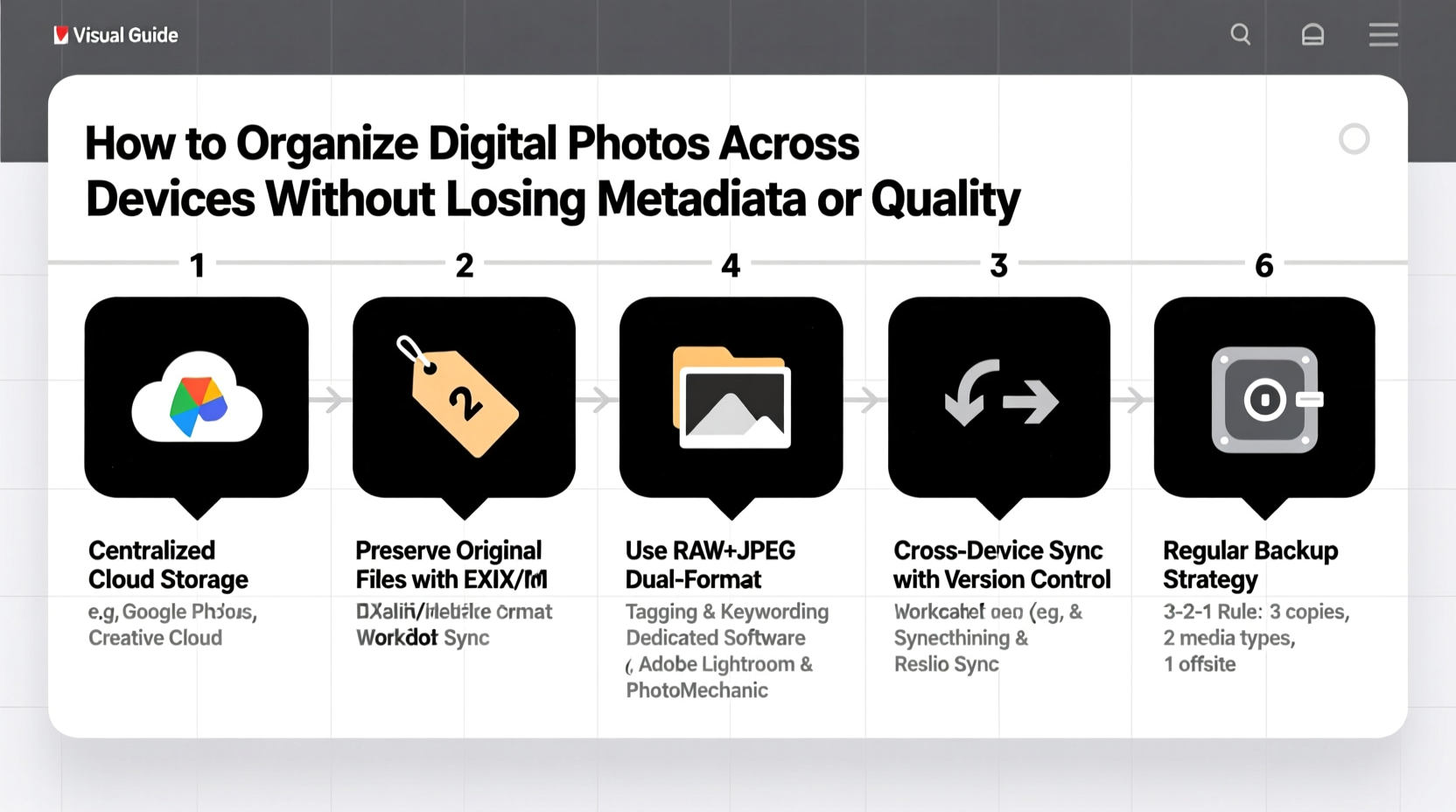
Before organizing photos, it's crucial to understand what you're preserving. Digital photos contain two critical components: visual quality (resolution, color depth, compression) and embedded metadata.
Metadata includes EXIF (Exchangeable Image File Format), IPTC (International Press Telecommunications Council), and XMP (Extensible Metadata Platform) data. This information tracks when and where a photo was taken, which camera or phone model captured it, exposure settings, lens type, and even copyright details or captions added later.
Image quality is primarily determined by file format and compression. JPEGs are widely used but lossy—each time they’re edited and saved, some data degrades. RAW files retain maximum detail and dynamic range but are large and require specialized software. TIFF offers lossless quality but consumes significant space.
“Preserving metadata is as important as preserving the pixels. It transforms a photo from a static image into a documented memory.” — Dr. Lena Torres, Digital Archiving Specialist, Stanford Libraries
Losing metadata during transfers or conversions strips photos of context. Similarly, repeatedly compressing high-resolution images reduces fidelity over time. A robust organization system must protect both.
A Step-by-Step System for Cross-Device Photo Organization
Organizing photos across devices isn’t about perfection on day one—it’s about creating a repeatable, reliable workflow. Follow this sequence to build a sustainable system:
- Centralize Your Master Library: Choose one primary device (usually a desktop or NAS drive) as the “source of truth” for all original, unedited photos. Never edit or delete files directly on phones or tablets—treat them as access points, not storage hubs.
- Automate Ingestion: Use tools like Apple Photos (Mac/iOS), Adobe Lightroom, or free utilities such as Google Takeout + Syncthing to automatically import new photos from mobile devices to your master library. Enable options to preserve originals and avoid recompression.
- Standardize Naming and Folder Structure: Adopt a consistent naming convention (e.g., YYYY-MM-DD_EventName) and folder hierarchy (e.g., /Photos/2024/2024-06_JapanTrip). Avoid special characters and spaces to prevent sync errors.
- Back Up Immediately: After ingestion, back up the master library to at least two additional locations—one local (external SSD), one offsite (cloud or remote server).
- Sync Access Copies, Not Masters: For mobile access, sync smaller, optimized versions (e.g., resized JPEGs) rather than full-resolution files. Tools like Synology Moments or Plex allow streaming originals without storing them locally on every device.
- Apply Metadata Strategically: Add keywords, captions, and ratings in a non-destructive editor (e.g., Darktable, Capture One) that writes changes to sidecar files (.xmp) or database entries, not the original image.
Best Practices for Preserving Quality and Metadata
Even with a solid workflow, common pitfalls can compromise your archive. Adhering to these principles minimizes risk:
- Avoid automatic cloud optimization: Services like iCloud Photos or Google Photos often downsample images labeled “High Efficiency” mode. Disable these features if you value full resolution.
- Use lossless formats for editing: When retouching, export edits as TIFF or PNG instead of JPEG to prevent generational loss.
- Never rely on a single platform: Don’t assume Apple Photos or Google Photos will be around forever. Export your library periodically in open formats (DNG, XMP, JPEG) for long-term accessibility.
- Prevent metadata stripping during sharing: Email clients and social media platforms often remove EXIF data. If sharing sensitive metadata (e.g., geolocation), use tools like ImageOptim or exiftool to selectively strip only what’s necessary.
Do’s and Don’ts of Cross-Device Syncing
| Action | Do | Don't |
|---|---|---|
| Transferring photos | Use wired USB or direct Wi-Fi transfer (e.g., Snapdrop) | Rely solely on email or messaging apps |
| Cloud storage | Choose services that support original uploads (e.g., Flickr, Amazon Photos) | Assume all “unlimited” plans keep full-quality originals |
| Editing photos | Edit in non-destructive software with metadata retention | Save over original files directly |
| Sharing online | Strip only sensitive metadata before posting | Upload RAW files publicly |
| Device syncing | Use bidirectional sync tools like FreeFileSync or Resilio Sync | Manually drag-and-drop between devices frequently |
Real Example: How a Travel Photographer Maintains a Unified Library
Sophie Chen, a freelance travel photographer based in Lisbon, captures over 20,000 images per year across her iPhone 15 Pro, Sony mirrorless camera, and MacBook Pro. She faced constant issues: missing GPS tags, duplicate files, and inconsistent edits across devices.
She implemented a three-tier system:
- Ingestion Phase: After each shoot, she connects her camera via SD card reader and uses Adobe Lightroom Classic to import files directly to a 4TB external SSD. The software auto-writes XMP sidecar files for each edit.
- Sync Layer: Her SSD is mirrored weekly to a second drive and uploaded to Backblaze B2 via Rclone. On her iPhone, she uses the Lightroom mobile app synced to her desktop catalog—only thumbnails are stored locally, with full-resolution originals available on demand.
- Access & Sharing: When clients request images, she exports watermarked JPEGs with selective metadata removed. Her public portfolio uses WebP versions generated through automated scripts, preserving source quality.
The result? No lost files in 18 months, full metadata retention, and seamless access from any location. “I used to spend hours hunting down duplicates,” she says. “Now my system runs itself.”
Essential Tools for Seamless Photo Management
No single tool solves everything, but combining the right ones creates a powerful ecosystem:
- Adobe Lightroom Classic: Best for professionals needing deep metadata control, non-destructive editing, and cross-device syncing via Creative Cloud.
- Google Photos (Original Quality): Free unlimited storage for true originals (not High Quality compression), accessible via web and Android/iOS apps.
- FreeFileSync: Open-source tool for mirroring folders between devices without altering metadata.
- ExifTool: Command-line utility to read, write, and manipulate metadata in bulk. Ideal for correcting timestamps or stripping GPS from hundreds of files.
- Resilio Sync: Peer-to-peer syncing that avoids the cloud entirely—great for transferring large libraries between home and work computers securely.
Checklist: Building a Future-Proof Photo Organization System
Use this checklist to evaluate and improve your current setup:
- ✅ All original photos are stored in a central, version-controlled library
- ✅ Automatic backups exist on at least two separate physical drives
- ✅ Cloud storage preserves original quality (no recompression)
- ✅ Metadata is preserved during transfers and edits
- ✅ Files are named consistently and organized chronologically
- ✅ Editing is non-destructive (sidecar files or catalog-based)
- ✅ Sensitive metadata (GPS, device info) is stripped before public sharing
- ✅ Syncing occurs via reliable tools (not manual copy-paste)
- ✅ You’ve tested recovery from backup at least once
- ✅ Your system works across iOS, Android, Windows, and macOS without degradation
Frequently Asked Questions
Can I safely edit photos on my phone without losing quality?
Yes, if you use apps that support original file handling—such as Adobe Lightroom Mobile or Halide Mark II—and disable automatic compression. Avoid built-in editors that overwrite originals. Instead, enable “Edit as Copy” so the original remains untouched.
Why are my photos losing GPS data when I move them?
This typically happens when using platforms that strip EXIF data for privacy or performance. Transfer files via direct methods (USB, local Wi-Fi sync) and verify metadata with tools like Photo Investigator (iOS) or Exif Viewer (Android). Cloud services like Dropbox and iCloud Drive generally preserve metadata, but social apps do not.
Is it safe to rely on iCloud or Google Photos as my only backup?
No. While both offer strong infrastructure, no service guarantees permanent availability or immunity to account breaches, accidental deletions, or policy changes. Follow the 3-2-1 backup rule: 3 copies of your data, on 2 types of media, with 1 offsite.
Conclusion: Build a System That Works While You Sleep
Organizing digital photos across devices doesn’t have to be overwhelming. The key is consistency, not complexity. By establishing a clear workflow that prioritizes metadata integrity and image quality, you create a personal archive that grows smarter over time—not more chaotic.
Start small: designate a master folder today, set up one automated import, and run your first backup. Then refine the process gradually. In six months, you’ll look back at how much simpler it’s become to find, share, and preserve your most important visual memories.




 浙公网安备
33010002000092号
浙公网安备
33010002000092号 浙B2-20120091-4
Comments
No comments yet. Why don't you start the discussion?