
In the age of smartphones, tablets, DSLRs, and laptops, it’s easy to accumulate thousands of digital photos—scattered across devices, apps, and forgotten folders. Without a clear system, finding that one photo from last summer’s trip becomes a frustrating scavenger hunt. The good news: organizing your digital photos doesn’t have to be overwhelming. With the right strategy, you can maintain a clean, accessible, and future-proof photo library—even when syncing across phones, computers, and cloud storage.
Start with a Clear Naming and Folder Structure
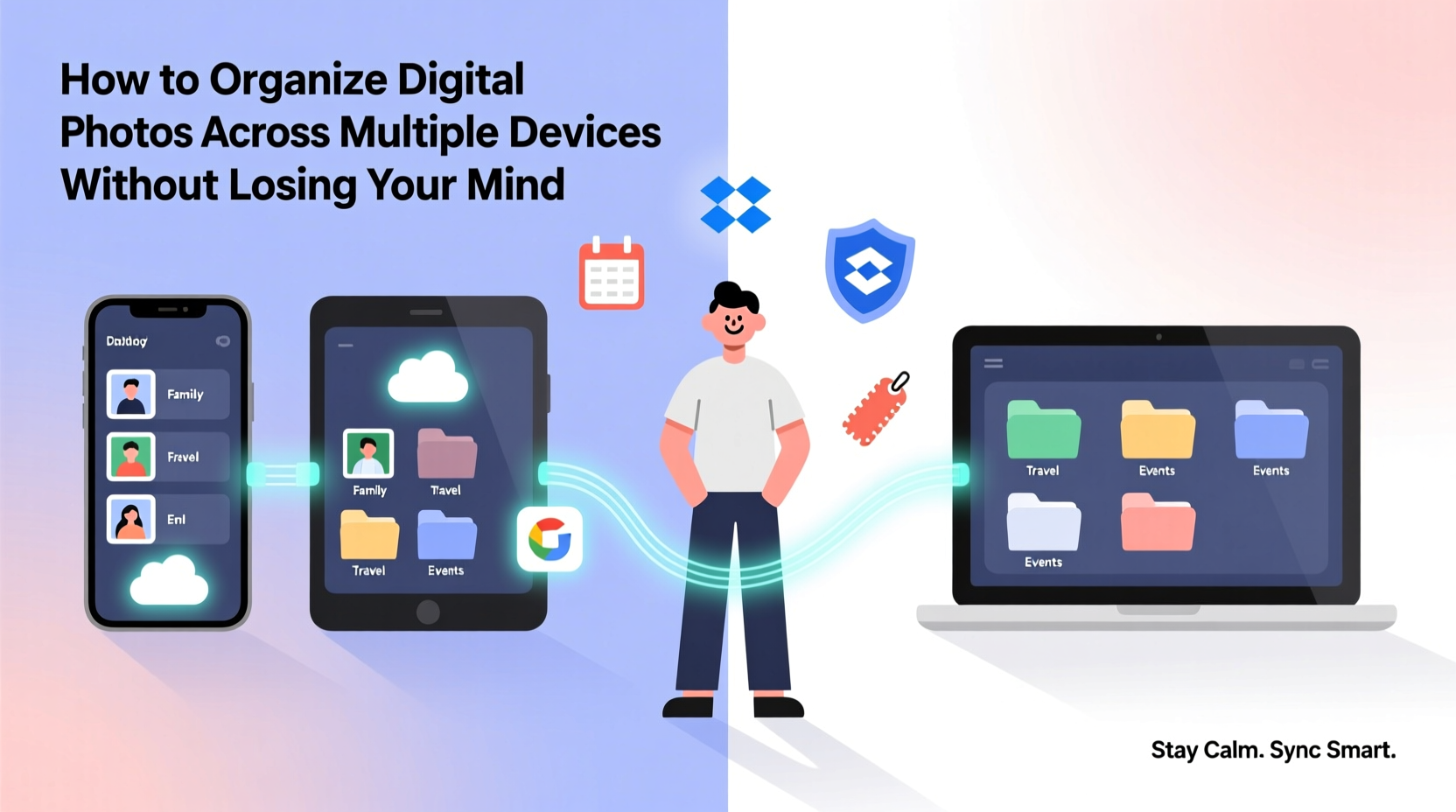
The foundation of any solid photo organization system is consistency. Before syncing anything, define a logical folder structure and naming convention that works across all your devices.
Use a date-first approach for folder names: YYYY-MM-DD_Event_or_Location. For example:
2023-07-15_Family_Beach_Day2024-02-14_Valentines_Dinner2023-12-25_Christmas_At_Home
This format ensures chronological sorting, regardless of device or operating system. Avoid vague labels like “Vacation” or “Photos from phone”—they’re meaningless in six months.
For individual files, let your camera or phone handle naming by default (e.g., IMG_20230715_143022.jpg). If renaming manually, keep it minimal and descriptive: 2023-07-15_Beach_Sunset_01.jpg.
Choose the Right Cloud Syncing Service
Syncing photos across devices requires a reliable cloud platform. Not all services are created equal—some prioritize automatic backup, others offer better editing tools or cross-platform support.
Here’s a comparison of top contenders:
| Service | Best For | Free Storage | Cross-Device Sync | Offline Access |
|---|---|---|---|---|
| Google Photos | Automatic backup & AI search | 15 GB (shared) | Excellent (Android/iOS/Web) | Limited (select albums only) |
| iCloud Photos | Apple ecosystem users | 5 GB | Seamless (iPhone, iPad, Mac) | Yes (on Apple devices) |
| Flickr | Photographers & creatives | 1,000 photos free | Fair (web-focused) | No |
| Microsoft OneDrive | Windows & Office users | 5 GB | Good (Windows/Mac/Android/iOS) | Yes (with sync enabled) |
| Amazon Photos | Prime members | Unlimited full-resolution (Prime) | Strong (Fire devices, web, app) | Yes (via app) |
If you use mixed devices (iPhone and Windows laptop, for instance), Google Photos offers the most flexibility. Apple users benefit from iCloud’s seamless integration but face higher costs for extra storage.
“Consistency across devices starts with choosing one primary hub for your photos. Don’t scatter them across five apps.” — Lena Patel, Digital Archivist & Tech Consultant
Implement a Step-by-Step Weekly Workflow
A consistent routine prevents photo chaos. Instead of letting images pile up, adopt a weekly process to review, sort, and back up your files.
- Day 1 – Auto-Sync Enabled Devices: Ensure your phone automatically uploads to your chosen cloud service (Google Photos, iCloud, etc.). Enable Wi-Fi-only uploads to save data.
- Day 2 – Review & Delete: Open your photo library and delete blurry shots, duplicates, or accidental captures. This reduces clutter immediately.
- Day 3 – Categorize & Tag: Create event-based albums (e.g., “Hiking Trip – Rockies 2024”) and add keywords if your platform supports tagging.
- Day 4 – Backup Locally: Copy your latest cloud-synced photos to an external hard drive or NAS (Network Attached Storage) for redundancy.
- Day 5 – Verify Sync: Check that recent photos appear on all devices—phone, tablet, computer—to confirm no gaps in syncing.
This five-day rhythm keeps your collection current and manageable. You’ll never face a backlog of 2,000 unsorted images again.
Avoid Common Syncing Pitfalls
Even with the best tools, mistakes happen. Here are frequent errors—and how to avoid them:
- Duplicate uploads: Using multiple cloud services (e.g., both Google Photos and Dropbox) can cause the same photo to upload twice. Stick to one primary cloud provider.
- Out-of-sync libraries: If iCloud Photos isn’t enabled on all Apple devices, some photos may stay trapped on one phone. Always verify settings after resetting a device.
- Forgotten SD cards: DSLR users often neglect to transfer photos from memory cards. Make it a habit to offload after each shoot.
- Over-reliance on cloud-only access: If your internet goes down or your account gets locked, you lose access. Always maintain a local backup.
One overlooked issue is metadata loss during transfers. When moving photos between apps or platforms, EXIF data (date, location, camera settings) can be stripped. To preserve it, avoid exporting via social media or messaging apps—use direct file transfer or cloud sync instead.
Real-World Example: How Sarah Regained Control of Her Photo Chaos
Sarah, a freelance photographer and mother of two, had over 12,000 photos spread across her iPhone, old MacBook, and a dusty external drive. She couldn’t find pictures of her daughter’s first birthday and once lost a client’s wedding gallery due to a failed iCloud sync.
She started fresh: backed up everything to a new 2TB SSD, deleted 4,000 low-quality duplicates, and set up Google Photos as her central hub. She renamed folders using the YYYY-MM-DD format and created shared albums for family events. Every Sunday, she spent 20 minutes reviewing new photos.
Within three months, she could instantly locate any image. Her clients noticed faster turnaround times, and her family stopped asking, “Where are the beach photos?” Sarah didn’t need new gear—just a repeatable system.
Essential Checklist for Cross-Device Photo Organization
Follow this checklist monthly to ensure your system stays functional and scalable:
- ✅ All devices are connected to the same primary cloud service
- ✅ Automatic backup is enabled on phones and tablets
- ✅ Recent photos appear across all devices (test on at least two)
- ✅ External drive has been updated with the latest library
- ✅ Duplicate or poor-quality images have been removed
- ✅ Albums are labeled clearly with dates and descriptions
- ✅ At least one person (or trusted contact) knows where your backups are stored
This checklist acts as a health audit for your photo ecosystem. Skipping it for months invites disorganization.
FAQ: Common Questions About Multi-Device Photo Management
Can I use both iCloud and Google Photos at the same time?
Technically yes, but not efficiently. Running both can lead to duplicates, confusion, and wasted storage. Choose one as your primary system. For example, use iCloud for real-time Apple device sync, then export and archive older photos to Google Photos for long-term storage.
What should I do if my phone runs out of space because of photos?
Enable “Optimize Phone Storage” (iOS) or “Free Up Space” (Android). These features keep small previews on-device while storing full-resolution versions in the cloud. Also, regularly delete local copies after confirming they’re safely backed up.
How long should I keep old backups?
Keep at least two backups: one recent (updated monthly) and one archival (yearly). Store the archival drive in a separate physical location (e.g., a fireproof safe or with a trusted relative) to protect against disasters.
Conclusion: Take Control One Photo at a Time
Organizing digital photos across multiple devices isn’t about perfection—it’s about progress. You don’t need to sort 10 years of memories in one weekend. Start small: pick a cloud service, define a naming system, and commit to a 15-minute weekly routine. Over time, your digital photo library will transform from chaotic to curated.
Every photo you preserve tells a story. Whether it’s your child’s first steps, a quiet sunrise on a solo hike, or a group laugh with old friends, these moments deserve more than a buried file name. Build a system that respects your memories—and your sanity.




 浙公网安备
33010002000092号
浙公网安备
33010002000092号 浙B2-20120091-4
Comments
No comments yet. Why don't you start the discussion?