
In an era where nearly every moment is captured digitally, managing a growing library of personal photos has become both essential and overwhelming. While cloud-based photo services offer convenience, they come with significant trade-offs: loss of control, data harvesting, subscription costs, and potential exposure to breaches. For those who value privacy, autonomy, and long-term accessibility, organizing digital photos without relying on the cloud is not just possible—it’s preferable.
This guide explores practical, secure, and sustainable ways to manage your photo collection entirely on your own terms. From structured file naming to robust backup systems, we’ll walk through strategies that keep your memories safe, organized, and private—without ever uploading them to a third-party server.
Why Avoid Cloud Storage for Photos?
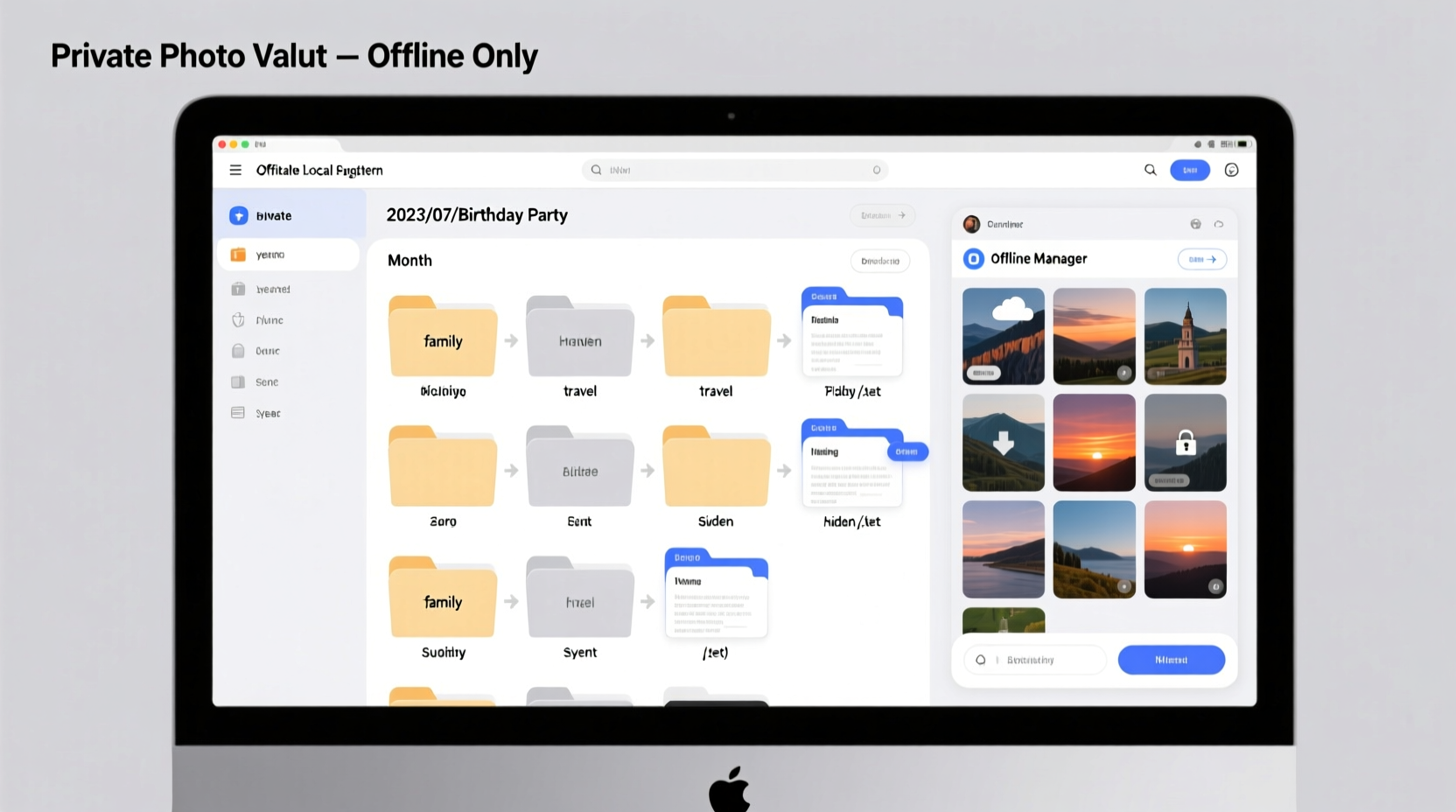
Cloud platforms like Google Photos, iCloud, or Dropbox are marketed as seamless solutions, but they carry inherent risks. Data collected by these services is often used for targeted advertising, and even \"private\" folders can be subject to automated scanning. In 2023, a report from the Electronic Frontier Foundation highlighted that several major providers employ AI to analyze image content—regardless of user intent.
Moreover, long-term reliance on cloud services creates dependency. If a company changes its pricing model, discontinues a feature, or suffers a breach, your access to irreplaceable memories may be compromised. As digital archivist Dr. Lena Torres notes:
“Your photos are part of your digital legacy. Relying on corporations to preserve them is like entrusting your family albums to a stranger with no contract.” — Dr. Lena Torres, Digital Preservation Researcher, University of Toronto
Local, self-managed organization offers full control, better security, and independence from recurring fees. The key is implementing a disciplined system that prevents chaos while ensuring redundancy and searchability.
Step-by-Step Guide to Organizing Photos Locally
Building a reliable, private photo management system requires planning and consistency. Follow this six-phase process to create a sustainable workflow.
- Collect and consolidate: Gather all photos from phones, cameras, SD cards, old computers, and external drives into one central staging folder on your primary device.
- Remove duplicates and junk: Use tools like Duplicate Photo Cleaner (Windows) or dupeGuru (cross-platform) to identify and delete redundant files. Also remove blurry shots, screenshots, and temporary downloads.
- Sort by date: Create a master folder hierarchy based on year and month. Example:
/Photos/2024/06_June. This leverages chronological logic, which is intuitive and universally applicable. - Apply consistent naming: Rename files using a clear convention such as
YYYY-MM-DD_Event_Description.jpg. For example:2024-06-15_Beach_Vacation_Me_and_Lena.jpg. This improves searchability and avoids confusion. - Add metadata: Embed keywords, captions, and location data using software like DigiKam (free, open-source) or Adobe Bridge. Metadata allows powerful searches later without altering filenames.
- Back up across multiple devices: Never keep only one copy. Use the 3-2-1 rule: three copies, two local (on different devices), and one offsite (e.g., external drive stored at a relative’s home).
Best File Naming and Folder Structure Practices
A well-designed directory structure makes navigation effortless. Avoid vague names like “Vacation” or “Family” without context. Instead, use specificity and standardization.
| Folder Level | Recommended Format | Example |
|---|---|---|
| Top-Level | Photos | /Photos |
| Year | YYYY | /Photos/2024 |
| Month | MM_MonthName | /Photos/2024/06_June |
| Event (Optional) | YYYY-MM-DD_EventName | /Photos/2024/06_June/2024-06-15_Beach_Trip |
For file names, always start with the date in ISO format (YYYY-MM-DD). This ensures correct sorting when viewed alphabetically. Add descriptive tags next, separated by underscores. Avoid spaces and special characters to prevent compatibility issues across operating systems.
- ✅ Good:
2024-07-04_Fireworks_At_Lake.jpg - ❌ Bad:
Fireworks! 4th of July!.jpg
Privacy-Focused Tools and Software
Not all photo management software respects user privacy. Many applications \"phone home\" with usage data or require online accounts. Opt for open-source, offline-first tools that run locally and don’t transmit your data.
- DigiKam: A powerful, free photo manager for Windows, macOS, and Linux. Supports facial recognition, tagging, versioning, and direct export to external drives—all without internet connectivity.
- PhotoPrism: A self-hosted AI-powered photo app. Install it on a home server or Raspberry Pi to access a Google Photos-like interface without surrendering data. Runs entirely on your network.
- FastRawViewer: Ideal for photographers shooting in RAW. Quickly previews and sorts raw files without importing them into a database.
- ExifTool: Command-line utility to read, write, and edit metadata. Useful for removing GPS coordinates or timestamps before sharing.
If you occasionally need remote access, consider setting up a private sync via syncthing, an open-source tool that securely mirrors folders between your devices over encrypted channels—no central server involved.
Backup Strategy: The 3-2-1 Rule for Maximum Safety
No organizational system matters if your photos aren’t backed up. The 3-2-1 backup rule is a gold standard in digital preservation:
- 3 copies of your data: original + two backups
- 2 different media types: e.g., internal SSD and external HDD
- 1 offsite copy: stored away from your home (e.g., trusted friend’s house or safety deposit box)
Here’s how to implement it:
- Keep your primary photo library on your computer’s internal drive.
- Back up to a large-capacity external hard drive (2TB or more) stored nearby.
- Use a second external drive that you rotate monthly and store offsite.
- Optionally, burn critical albums to archival-grade M-DISC Blu-ray discs, which claim 1,000-year longevity.
Automate backups using tools like FreeFileSync (Windows/Linux) or ChronoSync (macOS). Schedule weekly syncs to ensure nothing is missed.
“Digital decay is real. Hard drives fail within 3–5 years. Optical media and regular rotation are still the most reliable long-term options.” — Mark Rivera, Data Archiving Specialist, National Digital Stewardship Alliance
Mini Case Study: Recovering a Decade of Lost Memories
Sophie, a freelance writer from Portland, had accumulated over 20,000 unorganized photos across three laptops, two phones, and a failing thumb drive. She avoided cloud storage due to privacy concerns but had no coherent system. After her main laptop crashed, she lost access to five years of family moments.
She began by recovering data using PhotoRec, a free file recovery tool. Then, she set up a dedicated desktop machine running DigiKam and created a standardized folder tree. Using ExifTool, she extracted creation dates from files lacking metadata. Over three weekends, she categorized everything chronologically and labeled key events.
Today, Sophie maintains two encrypted external drives—one at home, one at her sister’s house—and uses FreeFileSync to mirror changes every Sunday. She reports spending less time searching and more time enjoying her photos.
Checklist: Building Your Private Photo System
Follow this checklist to establish a secure, private, and organized photo library:
- ☐ Consolidate all photos into a single staging folder
- ☐ Delete duplicates, screenshots, and unusable images
- ☐ Sort files into yearly/monthly folders using YYYY/MM_Month format
- ☐ Rename files using YYYY-MM-DD_Description.jpg convention
- ☐ Add metadata (tags, captions, locations) using DigiKam or ExifTool
- ☐ Install and configure a local photo manager (e.g., DigiKam or PhotoPrism)
- ☐ Purchase two external hard drives (one for local, one for offsite)
- ☐ Set up automated backups using FreeFileSync or ChronoSync
- ☐ Test restore process: can you retrieve a random photo from backup?
- ☐ Burn irreplaceable albums to M-DISC or archive to USB with checksum verification
Frequently Asked Questions
Can I access my photos remotely without using the cloud?
Yes. Set up a personal network-attached storage (NAS) device like a Synology or a Raspberry Pi running Nextcloud or PhotoPrism. You can access your photos from anywhere via a secure connection without relying on third-party servers.
How do I protect my photos from ransomware?
Use the 3-2-1 backup strategy and keep at least one backup disconnected from your network. Ransomware cannot encrypt drives that aren’t mounted. Write-protected media like M-DISC or offline HDDs are ideal for cold storage.
What should I do if my hard drive fails?
Stop using the device immediately. Connect it to another machine and attempt recovery with tools like TestDisk or PhotoRec. For severe cases, consult a professional data recovery service. Always prioritize retrieval before reformatting.
Conclusion: Take Control of Your Digital Memories
Organizing digital photos without cloud storage isn’t about rejecting technology—it’s about reclaiming ownership. By building a thoughtful, privacy-first system, you protect your memories from corporate algorithms, subscription fatigue, and unforeseen outages. The effort invested today pays dividends for decades, ensuring your children and grandchildren can access these moments just as you intended.
You don’t need a tech background to get started. With free tools, a clear naming system, and disciplined backups, anyone can create a resilient photo archive. Begin this weekend: gather one year’s worth of photos, sort them, back them up, and feel the relief of order replacing chaos.




 浙公网安备
33010002000092号
浙公网安备
33010002000092号 浙B2-20120091-4
Comments
No comments yet. Why don't you start the discussion?