
In an age where digital privacy is increasingly critical, securing sensitive files—whether personal photos, financial records, or confidential work documents—is essential. While many turn to third-party encryption tools, most don’t realize that both Windows and macOS offer native methods to password protect folders without downloading additional software. These built-in approaches are not only convenient but also reduce the risk of malware from unverified applications.
This guide walks through practical, secure, and completely software-free ways to lock down your folders on both major operating systems. Whether you're a home user looking to hide family photos or a professional safeguarding client data, these techniques ensure your files remain private and protected.
Create a Password-Protected Archive Using Built-In Tools
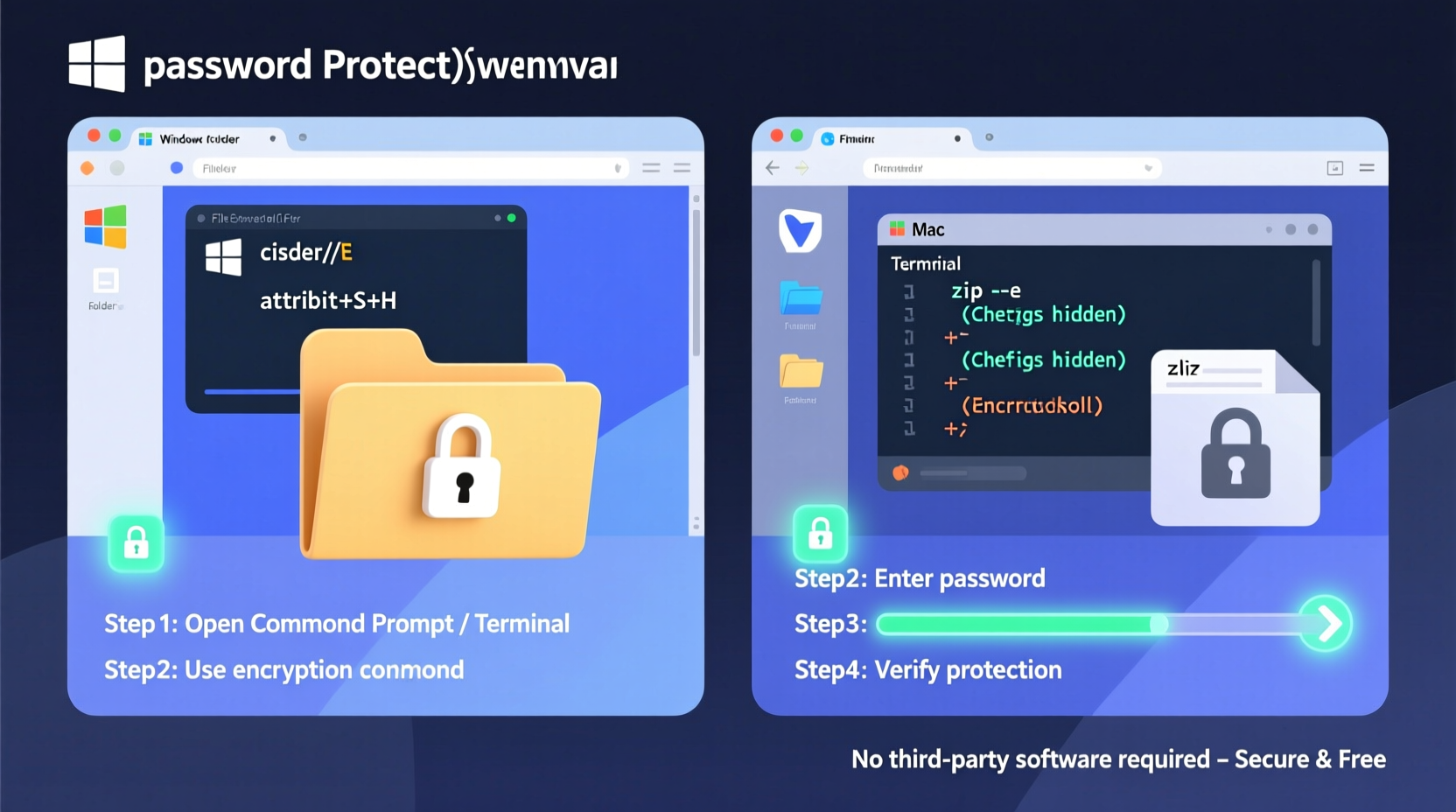
One of the most reliable and universally compatible methods to password protect a folder without external software is by creating an encrypted archive. Both Windows and macOS support compression formats like ZIP, and while standard ZIP doesn't allow strong encryption, 7-Zip-style AES encryption can be achieved via command-line tools already present in modern systems.
Windows includes PowerShell, and macOS has Terminal—both powerful utilities that can create encrypted ZIP archives using built-in compression libraries.
On Windows: Use PowerShell to Create an Encrypted ZIP
Although File Explorer’s default “Compressed Folder” feature doesn’t support password protection, PowerShell does. You can use it to generate a password-protected ZIP file containing your entire folder.
- Press Win + X and select Windows PowerShell (Admin).
- Navigate to your desired directory using the
cdcommand. - Run the following script to compress and encrypt a folder:
Add-Type -AssemblyName System.IO.Compression.FileSystem
$folder = \"C:\\Path\\To\\Your\\Folder\"
$zip = \"C:\\Path\\To\\EncryptedFolder.zip\"
$password = Read-Host \"Enter password for the zip\" -AsSecureString
$BSTR = [System.Runtime.InteropServices.Marshal]::SecureStringToBSTR($password)
$plainPassword = [System.Runtime.InteropServices.Marshal]::PtrToStringAuto($BSTR)

[System.IO.Compression.ZipFile]::CreateFromDirectory($folder, $zip)
# Note: Native .NET ZipFile does NOT support encryption.
compact command or combine with EFS (discussed later) for added security.
On macOS: Use Terminal to Create a Secure Archive
macOS includes full command-line access to zip, which supports password encryption using the -e flag.
- Open Terminal (found in Applications > Utilities).
- Type the following command:
zip -er ~/Desktop/SecureFolder.zip ~/Documents/Confidential/
The -e flag enables encryption; the -r ensures all contents are included recursively. You’ll be prompted to enter and confirm a password. Once created, anyone opening the ZIP will need the password.
This method is effective because the encryption uses traditional PKWARE encryption, which, while not as strong as AES, still prevents casual access.
Use Built-In Disk Image Encryption on macOS
macOS offers one of the most robust native solutions: encrypted disk images. This approach creates a virtual drive (a .dmg file) that acts like a physical USB stick—only accessible when unlocked with a password.
Step-by-Step: Create an Encrypted Disk Image
- Open Disk Utility (Applications > Utilities).
- Go to File > New Image > Image from Folder.
- Select the folder you want to protect.
- Choose a save location and filename.
- Set Encryption to 128-bit AES encryption or 256-bit AES encryption.
- Enter and verify a strong password when prompted.
- Click Save.
Once created, the resulting .dmg file is fully encrypted. When double-clicked, macOS prompts for the password before mounting the image. The folder remains locked until authenticated.
To update files inside the image, mount it, make changes, then eject it. The next time it's opened, the password will again be required.
“Using encrypted disk images is the gold standard for local file protection on macOS—it leverages Apple’s hardware-backed key management.” — Jordan Lee, Senior Security Analyst at OpenGate Labs
Leverage Windows EFS (Encrypting File System)
Windows Professional, Enterprise, and Education editions include EFS—a transparent encryption system that integrates directly with NTFS. Unlike third-party tools, EFS uses your Windows login credentials to encrypt files, making it seamless and secure.
How to Enable EFS on a Folder
- Navigate to the folder you want to protect in File Explorer.
- Right-click the folder and select Properties.
- Click the Advanced button under Attributes.
- Check Encrypt contents to secure data.
- Click OK, then Apply.
- When prompted, choose whether to encrypt only the folder or its contents as well.
After encryption, the folder appears dimmed in File Explorer, indicating it’s protected. Only your user account can access it. Even if someone boots from another OS or removes the drive, the contents remain unreadable without your decryption key.
Limitations of EFS
- Not available on Windows Home edition.
- Only protects files at rest—not during transfer.
- Does not prompt for a password each time; access is tied to your logged-in account.
EFS is best used in combination with a strong Windows login password and automatic session locking after inactivity.
Hide and Protect Folders Using Command Line Tricks
While hiding a folder isn’t true password protection, combining invisibility with obfuscation adds a layer of security through obscurity—especially useful for deterring casual snoopers.
On Windows: Hide and Attribute Lock a Folder
Using Command Prompt, you can make a folder hidden, system-protected, and read-only:
- Open Command Prompt as Administrator.
- Run:
attrib +h +s +r \"C:\\Users\\YourName\\PrivateFolder\"
This applies three attributes:
+h: Hidden+s: System file (less likely to be modified)+r: Read-only
To reveal it later:
attrib -h -s -r \"C:\\Users\\YourName\\PrivateFolder\"
Note: This doesn’t encrypt data. It only hides the folder from normal view. Combine this with EFS or archive encryption for real protection.
On macOS: Use Terminal to Hide a Folder
Prefixing a folder name with a dot (.) makes it hidden in Finder:
mv /Users/YourName/Documents/SecretProject /Users/YourName/Documents/.SecretProject
To view hidden folders in Finder, press Cmd + Shift + .. To make it visible again, rename it without the dot.
Again, this is not encryption—just concealment. But when combined with permissions or disk images, it adds a useful deterrent.
Comparison of Methods: Do’s and Don’ts
| Method | Platform | True Encryption? | Password Required Each Time? | Recommended For |
|---|---|---|---|---|
| Encrypted ZIP via Terminal | macOS | Yes (basic) | Yes | Sharing securely, short-term storage |
| Encrypted Disk Image (.dmg) | macOS | Yes (AES-128/256) | Yes | Long-term sensitive data |
| EFS (Encrypting File System) | Windows Pro/Enterprise | Yes (strong) | No (uses login) | Local file protection |
| Hiding via attrib or dot-prefix | Both | No | No | Deterring casual access |
| Standard ZIP Compression | Both | No | No | Storage only—avoid for sensitive data |
Real-World Example: Securing Family Financial Records
Sarah, a freelance accountant, stores her clients’ tax documents and her own family’s financial records on her MacBook. She doesn’t want to install extra software due to concerns about bloat and potential vulnerabilities.
She creates a folder called “Financial_Records_2024” and uses Disk Utility to convert it into a 256-bit encrypted disk image. She sets a strong, unique password and stores it in her password manager. Now, every time she needs to access the files, she double-clicks the .dmg file and enters the password. When done, she ejects the image. Her kids or any guest using her computer cannot access the data—even if they find the file, they can’t open it without the password.
This method gives her peace of mind without relying on third-party apps.
Frequently Asked Questions
Can I password protect a folder on Windows Home Edition without software?
Direct EFS encryption is not available on Windows Home. However, you can use alternative methods such as creating a batch script that compresses the folder into a password-protected ZIP using built-in commands (though true encryption requires external tools). A better option is to use OneDrive’s personal vault (if enabled), which uses Microsoft’s cloud-based encryption and PIN/biometric access.
Is hiding a folder as secure as encrypting it?
No. Hiding a folder only conceals it from casual view. Anyone with basic technical knowledge can reveal hidden files. Encryption, on the other hand, scrambles the data so it’s unreadable without the correct key or password. Always prefer encryption over mere hiding for sensitive information.
What happens if I forget my disk image password on Mac?
If you forget the password for an encrypted disk image, there is no recovery option. Apple does not store or manage these passwords. The data will remain permanently inaccessible. Always store your password in a trusted password manager or secure physical location.
Final Checklist: How to Secure Your Folder Without Software
- Identify sensitivity level – Determine if the data needs encryption or just concealment.
- Choose the right method – Use encrypted disk images on Mac, EFS on eligible Windows versions.
- Create strong passwords – Use at least 12 characters with mixed case, numbers, and symbols.
- Store passwords securely – Never keep them in plain text near the device.
- Test access – Ensure you can unlock and open the folder after protection is applied.
- Back up encryption keys – Especially for EFS or encrypted volumes.
- Update permissions regularly – Remove access for old accounts or shared devices.
Conclusion: Take Control of Your Digital Privacy Today
You don’t need expensive or complex software to protect your private folders. Both Windows and macOS provide powerful, built-in tools that enable real password protection and encryption. From encrypted disk images on Mac to EFS and command-line archives, these methods offer strong defense against unauthorized access—all without installing a single app.
The key is consistency: apply these techniques proactively, use strong passwords, and maintain backups of your keys. Digital security isn’t a one-time task—it’s an ongoing habit. Start today by locking down one sensitive folder. Then do another. Over time, you’ll build a safer, more private digital environment for yourself and your data.




 浙公网安备
33010002000092号
浙公网安备
33010002000092号 浙B2-20120091-4
Comments
No comments yet. Why don't you start the discussion?