
Your smartphone is more than a communication tool—it’s a personal assistant, scheduler, fitness tracker, and information hub. Yet most people treat the lock screen as a mere gatekeeper, unlocking it quickly without leveraging its potential. A well-personalized lock screen can save time, reduce distractions, and keep critical information instantly accessible. Instead of swiping past it in haste, transform this first interface into a productivity powerhouse tailored to your daily rhythm.
Modern smartphones offer deep customization options across both iOS and Android platforms. From glanceable widgets and smart notifications to contextual shortcuts and ambient information displays, the lock screen can be fine-tuned to reflect your priorities. Whether you're managing a busy schedule, tracking health metrics, or simply want faster access to essential tools, strategic personalization pays dividends in efficiency.
Understand Your Usage Patterns First
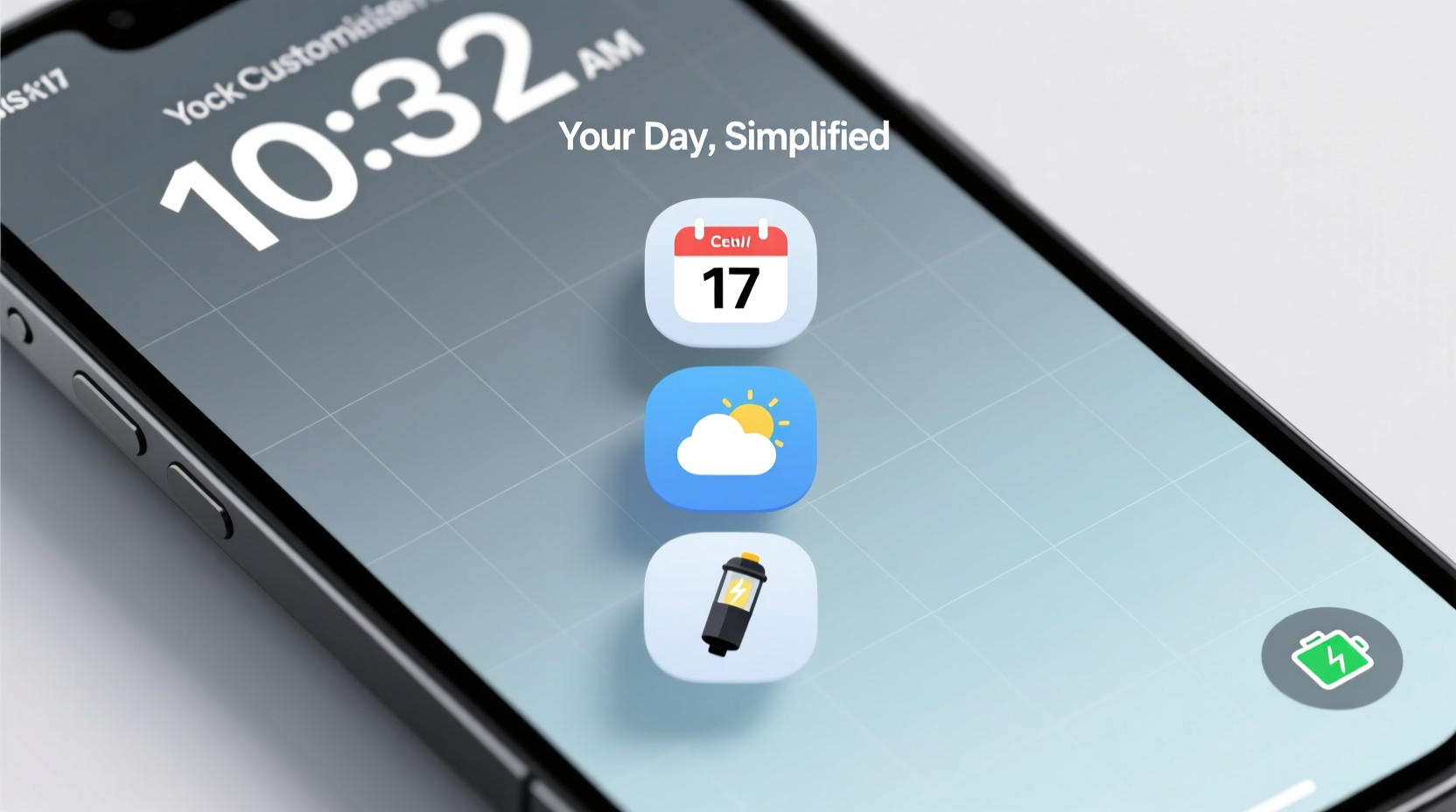
Before changing a single setting, assess how you interact with your phone. Efficiency begins not with features, but with intention. Track your habits over three days: when do you check your phone? What apps do you open immediately after unlocking? Are you frequently checking the weather, calendar, or messages?
Use built-in digital wellbeing tools (Android) or Screen Time (iOS) to gather data. You might discover that you open your email 15 times a day or check the weather each morning. These insights form the foundation of an efficient lock screen—only surface what you actually need.
The Role of Context in Lock Screen Design
A one-size-fits-all approach fails because needs change throughout the day. In the morning, you may want commute time, weather, and calendar events. At night, focus shifts to downtime reminders, sleep schedules, or next-day prep. The most effective lock screens adapt subtly to context—either manually switched or through automation.
For example, enabling a “Work Mode” shortcut on weekdays versus a “Weekend Mode” with fitness or entertainment widgets aligns functionality with lifestyle rhythms. This reduces decision fatigue and keeps relevant tools front and center.
Optimize Widgets for Glanceable Information
Widgets are the cornerstone of lock screen efficiency. They deliver real-time updates without requiring unlock or app launch. However, not all widgets are created equal. Prioritize those that provide high-value, low-effort information.
On Android 12 and later, you can add widgets directly to the lock screen via Settings > Home screen > Lock screen > Add widgets. iOS allows notification-style widgets through the Dynamic Island (iPhone 14 Pro and later) or Live Activities, while older models rely on Today View (swipe right).
“Glanceability is key. The best lock screen elements convey information in under two seconds.” — Dr. Lena Torres, Human-Computer Interaction Researcher at MIT Media Lab
| Widget Type | Best For | Platform Support |
|---|---|---|
| Calendar Events | Daily agenda preview | iOS & Android |
| Weather | Morning planning, commute decisions | iOS & Android |
| Next Alarm | Sleep consistency, wake-up clarity | iOS & Android |
| Fitness Tracker (Steps, Heart Rate) | Motivation, health monitoring | Android (Samsung Health), iOS (Health) |
| Task Manager (To-Do List) | Prioritization, task visibility | Third-party apps (Microsoft To Do, Todoist) |
| Commute Time / Traffic | Departure planning | Google Maps (Android), Apple Maps (iOS) |
Select no more than two or three widgets. Overloading leads to visual noise and defeats the purpose of quick access. Choose dynamic widgets that update automatically rather than static ones requiring manual refresh.
Create Smart Shortcuts and Quick Actions
Beyond passive information, your lock screen should enable action. Both major platforms support shortcuts that trigger functions with minimal taps—even before full unlock.
On Android, use Google Assistant routines or third-party apps like Tasker to create tap-to-act shortcuts. For instance, a single tap on a lock screen widget could start a playlist, log water intake, or send a “On my way” message.
iOS offers Back Tap (Settings > Accessibility > Touch > Back Tap) which lets you assign actions like taking a screenshot, launching a shortcut, or toggling Focus modes by tapping the back of your phone twice or thrice. Pair this with the Shortcuts app to automate complex tasks from the lock screen indirectly.
Step-by-Step: Set Up a Morning Efficiency Shortcut
- Open the Shortcuts app (iOS) or Automate/Tasker (Android).
- Create a new automation triggered by time (e.g., 7:00 AM on weekdays).
- Add actions: announce weather via voice, display calendar summary, turn off Do Not Disturb.
- Pin the shortcut to your lock screen via widget or Back Tap gesture.
- Test and refine based on actual usage.
This turns your lock screen into an active command center instead of a passive display.
Master Notification Management
An efficient lock screen filters signal from noise. Too many notifications create anxiety and reduce usability. Customize which apps can interrupt and how they appear.
In iOS, go to Settings > Notifications and adjust lock screen visibility per app. Use “Deliver Quietly” for non-urgent alerts (e.g., newsletters). On Android, long-press a notification and select “Manage notifications” to set importance levels.
Enable priority-only mode during focused hours. For example, allow only calls from contacts and messages from family to appear on the lock screen between 9 AM and 5 PM. Everything else waits.
Real Example: Sarah’s Shift to Intentional Notifications
Sarah, a project manager, used to unlock her phone 40+ times a day due to constant pings from Slack, Instagram, and promotional emails. After auditing her notifications, she disabled all non-critical alerts on her lock screen. Only calendar reminders, direct messages, and phone calls were allowed to appear.
She added a widget showing her top three tasks for the day and configured a shortcut to log completed items. Within a week, her average unlocks dropped to 18 per day, and she reported feeling less reactive and more in control of her workflow.
Design for Speed and Security
Efficiency must not compromise security. Biometric authentication (Face ID, fingerprint) enables fast access while keeping data safe. But layout matters too.
Position frequently used widgets near the bottom of the screen where your thumb naturally rests when holding the phone. Avoid clustering interactive elements at the top, especially on larger devices, as this forces awkward hand positioning.
Use dark themes or adaptive brightness to reduce eye strain and battery drain. A dimmed lock screen at night displaying only time and next alarm supports better sleep hygiene.
“Speed and safety aren’t trade-offs. With thoughtful design, you get both.” — Marcus Lin, Senior UX Designer at a leading mobile OS firm
Checklist: Optimize Your Lock Screen in 10 Minutes
- Review your Screen Time or Digital Wellbeing report
- Remove all non-essential widgets
- Add one calendar and one weather widget
- Set notification priority for 3 critical apps only
- Disable banners for social media and marketing apps
- Create a shortcut for your most-used morning action
- Test biometric unlock speed and reliability
- Adjust brightness and auto-lock settings
- Choose a minimalist wallpaper to enhance readability
- Save a backup of your configuration (via screenshots or notes)
Advanced Tactics: Automation and Profiles
For power users, automation elevates personalization. Tools like Apple Shortcuts, Android’s Bixby Routines, or third-party apps (IFTTT, MacroDroid) let you change lock screen content based on location, time, or activity.
Examples:
- Work Profile: Display calendar, commute time, and mute non-work notifications when arriving at the office.
- Home Mode: Show indoor temperature, lighting controls, and family messages after 6 PM.
- Travel Mode: Auto-enable flight status widget and local currency converter when airport geofence is detected.
These profiles ensure your lock screen remains relevant without manual tweaking. Once set up, they run silently in the background, adapting to your life.
Frequently Asked Questions
Can I have different lock screens for different days?
Not natively, but automation tools can simulate this. For example, use a scheduling app to switch widgets or activate specific routines on weekdays vs weekends. While the wallpaper stays consistent, the functional elements can change dynamically.
Will adding widgets slow down my phone?
Minimal impact. Modern operating systems optimize widget performance. However, avoid multiple live-updating widgets (e.g., stock tickers, live sports scores) as they consume background resources. Stick to one or two essential, infrequently updated widgets for best results.
Is it safe to show calendar details on the lock screen?
It depends on sensitivity. Avoid displaying full event titles like “Meeting with divorce lawyer” or “Doctor’s appointment – blood test.” Instead, customize calendar settings to show only generic labels (e.g., “Personal Appointment”) or hide details until unlocked. Privacy should guide visibility.
Conclusion: Make Every Glance Count
Your lock screen is the first point of contact with your digital world. Treating it as a blank waiting room wastes valuable seconds accumulated into hours over time. By aligning its content with your real-world needs—through curated widgets, intelligent shortcuts, and disciplined notification control—you turn passive waiting into proactive preparation.
Efficiency isn’t about doing more; it’s about seeing what matters most the moment you reach for your phone. Whether you’re preparing for a meeting, stepping into a workout, or winding down for bed, your lock screen should reflect your intent, not distract from it.




 浙公网安备
33010002000092号
浙公网安备
33010002000092号 浙B2-20120091-4
Comments
No comments yet. Why don't you start the discussion?