
Outdoor lighting has evolved from simple on-off switches to dynamic, programmable spectacles that can transform a home’s exterior into a synchronized show of color and rhythm. Whether it's for the holidays, a special event, or year-round ambiance, custom light sequences add personality and flair. Thanks to modern smart lighting systems and intuitive mobile applications, programming your own outdoor light display is no longer reserved for electrical engineers or holiday pros. With the right tools and a bit of creativity, anyone can design a personalized light show that dances to music, reacts to motion, or cycles through seasonal themes—all controlled from a smartphone.
Choose the Right Smart Lighting System
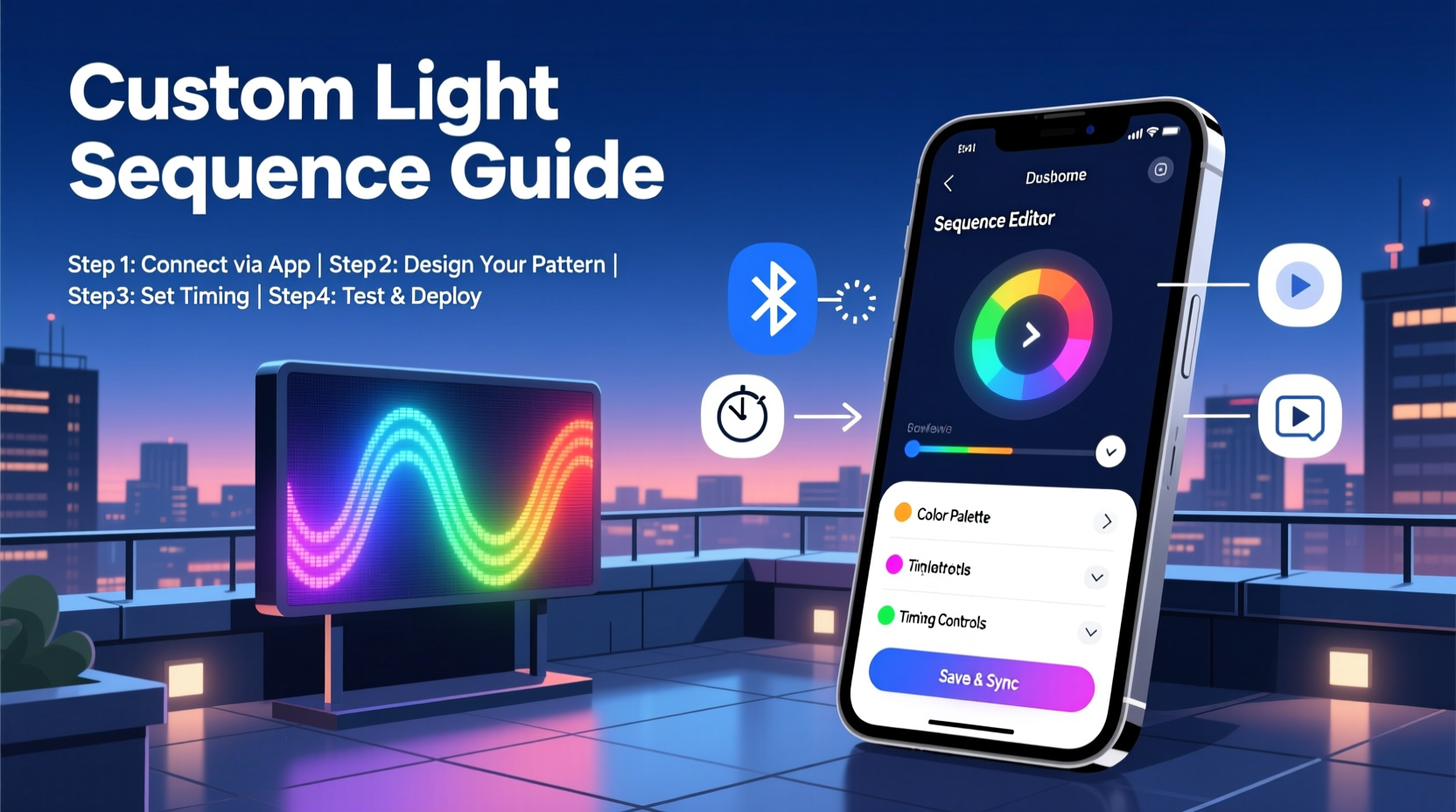
The foundation of any custom light sequence is the hardware. Not all outdoor lights are created equal when it comes to programmability. For full control over timing, color, brightness, and effects, you need a smart lighting system compatible with app-based control. The most popular options include Wi-Fi-enabled LED string lights, addressable RGB strips, and modular landscape lighting kits.
Look for lights that support:
- Individual bulb or segment control (especially for RGB or RGBW LEDs)
- App integration via iOS or Android
- Scheduling, music synchronization, and scene creation features
- Weather resistance (IP65 or higher rating for outdoor use)
- Cloud or local network connectivity for remote access
Brands like Philips Hue, LIFX, Govee, Twinkly, and Nanoleaf offer robust ecosystems for outdoor displays. Twinkly, in particular, is designed specifically for decorative lighting and supports advanced sequencing with precise timing down to the millisecond.
Set Up Your App and Connect the Lights
Once you’ve selected your lighting system, the next step is setup. Most smart outdoor lights connect via Wi-Fi or Bluetooth, with Wi-Fi being preferable for larger installations due to greater range and reliability.
- Install the lights securely outdoors, ensuring power sources are protected and cords are weatherproofed or buried if necessary.
- Plug in and power on the lights. Some systems require a brief initialization period.
- Download the manufacturer’s app (e.g., Twinkly App, Govee Home, Hue Bluetooth) from the App Store or Google Play.
- Follow the in-app instructions to pair the lights with your phone. This usually involves connecting to the light’s temporary Wi-Fi signal or scanning a QR code.
- Name and group your lights by location (e.g., “Front Porch,” “Tree Lights,” “Gutter Line”) for easier management later.
After successful pairing, test basic functions—turning the lights on/off, changing colors, and adjusting brightness—to confirm connectivity.
Mapping Your Display Layout
For complex sequences, especially those involving music sync or wave effects, knowing the physical layout of your lights is critical. Many apps, like Twinkly, allow you to create a digital map of your installation.
To do this:
- Take a photo of your outdoor setup from a frontal view.
- Upload it to the app and place virtual nodes where each light or segment is located.
- Label zones if you have multiple strands (e.g., roofline vs. yard trees).
This mapping enables pixel-level precision when designing animations, ensuring waves flow smoothly across gutters or pulses follow the beat accurately.
Create a Custom Light Sequence Step-by-Step
With your lights connected and mapped, you’re ready to build your first custom sequence. This process varies slightly between apps but generally follows these stages:
1. Select a Mode: Static, Dynamic, or Music Sync
Most apps offer three primary modes:
- Static: A single color or gradient held indefinitely.
- Dynamic: Pre-programmed or user-created animations (e.g., fade, sparkle, chase).
- Music Sync: Real-time reaction to audio input (ideal for parties or holiday shows).
For full customization, choose the “Create New Scene” or “Sequence Editor” option within the Dynamic or Music Sync tab.
2. Define Timing and Duration
Set the total length of your sequence. A holiday loop might run 30–60 seconds; a party effect could be indefinite. Break the timeline into segments—for example:
| Time | Action | Effect |
|---|---|---|
| 0:00–0:10 | Warm white pulse | Slow fade in/out |
| 0:10–0:20 | Color cycle | Red → Green → Blue |
| 0:20–0:30 | Chase effect | Wave across roofline |
| 0:30–0:45 | Music sync | Beat-responsive flash |
Use the app’s timeline editor to drag and drop effects onto specific time slots.
3. Customize Colors and Effects
Select colors from a palette or enter HEX/RGB values for brand-specific hues (e.g., team colors). Adjust speed, intensity, and direction of effects. For example:
- A “comet” effect moves a bright head followed by a fading tail.
- A “breathe” effect mimics slow breathing with gentle pulsing.
- A “random sparkle” adds intermittent flashes for a starry look.
Preview the sequence in real time. Make adjustments until transitions feel smooth and intentional.
4. Save and Schedule
Once satisfied, save your sequence with a descriptive name like “Holiday Festive Loop” or “Summer BBQ Mode.” Then, schedule it to run automatically:
- Daily at sunset to sunrise
- Specific days (e.g., weekends only)
- Triggered by geofencing (lights turn on when you arrive home)
Real Example: The Neighborhood Holiday Show
In Portland, Oregon, homeowner Marcus Lee transformed his front yard into a mini light spectacle every December. Using 12 strands of Govee Wi-Fi LED lights and two Twinkly curtain lights, he programmed a 45-second sequence synced to classic holiday tunes.
Marcus started by mapping each strand in the Govee app, labeling them by location. He then built a sequence that began with a soft snowfall animation (white twinkling), transitioned into a red-and-green color wave timed to “Jingle Bell Rock,” and ended with a synchronized flash on the final note.
He scheduled the show to run nightly from 5 PM to 10 PM and shared a public link so neighbors could watch without needing the app. After one season, his display became a local tradition, drawing families for evening walks.
“I spent about three evenings fine-tuning the timing,” Marcus said. “But once it was set, it ran flawlessly for weeks. The app made it easy to tweak things remotely if a song felt offbeat.”
“The key to a great light sequence isn’t complexity—it’s rhythm and intention. A simple wave that matches the music beats will impress more than chaotic flashing.” — Lena Torres, Smart Lighting Designer & Creator of LightFlow Studio
Avoid Common Programming Mistakes
Even with user-friendly apps, beginners often fall into predictable traps that reduce the quality of their display. Here’s what to avoid:
| Mistake | Why It’s a Problem | Solution |
|---|---|---|
| Overloading with effects | Creates visual chaos; distracts from the theme | Limit to 2–3 complementary effects per sequence |
| Poor timing alignment | Effects don’t match music beats or natural flow | Use a metronome or tap tempo tool to align changes |
| Ignoring ambient light | Brightness looks good at night but invisible at dusk | Test sequences at different times; adjust brightness accordingly |
| No backup plan | App crashes or Wi-Fi drops kill the show | Save sequences locally and keep a manual override switch |
Checklist: Launch Your First Custom Sequence
Before going live, ensure everything is in order:
- ✅ All lights are securely mounted and weatherproofed
- ✅ Power sources are stable and protected from moisture
- ✅ Lights are paired and responsive in the app
- ✅ Layout is mapped accurately in the app
- ✅ Sequence has been previewed and refined
- ✅ Schedule is set with correct start/end times
- ✅ Backup mode (e.g., static white) is available if needed
Frequently Asked Questions
Can I combine different brands of smart lights in one sequence?
Generally, no—most apps only control devices from the same ecosystem. However, platforms like Apple HomeKit or Google Home can group different brands into scenes, though with limited sequencing granularity. For true custom sequences, stick to one brand or use a unified controller like TouchDesigner or xLights for advanced setups.
Do I need Wi-Fi for my outdoor lights to work?
Wi-Fi is required for remote access, scheduling, and complex sequencing. Some lights work via Bluetooth for short-range control, but this limits automation and real-time adjustments. For outdoor installations, Wi-Fi is strongly recommended.
How can I make my lights react to music in real time?
Use an app with built-in audio detection (e.g., Govee Home, Twinkly). Enable the music sync mode, play audio near your phone or through a connected speaker, and the lights will pulse to the beat. For outdoor speakers, ensure microphone access is enabled so the app can “hear” the music.
Final Thoughts: Turn Your Home into a Canvas
Programming a custom light sequence is more than a technical exercise—it’s a form of creative expression. With today’s smart lighting apps, you don’t need coding skills or expensive gear to design something memorable. Whether it’s a subtle glow that welcomes guests or a full-blown holiday concert, your outdoor space becomes a stage.
The best displays aren’t just bright—they tell a story. They ebb and flow, surprise and delight. And they start with a simple idea, shaped by patience and tested in the quiet moments after dark.
Start small. Try a single-color fade across your porch. Then expand. Layer in sound, motion, and timing. Share your creations. You might just inspire the whole block.




 浙公网安备
33010002000092号
浙公网安备
33010002000092号 浙B2-20120091-4
Comments
No comments yet. Why don't you start the discussion?