
Modern holiday lighting has evolved far beyond simple on-off switches. With smart multicolor Christmas lights and intuitive mobile applications, homeowners can now design dazzling light sequences that dance in sync with music, shift colors gradually, or pulse rhythmically across their homes. Programming these displays used to require technical know-how and complex wiring, but today’s app-controlled systems make it accessible to anyone with a smartphone. Whether you're creating a festive backyard show for neighbors or adding subtle ambiance to your porch, mastering the art of sequencing enhances both visual impact and seasonal joy.
Understanding Smart Multicolor Lights and App Integration
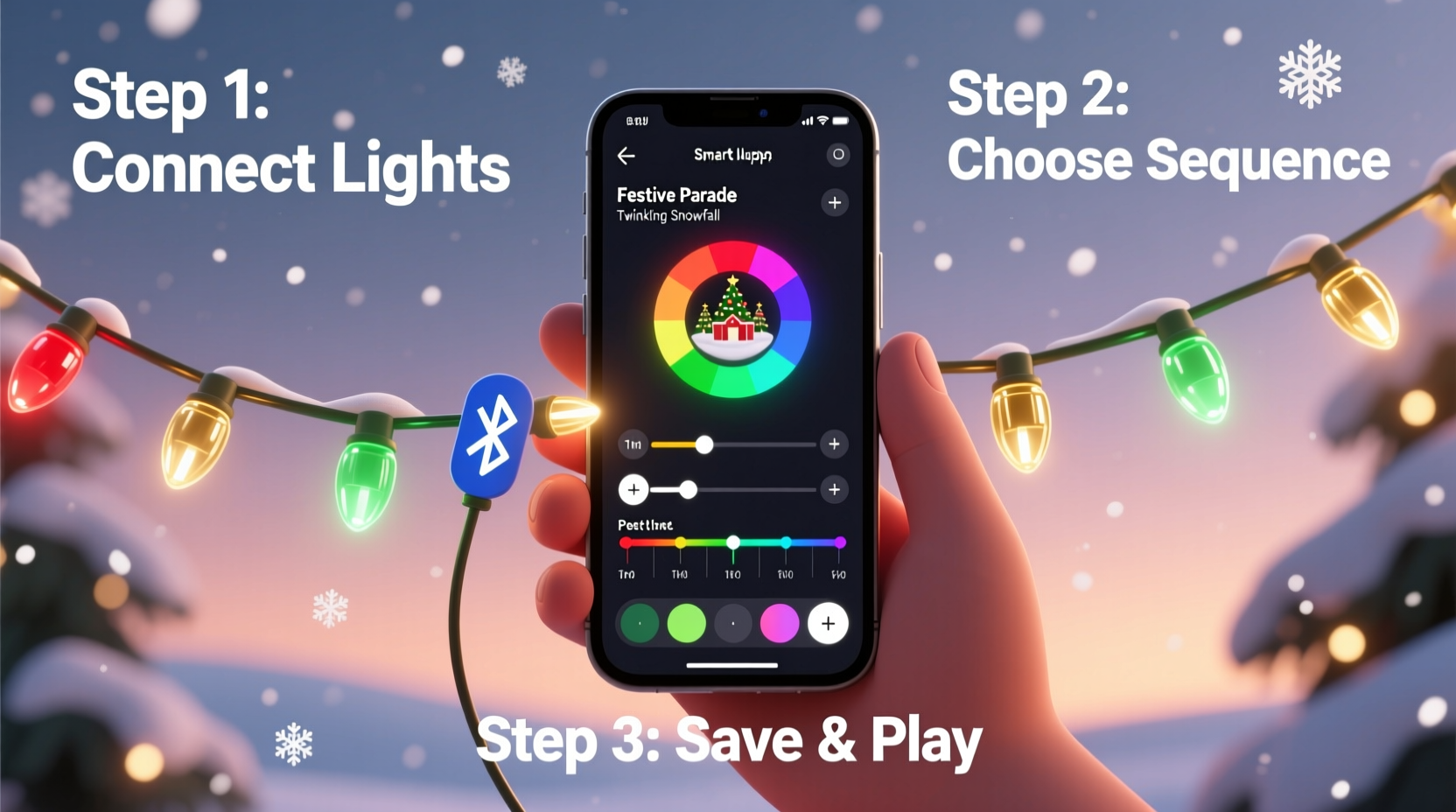
Smart LED Christmas lights are equipped with built-in microcontrollers that allow them to change color, brightness, speed, and pattern based on digital commands. These lights connect to your home Wi-Fi network or via Bluetooth to a dedicated mobile application, enabling real-time control from a phone or tablet. Most popular brands—such as Govee, Twinkly, Philips Hue Holiday, and Luminara—offer companion apps that provide preloaded effects and custom programming tools.
The core functionality revolves around addressable LEDs, where each bulb (or segment) can be individually controlled. This level of granularity allows for intricate animations like chasing patterns, rainbow waves, and even pixel-mapped visuals across strands. The apps typically feature drag-and-drop interfaces, color pickers, timing sliders, and music synchronization options, making creative expression straightforward—even for beginners.
Step-by-Step Guide to Creating Your First Light Sequence
Programming a custom light sequence involves selecting effects, adjusting timing, assigning colors, and testing the output. Follow this timeline to build your first dynamic display:
- Install and set up the manufacturer’s app – Download the correct app (e.g., Govee Home, Twinkly App) and create an account if required.
- Connect your lights – Power on the light string and follow the app’s pairing instructions. For Wi-Fi models, enter your network credentials when prompted.
- Verify detection – Once connected, the app should recognize the number of bulbs or segments in your strand. Some apps automatically scan and map each LED.
- Select “Create Custom Effect” – Navigate to the scene or sequence editor. This is usually labeled as “DIY,” “Custom Mode,” or “Sequence Builder.”
- Choose colors and transitions – Use the color wheel to select hues. You can assign static colors or gradients across the strand. Set transition types: fade, jump, strobe, or wave.
- Adjust speed and duration – Control how fast the effect runs. Slower speeds work well for relaxing glows; faster settings suit energetic chases.
- Add layers or zones (if supported) – Advanced apps let you divide strands into sections and apply different behaviors to each zone.
- Test in real time – Preview the sequence on your actual lights. Make adjustments until the flow feels balanced and visually pleasing.
- Save and schedule – Give your sequence a name (e.g., “Festive Pulse”) and optionally set a timer for automatic activation at dusk or during specific hours.
This process typically takes under 15 minutes once you’re familiar with the interface. Over time, experimenting with layering multiple effects or syncing to sound will expand your creative possibilities.
Optimizing Sequences with Music Synchronization and Automation
One of the most impressive features of modern smart lighting apps is audio reactivity. By enabling music sync mode, your lights respond dynamically to ambient sound or a selected song. The app uses the device’s microphone to detect beats, volume changes, and frequency ranges, then maps corresponding flashes, pulses, or color shifts across the LEDs.
To use this effectively:
- Play high-tempo songs with clear basslines for strong rhythmic responses.
- Position your phone close enough to the speaker to capture clean audio input.
- In apps like Twinkly, adjust sensitivity settings so soft sounds don’t trigger erratic behavior.
For scheduled automation, leverage geofencing or sunrise/sunset triggers. Many apps integrate with smart home platforms like Google Assistant or Apple HomeKit, allowing voice commands such as “Turn on the holiday lights” or “Start the Christmas sequence.” You can also chain actions—e.g., activate the light show when your doorbell rings during December evenings.
“Music-synced light sequences create emotional resonance. People don’t just see the lights—they feel them.” — Daniel Reyes, Lighting Designer & Smart Home Consultant
Comparison of Top Apps for Programming Light Sequences
Different brands offer varying levels of control and creativity. Below is a comparison of leading apps based on key features:
| App Name | Color Control | Music Sync | Custom Sequencing | Smart Home Integration | Best For |
|---|---|---|---|---|---|
| Twinkly App | Per-bulb RGBW | Yes (with beat detection) | Advanced timeline editor | Google, Alexa, HomeKit | Professional-grade displays |
| Govee Home | Segment-based RGB | Yes (ambient and music modes) | Basic DIY scenes | Google, Alexa | Budget-friendly setups |
| Philips Hue Sync | Full spectrum + white tuning | Yes (desktop + mobile) | Limited holiday strip support | Full HomeKit/IFTTT support | Whole-home integration |
| Luminara App | Preset color themes | No | Predefined sequences only | No third-party integration | Simplicity and ease of use |
If you plan to run elaborate outdoor shows, Twinkly offers the deepest customization. For casual users who want quick results, Govee provides excellent value and responsive performance.
Troubleshooting Common Issues During Programming
Even with user-friendly apps, challenges can arise. Here are frequent problems and solutions:
- Lights not responding to commands: Check power supply stability and Wi-Fi signal strength. Reboot the router or reset the light controller.
- Colors appear inaccurate: Calibrate the white balance in-app or avoid mixing different batches of LEDs, which may have slight hue variations.
- Audio sync lags behind music: Reduce the number of bulbs per strand or upgrade to a dual-band Wi-Fi network to minimize latency.
- Sequence fails to save: Ensure the app has permission to store data and that your firmware is updated to the latest version.
Mini Case Study: A Neighborhood-Wide Light Show Using App Sequences
In Maplewood, New Jersey, resident Marcus Lin transformed his annual Christmas display into a synchronized neighborhood event using app-programmed sequences. He started with two Govee light strings on his porch, designing a slow rainbow fade effect triggered at sunset. Encouraged by neighbors’ reactions, he expanded to include tree wraps, driveway markers, and rooftop outlines—all managed through the Govee Home app.
The following year, Marcus collaborated with three nearby households. Each family installed compatible Wi-Fi lights and shared access to a unified playlist. Using precise timing controls, they programmed sequences so that color waves appeared to travel from house to house, creating a cascading visual effect down the block. They added music playback through outdoor speakers and promoted the show on social media.
The result? Over 1,200 visitors during the holiday season, local news coverage, and a donation drive benefiting a children’s hospital. What began as a personal project became a community tradition—all powered by smartphone apps and coordinated sequences.
Essential Checklist for Successful Sequence Programming
Before launching your display, go through this checklist to ensure reliability and visual appeal:
- ✅ Confirm all light strings are powered and properly connected to the network.
- ✅ Test each custom sequence in low-light conditions to evaluate visibility.
- ✅ Verify synchronization accuracy across multiple devices if using more than one brand.
- ✅ Schedule start and end times to conserve energy and reduce light pollution.
- ✅ Back up your favorite sequences in the app cloud or take screenshots of settings.
- ✅ Share access with family members so others can manage or pause the show.
- ✅ Inspect physical installation for safety—avoid tripping hazards and water exposure.
Frequently Asked Questions
Can I program different sequences for different times of day?
Yes. Most smart lighting apps support scheduling. You can set a gentle warm glow for early evening, switch to a vibrant animated sequence at peak viewing hours (6–9 PM), and revert to a soft blink after 10 PM.
Do I need internet access to run programmed sequences?
Once a sequence is saved to the light controller, many systems can run it locally without constant internet. However, initial programming, updates, and remote access require an active connection.
Can I mix light brands in one display?
Mixing brands is possible but not ideal. Each uses proprietary apps and protocols, making unified control difficult. For seamless coordination, stick to one ecosystem—preferably one that supports grouping multiple devices.
Final Thoughts and Call to Action
Programming a sequence for multicolor Christmas lights using apps blends technology and tradition in a way that deepens holiday spirit. No longer limited by static colors or manual timers, you now hold the power to choreograph light like a conductor leads an orchestra. With intuitive tools, real-time previews, and smart automation, the barrier to entry has never been lower.
Start small—a single strand with a gentle color cycle. Then grow bolder: add music sync, experiment with zone-based effects, invite neighbors to join a synchronized block display. The holidays are about sharing joy, and a well-crafted light sequence does exactly that—drawing people together, sparking wonder, and turning ordinary spaces into magical experiences.




 浙公网安备
33010002000092号
浙公网安备
33010002000092号 浙B2-20120091-4
Comments
No comments yet. Why don't you start the discussion?