
Printer jams are one of the most frustrating office and home printing issues. They interrupt workflow, waste time, and often seem to happen at the worst possible moment. While modern printers are designed for reliability, even high-end models can suffer from frequent paper jams. The good news? Most recurring jams aren’t due to hardware failure—they’re caused by preventable factors like improper loading, worn rollers, or environmental conditions. Understanding the root causes and applying practical solutions can restore smooth operation in minutes.
Understanding the Anatomy of a Printer Jam
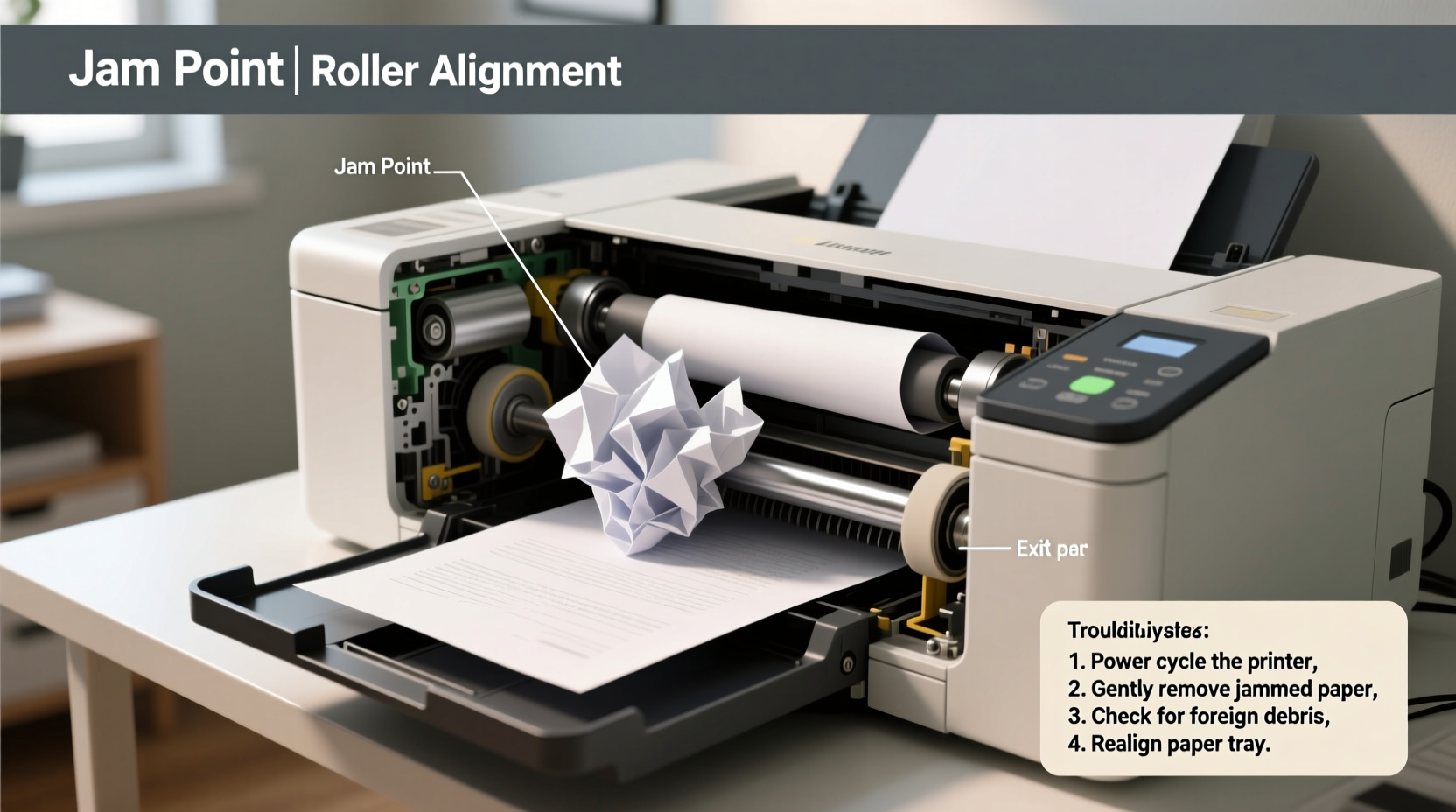
A paper jam occurs when paper fails to move smoothly through the printer’s internal path. This can happen at any point: during pickup from the tray, while feeding into the print engine, or during exit to the output tray. Jams may result in crumpled paper, error messages, or complete printer lockups. To resolve them effectively, it helps to know how paper travels through the system.
Most printers use a series of rubberized pickup and separation rollers to pull sheets from the tray. Once engaged, the paper passes through a fuser unit (in laser printers) or under print heads (in inkjet models), then exits via output rollers. Any obstruction, misalignment, or mechanical wear along this path can cause a jam.
Common jam locations include:
- Input tray: Paper doesn’t feed properly due to overloading or misalignment.
- Middle path: Paper gets stuck between rollers or around tight bends.
- Fuser area (laser printers): Heat and pressure can cause thin or damp paper to curl and snag.
- Output tray: Stacked paper blocks ejection, causing backup.
“Over 70% of printer jams are user-related—improper paper handling, incorrect media type, or lack of basic maintenance.” — David Lin, Senior Technician at OfficeTech Support
Top 5 Causes of Constant Printer Jams (And How to Fix Them)
1. Incorrect Paper Loading
One of the most common—and easiest to fix—reasons for repeated jams is improper paper loading. Overfilling the tray, using bent or curled sheets, or failing to adjust the guide correctly can all disrupt smooth feeding.
To load paper correctly:
- Use fresh, flat paper stored in a dry environment.
- Fan the stack thoroughly to eliminate sticking.
- Load no more than the recommended capacity (usually 150–250 sheets).
- Adjust both side and rear guides so they hold the paper snugly without bending it.
- Avoid mixing paper types or sizes in the same tray.
2. Dirty or Worn Pickup Rollers
Pickup rollers lose grip over time due to dust, paper fibers, and humidity. When they can’t grab paper reliably, multiple sheets may feed at once—or none at all—leading to jams.
Cleaning them is simple and effective:
- Turn off and unplug the printer.
- Open the front or rear access panel to expose the rollers.
- Dampen a lint-free cloth with distilled water or isopropyl alcohol.
- Gently wipe each roller, rotating it manually to clean the full surface.
- Allow to dry completely before reassembling.
For printers used daily, clean rollers every 3–6 months. If cleaning doesn’t restore grip, replacement kits are available for most models and typically cost under $20.
3. Using the Wrong Paper Type or Quality
Not all paper is created equal. Thin, recycled, or textured paper may not feed reliably through certain printers. Similarly, using glossy photo paper in a tray meant for plain paper can lead to slipping or curling.
Always check your printer’s manual for supported media types. As a general rule:
- Stick to 20–24 lb bond paper for everyday printing.
- Avoid heavily textured or handmade papers unless your printer supports them.
- Store paper in sealed packaging until use to prevent moisture absorption.
4. Environmental Factors: Humidity and Temperature
High humidity causes paper to absorb moisture and become slightly wavy or sticky. In dry environments, static electricity can make sheets cling together. Both conditions increase jam frequency.
Maintain a stable environment:
- Keep printers away from windows, vents, and exterior walls.
- Avoid placing near humidifiers or heaters.
- Store paper in climate-controlled areas, ideally between 68°F and 77°F (20–25°C) with 40–60% humidity.
5. Internal Obstructions or Misaligned Components
Small bits of torn paper, staples, or even paper clips can get lodged deep inside the printer. These hidden obstructions don’t always trigger immediate errors but can snag subsequent sheets.
Perform a monthly internal inspection:
- Power down and unplug the device.
- Remove all paper from trays and bypass feeders.
- Open accessible panels and gently inspect the paper path.
- Use a flashlight to spot debris; remove with tweezers or compressed air.
- Never use metal tools that could scratch rollers or sensors.
Step-by-Step Guide to Clearing and Preventing Jams
When a jam occurs, follow this sequence to clear it safely and reduce future risks:
- Stop printing and wait. Let the printer fully stop moving parts before opening panels.
- Check the display. Many printers indicate the jam location (e.g., “Tray 1,” “Fuser Area”).
- Open the access door. Start from the indicated area and work backward through the path.
- Gently pull paper straight out. Never tear it—pull slowly in the direction of travel to avoid leaving fragments.
- Inspect for remnants. Look closely for tiny paper scraps, especially near rollers.
- Clean visible rollers. Use a slightly damp cloth if they appear dusty or glazed.
- Reload paper properly. Fan, align, and adjust guides as needed.
- Run a test page. Print a configuration report or alignment sheet to verify smooth operation.
If jams persist after these steps, consider resetting the printer’s settings to default or updating its firmware—sometimes software glitches mimic mechanical problems.
Do’s and Don’ts of Printer Maintenance
| Do’s | Don’ts |
|---|---|
| Fan paper before loading | Overfill the paper tray |
| Use manufacturer-recommended paper types | Feed wrinkled, folded, or damaged sheets |
| Clean rollers every 3–6 months | Use abrasive cloths or solvents on rollers |
| Store paper in a cool, dry place | Leave paper in the tray for weeks unused |
| Inspect the paper path monthly | Force stuck paper sideways or with sharp tools |
Real-World Example: Resolving Chronic Jams in a Small Office
A five-person accounting firm was experiencing daily printer jams on their shared HP LaserJet. Staff would clear jams multiple times per day, often disrupting urgent tax filings. After ruling out hardware failure, an IT consultant reviewed their setup.
The root causes were clear: the paper tray was consistently overloaded (300+ sheets), the office was located in a basement with high humidity, and the printer hadn’t been cleaned in over a year. Additionally, employees mixed standard copy paper with thicker invoice stock.
The solution included:
- Reducing tray load to 150 sheets max.
- Moving the printer to a drier upstairs office.
- Installing a dehumidifier near the supply cabinet.
- Scheduling monthly roller cleaning.
- Using separate trays for different paper types.
Within a week, jams dropped from 3–4 per day to zero. The team regained hours of productivity and reduced stress during peak season.
Essential Checklist: Prevent Printer Jams Before They Happen
Monthly Printer Health Checklist
- ✅ Fan and reload paper in all trays
- ✅ Clean pickup and output rollers
- ✅ Inspect paper path for debris
- ✅ Check for firmware updates
- ✅ Verify paper type matches job requirements
- ✅ Ensure environment is temperature and humidity controlled
- ✅ Test print a multi-page document to confirm smooth feeding
Frequently Asked Questions
Why does my printer keep jamming even with new paper?
New paper can still be problematic if it’s been stored improperly—exposed to moisture or extreme temperatures. Also, some budget brands use inconsistent coatings that affect feeding. Try a different brand or batch, and always fan the paper before loading.
Can I use compressed air to clean my printer?
Yes, but with caution. Use short bursts and hold the can upright to avoid propellant spray. Focus on paper trays and accessible rollers. Avoid spraying directly into sensors or electrical components. Do not use household vacuums, which can generate static.
How do I know if my rollers need replacing?
If cleaning doesn’t improve pickup performance and you notice consistent slippage, multiple feeds, or faint screeching sounds during startup, the rollers are likely worn. Replacement is usually straightforward—most manufacturers provide video guides and part numbers online.
Conclusion: Take Control of Your Printing Experience
Constant printer jams aren’t inevitable. With a little attention to detail and routine care, most jamming issues can be eliminated. The key is consistency: proper paper handling, regular cleaning, and awareness of environmental factors. These small habits save hours of frustration and extend your printer’s lifespan significantly.
You don’t need technical expertise—just a few minutes each month to maintain a reliable machine. Start today by clearing the current jam, inspecting your setup, and implementing the checklist above. A smoother, jam-free printing experience is within reach.




 浙公网安备
33010002000092号
浙公网安备
33010002000092号 浙B2-20120091-4
Comments
No comments yet. Why don't you start the discussion?