
Sending a friend request on Facebook is simple, but what happens when you change your mind? Whether it was sent by accident, to the wrong person, or you’ve simply reconsidered the connection, knowing how to cancel a friend request quickly and discreetly is essential. Unlike some social platforms, Facebook doesn’t notify the recipient when a request is withdrawn—making it a clean, silent action. This guide walks you through the exact steps to cancel a friend request across devices, explains what happens afterward, and offers practical tips to avoid future mistakes.
Why Canceling a Friend Request Matters
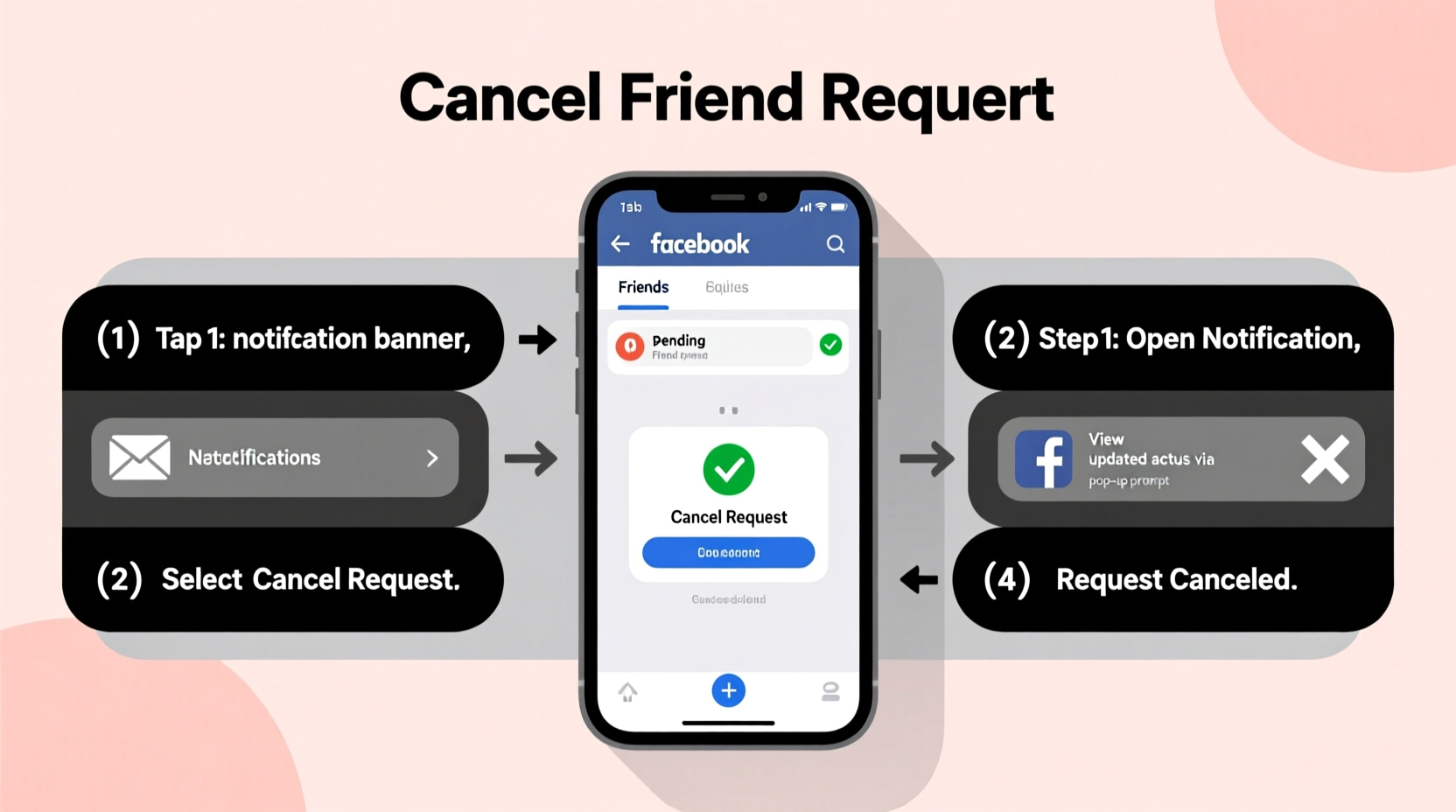
Mistakes happen. You might tap a profile in haste, confuse two similar names, or send a request before double-checking privacy settings. While Facebook’s interface is intuitive, not everyone knows that canceled requests leave no trace. The recipient will never receive a notification if you retract your request, nor will they see it in their pending list after cancellation. This feature gives users control over their social interactions without awkward explanations.
Canceling promptly also prevents confusion. If someone accepts your request before you cancel, you’ll be connected—potentially exposing your activity to someone you didn’t intend to share with. Acting fast ensures your privacy remains intact and your network stays intentional.
Step-by-Step: How to Cancel a Friend Request on Desktop
If you're using a computer, the process is straightforward and takes less than a minute. Follow these steps:
- Log in to your Facebook account at facebook.com.
- In the top-right corner of the screen, click the “Friends” icon (two overlapping silhouettes).
- A dropdown menu will appear showing recent friend activity. Click “Friend Requests” at the bottom of this menu.
- You’ll be taken to the Friend Requests page. Scroll down and click “Sent Requests” near the top.
- This displays all friend requests you’ve sent that haven’t been accepted or declined.
- Locate the person whose request you want to cancel. Next to their name, click the “Cancel Request” button.
- Confirm the action if prompted. The button will change to “Add Friend,” indicating the request has been successfully canceled.
Step-by-Step: How to Cancel a Friend Request on Mobile (iOS/Android)
The Facebook mobile app streamlines navigation, but the path to cancel a request differs slightly from desktop. Here’s how to do it on your phone:
- Open the Facebook app and log in if necessary.
- Tap the Menu icon (three horizontal lines) in the bottom-right (iOS) or top-right (Android).
- Scroll down and tap “Friends”.
- Tap “Friend Requests” at the top of the screen.
- Switch to the “Sent” tab at the top of the list.
- Find the user you wish to remove the request for. Tap the “Cancel Request” button next to their name.
- The button will turn into “Add Friend,” confirming the cancellation.
Note: The layout may vary slightly depending on app updates, but the core functionality remains consistent across versions.
What Happens After You Cancel?
Once canceled, the recipient will not receive any notification. Their friend request queue will simply remain unchanged. You can verify the cancellation by revisiting the “Sent Requests” list—your target profile should no longer appear there.
If you decide later to reconnect, you can send another friend request as long as the other person hasn’t blocked you or adjusted their privacy settings to restrict incoming requests. There is no limit to how many times you can send and cancel requests to the same person, though doing so repeatedly may raise flags in Facebook’s system.
“Users often worry about offending someone by canceling a request, but Facebook’s design ensures complete discretion. It’s a private action with zero social fallout.” — Lena Reyes, Digital Privacy Consultant
Troubleshooting Common Issues
Sometimes, the option to cancel a request doesn’t appear. Here are common reasons and solutions:
- The request is missing from your sent list: The person may have already accepted or declined it. Check your main Friends list or recent notifications.
- “Cancel Request” button isn’t visible: Ensure you’re viewing the “Sent” tab under Friend Requests. If using a browser, try refreshing the page or clearing cache.
- Profile appears inactive: If the account is deactivated or deleted, the request will eventually disappear automatically.
- You’re blocked: If you can’t view the person’s profile at all, they may have blocked you, which also removes any pending requests.
| Issue | Possible Cause | Solution |
|---|---|---|
| No “Cancel Request” button | Request already accepted or declined | Check your Friends list or Activity Log |
| Profile not found in Sent Requests | Account deactivated or request expired | Wait 1–2 days; Facebook may auto-remove stale requests |
| Can’t access Friend Requests section | App glitch or outdated version | Update the app or use desktop browser |
Real Example: A Close Call at Work
Jamie, a marketing manager, was updating her LinkedIn connections during lunch and accidentally opened Facebook instead. While searching for a former colleague, she clicked the wrong profile—sending a friend request to her current boss. Realizing the mistake within seconds, Jamie opened her phone and followed the mobile cancellation steps. She checked back an hour later: the request was gone, and her boss never mentioned it. “I was sweating for a minute,” she said, “but the cancel feature saved me from an awkward conversation.”
Best Practices to Avoid Accidental Requests
Prevention is better than correction. These habits reduce the risk of sending unwanted requests:
- Double-check search results before sending.
- Use Facebook’s search bar with specific filters (e.g., “from [city]” or “works at [company]”).
- Avoid sending requests while multitasking or in low-light environments where visibility is poor.
- Review your sent requests weekly if you’re active on the platform.
Frequently Asked Questions
Will the person know if I cancel my friend request?
No. Facebook does not send any notification when a friend request is canceled. The recipient will not be aware unless they noticed the request appeared briefly in their queue—a rare occurrence.
Can I re-send a friend request after canceling it?
Yes. Once canceled, you can send a new request at any time, provided the user hasn’t blocked you or set their profile to receive requests only from friends of friends.
How long do sent friend requests stay active?
Facebook does not specify an expiration period. Requests remain active until accepted, declined, or canceled. However, inactive accounts or policy changes may result in automatic removal after several months.
Final Thoughts: Stay in Control of Your Connections
Your Facebook network reflects your personal and professional relationships. Managing it thoughtfully includes correcting small errors like unintended friend requests. With the steps outlined here, you can act swiftly and confidently—on desktop or mobile—to maintain control over who sees your content and how you’re perceived online.




 浙公网安备
33010002000092号
浙公网安备
33010002000092号 浙B2-20120091-4
Comments
No comments yet. Why don't you start the discussion?