
Losing important files from a USB drive can be stressful—especially when they’re accidentally deleted or lost due to formatting. The good news is that in most cases, deleted files aren’t gone for good. When a file is deleted from a USB drive, the data remains on the storage medium until it’s overwritten by new information. This window of opportunity allows recovery using specialized software. Fortunately, several reliable free tools can help retrieve your files without costing a dime. This guide walks you through effective methods, trusted tools, and best practices to maximize your chances of successful recovery.
Why Files Can Be Recovered After Deletion
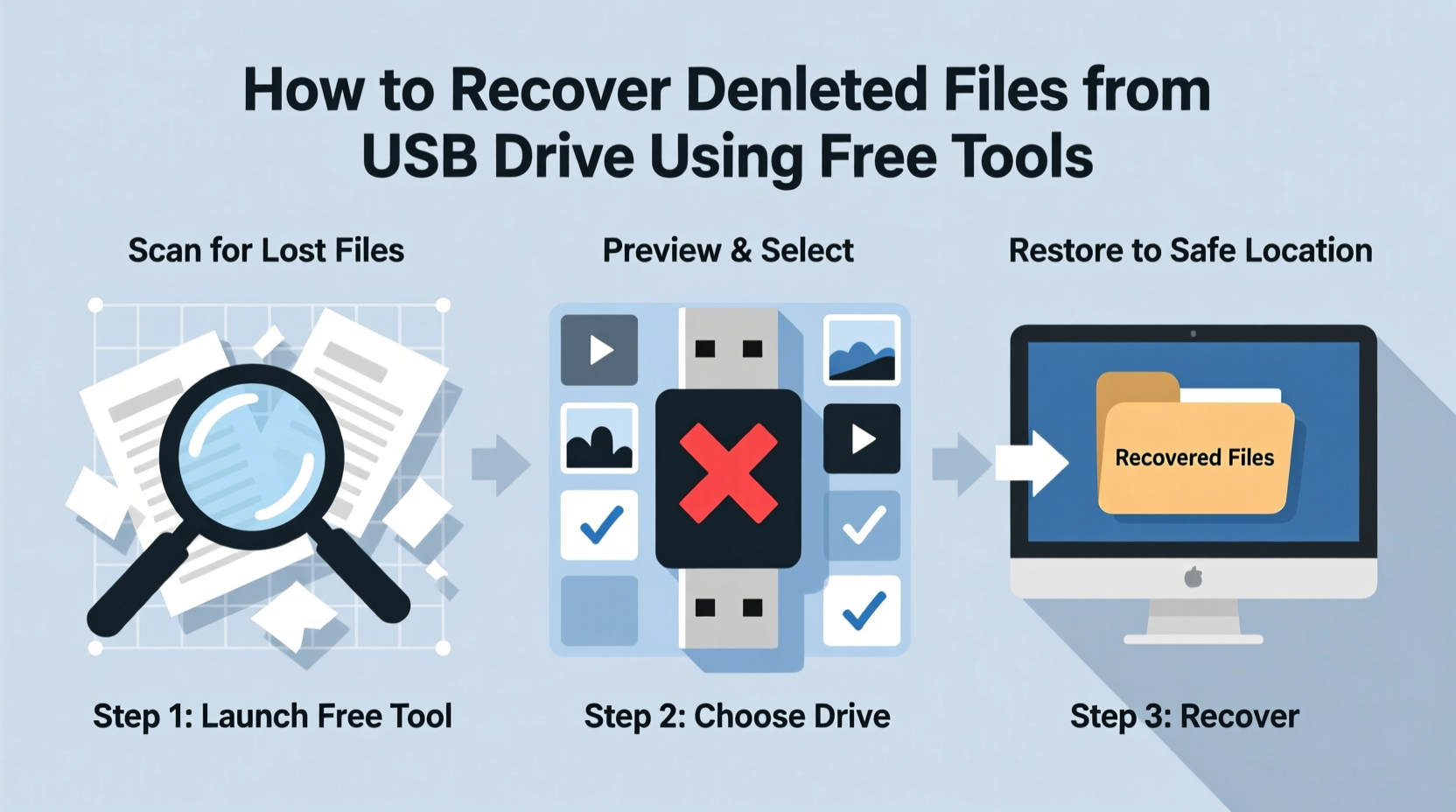
When you delete a file from a USB drive, the operating system doesn’t immediately erase the actual data. Instead, it removes the file’s entry from the file allocation table (FAT) or Master File Table (MFT), marking the space as available for new data. Until that space is reused, the original file content remains intact and recoverable. This behavior applies whether the deletion occurred via \"Delete,\" \"Shift + Delete,\" or even accidental formatting.
The key to successful recovery is acting quickly. Continued use of the USB drive increases the risk of overwriting the deleted files, making them unrecoverable. Avoid saving new files, running programs, or performing disk operations on the affected drive until recovery is complete.
“Data isn’t truly gone until it’s overwritten. The sooner you act after deletion, the higher the recovery success rate.” — Dr. Alan Reed, Digital Forensics Analyst
Top Free Tools for USB File Recovery
Several free tools are capable of scanning and recovering deleted files from USB drives. These tools support various file systems (FAT32, exFAT, NTFS) and can restore documents, photos, videos, and more. Below is a comparison of the most effective and widely trusted free options.
| Tool | Supported OS | File Systems | Max Recovery Size (Free) | Key Features |
|---|---|---|---|---|
| Recuva | Windows | FAT, exFAT, NTFS | Unlimited (with Pro version limited in free) | User-friendly interface, deep scan, preview before recovery |
| PhotoRec | Windows, macOS, Linux | FAT, exFAT, NTFS, ext2/3/4 | Unlimited | High success rate, recovers hundreds of file types, command-line based |
| TestDisk | Windows, macOS, Linux | All major types | Unlimited | Partition recovery, works with PhotoRec, advanced toolset |
| Pandora Recovery | Windows | NTFS, FAT32 | Unlimited | Real-time deletion monitoring, easy navigation |
| Glary Undelete | Windows | FAT, NTFS | Unlimited | Simple interface, fast scan, secure overwrite option |
While all these tools are free, some have limitations in their free versions or require technical know-how. For beginners, Recuva offers the smoothest experience. For advanced users or cross-platform needs, PhotoRec and TestDisk are powerful open-source choices.
Step-by-Step Guide to Recover Files Using Recuva
Recuva, developed by Piriform (creators of CCleaner), is one of the most accessible free recovery tools for Windows users. Follow this step-by-step process to recover deleted files from your USB drive.
- Download and Install Recuva
Visit the official website (ccleaner.com/recuva) and download the free version. Install it on your computer—never on the USB drive. - Connect the USB Drive
Safely plug the USB into your computer. Wait for it to appear in File Explorer. - Launch Recuva and Start Wizard
Open Recuva and click “Next” on the welcome screen. Choose the type of files you want to recover (e.g., Pictures, Documents, All Files). - Select Location
Choose “On my media (USB drive, memory card, etc.)” and browse to select your USB drive’s letter (e.g., E:\\). - Enable Deep Scan (Optional but Recommended)
After the initial scan, if files aren’t found, click “Enable Deep Scan.” This takes longer but increases recovery chances. - Review Recoverable Files
Files will appear with a color-coded status: Red (unlikely), Yellow (possible), Green (high chance). Sort by name, path, or date to locate specific items. - Recover Files
Select the files you want and click “Recover.” Choose a destination folder on your computer’s hard drive—not the USB.
Recuva also allows filtering by file name or extension, which is helpful when searching for specific documents like .docx or .jpg files.
Advanced Recovery Using PhotoRec and TestDisk
For users comfortable with command-line interfaces or dealing with severely corrupted drives, PhotoRec and TestDisk offer deeper recovery capabilities. These tools are especially useful when file systems are damaged or partitions are missing.
PhotoRec excels at recovering files based on their signatures rather than directory entries, making it ideal for formatted or corrupted drives. TestDisk complements it by repairing partition tables and boot sectors.
How to Use PhotoRec:
- Download TestDisk & PhotoRec from cgsecurity.org.
- Extract the archive and run
photorec_win.exe(on Windows). - Select the correct disk from the list (identify by size).
- Choose the partition (or select “No partition – Whole disk” if unpartitioned).
- Select the file system type (usually “Other” for USB drives).
- Choose where to save recovered files (must be a different drive).
- Select file types to recover or press “S” to search all.
- Start the search. PhotoRec will recover files with generic names (e.g., f12345.jpg) but preserves content.
Because PhotoRec doesn’t rely on file names or folders, recovered files are sorted into directories by type (JPEG, PDF, AVI, etc.). You’ll need to manually identify the correct files afterward.
Checklist: What to Do Immediately After File Loss
To maximize recovery potential, follow this checklist right after realizing files are missing:
- ✅ Stop using the USB drive immediately
- ✅ Do not save any new files to the drive
- ✅ Plug the USB into a trusted computer (avoid public terminals)
- ✅ Run a virus scan first—some file loss is caused by malware
- ✅ Use read-only recovery tools to avoid writing data to the drive
- ✅ Save recovered files to your computer or external storage—not the same USB
- ✅ Verify recovered files by opening them to ensure integrity
- ✅ Back up important files regularly in the future
This protocol minimizes further data loss and keeps the drive in optimal condition for recovery attempts.
Real Example: Recovering Family Photos from a Formatted USB
Sarah, a university student, accidentally formatted her 32GB USB drive while preparing a presentation. The drive contained over 200 family photos from a recent vacation—irreplaceable memories. Panicked, she searched online and found Recuva. She followed the steps: downloaded the software, connected the USB, ran a deep scan, and was able to recover 187 of the 200 photos. Some newer images were partially overwritten, but the majority were intact. Sarah learned the importance of backups and now stores her photos in both cloud storage and an external hard drive.
This case highlights two critical points: recovery is often possible even after formatting, and early intervention dramatically improves results.
Common Mistakes That Prevent Successful Recovery
Even with the right tools, many people unknowingly sabotage their own recovery efforts. Avoid these common errors:
- Continuing to use the USB: Saving temporary files or browsing folders can overwrite deleted data.
- Running recovery software on the USB: Installing or running tools directly on the drive risks permanent data loss.
- Using unreliable or pirated software: Some fake recovery tools contain malware or fail to deliver promised results.
- Ignoring signs of physical damage: If the USB isn’t detected, makes clicking noises, or overheats, it may need professional repair.
- Skipping verification: Always open recovered files to confirm they’re not corrupted before assuming success.
If your USB drive is physically damaged (e.g., broken connector, water exposure), no software can help. In such cases, consult a professional data recovery service, though costs can range from $100 to $1000 depending on complexity.
FAQ: Common Questions About USB File Recovery
Can I recover files after emptying the Recycle Bin?
Yes. Emptying the Recycle Bin only removes the shortcut to the file. As long as the data hasn’t been overwritten, recovery tools can still retrieve it from the USB drive.
Is it safe to use free recovery software?
Yes, if downloaded from official sources. Tools like Recuva, PhotoRec, and Glary Undelete are reputable and widely used. Avoid third-party download sites that bundle adware or fake versions.
Why can’t I recover some files even with deep scanning?
This usually means the file data has been overwritten by new writes to the drive. The more you’ve used the USB after deletion, the lower the chance of full recovery. Partial recovery may still be possible.
Final Tips for Long-Term USB Care
Prevention is always better than recovery. To reduce the risk of future data loss:
- Always use “Safely Remove Hardware” before unplugging the USB.
- Keep regular backups of important files using cloud services or automated backup tools.
- Label your USB drives clearly to avoid accidental formatting.
- Scan USBs for viruses before opening files, especially on shared computers.
- Consider enabling file history or versioning on your PC for automatic protection.
Conclusion: Act Fast, Recover Smart
Recovering deleted files from a USB drive doesn’t require expensive software or technical expertise. With free, reliable tools like Recuva, PhotoRec, and Glary Undelete, most users can successfully retrieve lost documents, photos, and other data. The key is speed, caution, and using the right method for your situation. Whether you’re a student, professional, or casual user, understanding how to recover files empowers you to handle accidents with confidence. Don’t wait until it’s too late—apply these strategies today and protect your digital memories and work.




 浙公网安备
33010002000092号
浙公网安备
33010002000092号 浙B2-20120091-4
Comments
No comments yet. Why don't you start the discussion?