
Accidentally deleting cherished memories can be distressing—especially when you realize the photos vanished more than two months ago. Once photos are removed from Google Photos’ Trash, they’re typically gone forever after 60 days. But before you assume all hope is lost, it’s important to understand that recovery isn’t always impossible. While Google does not provide a direct restore option beyond the 60-day window, there are still several avenues worth exploring. From checking linked accounts and device backups to leveraging forensic tools and cloud sync history, this guide outlines practical steps, real-world scenarios, and expert-backed methods to help you retrieve what you thought was permanently lost.
Understanding Google Photos’ Deletion Policy
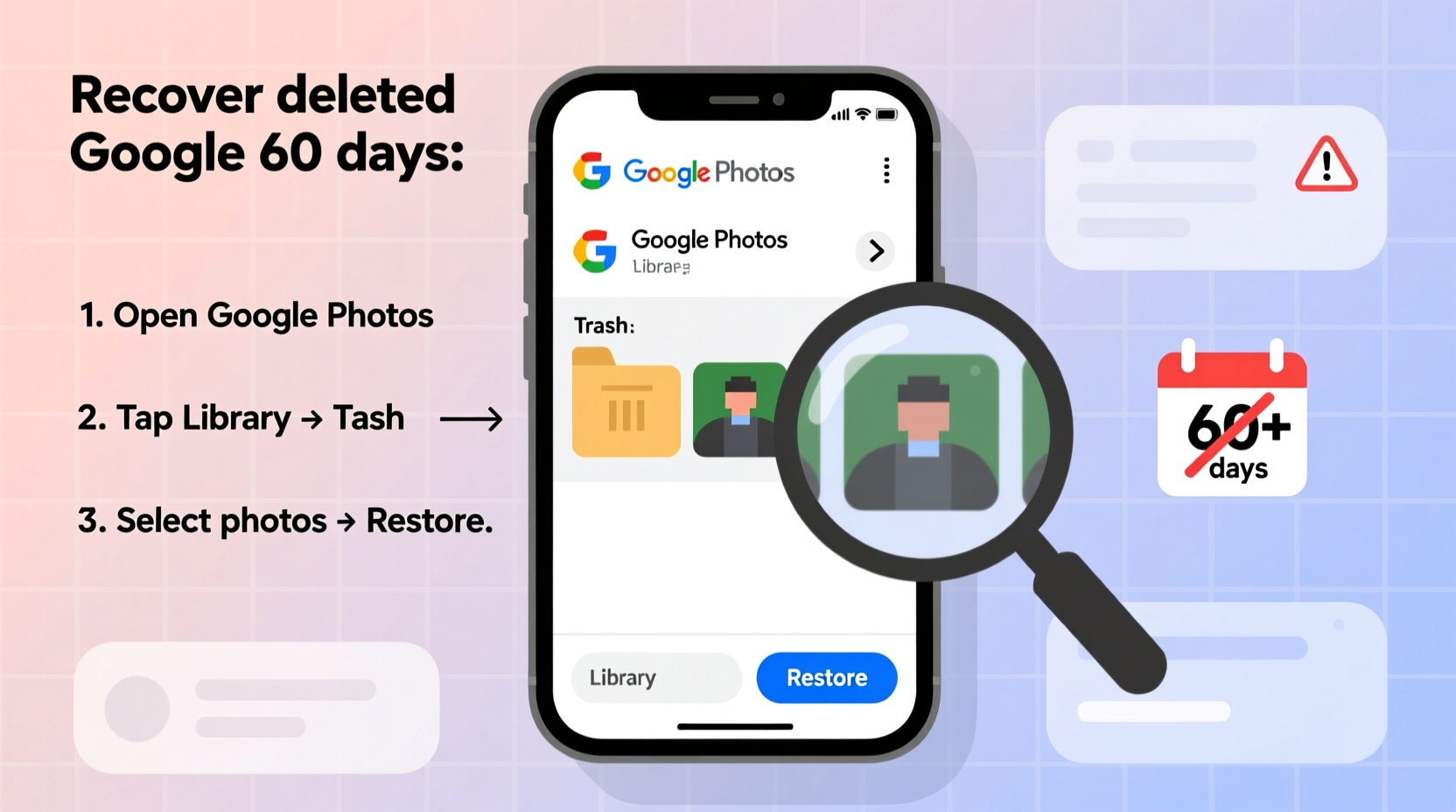
Google Photos automatically moves deleted items to the Trash folder, where they remain for exactly 60 days. After that period, they are permanently erased from Google’s servers. This policy applies whether you deleted the photo manually or if it was removed during a cleanup process. Once purged, these files are no longer accessible through standard account recovery options.
However, “permanently deleted” doesn’t always mean “completely unrecoverable.” The key lies in understanding where else copies of your photos might exist. Google may retain certain metadata or cached versions for internal purposes, but users cannot access them directly. Your best chance of recovery depends on secondary sources: local device storage, alternative cloud backups, or synchronized devices.
Step-by-Step Recovery Methods Beyond 60 Days
Even after the 60-day grace period, follow this structured approach to maximize your chances of recovering lost photos.
- Check Other Devices: If you used multiple devices (phone, tablet, laptop) with Google Photos synced, one of them may still have a local copy. Navigate to the device’s gallery app or file manager and search for the missing images under folders like
DCIM,Pictures, orDownload. - Review Linked Google Accounts: Did you use a different Google account for backups? Some users manage personal and work profiles separately. Log into each associated account and check both the main album and Trash section in Google Photos.
- Search Gmail Attachments: Many people send photos via email. Use Gmail’s search bar with keywords like
photo,image, or specific dates. Try searching:has:attachment before:2023/04/01 after:2023/03/01to narrow results. - Inspect Third-Party Cloud Services: If you used Dropbox, OneDrive, iCloud, or Samsung Cloud, those platforms may have mirrored your media independently. Sign in and perform a keyword or date-based search.
- Recover from Local Backups (Android): On Android devices running Samsung, Pixel, or OnePlus phones, built-in backup features sometimes preserve media even after cloud deletion. Check settings under Backup & Restore or manufacturer-specific apps like Samsung Smart Switch.
- Use File Recovery Software (if recently overwritten): If the photo was stored locally and the device hasn't been heavily used since deletion, tools like DiskDigger (for rooted Android) or Recuva (Windows) might scan residual data fragments.
Case Study: Recovering Family Vacation Photos After 78 Days
Sarah, a freelance photographer, accidentally deleted a full album of her family’s Hawaii trip. She didn’t notice until 78 days later—well past Google’s 60-day retention window. Initially devastated, she methodically followed recovery steps. First, she checked her old Samsung Galaxy phone, which had stopped syncing months earlier due to storage issues. To her surprise, the DCIM/Camera folder still contained over 200 untouched JPEGs from the trip. Though some were duplicates, nearly all critical shots were recovered. Sarah then transferred them to a new external drive and set up automated monthly backups using Google Drive and a NAS system. Her experience highlights a crucial truth: local device lag can become a digital lifeline.
“Most permanent deletions aren’t truly gone—they’re just disconnected from user access points. The earlier you act, the higher the chance of finding remnants elsewhere.” — Dr. Alan Reyes, Digital Forensics Analyst at CyberTrace Labs
Data Recovery Tools: When and How to Use Them
If no secondary cloud or device holds your photos, consider specialized recovery software. These tools work by scanning unallocated disk space for traces of deleted files. Success depends on whether the original data blocks have been overwritten.
For mobile devices:
- DiskDigger (Android): Requires root access for full functionality but offers a basic scanner without rooting. It can recover photos from internal storage and SD cards.
- PhotoRec (Cross-platform): Open-source and powerful, though command-line based. Works best for advanced users willing to connect their device to a PC via USB debugging.
For computers:
- Connect your smartphone or SD card to a computer.
- Use Recuva (Windows) or TestDisk (Mac/Linux) to perform a deep scan.
- Preview recoverable files and save them to a different drive to avoid overwriting.
| Tool | Platform | Root/Jailbreak Required? | Success Rate (Post-60 Day) |
|---|---|---|---|
| DiskDigger | Android | Yes (for full scan) | Moderate – High (if device unused) |
| PhotoRec | Windows, Mac, Linux | No | High (with proper setup) |
| Recuva | Windows | No | Moderate |
| iMyFone D-Back | iOS, Android | No | Low – Moderate (paid tool) |
Prevention Checklist: Secure Your Photos Before They’re Gone
Recovery is uncertain and often stressful. A proactive strategy significantly reduces future risk. Follow this checklist to safeguard your visual memories:
- ✅ Enable auto-backup in Google Photos with high-quality or original quality setting.
- ✅ Link your phone to a second cloud provider (e.g., iCloud for iOS, OneDrive for Android).
- ✅ Export yearly archives to an encrypted external hard drive.
- ✅ Label and organize albums with descriptive titles and dates.
- ✅ Review Trash regularly and restore anything questionable within 50 days.
- ✅ Set calendar reminders every 45 days to verify backup status across devices.
- ✅ Disable automatic deletion rules unless absolutely necessary.
Frequently Asked Questions
Can Google support restore my photos after 60 days?
No. Google explicitly states that once items are removed from the Trash after 60 days, they cannot be retrieved—even by customer support. Their systems are designed to permanently erase such data for privacy and compliance reasons.
Is it possible to recover photos from a factory-reset phone?
It’s extremely difficult, but not entirely impossible. If the phone wasn’t encrypted or the reset was recent, forensic tools like Cellebrite or commercial-grade software may extract residual data. However, success rates are low, and professional services can cost hundreds of dollars.
Do Google Takeout archives include deleted photos?
No. Google Takeout only exports content currently in your active library. If the photos were already deleted before creating the archive, they won’t appear. However, if you ran a Takeout backup *before* deletion, that downloaded ZIP file could contain the missing images.
Expert Insight: The Reality of Digital Memory Preservation
In the age of cloud convenience, many assume their photos are invulnerable. But experts warn against complacency. According to Dr. Lena Patel, a digital archivist at the University of Michigan:
“Cloud services are reliable—but they’re not infallible. Relying solely on one platform is like keeping all your money in a single bank with no insurance. True digital resilience comes from redundancy: multiple copies, multiple locations, and regular verification.” — Dr. Lena Patel, Digital Archiving Researcher
She recommends treating digital photos like valuable documents: store them in at least three places—primary cloud, local device, and offline storage—and validate integrity annually.
Conclusion: Act Now, Protect Forever
Recovering deleted photos from Google Photos after 60 days is a long shot—but not a hopeless one. While Google’s system is designed to erase permanently, your personal ecosystem of devices, emails, and backups might still hold the key. The methods outlined here—from checking dormant smartphones to using forensic tools—offer real pathways to restoration. More importantly, this experience should serve as a wake-up call. Digital memories deserve more protection than we often give them.
Don’t wait for another loss. Today, take five minutes to back up your current library to an external drive or secondary cloud. Enable notifications for sync failures. Name and organize your albums. Small habits now can prevent heartbreak later. Your future self will thank you.




 浙公网安备
33010002000092号
浙公网安备
33010002000092号 浙B2-20120091-4
Comments
No comments yet. Why don't you start the discussion?