
In fast-paced competitive gaming, every millisecond counts. A fraction of a second delay or a smudged visual cue can mean the difference between victory and defeat. One of the most overlooked yet critical factors affecting performance is motion blur—a phenomenon that softens moving images, making them appear smeared across the screen. While some monitors are designed with high refresh rates and low response times, motion blur can still degrade clarity during rapid movements. Understanding how to minimize this effect isn’t just about enhancing visuals; it’s about sharpening reaction time, improving target tracking, and gaining a tangible advantage over opponents.
Motion blur stems from multiple sources: pixel response limitations, sample-and-hold display technology, and even software-based post-processing effects. Fortunately, modern monitors and graphics cards offer tools and settings to combat these issues. By adjusting hardware configurations, enabling specific technologies, and optimizing system performance, gamers can significantly reduce perceived motion blur and achieve crisper, more responsive gameplay.
Understanding Motion Blur: Why It Matters in Gaming
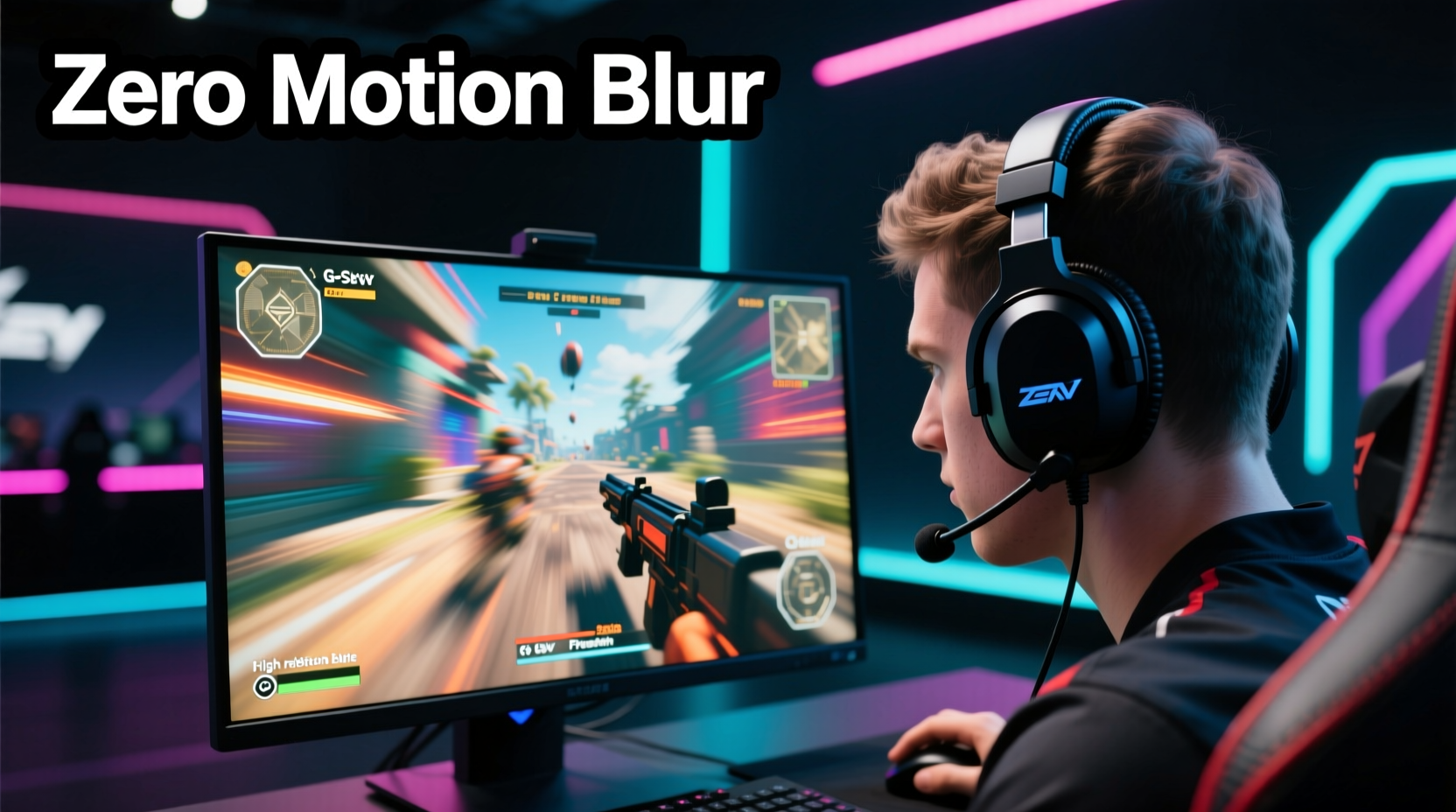
Motion blur in gaming isn’t the same as cinematic motion blur added for artistic effect. Instead, it refers to the trailing or ghosting of fast-moving objects on screen due to physical and technical constraints of display panels. This becomes especially apparent in titles like first-person shooters (FPS), racing simulators, and fighting games where quick directional changes dominate.
The root causes include:
- Poor pixel response time: If pixels take too long to transition between colors, they leave behind trails.
- Sample-and-hold effect: Unlike CRT displays that flash images briefly, LCDs hold each frame continuously, creating persistence that the brain interprets as blur.
- Frame rate inconsistencies: Stuttering or fluctuating FPS disrupts smooth motion perception.
- Software-based blur filters: Some games apply artificial motion blur to simulate realism, which harms competitive clarity.
Reducing motion blur means addressing both hardware capabilities and software settings. The goal is not only visual fidelity but improved temporal precision—helping players perceive movement more accurately and react faster.
“Top-tier esports athletes often use monitors with aggressive overdrive and strobing because even slight motion clarity improvements translate into measurable gains.” — Daniel Ruiz, Display Technology Analyst at FrameTime Labs
Step-by-Step Guide to Minimize Motion Blur
Eliminating motion blur requires a systematic approach combining monitor settings, GPU configuration, and game-specific adjustments. Follow this step-by-step process to optimize your setup:
- Disable in-game motion blur effects: Navigate to the graphics settings of your game and turn off any option labeled “Motion Blur,” “Camera Blur,” or “Dynamic Blur.” These are purely aesthetic and serve no functional purpose in competitive play.
- Enable Overdrive (Response Time Acceleration): Access your monitor’s OSD (On-Screen Display) menu and locate the “Overdrive” or “Response Time” setting. Choose “Fast” or “Extreme” mode—but avoid “Too High” if available, as excessive overdrive can cause inverse ghosting.
- Activate Adaptive Sync: Turn on G-Sync (NVIDIA) or FreeSync (AMD) to eliminate screen tearing and reduce input lag, allowing smoother frame delivery aligned with your monitor’s refresh rate.
- Use ULMB or ELMB if supported: For compatible monitors, enable NVIDIA Ultra Low Motion Blur (ULMB) or AMD Equivalent Low Motion Blur (ELMB). These strobe backlighting to mimic CRT-like impulse rendering, drastically reducing perceived blur.
- Maximize frame rate stability: Ensure your PC consistently delivers frames above your monitor’s refresh rate. Use tools like NVIDIA Control Panel or AMD Radeon Software to cap FPS slightly below max refresh (e.g., 237 FPS on a 240Hz display) to prevent tearing without V-Sync delays.
- Adjust backlight settings: On certain high-end monitors, look for “Backlight Strobing” or “LightBoost” equivalents. These reduce persistence by pulsing the backlight, though they may dim overall brightness.
- Optimize Windows and driver settings: Disable fullscreen optimizations in game executables, update GPU drivers regularly, and set power plans to “High Performance” to maintain consistent rendering output.
Monitor Technologies That Reduce Motion Blur
Not all monitors handle motion clarity equally. When purchasing or evaluating your current display, consider these key technologies:
| Technology | How It Helps | Considerations |
|---|---|---|
| OLED Panels | Near-instantaneous pixel response (~0.1ms) eliminates ghosting and smear. | Higher cost; risk of burn-in with static HUDs. |
| IPS with Fast Response | Modern variants (e.g., Nano IPS, OLED-class IPS) offer 1–3ms GTG response. | May require careful overdrive tuning to avoid artifacts. |
| VA with MPRT Reduction | Some VA panels support backlight strobing to lower perceived blur. | Slower native response than IPS; best used with strobing enabled. |
| NVIDIA ULMB / AMD ELMB | Strobes backlight to shorten frame visibility, reducing persistence blur. | Only works with fixed refresh rates; reduces brightness. |
| BenQ ZOWIE DyAc / DyAc+ | Proprietary backlight scanning that enhances motion clarity in CS:GO and similar titles. | Exclusive to BenQ gaming monitors. |
Among these, OLED currently leads in motion clarity due to its self-emissive pixels and near-zero response time. However, IPS panels with proper overdrive and strobing remain excellent alternatives for most competitive gamers.
Real-World Example: Competitive FPS Player Optimization
Take the case of Alex Tran, a semi-professional *Counter-Strike 2* player competing in regional leagues. He struggled with inconsistent flick shots and difficulty tracking fast strafing enemies despite having a strong mechanical skill set. After reviewing his setup, he discovered two major issues: his monitor’s overdrive was set to “Normal,” and the game had motion blur enabled by default after an update.
Alex followed the optimization steps outlined above:
- Disabled in-game motion blur.
- Set overdrive to “Extreme” after testing with Blur Busters’ animation tests.
- Upgraded from a 144Hz TN panel to a 240Hz IPS model with G-Sync Compatible certification.
- Began using NVIDIA Reflex to reduce system latency.
Within days, he reported sharper visual feedback during rapid mouse movements and improved consistency in headshot accuracy. His K/D ratio increased by 18% over the next month, which he attributes largely to enhanced motion clarity allowing faster visual processing.
This example illustrates that even subtle reductions in motion blur can compound into measurable performance gains—especially when combined with other low-latency optimizations.
Essential Checklist for Reducing Motion Blur
Use this checklist to ensure you’ve covered all bases in minimizing motion blur:
- ☑ Turn off in-game motion blur in all competitive titles.
- ☑ Enable and fine-tune monitor overdrive (avoid over-shooting).
- ☑ Activate G-Sync/FreeSync for tear-free, fluid motion.
- ☑ Enable ULMB/ELMB if your monitor supports it.
- ☑ Maintain stable frame rates above your refresh rate.
- ☑ Use high-refresh-rate monitors (144Hz or higher).
- ☑ Consider upgrading to OLED or fast IPS if still experiencing smear.
Frequently Asked Questions
Can I reduce motion blur without buying a new monitor?
Yes. Start by disabling in-game motion blur, enabling overdrive, activating adaptive sync, and stabilizing your frame rate. Many users see dramatic improvements without hardware upgrades. Tools like NVIDIA Reflex or AMD Anti-Lag also help reduce system-induced delays that worsen perceived blur.
Does lowering resolution reduce motion blur?
Not directly. Lowering resolution may increase frame rates, leading to smoother motion, but it doesn’t affect pixel response or persistence blur. In fact, running too low a resolution on a high-DPI display can introduce blurriness due to upscaling. Aim for native resolution with maximum FPS instead.
Is motion blur ever useful in gaming?
In single-player narrative or cinematic games, motion blur can enhance immersion by mimicking real-world camera behavior. However, in competitive multiplayer environments, it degrades precision and reaction speed. It should always be disabled for esports or skill-based gameplay.
Conclusion: Sharpen Your Edge, Frame by Frame
Reducing motion blur is not merely a cosmetic upgrade—it's a strategic enhancement that sharpens visual perception and tightens the connection between action and reaction. Whether you're dodging sniper crosshairs, landing precise flick shots, or navigating high-speed chases, every improvement in motion clarity brings you closer to peak performance. The right combination of settings, hardware, and awareness transforms your monitor from a passive window into an active tool of competition.
You don’t need the most expensive gear to benefit. Start today by auditing your current setup: disable unnecessary blur effects, tune your response settings, and prioritize frame rate stability. Small changes yield real results. As technology evolves, so should your understanding of what drives competitive advantage—not just raw specs, but how those specs interact with human perception and reflex.




 浙公网安备
33010002000092号
浙公网安备
33010002000092号 浙B2-20120091-4
Comments
No comments yet. Why don't you start the discussion?