
Motion sickness in virtual reality (VR) remains one of the most common barriers to immersive experiences. Despite rapid advancements in headset technology, many users still report dizziness, nausea, and disorientation during or after VR sessions. This phenomenon—often called “cybersickness”—occurs when visual input from the headset conflicts with signals from the inner ear and body. Unlike physical motion, where your senses align, VR can trick your brain into perceiving movement that isn’t happening, leading to discomfort. The good news is that motion sickness in VR is not inevitable. With proper setup, behavioral adjustments, and gradual adaptation, most users can significantly reduce or even eliminate symptoms. This guide delivers actionable, expert-backed advice to help you enjoy VR safely and comfortably.
Understanding the Causes of VR Motion Sickness
Before addressing solutions, it’s essential to understand what triggers motion sickness in VR. The primary culprit is sensory mismatch: your eyes see motion, but your vestibular system (inner ear) detects stillness. This disconnect confuses the brain, which may interpret it as a sign of poisoning—triggering nausea as a protective response.
Additional contributing factors include:
- Latency: Delay between head movement and visual update causes lag, increasing dissonance.
- Frame rate: Low or inconsistent frame rates disrupt visual fluidity, making motion appear jittery.
- Field of view (FOV): Wider FOVs increase immersion but also amplify perceived motion.
- Artificial locomotion: Teleportation, smooth movement, or turning mechanics that don’t match real-world physics heighten discomfort.
Not everyone is equally susceptible. Factors such as age, gender, prior experience with motion-based media, and individual neurology play roles. However, even sensitive users can improve tolerance over time with the right approach.
Optimize Your Hardware and Settings
The foundation of a comfortable VR experience begins with properly configured equipment. Even minor misalignments or suboptimal settings can exacerbate motion sickness.
Adjust Interpupillary Distance (IPD)
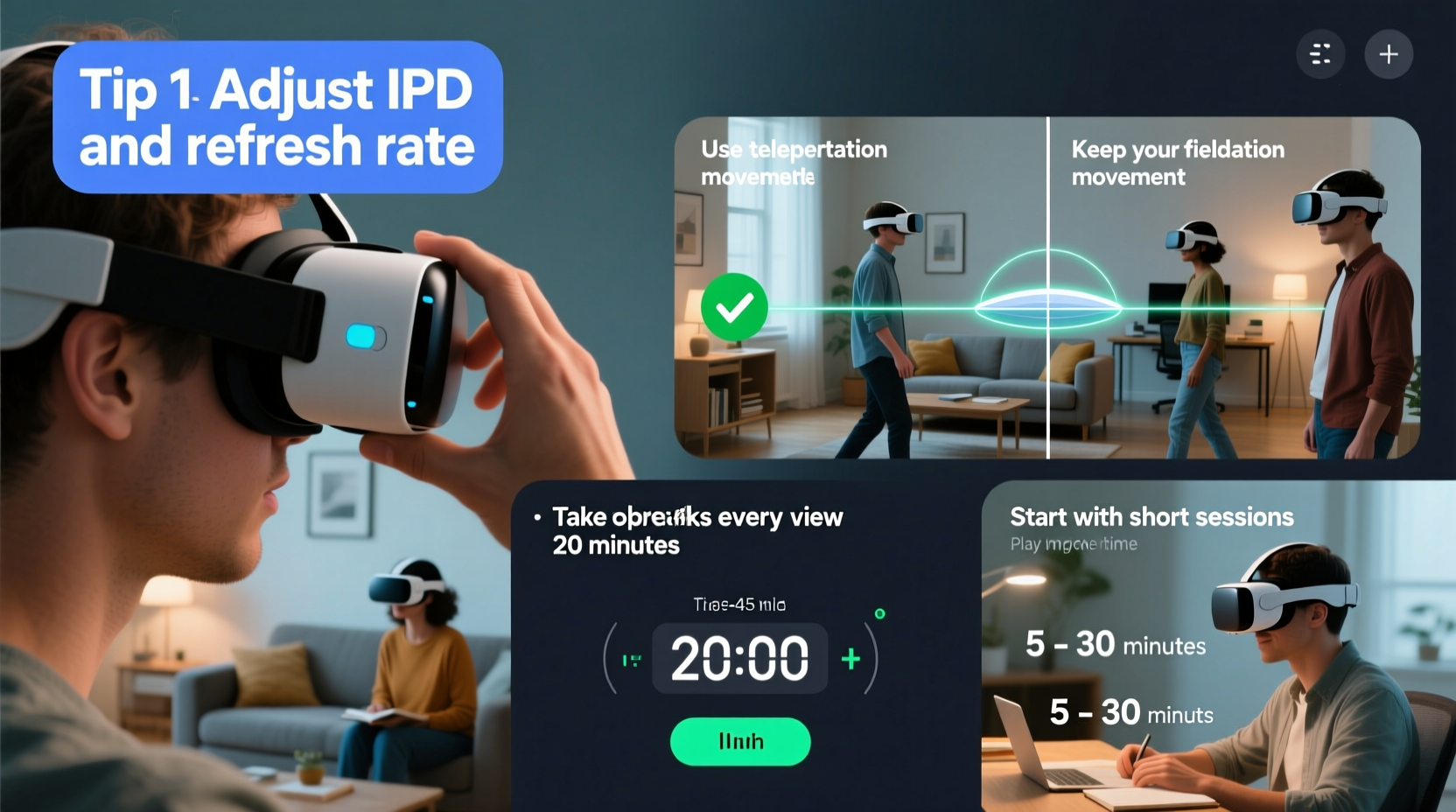
Your IPD—the distance between your pupils—must match your headset’s setting. Incorrect IPD causes blurry visuals and eye strain, both of which contribute to discomfort. Most modern headsets offer adjustable lenses or software calibration. Use a ruler or an IPD measurement tool to determine your exact distance (average is 58–72mm).
Ensure Proper Fit and Weight Distribution
A poorly fitted headset shifts during use, disrupting tracking and forcing your eyes to compensate. Tighten straps evenly and position the headset so the lenses sit directly in front of your eyes. For heavier models like the Meta Quest 2 or Valve Index, consider a counterweight or halo strap to reduce neck strain.
Maximize Frame Rate and Minimize Latency
Consistent high frame rates (90Hz or higher) are critical. Lower frame rates make motion feel choppy, increasing sensory conflict. Ensure your PC meets recommended specs if using a tethered headset. For standalone devices, close background apps and avoid overheating, which can throttle performance.
| Factor | Ideal Setting | Why It Matters |
|---|---|---|
| Frame Rate | 90 Hz or higher | Reduces visual stutter and improves motion smoothness |
| IPD Setting | Matched to user | Prevents eye strain and blurred vision |
| Tracking Stability | Firm base stations or clear camera view | Ensures accurate head movement translation |
| Play Area Size | At least 6.5 x 5 ft (2 x 1.5 m) | Allows natural movement without constraints |
Adopt Smart Usage Habits and Behavioral Strategies
How you use VR is just as important as the hardware itself. Simple behavioral changes can dramatically reduce discomfort.
Start Slow and Build Tolerance Gradually
Treat VR exposure like physical training. Begin with 10–15 minute sessions in low-motion environments. Over days or weeks, gradually increase duration and intensity. This allows your brain to recalibrate its expectations and adapt to artificial motion cues.
Use Comfort Settings Intentionally
Most VR platforms and games include comfort options designed to minimize sickness:
- Teleportation movement: Replaces continuous motion with instant jumps, reducing perceived acceleration.
- Vignetting: Adds a subtle darkened ring around the periphery during movement, mimicking tunnel vision and reducing peripheral motion cues.
- Fixed reference points: Cockpits in flight simulators or stable UI elements provide visual anchors that stabilize perception.
“Just like sea legs, people can develop ‘VR legs’ through consistent, controlled exposure.” — Dr. Thomas Stoffregen, kinesiology researcher at the University of Minnesota, whose studies show that habituation reduces cybersickness by up to 75% over two weeks.
Avoid Rapid Head Movements
Sudden turns or looking down quickly while moving in-game intensify sensory mismatch. Move your head slowly and deliberately, especially during transitions. Many users find that limiting vertical gaze shifts (like looking straight down at their virtual feet) reduces nausea.
Step-by-Step Guide to Building VR Tolerance
If you're new to VR or have experienced persistent motion sickness, follow this structured timeline to build resilience safely.
- Day 1–3: Use VR seated. Choose non-moving applications (e.g., YouTube VR, Tilt Brush). Limit sessions to 10 minutes. Focus on breathing steadily and keeping your head still.
- Day 4–7: Introduce teleportation-based games (e.g., *Moss*, *The Room VR*). Increase session length to 15–20 minutes. Practice slow head turns and maintain awareness of your real surroundings.
- Week 2: Try limited smooth locomotion with vignetting enabled (e.g., *Arizona Sunshine* on teleport mode). Stay seated. Take 5-minute breaks every 15 minutes.
- Week 3: Transition to standing experiences with room-scale movement. Use wrist-based turning instead of snap-turning if available. Aim for 30-minute total usage per day, split into two sessions.
- Week 4 and beyond: Gradually introduce faster-paced titles. Monitor symptoms closely. If nausea returns, revert to earlier stages for a few days before progressing again.
This phased approach leverages neuroplasticity—the brain’s ability to adapt to new sensory patterns. Rushing the process often leads to setbacks; patience yields lasting results.
Checklist: Pre-Session Preparation to Prevent Motion Sickness
Before launching any VR experience, run through this quick checklist to minimize risk:
- ✅ Ensure the play area is clear, well-lit, and free of tripping hazards.
- ✅ Calibrate IPD and adjust headset fit for sharp, centered visuals.
- ✅ Enable comfort settings (vignetting, teleportation, snap turning).
- ✅ Sit down if you’re new or feeling fatigued.
- ✅ Avoid VR on an empty or overly full stomach—light snacks are best.
- ✅ Stay hydrated but limit caffeine and alcohol before use.
- ✅ Ventilate the room—stuffy air worsens dizziness.
- ✅ Set a timer for 15–20 minutes to avoid overexposure.
Real Example: Overcoming VR Sickness in a Professional Training Program
A corporate VR safety training initiative at a Midwest manufacturing plant initially saw a 40% dropout rate due to motion sickness. Trainees reported headaches and nausea after just 12 minutes in a simulated warehouse environment involving smooth navigation.
The training team revised their protocol based on ergonomics research:
- Introduced seated orientation modules with static views.
- Replaced continuous movement with teleportation.
- Added 5-minute rest intervals between scenarios.
- Provided pre-session guidance on breathing and head movement.
After six weeks of gradual exposure, 89% of participants completed the full curriculum without discomfort. Follow-up surveys showed improved confidence and knowledge retention. This case underscores that even in mandatory VR use, thoughtful design and pacing can overcome physiological barriers.
FAQ: Common Questions About VR Motion Sickness
Can children use VR safely without getting sick?
Children may be more susceptible due to developing vestibular systems. Experts recommend limiting use to short, supervised sessions (under 15 minutes) and choosing age-appropriate, low-motion content. The American Academy of Pediatrics advises against VR for children under 8.
Is there a difference between VR motion sickness and regular motion sickness?
Yes. Traditional motion sickness occurs when you feel movement but can’t see it (e.g., reading in a car). VR sickness is the reverse: you see motion but don’t feel it. This makes VR sickness harder to predict and often more intense due to full-field visual immersion.
Do certain headsets cause less motion sickness?
Generally, headsets with higher refresh rates (90–120Hz), lower persistence displays, and precise tracking (like Valve Index or Meta Quest 3) reduce discomfort. Features like foveated rendering and better optics also contribute to smoother visuals. However, individual sensitivity and content design matter more than hardware alone.
Conclusion: Take Control of Your VR Experience
Motion sickness doesn’t have to limit your access to the growing world of virtual reality. By understanding the science behind cybersickness and applying proven strategies—from hardware optimization to gradual exposure—you can train your body and mind to adapt. Success lies not in enduring discomfort, but in respecting your physiology and progressing at a sustainable pace. Whether you're exploring immersive games, attending virtual meetings, or undergoing therapy, a comfortable VR experience is within reach.




 浙公网安备
33010002000092号
浙公网安备
33010002000092号 浙B2-20120091-4
Comments
No comments yet. Why don't you start the discussion?