
Tablets have become essential tools for work, education, and entertainment. However, one of the most frustrating experiences users face is when their device freezes—especially during a software update. When a tablet gets stuck mid-update, normal operation halts, and standard restarts may not resolve the issue. This guide provides reliable solutions to reset a tablet that repeatedly freezes during updates, whether you're using an Android or iPadOS device. The methods outlined here are tested, safe, and designed to restore functionality without unnecessary data loss.
Understanding Why Tablets Freeze During Updates
Software updates are complex processes that involve downloading new system files, replacing old ones, and reconfiguring settings. Several factors can interrupt this process and cause a freeze:
- Insufficient battery power: If the tablet shuts down mid-update due to low battery, the system can become corrupted.
- Unstable internet connection: Interruptions during download may result in incomplete or corrupted files.
- Storage limitations: Updates require temporary space. A nearly full device may fail to install properly.
- Firmware bugs: Occasionally, the update itself contains unresolved issues that trigger instability.
- Hardware limitations: Older tablets may struggle to handle newer OS demands, leading to crashes.
When these issues occur, the device might display a frozen screen, loop endlessly on a logo, or refuse input. In such cases, a simple reboot won’t suffice. You need targeted reset techniques to regain control.
Step-by-Step Guide to Force Restart Your Tablet
A force restart (also known as a hard reset) is the first action to take when your tablet freezes. Unlike a regular restart, this method bypasses the operating system and directly signals the hardware to reboot. It doesn't erase data but can clear temporary glitches.
For Android Tablets
The key combination varies slightly by manufacturer:
- Press and hold the Power button and Volume Down button simultaneously.
- Keep holding for 10–15 seconds, even if the screen appears unresponsive.
- Release when you see the manufacturer’s logo or recovery menu.
Note: On Samsung Galaxy Tabs, some models use Power + Volume Down; others may require Power + Volume Up. Check your model’s manual if unsure.
For iPads (iPadOS Devices)
iPad models differ based on whether they have a Home button:
- iPad with Home Button: Press and hold the Top (or Side) button and the Home button until the Apple logo appears (~10 seconds).
- iPad without Home Button: Quickly press and release the Volume Up button, then the Volume Down button, then press and hold the Top button until the Apple logo shows.
If the device responds after this process, proceed immediately to check for update status in Settings. If it still freezes or loops, move to advanced reset methods.
Using Recovery Mode to Reset the Tablet
When a force restart fails, recovery mode allows deeper intervention. This built-in feature lets you reinstall firmware or perform a factory reset directly from the bootloader.
Entering Recovery Mode on Android Tablets
- Power off the tablet completely.
- Press and hold Power + Volume Up (varies by brand—Samsung often uses Power + Volume Up + Bixby).
- Release the Power button when the logo appears but continue holding Volume Up.
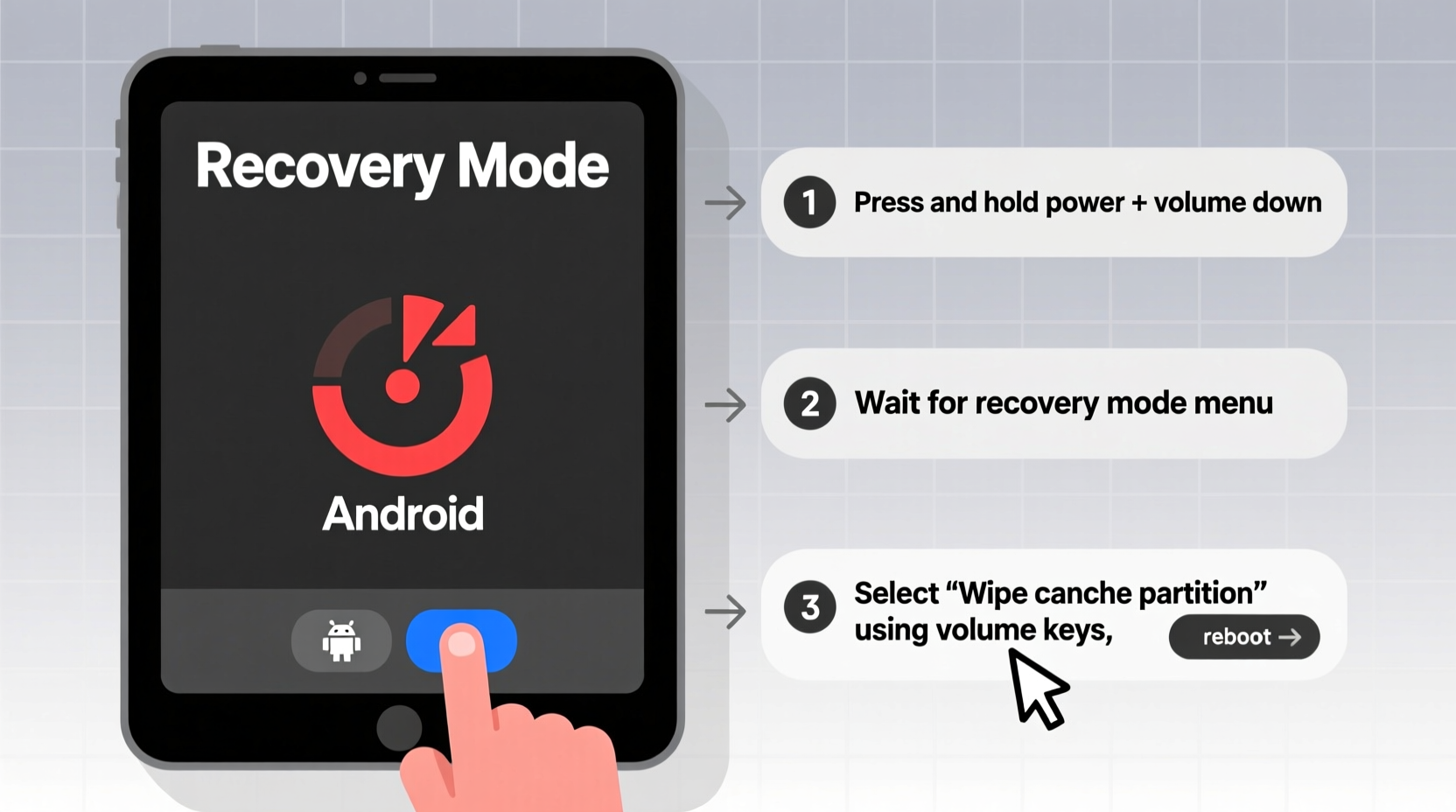
- Use volume keys to navigate to “Recovery Mode” and select with the Power button.
- In recovery, choose “Wipe cache partition” first to avoid data loss.
- If that fails, select “Factory reset” (note: this erases all user data).
After resetting, the tablet will reboot and begin setup again. Ensure you’ve backed up critical data beforehand if possible.
Restoring an iPad via Recovery Mode
iPad recovery requires a computer and iTunes (Windows/macOS) or Finder (macOS Catalina and later):
- Connect the iPad to a trusted computer using a USB cable.
- Open iTunes or Finder.
- Put the iPad into recovery mode:
- Press and release Volume Up.
- Press and release Volume Down.
- Press and hold the Top button until the recovery screen (cable and iTunes icon) appears.
- In iTunes/Finder, choose “Restore” (not Update) to reinstall iOS completely.
- Wait for the process to complete—this may take 15–30 minutes.
Apple emphasizes that Restore mode downloads the latest compatible firmware and reinstalls it cleanly, which often resolves update-related corruption.
“Recovery mode is a last line of defense when software becomes unstable. It’s not just for resets—it’s a diagnostic tool.” — Jordan Lee, Senior Mobile Systems Engineer at TechFix Labs
Troubleshooting Table: Common Freeze Scenarios & Solutions
| Scenario | Likely Cause | Solution |
|---|---|---|
| Stuck on boot logo after update attempt | Corrupted system partition | Boot into recovery and wipe cache or restore OS |
| Screen unresponsive, no vibration on button press | Complete system lockup | Force restart using correct button combo |
| Update downloads but fails to install | Insufficient storage or bad file integrity | Free up space, clear download cache, retry |
| Device reboots repeatedly after partial update | Firmware mismatch or interrupted write process | Use computer-based restore (iTunes/Finder or Samsung Smart Switch) |
| Charging but won’t turn on after freeze | Battery protection mode or deep discharge | Charge for 30+ minutes, then attempt force restart |
Mini Case Study: Recovering a Frozen Samsung Galaxy Tab S7+
Mark, a high school teacher, downloaded an Android 13 update overnight. The next morning, his Galaxy Tab S7+ was stuck on the Samsung logo, cycling every 20 seconds. He tried pressing the Power button, but nothing changed.
Following online guidance, he attempted a force restart using Power + Volume Down. No response. He charged the device for an hour, suspecting battery drain. After charging, the same cycle continued.
He then accessed recovery mode using Power + Volume Up. From there, he selected “Wipe cache partition.” The process took under two minutes. Upon reboot, the tablet booted normally and resumed the update installation successfully.
This case illustrates that sometimes, the fix isn’t drastic. Clearing the cache resolved a conflict caused by incomplete update files, avoiding a full factory reset and data loss.
Checklist: What to Do When Your Tablet Freezes During an Update
Follow this sequence to maximize success while minimizing data risk:
- ✅ Ensure the tablet has sufficient charge (plug in if below 30%)
- ✅ Attempt a force restart using the correct button combination
- ✅ Wait 10–15 minutes—some freezes resolve themselves after processing delays
- ✅ Boot into recovery mode and wipe the cache partition (Android)
- ✅ For iPads, connect to a computer and enter recovery via iTunes/Finder
- ✅ If necessary, perform a factory reset or full OS restore
- ✅ After recovery, reinstall apps and restore from backup if available
Proceed through each step methodically. Skipping to a factory reset too soon may lead to unnecessary data loss when simpler fixes could work.
FAQ: Common Questions About Resetting Frozen Tablets
Will a factory reset delete everything on my tablet?
Yes. A factory reset erases all user-installed apps, accounts, photos, messages, and settings. Data synced to cloud services (Google, iCloud) can usually be restored afterward, but locally stored files not backed up will be lost permanently.
Can I recover data after a failed update?
If the device remains unbootable and you didn’t back up, professional data recovery services may retrieve information via chip-off techniques—but these are expensive and not guaranteed. Regular backups are strongly advised.
How long should I wait before assuming the tablet is frozen?
If the update screen or logo remains unchanged for more than 20 minutes, and there’s no activity indicator (spinning wheel, progress bar), assume it’s frozen. Short pauses during updates are normal, especially on older devices.
Preventing Future Update Freezes
Once your tablet is functional again, take preventive steps to avoid recurrence:
- Back up regularly: Use Google Drive, iCloud, or external storage to preserve data.
- Update during off-peak hours: Choose times when you can monitor the process and ensure uninterrupted power.
- Clear storage space: Delete unused apps and media before updating—aim for at least 2GB free.
- Use original chargers: Third-party chargers may not provide stable voltage, increasing crash risk.
- Delay non-critical updates: If stability is a priority, wait a few days after an OS release to let early adopters report bugs.
“Updating a tablet is like performing surgery on its brain. Preparation reduces complications.” — Dr. Lena Patel, Digital Device Consultant
Conclusion
A tablet freezing during an update is alarming, but it’s rarely permanent. With the right approach—starting with a force restart and progressing to recovery mode—you can restore functionality in most cases. Understanding your device’s specific reset procedures, maintaining backups, and acting calmly under pressure are key to navigating these situations successfully. Don’t rush to factory reset unless absolutely necessary; often, simpler solutions exist.




 浙公网安备
33010002000092号
浙公网安备
33010002000092号 浙B2-20120091-4
Comments
No comments yet. Why don't you start the discussion?