
Network issues can be frustrating—slow internet, dropped Wi-Fi connections, or devices failing to connect at all. Often, the recommended fix is to reset network settings. But many users hesitate, fearing they’ll lose photos, messages, apps, or other personal information. The good news: resetting network settings does not erase your personal data. It only clears saved networks, Bluetooth pairings, and related configurations. Understanding exactly what happens—and what stays intact—empowers you to troubleshoot confidently without fear of permanent loss.
This guide walks through how to safely reset network settings across major platforms—Android, iOS, Windows, and macOS—while preserving your files, accounts, and preferences. You’ll also learn when a reset is appropriate, what to expect afterward, and how to avoid common pitfalls.
What Happens When You Reset Network Settings?
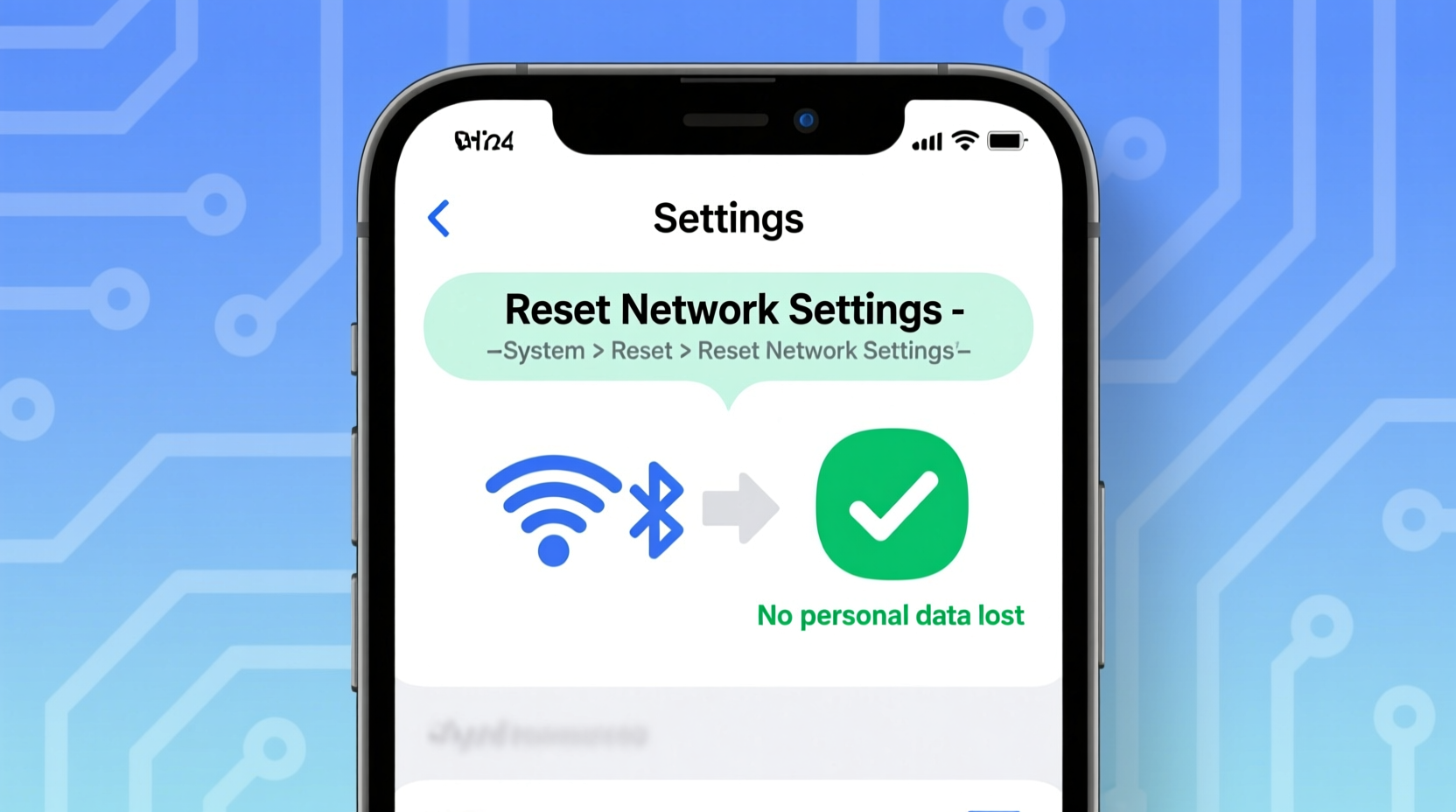
Resetting network settings returns your device’s connectivity functions to their factory defaults. This includes removing stored Wi-Fi networks and passwords, cellular settings, virtual private networks (VPNs), and paired Bluetooth devices. On some systems, it may also reset IP configurations, DNS settings, and proxy settings.
Crucially, this process does not touch your personal data such as:
- Photos, videos, and documents
- Contact lists (though sync may temporarily pause)
- Emails, messages, and call logs
- Installed apps and app data
- Account logins (unless manually removed)
The reset targets only the communication layer between your device and external networks. Think of it like restarting your router—it clears glitches in the connection pipeline but doesn’t affect the contents of your hard drive.
Step-by-Step Guide for Each Platform
Different operating systems handle network resets differently. Below are detailed instructions for the most common platforms.
Android Devices
- Open the Settings app.
- Navigate to System > Reset options (on newer devices) or General Management > Reset (Samsung).
- Select Reset Wi-Fi, mobile & Bluetooth.
- Confirm the action when prompted.
- Wait for the device to complete the reset and reboot if necessary.
Afterward, you'll need to reconnect to Wi-Fi networks by re-entering passwords and re-pair Bluetooth devices like headphones or smartwatches.
iOS (iPhone and iPad)
- Go to Settings > General.
- Scroll down and tap Transfer or Reset [Device].
- Tap Reset.
- Select Reset Network Settings.
- Enter your passcode if prompted and confirm the reset.
Your iPhone will restart automatically. Once it boots up, Wi-Fi will be turned off—you’ll need to enable it and reconnect to your preferred networks.
Windows PCs
- Click the Start menu and go to Settings.
- Select Network & Internet.
- Scroll down and click Advanced network settings.
- Choose Network reset.
- Click Reset now, then confirm.
Windows will restart your PC and reinstall network adapters. After rebooting, you may need to reconfigure Wi-Fi and Ethernet settings, but all personal files remain untouched.
macOS
macOS doesn’t offer a one-click network reset like iOS or Android, but you can achieve the same result manually:
- Shut down your Mac.
- Turn it back on and immediately press and hold Command + Option + P + R until you hear the startup chime twice (or see the Apple logo appear and disappear twice on newer models).
- This resets the NVRAM/PRAM, which stores network configuration among other settings.
Alternatively, delete network configuration files:
- Open Finder and navigate to
/Library/Preferences/SystemConfiguration/. - Delete the following files (make a backup first if desired):
com.apple.network.eapolclient.configuration.plistcom.apple.wifi.message-tracer.plistNetworkInterfaces.plistpreferences.plist
- Restart your Mac. macOS will regenerate these files with default settings.
This method effectively resets network parameters without affecting user data.
When Should You Reset Network Settings?
A network reset isn’t always the first step—but it’s often effective when simpler fixes fail. Consider it if you experience any of the following:
- Unable to connect to known Wi-Fi networks despite correct password
- Frequent disconnections from home or office networks
- Slow or inconsistent internet speeds unrelated to service provider issues
- Bluetooth devices failing to pair or disconnecting randomly
- Cellular data not activating even with active plan
- VPN configurations no longer functioning after an OS update
Before resorting to a reset, try basic troubleshooting:
- Toggle Airplane Mode on and off
- Reboot the device
- Forget and rejoin the Wi-Fi network
- Check for software updates
If those don’t resolve the issue, a network reset is a logical next step.
“Resetting network settings is one of the safest and most effective ways to resolve persistent connectivity problems. It clears corrupted profiles and misconfigurations that routine reboots can't fix.” — Dr. Alan Reyes, Senior Network Engineer at NetSecure Labs
Do’s and Don’ts of Resetting Network Settings
| Action | Do | Don’t |
|---|---|---|
| Passwords | Write down Wi-Fi passwords before resetting | Assume you’ll remember all network credentials |
| Timing | Perform the reset during low-usage hours | Do it mid-call or during a download |
| Backups | Ensure cloud backups are current | Confuse network reset with factory reset |
| Post-Reset | Reconnect to networks and test speed | Panic if Wi-Fi is off—just turn it back on |
| Security | Re-enable firewalls and security tools | Connect to public Wi-Fi immediately after reset |
Mini Case Study: Resolving Persistent Wi-Fi Drops
Sarah, a freelance graphic designer, relied on her home Wi-Fi for client video calls and large file uploads. Over two weeks, her MacBook Pro began dropping connection every 10–15 minutes, even though other devices worked fine. She restarted the router, toggled Wi-Fi off and on, and deleted and re-added the network—but the problem returned within hours.
She considered a full system restore, which would have cost her time and required reinstalling design software. Instead, she followed a technician’s advice and reset her network configuration by deleting the preference files in /Library/Preferences/SystemConfiguration/. After rebooting, her Mac connected seamlessly and has remained stable for over a month.
The root cause? A corrupted network interface profile created during a failed macOS patch update. The reset cleared the faulty entry and allowed the system to rebuild it correctly—without touching her design projects or personal files.
Checklist: Preparing for a Safe Network Reset
Follow this checklist to ensure a smooth process:
- ✅ Charge your device to at least 50% or plug it in
- ✅ Note down Wi-Fi passwords for frequently used networks
- ✅ Save any unsaved work and close active downloads
- ✅ Disable automatic payments or time-sensitive services temporarily
- ✅ Confirm you’re not confusing “network reset” with “erase all content and settings”
- ✅ Have Bluetooth device manuals nearby (for re-pairing if needed)
- ✅ Verify your iCloud, Google, or Microsoft account is synced
Completing these steps minimizes downtime and ensures you can quickly restore full functionality after the reset.
Frequently Asked Questions
Will I lose my text messages or emails if I reset network settings?
No. Messages and emails are stored either locally on your device or in your cloud account (like Gmail or iCloud). Resetting network settings only affects connectivity configurations, not message databases or email clients.
Why do I need to re-enter Wi-Fi passwords after a reset?
The reset deletes the secure storage of saved network credentials. While the passwords aren’t recoverable automatically, they are usually stored by your router or can be retrieved from another connected device using the same network.
Is a network reset the same as a factory reset?
No. A factory reset erases all data, apps, and settings, returning the device to its original state. A network reset only clears network-related settings and does not remove personal content. Be careful not to select the wrong option in your device settings.
Conclusion: Regain Control Without Risk
Resetting network settings is a powerful yet underutilized tool for resolving stubborn connectivity issues. Armed with the right knowledge, you can perform this reset confidently, knowing your photos, documents, messages, and apps remain completely safe. Whether you're troubleshooting a spotty Wi-Fi signal, fixing Bluetooth pairing errors, or clearing out outdated configurations, this simple procedure can restore seamless connectivity across all your devices.




 浙公网安备
33010002000092号
浙公网安备
33010002000092号 浙B2-20120091-4
Comments
No comments yet. Why don't you start the discussion?