
Smart speakers like the Amazon Echo are central to modern smart homes. They power voice commands, control connected devices, and automate daily tasks through routines. But sometimes, performance issues or connectivity problems require a reset. The fear? Losing carefully crafted routines that streamline your mornings, evenings, and everything in between.
The good news is you don’t have to sacrifice your routines just to fix a glitchy device. With the right approach, you can reset your Amazon Echo—whether soft or factory—while preserving your automation setup. This guide walks you through safe, effective strategies to maintain your routines while restoring your Echo to optimal functionality.
Understanding Echo Resets and Routine Storage
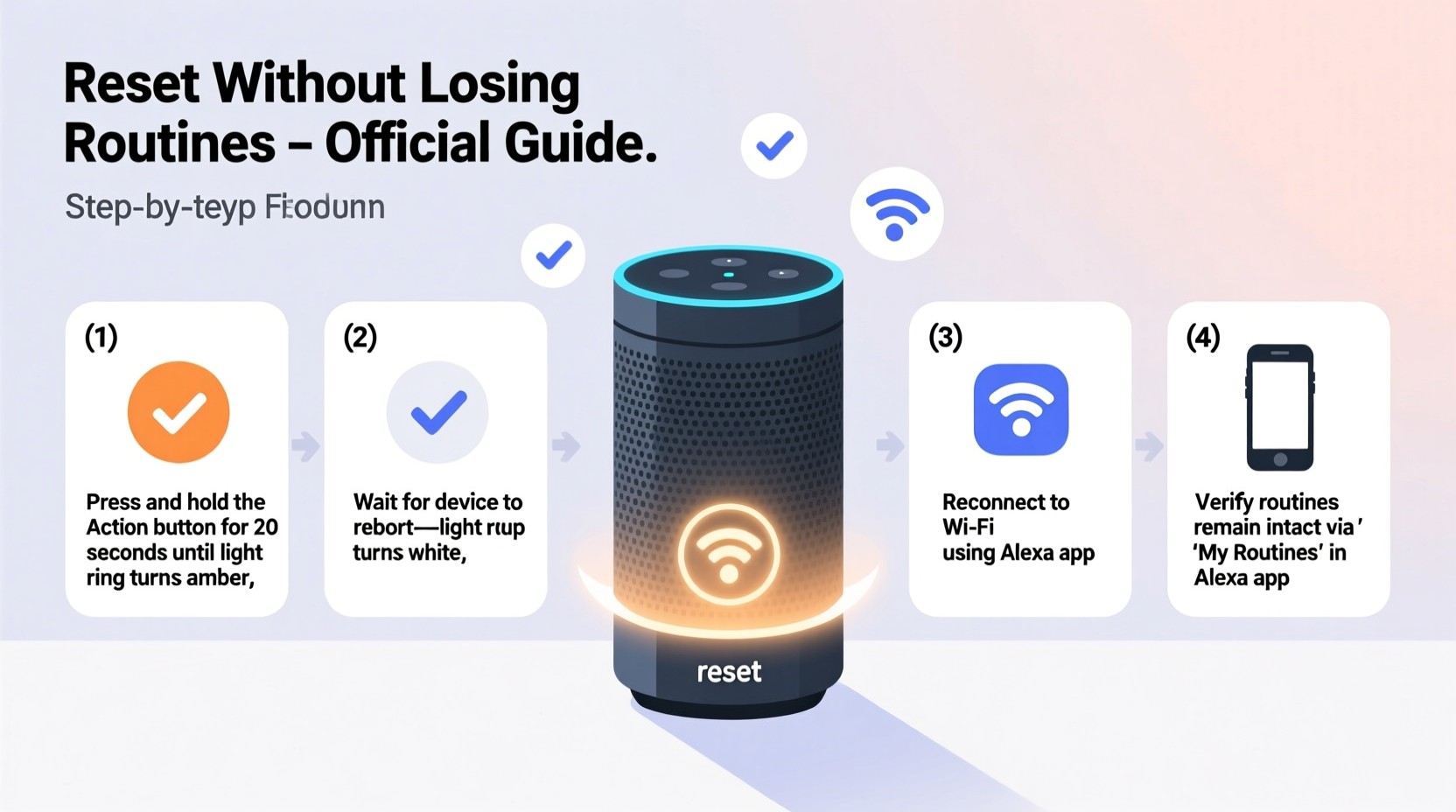
Before resetting your Echo, it’s essential to understand where your routines are stored. Unlike device-specific settings such as Wi-Fi passwords or volume preferences, Alexa routines are saved in the cloud under your Amazon account. This means they’re not tied to a single Echo unit but synced across all compatible devices linked to your profile.
Because routines live in the cloud, a standard reset of your Echo speaker does not erase them. Whether you perform a soft restart or a full factory reset, your routines remain intact in your Alexa app. Once the device reconnects to your account, those automations will reappear and function as before.
“Alexa routines are user-defined sequences stored server-side. Resetting a local device doesn’t affect cloud-based configurations.” — David Lin, Senior IoT Engineer at SmartHome Labs
This architectural design makes resets significantly less risky than they might seem. However, timing, preparation, and post-reset steps play crucial roles in ensuring a seamless recovery.
Types of Echo Resets: What You Need to Know
Amazon Echo devices support two primary types of resets: soft reset and factory reset. Each serves different purposes and has distinct implications for your data and settings.
| Type of Reset | When to Use | Impact on Routines | Recovery Time |
|---|---|---|---|
| Soft Reset (Restart) | Minor glitches, unresponsive wake word, temporary Wi-Fi drop | No impact – routines remain active | Immediate |
| Factory Reset | Device won’t connect, persistent errors, preparing for resale | Routines preserved in cloud; need re-linking after setup | 5–10 minutes to reconfigure |
A soft reset simply powers the device off and on again—similar to rebooting a computer. A factory reset, however, erases all local settings, including Wi-Fi credentials, Bluetooth pairings, and microphone sensitivity adjustments. But again, because routines are cloud-based, they survive both types of resets.
Step-by-Step: How to Perform a Safe Reset Without Losing Routines
Whether you're troubleshooting connectivity or preparing your Echo for a move, follow this detailed process to ensure your routines stay intact.
- Open the Alexa App – Launch the app on your smartphone or tablet and sign in with your Amazon account.
- Navigate to Routines – Tap the \"More\" icon (three horizontal lines), then select \"Routines\" under \"Options.\"
- Review Active Routines – Confirm all your automations are listed. If anything appears missing, recreate it now.
- Document Key Settings – Note down custom phrases, device triggers, and actions so you can verify them post-reset.
- Choose Your Reset Method – Decide whether a soft restart or factory reset is needed based on symptoms.
- Execute the Reset – Use one of the following methods depending on your Echo model.
- Reconnect and Verify – After reset, relink the device and check that routines reappear automatically.
How to Soft Reset Your Echo (Recommended First Step)
A soft reset resolves most minor issues without affecting configuration. It’s non-destructive and takes less than a minute.
For most Echo models:
- Unplug the power adapter from the outlet.
- Wait 30 seconds.
- Plug it back in.
- Wait for the startup chime and blue light ring to appear.
Your Echo will reconnect to Wi-Fi automatically if previously paired. Open the Alexa app to confirm device status and test a routine trigger.
How to Factory Reset Your Echo (When Necessary)
If your Echo fails to respond, won't connect to Wi-Fi, or shows persistent errors, a factory reset may be required. Here’s how to do it safely:
For Echo (3rd Gen and later), Echo Dot, Echo Show:
- Press and hold the Microphone Off and Volume Down buttons simultaneously.
- Hold for about 20 seconds until the light ring turns orange, then white.
- Release when the device says “Resetting” or displays a spinning yellow light.
For older models: Check Amazon’s official support page for button combinations specific to your version.
After reset, the Echo enters setup mode. Follow the prompts in the Alexa app to reconnect to Wi-Fi and sync your account.
Real-World Example: Sarah’s Morning Routine Recovery
Sarah uses her Echo Dot to manage a complex morning routine: lights turn on at 6:45 AM, blinds open gradually, news brief plays, and coffee starts brewing via a smart plug. One day, her Echo stopped responding to voice commands. She feared a reset would erase months of fine-tuned automation.
Instead of jumping into a factory reset, she first tried a soft restart. Unplugging and waiting 30 seconds resolved the issue—the device responded normally upon reboot. Her routines continued running without interruption.
Later, when she upgraded her router and had to reconnect all smart devices, she performed a factory reset on the Echo. Following the app-guided setup, she was surprised to see all her routines instantly restored. The entire process took under eight minutes, and her morning flow resumed seamlessly.
Sarah’s experience highlights a common misconception: that resetting hardware erases software logic. In reality, cloud integration ensures continuity even after full device wipes.
Checklist: Reset Your Echo Safely While Keeping Routines
Use this checklist before, during, and after your reset to minimize risk and ensure smooth operation.
- ✅ Back up routine details by reviewing them in the Alexa app
- ✅ Ensure your mobile device has a stable internet connection
- ✅ Charge your phone or tablet to avoid interruptions during setup
- ✅ Write down Wi-Fi password and account login details
- ✅ Perform a soft reset first unless serious issues persist
- ✅ Use correct button combo for your Echo model during factory reset
- ✅ Reconnect to the same Amazon account after reset
- ✅ Test each routine individually once setup is complete
- ✅ Update firmware if prompted during reconfiguration
- ✅ Enable notifications for future error alerts
Common Mistakes That Can Lead to Routine Loss
While routines are resilient, certain user errors can result in perceived or actual loss. Avoid these pitfalls:
- Signing out of your Amazon account: Logging out during setup disconnects your routines. Always stay signed in.
- Using a different Amazon profile: Accidentally linking the Echo to a secondary household member’s account prevents access to your automations.
- Disabling skills used in routines: If a routine relies on a third-party service (like Philips Hue or Nest), disabling the skill breaks the chain—even if the routine still appears in the app.
- Deleting routines manually: Double-check before removing any automation, especially during cleanup phases.
- Ignoring app updates: Outdated versions of the Alexa app may fail to sync routines properly post-reset.
“Most reported ‘routine loss’ cases stem from misconfigured accounts or disabled integrations—not the reset itself.” — Tech Support Team, Amazon Customer Service
Frequently Asked Questions
Will my Alexa routines disappear if I reset my Echo?
No. Alexa routines are stored in the cloud under your Amazon account, not on the physical device. As long as you log back into the same account after resetting, your routines will reappear automatically.
What should I do if my routines don’t show up after a reset?
First, ensure you’re logged into the correct Amazon account. Then, check your internet connection and force-close and reopen the Alexa app. If routines still don’t appear, go to \"Settings\" > \"Your Devices\" and verify your Echo is properly registered. Finally, manually refresh by pulling down on the Routines screen.
Can I schedule a reset without disrupting my routines?
You cannot schedule a reset directly, but since routines run independently of individual device states (as long as another Echo or app trigger exists), briefly taking one speaker offline won’t stop automations. For example, if you have multiple Echos, resetting one won’t halt a routine triggered by time or motion sensor.
Final Steps: Ensuring Long-Term Stability
After successfully resetting your Echo and restoring functionality, take a few proactive steps to reduce the need for future resets.
- Enable automatic updates: Go to Alexa app > Settings > Device Software to allow background firmware upgrades.
- Monitor device health: Regularly review device status in the app under \"Settings\" > \"Your Devices.\"
- Label your routines clearly: Use descriptive names like “Weekday Morning Light On” instead of generic titles to avoid confusion.
- Create duplicates as backups: Copy critical routines and save them under “Backup - [Routine Name]” in case accidental edits occur.
- Test monthly: Run each routine manually once a month to confirm integrations remain active.
Conclusion: Reset Confidently, Automate Seamlessly
Resetting your Amazon Echo doesn’t mean starting over. With routines securely stored in the cloud, you can troubleshoot, relocate, or refresh your device without sacrificing the personalized automation that makes your home smarter. By understanding the difference between local settings and cloud data, following proper reset procedures, and verifying post-recovery functions, you maintain full control over your smart environment.
The key is preparation—not avoidance. A well-documented routine library, a stable internet connection, and familiarity with your Echo model’s reset method empower you to resolve issues quickly and confidently. Don’t let fear of data loss keep you from maintaining your devices. Reset when needed, restore effortlessly, and keep your smart home running smoothly.




 浙公网安备
33010002000092号
浙公网安备
33010002000092号 浙B2-20120091-4
Comments
No comments yet. Why don't you start the discussion?